1. Nhanganyaya
This manual provides essential information for the proper use and maintenance of your WiMiUS Q4 4K Action Camera. Please read it thoroughly before operating the device to ensure optimal performance and longevity. Keep this manual for future reference.
Chengetedzo Yekuchengetedza
- Usaise kamera munzvimbo dzinopisa zvakanyanya kana kuti pachiedza chezuva kwenguva yakareba.
- Dzivisa kudonhedza kana kuisa kamera kune simba rinokanganisa.
- Chengeta kamera kure neminda ine simba remagineti.
- Ensure the waterproof case is properly sealed before submerging the camera in water.
- Shandisa zvinhu zvakatenderwa uye majaja chete.
2. Chigadzirwa Pamusoroview
Kamera Zvikamu
Familiarize yourself with the main components of your WiMiUS Q4 Action Camera:
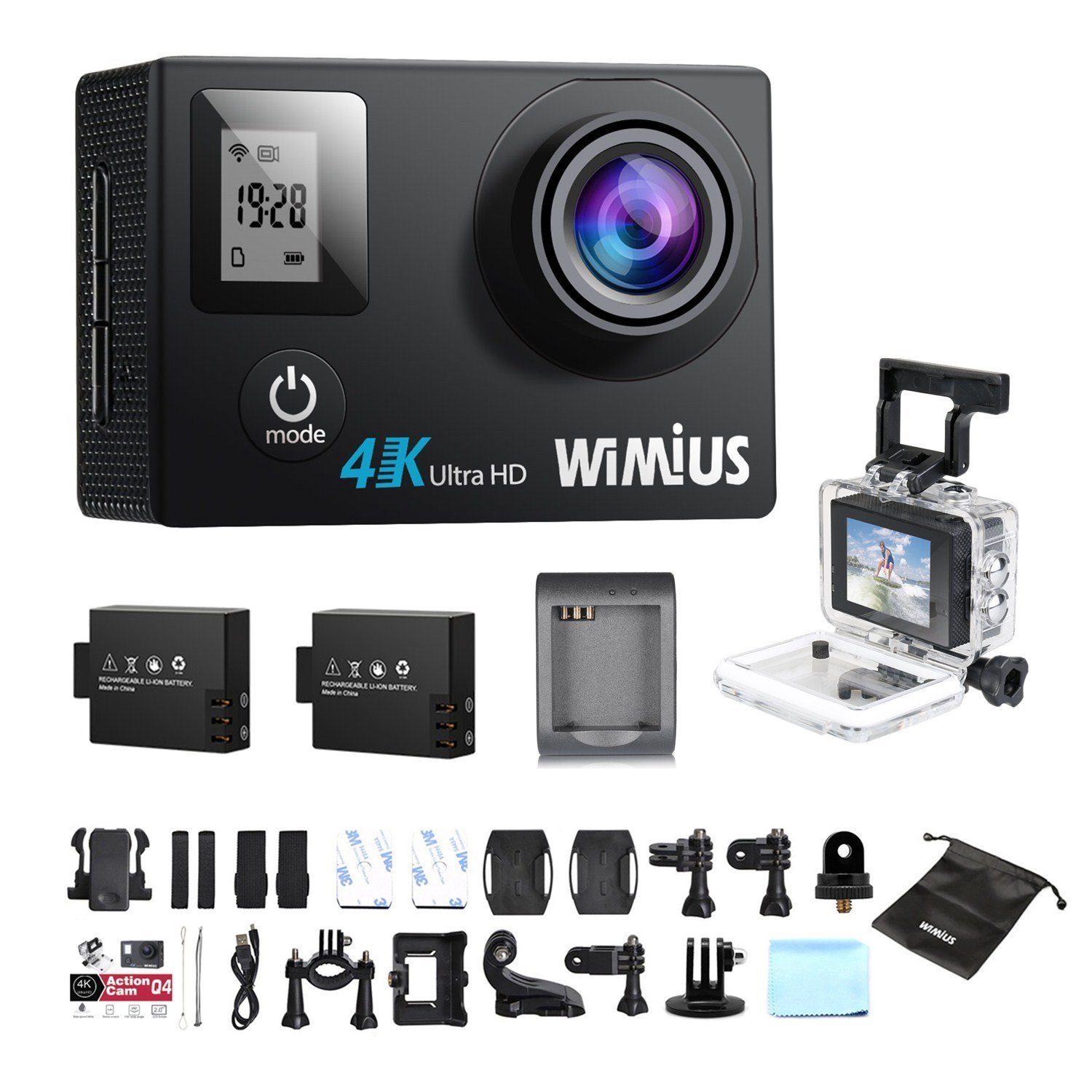
- Lenzi: Captures video and photo footage.
- Simba / Mode Bhatani: Powers the camera on/off and switches between modes.
- Bhatani reShutter/OK: Starts/stops recording, takes photos, or confirms selections.
- Kumusoro / Kuderera Mabhatani: Navigates menu options.
- Main LCD Screen (2.0 inches): Displays live view, playback, and menu interface.
- Status Screen (0.66 inches): Shows current mode, battery status, and recording time.
- Micro USB Chiteshi: Yekuchaja uye kutumira data.
- Micro HDMI Port: Yekubatanidza kune chiratidziro chekunze.
- MicroSD Kadhi Slot: Yekuisa kadhi rekurangarira.
Included Accessories
Your camera comes with a comprehensive kit of accessories:

- Waterproof Case (up to 40M)
- Rechargeable Li-ion Batteries (x2)
- USB Cable
- Various Mounts and Adapters (e.g., helmet mount, bicycle mount)
- Anonamira Mapedhi
- Kuchenesa Mucheka
- Bands and Straps
3. Setup
3.1 Kuiswa kwebhatiri uye kuchaja
- Vhura chifukidziro chebhatiri pasi pekamera.
- Insert a fully charged Li-ion battery, ensuring the correct orientation.
- Vhara chivharo chebhatiri zvakachengeteka.
- To charge, connect the camera to a USB power source (e.g., computer, USB wall adapter) using the provided USB cable. The charging indicator light will illuminate.
- Charging typically takes 2-3 hours. The indicator light will turn off or change color when fully charged.

3.2 MicroSD Kadhi Kuiswa
A MicroSD card (not included) is required for recording. The camera supports up to 64GB Class 10 or UHS-I MicroSD cards.
- Tsvaga nzvimbo yekadhi reMicroSD parutivi rwekamera.
- Insert the MicroSD card with the gold contacts facing the back of the camera until it clicks into place.
- Kuti ubvise, dzvanya kadhi racho zvinyoro-nyoro kusvika rabuda pachena.
- It is recommended to format the MicroSD card in the camera before first use and periodically thereafter to ensure stable recording.
3.3 Waterproof Case Usage
The waterproof case allows the camera to be used up to 40 meters underwater.
- Ensure the camera is dry before placing it inside the waterproof case.
- Close the case firmly, ensuring the rubber seal is clean and free of debris.
- Perform a dry test by submerging the empty case in water for a few minutes to check for leaks before inserting the camera.
3.4 Mounting Accessories
Utilize the various mounts and adapters to attach your camera to helmets, bicycles, or other surfaces. Refer to the accessory diagram for specific attachment methods.
4. Operating Instructions
4.1 Kubatidza/Kudzima
- Power On: Press and hold the Power/Mode button for 3-5 seconds.
- Power Off: Press and hold the Power/Mode button for 3-5 seconds.
4.2 Mode Sarudzo
Press the Power/Mode button repeatedly to cycle through the main modes:
- Vhidhiyo yekurekodha modhi: Indicated by a video camera icon.
- Photo Mode: Indicated by a camera icon.
- Playback Mode: Indicated by a play icon.
- Zvirongwa Menyu: Indicated by a gear icon.
4.3 Kurekodha Vhidhiyo
- Switch to Video Recording Mode.
- Press the Shutter/OK button to start recording. A red indicator light will flash, and the recording time will appear on the screen.
- Dzvanya bhatani reShutter/OK zvakare kuti urege kurekodha.
Video Settings (via Settings Menu)
- Resolution: Select from 4K 30fps, 2.7K 30fps, 1080p 60/30fps, 720p 120/60/30fps.
- Loop Recording: Set to 2min, 3min, 5min, or Off. When enabled, the camera will continuously record, overwriting the oldest files kana memori kadhi yakazara.
- Nguva-Kupera Vhidhiyo: Set intervals (0.5s, 1s, 5s, 10s, 30s, 60s) or Off. The camera will capture frames at set intervals and compile them into a video.
- Slow Motion: Available at 1080p/60fps and 720p/120fps.
4.4 Kutora mafoto
- Switch to Photo Mode.
- Dzvanya bhatani reShutter/OK kuti utore mufananidzo.
Photo Settings (via Settings Menu)
- Resolution: Up to 16 Megapixels.
- Photo Burst: Capture multiple photos in quick succession (e.g., 3P/1S, 5P/1S, 10P/1S).
4.5 WiFi Kubatanidza uye Kushandiswa kweApp
The camera features Wi-Fi connectivity for remote control via a smartphone app.
- Enable Wi-Fi on the camera via the Settings Menu. The Wi-Fi name (SSID) and password will be displayed.
- Download the compatible WiMiUS app from your smartphone's app store (e.g., App Store for iOS, Google Play for Android).
- On your smartphone, connect to the camera's Wi-Fi network using the provided password.
- Open the WiMiUS app to control the camera, view rarama footage, and transfer files.
4.6 Menu Navigation and General Settings
Access the Settings Menu by cycling through modes. Use the Up/Down buttons to navigate and the Shutter/OK button to select.
- Mutauro: Select your preferred language (French is available).
- Zuva/Nguva: Isa zuva nenguva chaiyo. Note: The date/time setting may reset to 2016/09/01 00:00:00 when batteries are changed. This is a known behavior; reset manually after each battery change.
- Mota Yemotokari: (OUI/NON - Yes/No) This mode typically enables automatic recording when the camera detects power, useful for dashcam functionality.
- Fomu Kadhi: Erases all data on the MicroSD card.
- Kudzosera zvazvanga zviri kubva kufakitori: Restores all settings to their default values.
5. Kuchengeta
5.1 Cleaning the Camera and Lens
- Shandisa jira rakapfava, risina mapendekete kuchenesa muviri wekamera.
- For the lens, use a specialized lens cleaning cloth or pen to avoid scratches. Do not use abrasive materials.
- Ensure the camera is off and dry before cleaning.
5.2 Waterproof Case Care
- After each use in water, rinse the waterproof case with fresh water and allow it to air dry.
- Inspect the rubber seal for any dirt, sand, or damage. Clean or replace if necessary to maintain waterproofing.
5.3 Kuchengeta Battery
- Chengetedza mabhatiri munzvimbo inotonhorera, yakaoma kana isiri kushandiswa.
- Do not expose batteries to high temperatures or direct flame.
- Kana uchichengeta kwenguva yakareba, uchaja mabhatiri kusvika pa50%.
5.4 Kuchengeta
When not in use, store the camera and accessories in a protective case to prevent damage from dust and impacts.
6. Kugadzirisa matambudziko
This section addresses common issues you might encounter with your WiMiUS Q4 camera.
| Dambudziko | Zvinogona Kukonzera | Solution |
|---|---|---|
| Kamera haibatike. | Bhatiri rakaderera kana rapera. | Charge the battery fully. Ensure battery is correctly inserted. |
| Haikwanise kurekodha vhidhiyo/kutora mafoto. | No MicroSD card, card full, or card error. | Insert a MicroSD card. Delete old files or replace card. Format the card in the camera. |
| Date/Time resets after battery change. | Standard behavior for this model. | Manually reset the date and time in the settings menu after each battery change. |
| Mufananidzo hauna kunaka kana chiedza chikashoma. | Limitations of the camera sensor in low light conditions. | Ensure adequate lighting. Adjust exposure settings if available. |
| Sound is muffled in waterproof case. | Waterproof case seals the microphone. | This is normal. For better audio, use the camera without the waterproof case in dry conditions. |
| Wi-Fi nyaya dzekubatanidza. | Incorrect password, app issues, or signal interference. | Verify Wi-Fi password. Restart camera and smartphone. Ensure app is updated. Try resetting camera Wi-Fi settings. |
| Accessories breaking easily. | Material quality or improper use. | Handle accessories with care. Consider purchasing higher quality third-party mounts if needed for demanding activities. |
General Troubleshooting Matanho
- Tangazve Kamera: Power off and then on again.
- Check MicroSD Card: Ensure it's correctly inserted and formatted. Try a different card if issues persist.
- Kudzosera zvazvanga zviri kubva kufakitori: If problems continue, perform a factory reset via the settings menu. Note that this will erase all custom settings.
7. Zvinotsanangurwa
Key technical specifications for the WiMiUS Q4 Action Camera:
- Brand: WiMiUS
- Muenzaniso: Q4
- Effective Still Resolution: 16 Megapixels
- Vhidhiyo Resolution: 4K (30fps), 2.7K (30fps), 1080p (60/30fps), 720p (120/60/30fps)
- Kukura Kwesikirini: 2.0 inches (main LCD), 0.66 inches (status screen)
- Kubatana Technology: Wi-Fi
- Kudzika Kwemvura: Kusvika pamamita makumi matatu (nebhokisi risingapindi mvura)
- Mufananidzo Kudzikamiswa: Aihwa
- Sensor Tekinoroji: CMOS
- Rudzi rweLenzi: Wide angle
- Ruvara: Gold (Note: Product title indicates 'Noir' (Black), but specifications list 'or' (Gold). This manual refers to the Q4 model generally.)
- Kuchengeta: Supports MicroSD cards up to 64GB (Class 10 or UHS-I recommended)
8. Warranty uye Tsigiro
For warranty information and customer support, please refer to the documentation provided at the time of purchase or contact your retailer. Specific details regarding warranty duration and terms are typically included with your product packaging.
Software updates and spare parts availability information are not provided in the product specifications. Please check the manufacturer's official website or contact customer service for the most current information.


