Nhanganyaya
The Logitech G640 Cloth Gaming Mouse Pad is designed to provide an optimal surface for gaming, particularly for low DPI settings. Its cloth surface offers moderate friction, enhancing mouse control and precise cursor placement. This manual provides instructions for setting up, operating, maintaining, and troubleshooting your G640 mouse pad.
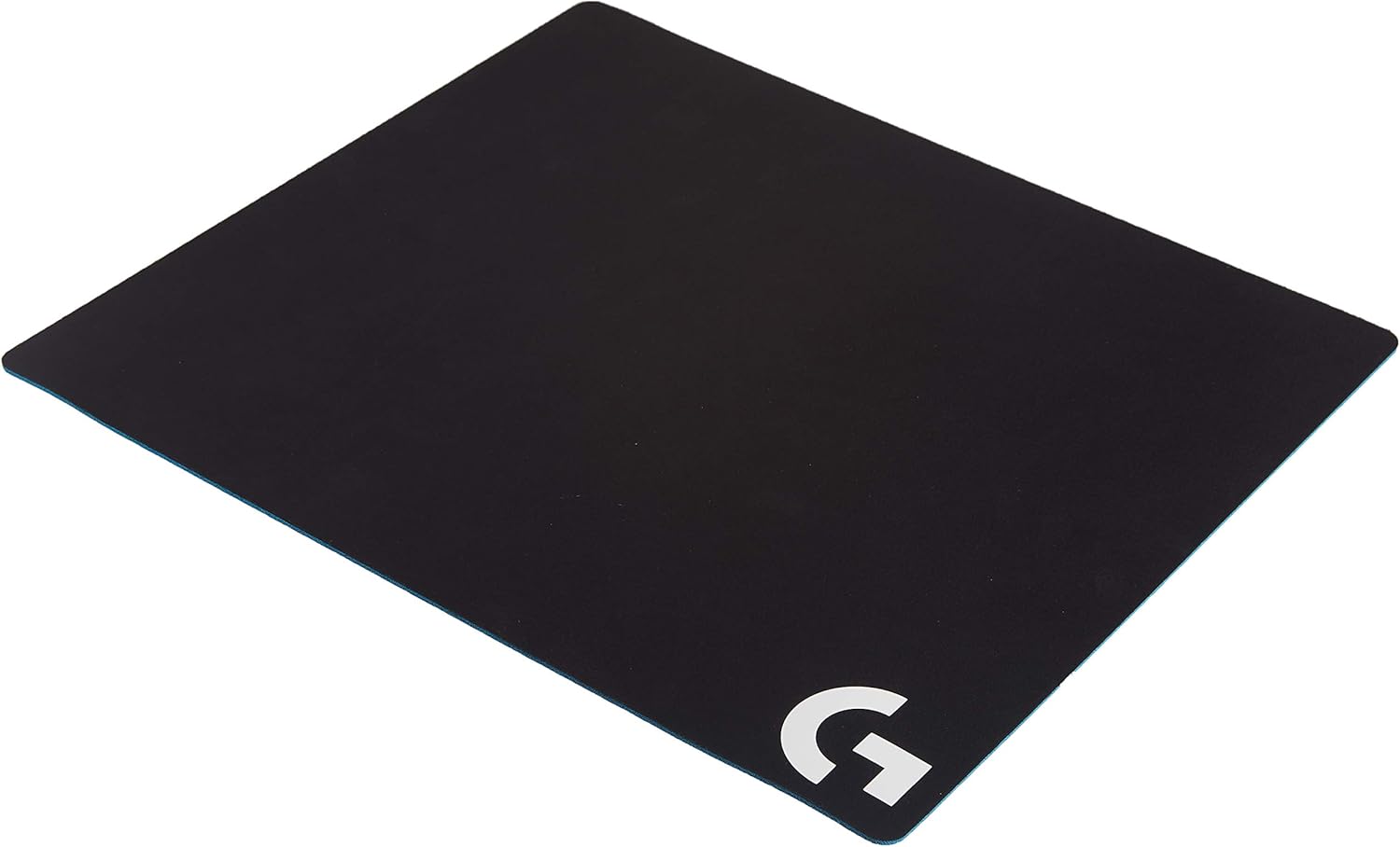
Image: The Logitech G640 Cloth Gaming Mouse Pad, showcasing its black surface and blue rubber base.
Chii chiri muBhokisi
- Logitech G640 Cloth Gaming Mouse Pad
Features
- Moderate Surface Friction: Engineered to provide the right amount of resistance for precise mouse control during rapid or sudden movements, ideal for low DPI gaming.
- Consistent Surface Texture: Offers an optimal surface for mouse sensors, ensuring accurate translation of mouse movement into cursor movement. This consistency is superior to typical desk surfaces.
- Optimized for Logitech G Mice: Designed to maximize the accuracy and precision of Logitech G mouse sensors, providing a reliable gaming experience.
- Yakagadzikana Rubber Base: The rubber underside keeps the mouse pad firmly in place, preventing unwanted movement or bunching during use.
- Comfortable Material: The soft cloth material enhances comfort for the wrist during extended gaming sessions.
Gadzirira
Setting up your Logitech G640 mouse pad is straightforward:
- Unroll the mouse pad completely and lay it flat on your desired desk or gaming surface.
- Ensure the surface beneath the mouse pad is clean and free of debris to allow the rubber base to grip effectively.
- Place your gaming mouse on the pad. The G640 is ready for use immediately.

Image: A Logitech gaming mouse positioned on the G640 mouse pad, ready for use.
Operating Instruction
The Logitech G640 mouse pad is designed to optimize the performance of your gaming mouse, especially for users who prefer low DPI settings. No specific operational steps are required beyond placing your mouse on the pad.
- Low DPI Gaming: The moderate surface friction allows for precise micro-adjustments and controlled stopping power, which is crucial for accuracy in low DPI gaming.
- Consistent Tracking: The uniform surface texture ensures that your mouse sensor receives consistent data, leading to reliable and accurate tracking across the entire pad.

Mufananidzo: Zvakadzama view of a gaming mouse on the G640 surface, demonstrating the texture.
Product Vhidhiyo
Vhidhiyo: pfupiso pfupiview of the Logitech G640 Cloth Gaming Mouse Pad, demonstrating its texture and use with a mouse.
Maintenance
Regular cleaning helps maintain the performance and longevity of your G640 mouse pad.
- Guruva nemarara: For light cleaning, use a lint roller or a soft, dry cloth to remove dust and small particles from the surface.
- Spot Cleaning: For minor spills or stains, gently wipe the affected area with a damp cloth (water only) and allow it to air dry completely. Avoid harsh chemicals or abrasive cleaners.
- Deep Cleaning: For more thorough cleaning, you may hand wash the mouse pad with mild soap and cool water. Rinse thoroughly to remove all soap residue. Usageza nemuchina kana kudonha wakaoma.
- Kuomesa: Lay the mouse pad flat to air dry. Ensure it is completely dry before reuse to prevent damage to the rubber base or affecting mouse tracking.
- Kugeza Kwekutanga: Some users recommend washing the mouse pad upon first receiving it to remove any manufacturing coatings that might affect mouse feet. If you choose to do this, follow the deep cleaning instructions above.
Kugadzirisa matambudziko
If you encounter issues with your Logitech G640 mouse pad, consider the following:
- Inconsistent Tracking or "Dead Spots":
- Ensure the mouse pad surface is clean. Accumulated dirt or oils can affect sensor performance. Refer to the Maintenance section for cleaning instructions.
- Check your mouse's sensor for any obstructions or dirt.
- If the issue persists after cleaning, the pad might be worn in certain areas. Consider rotating the pad or replacing it if performance is significantly degraded.
- Mouse Pad Not Lying Flat or Slipping:
- Ensure the desk surface beneath the pad is clean and dry.
- Allow the mouse pad to fully unroll and flatten out over time. Placing heavy, flat objects on the corners overnight can help.
- The rubber base may lose some grip over time or if it gets wet. Ensure it is completely dry.
- Edges Peeling or Fraying:
- The G640 does not feature stitched edges, which can lead to minor fraying over extended use. This is generally cosmetic and does not affect performance significantly.
Zvinotsanangurwa
| Brand | Logitech |
| Model Number | 943-000088 |
| Item Weight | 0.634 ounces |
| Zviyero zveChigadzirwa (LxWxH) | 18.11 x 15.75 x 0.12 inches (460 x 400 x 3 mm) |
| Color | Black (Battlefield variant) |
| Material | Rubber (base), Cloth (surface) |
| Yakakurudzirwa Kushandisa | Mutambo |
| Special Feature | Wrist Support |
| Zuva Rokutanga Kuwanikwa | Kukadzi 7, 2017 |
Warranty uye Support
Logitech products are manufactured to high quality standards and are designed to provide reliable performance. For detailed warranty information, product support, and frequently asked questions, please visit the official Logitech support website.
You can typically find support resources by searching for "Logitech Support" online or visiting aichemchemical.at.


