1. Nhanganyaya
Welcome to the user manual for your Brother MFC-L8690CDW. This device is a high-performance color laser multifunction printer designed for efficient printing, scanning, and copying. It features an automatic document feeder, A4 paper compatibility, and duplex printing capabilities, making it suitable for various office and home office environments.
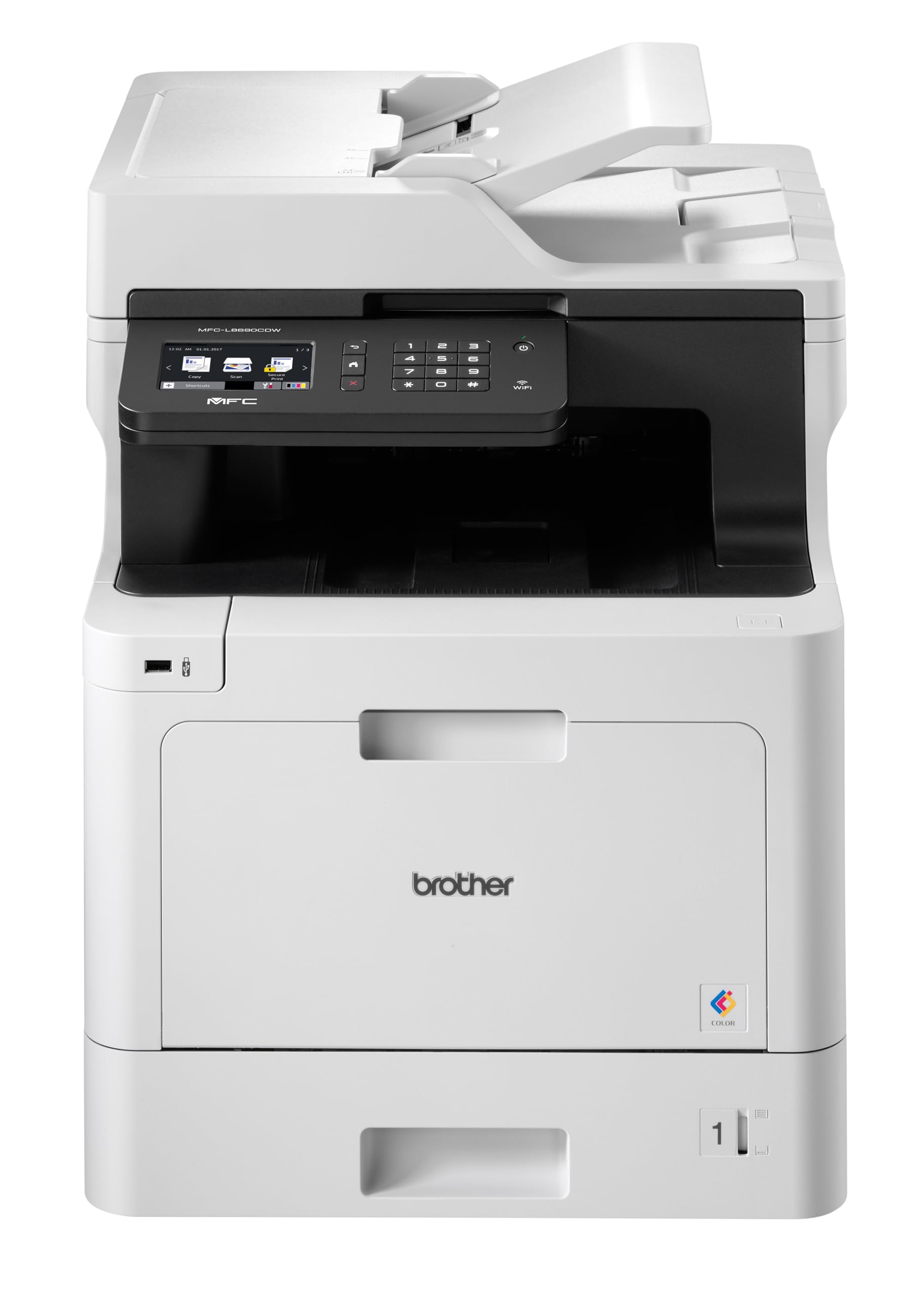
Mberi view of the Brother MFC-L8690CDW color multifunction printer, showcasing yayo compact dhizaini uye control panel.
2. Setup
2.1 Kusunungura uye Kwekutanga Kuiswa
Carefully remove the printer from its packaging. Ensure all protective tapes and packing materials are removed from the exterior and interior of the device. Place the printer on a stable, level surface with adequate ventilation, away from direct sunlight or heat sources.
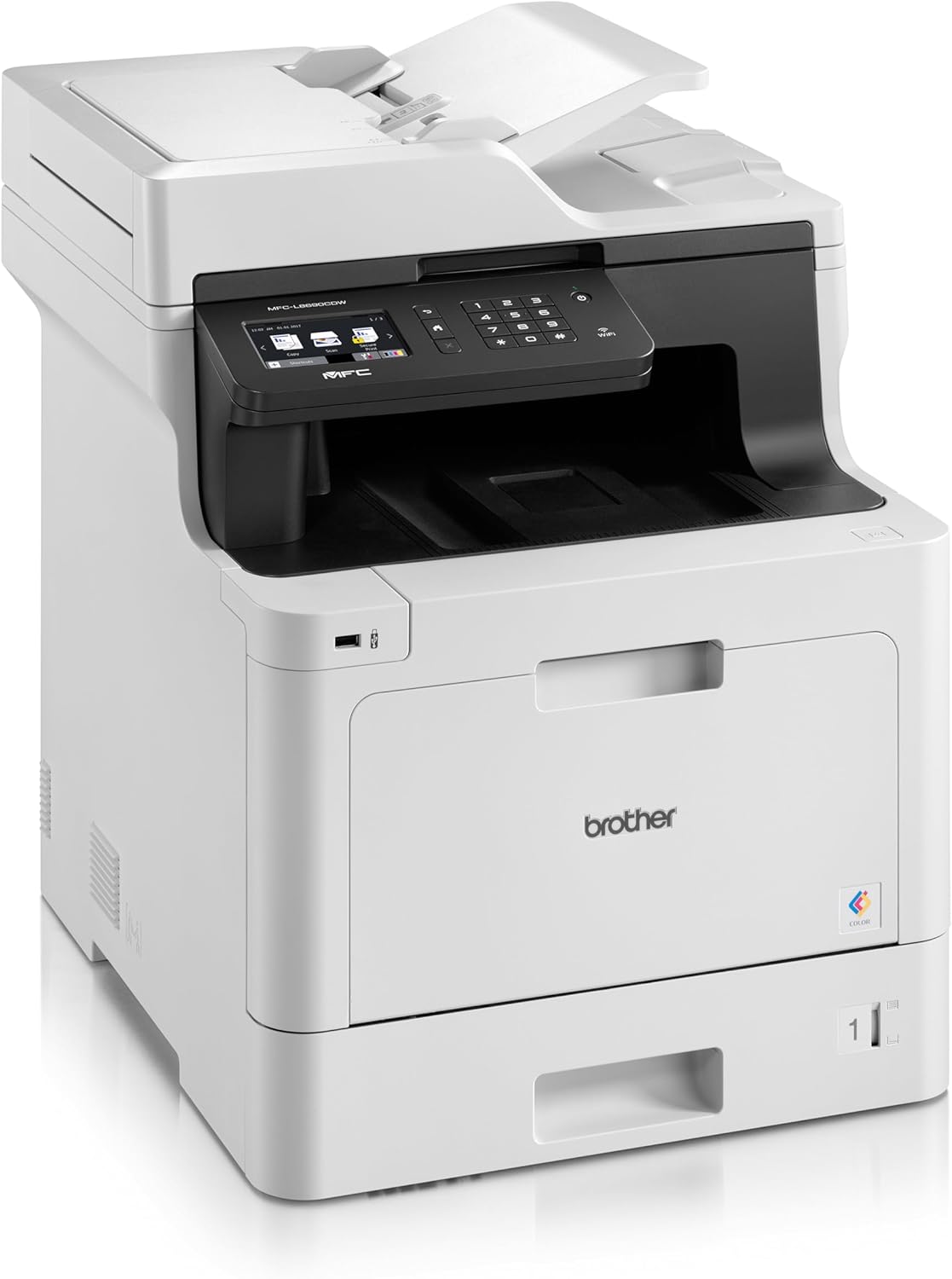
Mberi view of the Brother MFC-L8690CDW, showing the control panel and paper output tray.
2.2 Simba Connection
Connect the power cord to the printer's power input and then to a grounded electrical outlet. Do not connect the printer to a power strip or surge protector during initial setup to avoid potential power issues.
2.3 Toner Cartridge Installation
Open the front cover of the printer. Install the included toner cartridges into their respective color-coded slots. Ensure each cartridge clicks into place. Close the cover securely.
2.4 Pepa Loading
Open the main paper tray. Load standard A4 paper (or other supported sizes) into the tray, ensuring the print side is facing down. Adjust the paper guides to fit the paper size snugly without bending the paper.

Side view of the Brother MFC-L8690CDW printer, illustrating the paper input tray.
2.5 Kuisa Software uye Driver
Insert the installation CD into your computer's CD-ROM drive or download the latest drivers and software from the official Brother support website. Follow the on-screen instructions to complete the installation for your operating system.
2.6 Network Kubatana
The MFC-L8690CDW supports both wired (Ethernet) and wireless (Wi-Fi IEEE 802.11b/g/n) connections.
2.6.1 Wired Kubatana
Connect an Ethernet cable from your router or network hub to the Ethernet port on the back of the printer.
2.6.2 Wireless Kubatanidza
On the printer's control panel, navigate to Network Settings, zvino WLAN. Select your Wi-Fi network from the list and enter the password when prompted.

Rear view of the Brother MFC-L8690CDW printer, highlighting the power input, Ethernet port, and USB port.
3. Operating Instructions
3.1 Kudhinda Kwepakutanga
From your computer, open the document you wish to print. Select Dhinda from the application's menu. Choose Hama MFC-L8690CDW as your printer. Adjust settings such as color/monochrome, duplex printing, and paper size as needed in the print dialog box. Click Dhinda to start the job.
3.2 Kukopa Magwaro
Place your document face down on the scanner glass or face up in the Automatic Document Feeder (ADF). On the printer's control panel, select Copy. Adjust settings like number of copies, color/monochrome, and reduction/enlargement. Press Tanga kutanga kukopa.
3.3 Kuskena Magwaro
Place your document on the scanner glass or in the ADF. On the printer's control panel, select Scan. Choose your desired scan destination (e.g., computer, email, network folder). Adjust scan settings like resolution and file format. Press Tanga to initiate the scan.
4. Kuchengeta
4.1 Kuchenesa Printer
Regularly clean the exterior of the printer with a soft, lint-free cloth. For the scanner glass, use a mild glass cleaner applied to a cloth, not directly to the glass, to avoid streaks or damage.
4.2 Kutsiva Toner Cartridges
When a toner cartridge is low or empty, the printer's display will indicate which cartridge needs replacement. Open the front cover, remove the old cartridge, and insert a new Brother genuine toner cartridge. Ensure it is securely seated before closing the cover.
4.3 Kuchenesa Mapepa
If a paper jam occurs, the printer display will show specific instructions and locations. Carefully open the indicated covers and gently pull out any jammed paper in the direction of the paper path. Avoid tearing the paper to prevent small pieces from remaining inside.
5. Kugadzirisa matambudziko
5.1 Matambudziko Anowanikwa uye Magadzirirwo
Printer Haisi Kupindura: Check the power connection, USB/network cable, and ensure the printer is online. Restart both the printer and your computer.
Hunhu Husina Kudhinda: Check toner levels. Perform a print quality test from the printer's menu. Clean the drum unit if necessary, following the instructions in the maintenance section.
Mapepa Jams: Follow the on-screen instructions to locate and remove jammed paper. Ensure paper is loaded correctly, not creased, and within the specified weight limits.
Network Connectivity Matambudziko: Verify your Wi-Fi password or Ethernet cable connection. Restart your router and printer. Ensure printer firmware is up to date by checking the Brother support website.
6. Zvinyorwa zveUnyanzvi
| Feature | Tsanangudzo |
|---|---|
| Product Dimensions | 10D x 48W x 50H masendimita |
| Controller Type | Automatic |
| Maximum Media Size | A4 |
| Kushandisa Simba | 680 Watt |
| Inosanganisirwa Zvikamu | Brother Multifunction Laser MFC-L8690CDW Wifi Network |
| Dhinda Media Type | Pepa (pachena) |
| Scanner Type | Automatic Document Feeder |
| Max Sheet Capacity | 100 mapepa |
| Max Copy Speed (Dema & Ichena) | 32 Pages per minute |
| Inowirirana Devices | Desktop makomputa |
| Max Color Print Resolution | 1200 x 1200 dpi |
| Sheet size | 210 millimeters |
| Max Black & White Print Resolution | 1200 x 1200 dpi |
| Warranty Type | Yakakwana Warranty |
| Kudzika Kwemavara | 24 bpp |
| Duplex Printing | Ehe |
| EU Spare Parts Availability | 2 Makore |
| Max Copies per Series | 32 |
| Simba | 3600 (Unit not specified) |
| Product Type | All-in-one |
| Operating System | Mac OS 10.15 Catalina (and compatible with other OS) |
| Connections | Bluetooth, Ethernet, Mini USB |
| Memory | 4 (Unit not specified) |
| Total USB Ports | 1 |
| Bhatiri | 1 Lithium-ion bhatiri inodiwa |
| Kugadziriswa kweSoftware Kwakavimbiswa Kusvika | Kubvumbi 13, 2030 |
| Brand | Hanzvadzi konama |
| Kubatana Technology | Bluetooth |
| Printing Technology | Laser |
| Color | Multicolor |
| Model Name | MFC L 8690 CDW |
| Printer Output | Color |
| Kumhanya Kwakanyanya Kwekudhinda (Ruvara) | 10 Pages per minute |
| Max Print Speed (Monochrome) | 10 Pages per minute |
| Item Weight | 19 makirogiramu |
| ASIN | B072C463YX |
| Zuva Rokutanga Kuwanikwa | Kubvumbi 8, 2022 |
| Mugadziri | HANZVADZI KONAMA |
7. Warranty uye Tsigiro
7.1 Chigadzirwa Chivimbiso
This Brother MFC-L8690CDW printer comes with a limited warranty. Spare parts availability in the EU is guaranteed for 2 years from the date of purchase.
7.2 Zvigadziriso zveSoftware
Software updates for this model are guaranteed until April 13, 2030, ensuring continued compatibility and security enhancements.
7.3 Mutengi Tsigiro
For technical assistance, driver downloads, and further support, please visit the official Brother support website or contact your local Brother customer service center. Have your model number (MFCL8690CDW) and serial number ready when contacting support.


