1. Nhanganyaya
Ndatenda nekutengaasing the Gingko Cube LED Click Clock. This innovative alarm clock combines elegant design with smart functionality, displaying time, date, and temperature. Its unique sound-activated display ensures a dark room at night, illuminating only when needed. Please read this manual carefully to ensure proper setup and operation of your device.
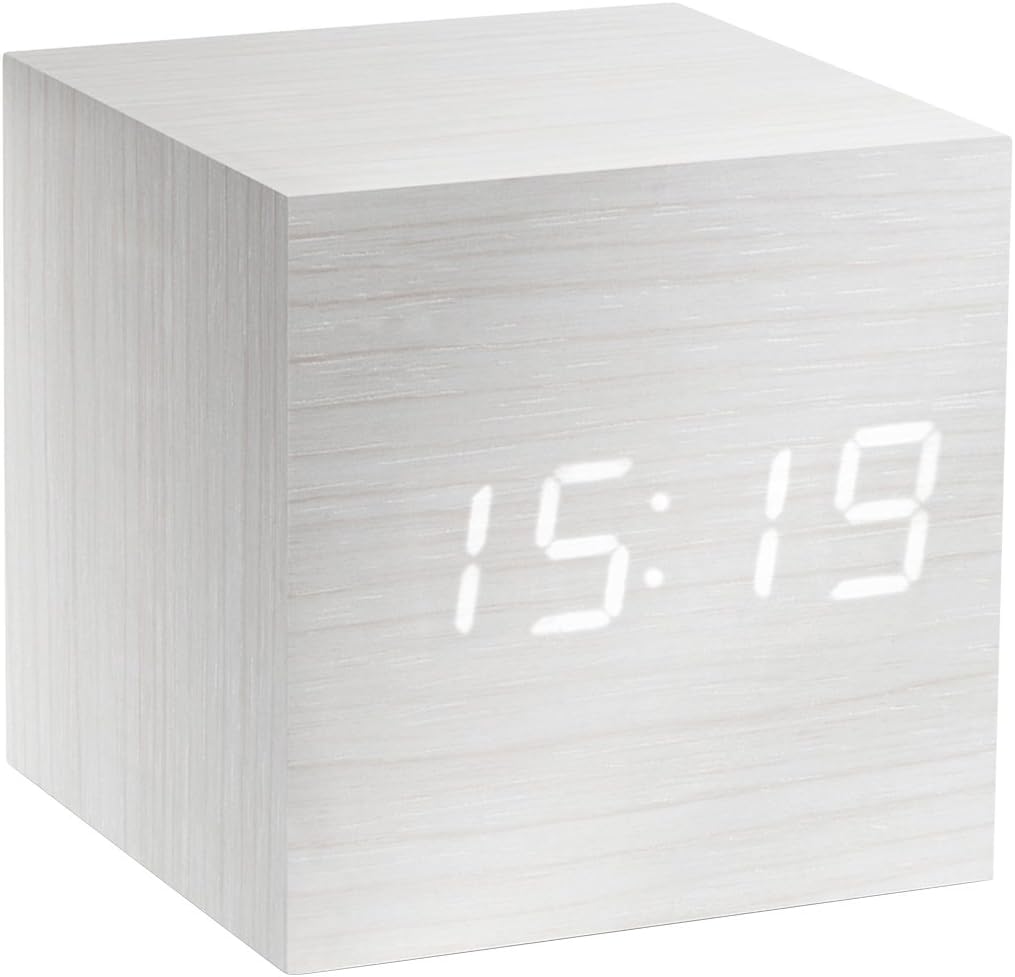
Figure 1: The Gingko Cube LED Click Clock displaying the time 15:19. The clock features a minimalist cube design with a white wood-grain finish and bright white LED digits.
2. Safety Information
- Usaisa mudziyo kumvura kana kunyorova zvakanyanya.
- Avoid extreme temperatures, direct sunlight, or heat sources.
- Usaedze kuparadzanisa kana kugadzirisa mudziyo. Izvi zvinobvisa waranti.
- Use only the provided USB adapter or compatible power sources.
- Chengetedza pasingasvikirwi nevana.
- Rasa mabhatiri zvine ungwaru maererano nemitemo yenzvimbo.
3. Package Zviri mukati
Ndokumbira utarise bhokisi rezvinhu zvinotevera:
- Gingko Cube LED Click Clock (Model GK08W13)
- USB Simba Adapter
- USB Cable
- Chinyorwa Chirairo (gwaro iri)
4. Chigadzirwa Pamusoroview
The Gingko Cube LED Click Clock is designed for simplicity and functionality. Its main features include a hidden LED display that appears through the wood-grain finish, and control buttons located on the back panel.

Mufananidzo 2: Kumashure view of the Gingko Cube LED Click Clock. This image shows the battery compartment cover removed, revealing slots for three AAA batteries. Above the battery compartment, five small control buttons are visible: SET, UP, DOWN, V/S, and RESET.
4.1 Kudzora Mabhatani
- SET: Enters setting mode for time, date, and alarms. Confirms selections.
- UP: Inowedzera kukosha panguva yekuisa.
- PASI: Inoderedza kukosha panguva yekuisa.
- V/S (Voice/Sound): Toggles between sound-activated display mode and permanent display mode.
- Dzorera zvakare: Resets the clock to factory defaults.
4.2 Simba Input
The clock can be powered via the included USB cable and adapter, or by 3 x AAA batteries (not included). An internal battery is included to retain settings during power outages.
5. Setup
5.1 Kubatidza
- Kushandisa USB Power: Connect the small end of the USB cable to the DC5V port on the back of the clock. Plug the larger end into the USB power adapter, then plug the adapter into a wall outlet.
- Kushandisa Mabhatiri: Open the battery compartment cover on the back of the clock. Insert 3 x AAA batteries, ensuring correct polarity (+/-). Close the battery compartment cover securely.
The display will light up, indicating the clock is powered on.
5.2 Initial Settings (Time, Date, Temperature Format)
Dzvanya uye ubate iyo SET button for 3 seconds to enter setting mode. The display will flash, indicating the current setting is ready for adjustment. Use the UP uye PASI buttons to change values. Press SET kusimbisa uye kuenda kune imwe inotevera gadziriro.
- Gore Setting: Adjust the year (e.g., 2024). Press SET.
- Mwedzi Setting: Adjust the month. Press SET.
- Kuisa Zuva: Adjust the day. Press SET.
- 12/24 Hora Format: Select "12H" or "24H". Press SET.
- Maawa Setting: Adjust the hour. Press SET.
- Minute Setting: Adjust the minute. Press SET.
- Temperature Unit: Select "°C" (Celsius) or "°F" (Fahrenheit). Press SET.
The clock will exit setting mode automatically after a few seconds of inactivity or after the last setting is confirmed.
6. Operating Instructions
6.1 Display Modes (Time, Date, Temperature)
The clock can cycle through displaying time, date, and temperature. By default, it will alternate between these displays.

Figure 3: The clock displaying the time 11:43, positioned on a dark desk next to a laptop. This illustrates the clock's compact size and clear LED display in a typical environment.
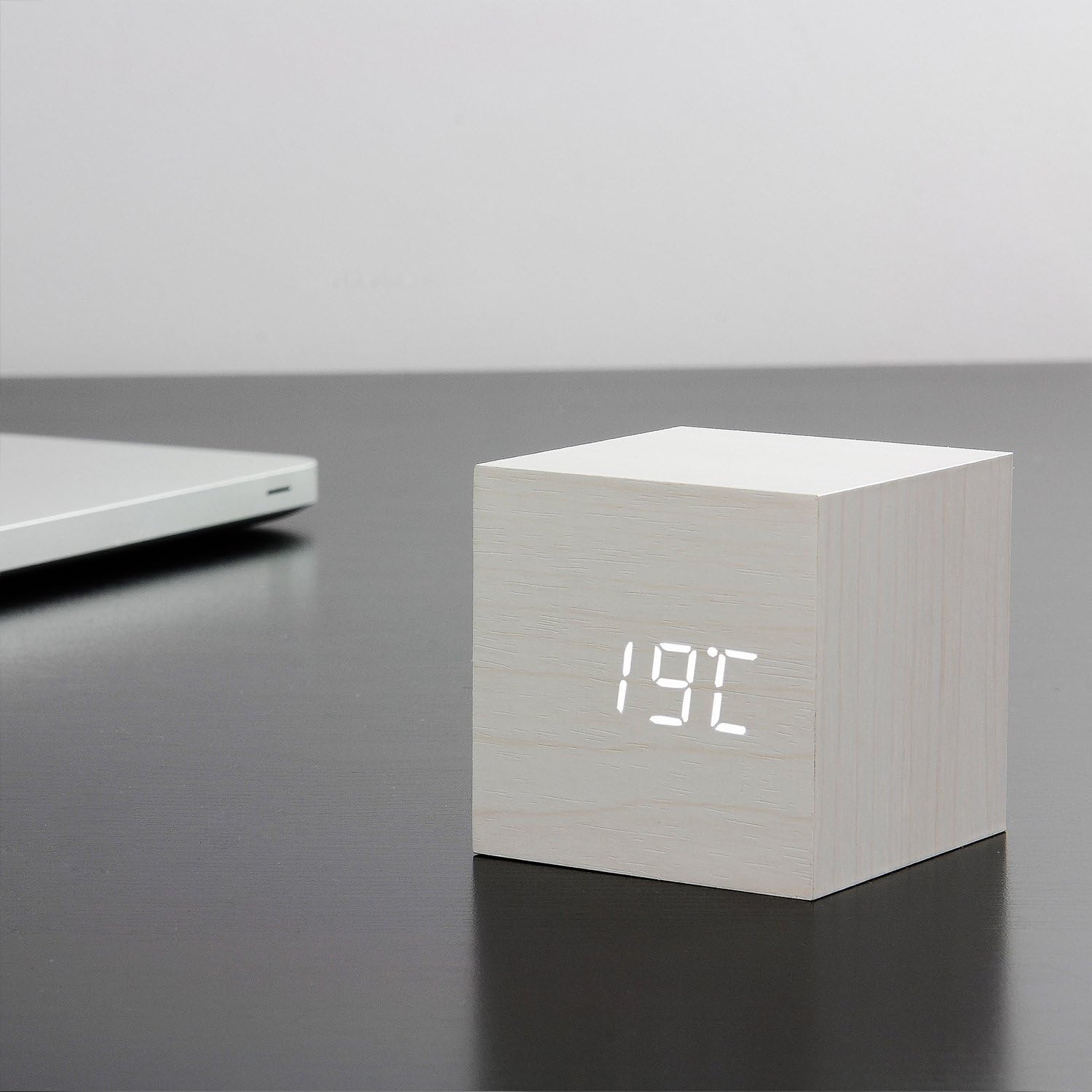
Figure 4: The clock displaying the temperature 19°C, also on a dark desk next to a laptop. This shows the clock's ability to display environmental temperature in addition to time and date.
6.2 Sound Activation (V/S Mode)
The clock features a sound-activated display mode, which conserves power and keeps your room dark. In this mode, the display turns off when the room is quiet and illuminates when a sound (like a clap or tap) is detected.
- Press the V/S button to toggle between sound-activated display (display turns off after a few seconds of silence) and permanent display (display remains on).
- When in sound-activated mode, a sound above 60dB (e.g., a clap, finger snap, or gentle tap on the clock/surface) will activate the display for approximately 10 seconds.
6.3 Alarm Settings
The clock supports up to three different alarm settings (AL1, AL2, AL3).
- From the normal display mode, short press the SET button repeatedly until "AL1", "AL2", or "AL3" appears.
- To set an alarm, press and hold the SET button for 3 seconds when the desired alarm (e.g., "AL1") is displayed. The hour digits will flash.
- Shandisa UP uye PASI to set the alarm hour. Press SET.
- Shandisa UP uye PASI to set the alarm minute. Press SET.
- The display will show "ON:AL" or "OFF:AL". Use UP or PASI to toggle the alarm ON or OFF. Press SET kusimbisa.
- Repeat for AL2 and AL3 if desired.
When an alarm sounds, it will last for 1 minute. To stop the alarm, press any button. The alarm will automatically turn off after 1 minute if no button is pressed.
6.4 Basa reDimmer
The clock features an automatic dimmer function. The display brightness will automatically adjust between brighter (7:00 AM - 6:59 PM) and dimmer (7:00 PM - 6:59 AM) modes to suit ambient light conditions.
7. Kuchengeta
- Chenesa nzvimbo yewachi nejira rakapfava, rakaoma. Usashandise abrasive cleaners kana solvents.
- If using batteries, replace them when the display becomes dim or erratic. Remove batteries if the clock will not be used for an extended period.
8. Kugadzirisa matambudziko
| Dambudziko | Zvinogona Kukonzera | Solution |
|---|---|---|
| Display is off or dim. | Sound-activated mode is on; low batteries; no power. | Tap the clock or make a sound to activate. Press V/S to switch to permanent display. Replace batteries or ensure USB power is connected. |
| Clock not responding to buttons. | Temporary software glitch. | Press the RESET button on the back of the clock. Re-enter settings if necessary. |
| Alarm hainzwi. | Alarm is set to OFF; incorrect alarm time. | Check alarm settings (AL1/AL2/AL3) to ensure it is set to ON and the time is correct. |
| Incorrect time/date/temperature. | Settings not correctly configured. | Re-enter setting mode (Section 5.2) and adjust values. |
9. Zvinotsanangurwa
| Feature | Detail |
|---|---|
| Model Number | GK08W13 |
| Dimensions (L x W x H) | 68 x 68 x 68 mm (2.68 x 2.68 x 2.68 inches) |
| Kurema | 120 magiramu (0.26 lbs) |
| Material | Plastiki |
| Color | White / White LED |
| Display Type | Digital LED |
| Simba Source | USB Cable (DC5V) or 3 x AAA Batteries |
| Features | Time, Date, Temperature Display, Sound Activation, 3 Alarm Settings, Dimmer Function, Internal Battery for Settings Retention |
10. Warranty uye Tsigiro
Gingko products are designed and manufactured to the highest standards. For warranty information or technical support, please refer to the official Gingko website or contact your retailer. Please have your model number (GK08W13) and purchase details ready when seeking support.
Kuti uwane rumwe ruzivo, shanya: www.gingkodesign.com


