1. Nhanganyaya
This manual provides essential instructions for the proper setup, operation, and maintenance of your PAX S300 v2 PIN Pad/Card Reader. The S300 v2 is an integrated retail payment solution designed for secure transaction processing, supporting contactless, e-Signature, magnetic stripe, and EMV Chip & PIN payments. Please read this manual thoroughly before using the device to ensure optimal performance and security.
2. Safety Information
- Do not disassemble, repair, or modify the device. Unauthorized modifications may void the warranty and pose safety risks.
- Shandisa chete adapta yemagetsi netambo zvinopihwa nemugadziri.
- Avoid exposing the device to extreme temperatures, direct sunlight, dust, or moisture.
- Chengetedza mudziyo kure nemasimba ane magineti.
- Iva nechokwadi chekuti mudziyo wacho wakaiswa panzvimbo yakatsiga, yakati sandara panguva yekushanda.
- Kana mudziyo wacho wakakuvara kana kuti ukasashanda zvakanaka, rega kuushandisa nekukasika uye taura nerutsigiro rwevatengi.
3. Package Zviri mukati
Tarisa uone kuti zvinhu zvese zviripo mupakeji:
- PAX S300 v2 PIN Pad/Card Reader
- Power Adapter
- Connectivity Cable (e.g., USB, Ethernet, RS232)
- Stylus (for signature capture)
- Quick Start Guide (kana iripo)
4. Chigadzirwa Pamusoroview
4.1. Key Features
- Secure Payment Processing: PCI PTS 3.x and SRED certified for enhanced security.
- Multiple Payment Options: Supports EMV Chip & PIN, magnetic stripe, and contactless (NFC) transactions.
- Color Touch Screen: Large display for clear transaction prompts and e-Signature capture.
- Kuita Kwepamusoro: Equipped with a 32-bit ARM11 processor for efficient operation.
- Kubatana: Offers USB, Ethernet (LAN), and RS232 connectivity options.
4.2. Zvikamu Zvikamu

- Color Touch Screen: Displays transaction information and allows for signature capture.
- Keypad: For PIN entry and menu navigation.
- Magnetic Stripe Reader: Located on the side for swiping cards.
- EMV Chip Card Slot: Located at the bottom for inserting chip cards.
- Contactless Reader: Integrated into the screen area for NFC payments.
- Kubatana Kwechiteshi: Located at the rear for power, USB, Ethernet, and RS232 connections.
5. Setup
5.1. Kubatanidza Chishandiso
- Batanidza Simba: Plug the power adapter into the power port on the back of the S300 v2, then plug the adapter into a wall outlet.
- Batanidza kuSisitimu Yekugamuchira:
- USB: Connect the USB cable from the S300 v2 to an available USB port on your point-of-sale (POS) system or computer.
- Ethernet (LAN): Connect an Ethernet cable from the S300 v2's LAN port to your network router or switch.
- RS232: Connect the RS232 cable from the S300 v2 to the serial port on your POS system or computer.
- Power On: The device should power on automatically once connected to power. If not, press and hold the power button (if available) until the screen illuminates.
- Software Configuration: Follow the instructions provided by your payment processor or POS software vendor to configure the S300 v2 with your system. This typically involves selecting the correct communication port and device type within the POS application.
6. Operating Instructions
The PAX S300 v2 supports various transaction types. Always follow the prompts displayed on the device screen.
6.1. EMV Chip Card Transactions
- When prompted by the POS system, instruct the customer to insert their EMV chip card into the slot at the bottom of the S300 v2.
- Ensure the chip faces upwards and is fully inserted.
- The device will process the transaction. The customer may be prompted to enter their PIN or provide a signature.
- Once the transaction is complete, the device will prompt the customer to remove their card.
6.2. Magnetic Stripe Card Transactions
- When prompted, instruct the customer to swipe their magnetic stripe card through the reader slot on the side of the S300 v2.
- Ensure the magnetic stripe faces the device.
- If the swipe is unsuccessful, try again at a consistent speed.
- The customer may be prompted for a signature.
6.3. Contactless (NFC) Transactions
- When prompted, instruct the customer to tap their contactless card or NFC-enabled device (e.g., smartphone, smartwatch) near the contactless symbol on the S300 v2 screen.
- Hold the card/device steady until the transaction is confirmed.
- A beep or visual confirmation on the screen will indicate a successful read.
6.4. PIN Entry
- When the device prompts for PIN entry, the customer should use the physical keypad to enter their Personal Identification Number.
- After entering the PIN, press the green PINDA key.
- Ensure the customer's privacy during PIN entry.
6.5. Signature Capture
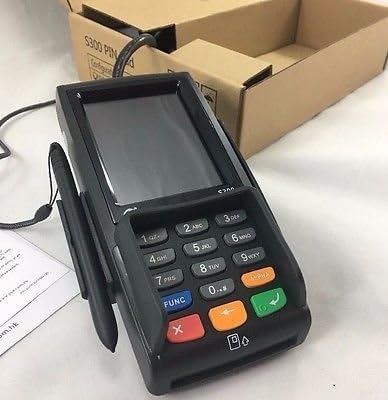
- If a signature is required, the S300 v2 screen will display a signature line.
- Instruct the customer to use the provided stylus or their finger to sign on the touch screen.
- After signing, the customer should tap the BVUMA or OK bhatani pachiratidziri.
7. Kuchengetedza uye Kuchenesa
- Kuchenesa: Shandisa jira rakapfava, risina lint zvishoma dampened with water or a mild, non-abrasive cleaner to wipe the device's exterior. Do not use harsh chemicals, solvents, or abrasive materials.
- Screen Care: For the touch screen, use a screen-specific cleaner and a microfiber cloth. Avoid excessive pressure.
- Zviteshi: Keep all ports free of dust and debris. Do not insert foreign objects into any slots or ports.
- Kuchengeta: Kana usingashandiswe kwenguva yakareba, chengeta mudziyo wacho munzvimbo inotonhorera, yakaoma, kure nezuva rakananga.
8. Kugadzirisa matambudziko
| Dambudziko | Zvinogona Kukonzera | Solution |
|---|---|---|
| Mudziyo haubatike. | No power connection or faulty power adapter. | Iva nechokwadi chekuti adapta yemagetsi yakabatana zvakanaka nemudziyo uye nepanobuda magetsi panoshanda. Edza imwe nzira yakasiyana yekuburitsa magetsi. |
| Transaction fails. | Incorrect card insertion/swipe, communication error, or card issue. | Ensure the card is inserted/swiped correctly. Check cable connections to the POS system. Contact your payment processor for network or card-specific issues. |
| Sikirini haibatike. | Temporary software glitch. | Restart the device by disconnecting and reconnecting power. If the issue persists, contact support. |
| Stylus not working for signature. | Stylus damage or screen calibration issue. | Ensure the stylus tip is intact. Try using a finger. If the screen is generally unresponsive, refer to the "Screen is unresponsive" solution. |
9. Zvinotsanangurwa
- Muenzaniso: PAX S300 v2
- processor: 32-bit ARM11
- Chengetedzo: PCI PTS 3.x, SRED
- Vaverengi veKadhi: EMV Chip Card, Magnetic Stripe, Contactless (NFC)
- Kubatana: RS232, Ethernet (LAN), USB Type A
- Ratidza: Ruvara Bata Screen
- Dimensions: (Refer to product packaging or official PAX documentation for exact dimensions)
- Operating Temperature: (Refer to product packaging or official PAX documentation)
10. Warranty uye Tsigiro
For warranty information and technical support, please refer to the documentation provided with your purchase or contact your authorized PAX distributor or reseller. Keep your purchase receipt and product serial number handy when seeking support.
You can also visit the official PAX Technology websaiti yeruzivo rwechigadzirwa uye zviwanikwa zvekutsigira.


