1. Nhanganyaya
This manual provides detailed instructions for the Aluratek AUMC0302F USB Type-C Hub. This versatile 4-in-1 multiport adapter is designed to expand the connectivity of your USB-C enabled devices, offering a comprehensive solution for data transfer, video output, and peripheral connections. Please read this manual thoroughly before using the product to ensure proper operation and to maximize its capabilities.
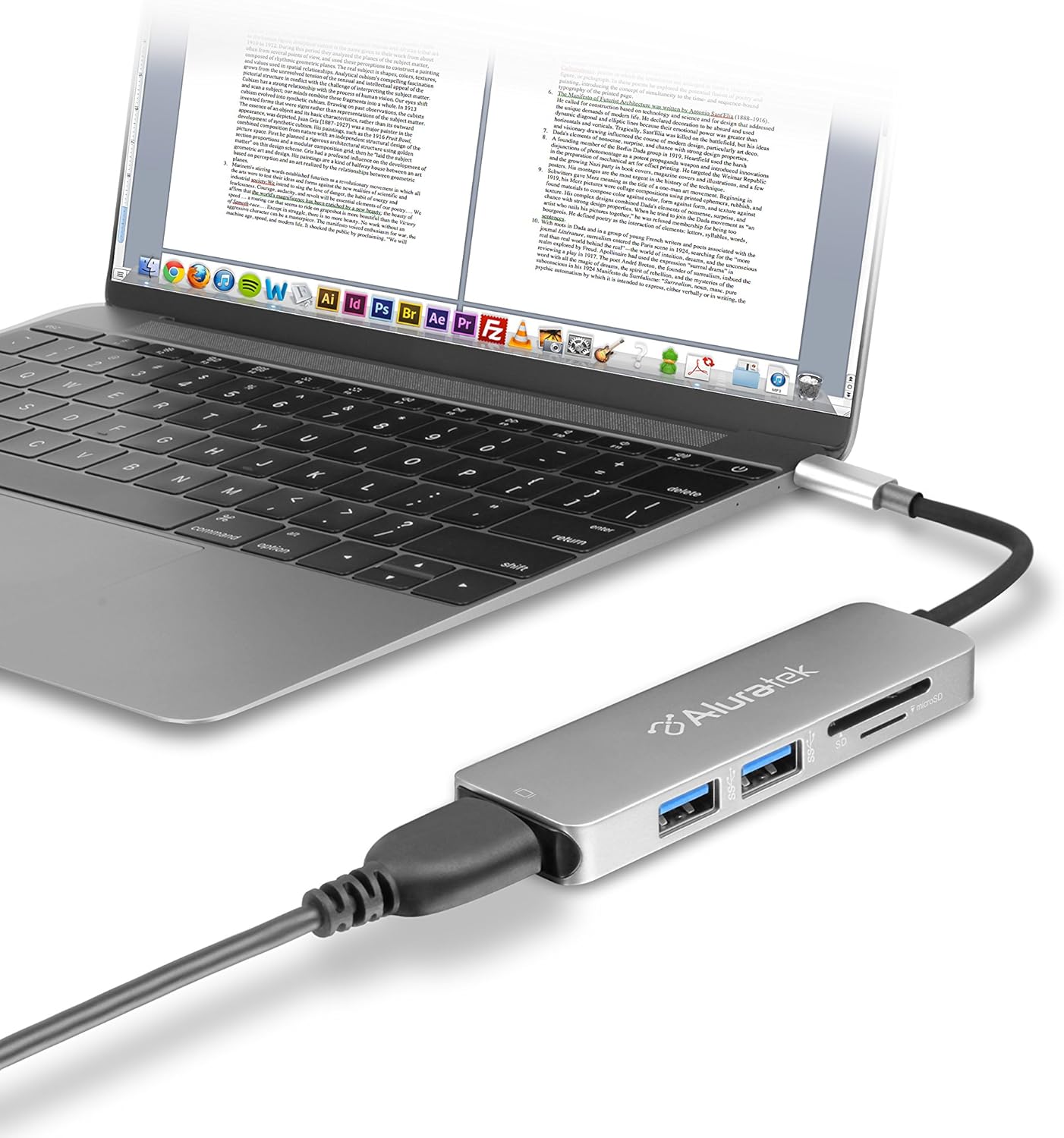
Image 1.1: The Aluratek AUMC0302F USB Type-C Hub connected to a laptop, demonstrating its use with various peripherals.
2. Zvimiro
- Enhanced Connectivity: Expands a single USB-C port to include 4K HDMI, three USB 3.0 ports, and a Micro/SD card reader.
- Crystal-Clear HDMI Output: Supports 4K HDMI video output, allowing connection to external displays or monitors for high-definition visuals.
- Fast Data Transfer: Three USB 3.0 ports provide data transfer speeds up to 5Gbps, suitable for connecting peripherals and external storage devices.
- Seamless Card Reader: Integrated SD and MicroSD card reader for quick access and transfer of files kubva kumakadhi ememori.
- Wide Device Compatibility: Compatible with various USB-C enabled laptops, including MacBook, Dell, HP, and Surface models.

Mufananidzo 2.1: Yakadzama view of the Aluratek AUMC0302F hub, showcasing its USB 3.0, SD, and MicroSD ports.
3. Package Zviri mukati
Ndokumbira utarise kuti zvinhu zvese zviripo mupakeji yako:
- Aluratek USB Type-C Hub (AUMC0302F)
- Quick Start Guide
4. Setup Instructions
The Aluratek AUMC0302F hub is designed for plug-and-play functionality, requiring no additional drivers for most operating systems.
- Batanidza Hub: Plug the USB Type-C connector of the Aluratek hub into an available USB Type-C port on your laptop or compatible device.
- Kuzivikanwa kweSystem: Your operating system should automatically detect and configure the hub. This process may take a few moments.
- Yakagadzirira Kushandiswa: Once recognized, the hub's ports are ready for connecting your peripherals and memory cards.
5. Operating Instructions
Utilize the various ports on your Aluratek AUMC0302F hub as follows:
5.1. Using USB 3.0 Ports
- Connect USB devices such as external hard drives, flash drives, keyboards, mice, or other USB peripherals to the three available USB 3.0 ports.
- These ports support data transfer speeds up to 5Gbps.
5.2. Using the HDMI Port
- Connect an HDMI cable from the hub's HDMI port to an external monitor, TV, or projector.
- The hub supports resolutions up to 4K (3840 x 2160) at 30Hz, providing a clear and vibrant display.
- Configure your display settings (e.g., duplicate, extend) through your computer's operating system.

Image 5.1: The Aluratek AUMC0302F hub facilitating video output from a laptop to an external display.
5.3. Using the SD and MicroSD Card Reader
- Insert your SD or MicroSD card into the corresponding slot on the hub. Ensure the card is inserted correctly with the contacts facing down.
- Your computer will recognize the card as a removable drive, allowing you to access and transfer files.
- Do not insert both an SD and a MicroSD card simultaneously if the hub only supports one at a time (check product specifications if unsure). This model supports both.
6. Kugadzirisa matambudziko
If you encounter issues with your Aluratek AUMC0302F hub, please refer to the following common solutions:
- Mudziyo Hauzivikanwe:
- Ensure the USB Type-C connector is fully inserted into your computer's port.
- Try connecting the hub to a different USB Type-C port on your computer.
- Tangazve komputa yako.
- HDMI Display Issues:
- Verify that the HDMI cable is securely connected to both the hub and the external display.
- Check the input source on your external display to ensure it's set to the correct HDMI input.
- Gadzirisa madhiraivha emifananidzo ekombiyuta yako.
- Edza netambo yakasiyana yeHDMI kana display kana zvichibvira.
- USB Zvishandiso Hazvishande:
- Ensure the USB device is properly connected to the hub.
- Edza kubatanidza mudziyo weUSB kune imwe chiteshi chiri pahub.
- If it's a high-power device, ensure your laptop's USB-C port can provide sufficient power. Some devices may require direct connection or an externally powered hub.
- SD/MicroSD Card Not Detected:
- Iva nechokwadi chekuti kadhi rakaiswa zvakakwana uye nemazvo munzvimbo yacho.
- Test the card in another device to confirm it is functional.
- Check your computer's Disk Management (Windows) or Disk Utility (macOS) to see if the card is recognized but not assigned a drive letter.
7. Zvinotsanangurwa
| Brand | Aluratek |
| Model Number | AUMC0302F |
| Hardware Platform | Laptop, PC |
| Operating System Kuenderana | Chrome OS, Windows 10, Windows 7 |
| Item Weight | 1 pairi |
| Zviyero zveChigadzirwa (LxWxH) | 4.5 x 1 x 0.45 inches |
| Color | Sirivha |
| Hardware inowanikwa | USB Type-C, HDMI, USB 3.0, SD, MicroSD |
| Special Feature | Powered (via USB-C host connection) |
| Inowirirana Devices | Laptops with USB Type-C ports |
8. Safety Information
Kuti uve nechokwadi chekuti mudziyo wako unoshanda zvakachengeteka uye kuti ugare kwenguva refu, tevera matanho aya:
- Chengetedza mudziyo kure nemvura, mwando, uye tembiricha yakanyanyisa.
- Usaedze kudimbura kana kugadzirisa mudziyo wega. Tumira masevhisi ese kuvashandi vanokwanisa.
- Dzivisa kudonhedza kana kuisa mudziyo kune zvinokanganisa zvakasimba.
- Use only with compatible USB Type-C devices.
- Disconnect the hub when not in use for extended periods.
9. Warranty uye Tsigiro
Aluratek products are backed by a manufacturer's warranty. For specific warranty details, please refer to the warranty card included with your product or visit the official Aluratek website. If you require technical support or have questions about your Aluratek AUMC0302F hub, please contact Aluratek customer service through their official websaiti kana ruzivo rwekusangana rwunopihwa mune yako chigadzirwa kurongedza.
For the latest drivers, FAQs, and product registration, please visit: www.wendi.com


