Nhanganyaya
This manual provides detailed instructions for the setup, operation, maintenance, and troubleshooting of your TOTU 9-in-1 USB C Hub. Please read this manual thoroughly before using the product to ensure optimal performance and longevity.
Product Features
The TOTU 9-in-1 USB C Hub is designed to expand the connectivity of your USB-C enabled devices, offering a versatile solution for various peripherals.
- Multiport Connectivity: Includes 1 Ethernet/RJ-45 Port, 1 USB Type-C Female PD charging port, 1 HDMI port, 1 Card Reader for SD, 1 Card Reader for TF, 1 USB 2.0 Type-A port, and 2 USB 3.0 Type-A ports.
- Effortless Data Transfer: Connect smartphones, tablets, hard drives, or other USB peripherals via USB 3.0 Ports for high-speed data transfer (up to 5Gbps). The USB 2.0 port is ideal for low-rate devices like mice and keyboards.
- Dual Card Reading: Built-in SD/TF card reader allows simultaneous access to files from universal memory cards.
- Gigabit-Ethernet: 1000Mbps Ethernet port ensures a stable and faster-wired network connection.
- Power Delivery (PD): Supports PD charging at a maximum of 87W, allowing you to securely charge your connected MacBook or other Type-C laptops through the hub.
- 4K HDMI Kubuda: Provides high-definition video output up to 4K resolution, perfect for connecting to external monitors, projectors, or HDTVs.
- Compact uye Inotakurika: Lightweight and compact design makes it easy to carry for business travel and on-the-go use.

Mufananidzo 1: Kupfuuraview of the TOTU 9-in-1 USB C Hub and its various connectivity options.

Mufananidzo 2: Detailed view of the hub's ports, including USB-C charging, HDMI, TF/SD card readers, Ethernet, USB 2.0, and USB 3.0 ports.

Figure 3: Illustration of the hub providing fast charging and 5Gbps data transfer to connected devices.

Figure 4: The hub enabling 4K HD video output from a laptop to a larger display, such as a monitor, projector, or HDTV.

Figure 5: The hub's USB 3.0 and USB 2.0 ports supporting various high-speed and low-speed devices like thumb drives, keyboards, mice, and phones.

Figure 6: The hub providing instant and stable wired internet access up to 1 Gbps via its Ethernet port.

Figure 7: The non-slip, compact design of the hub, making it an ideal accessory for MacBook Pro and similar devices.
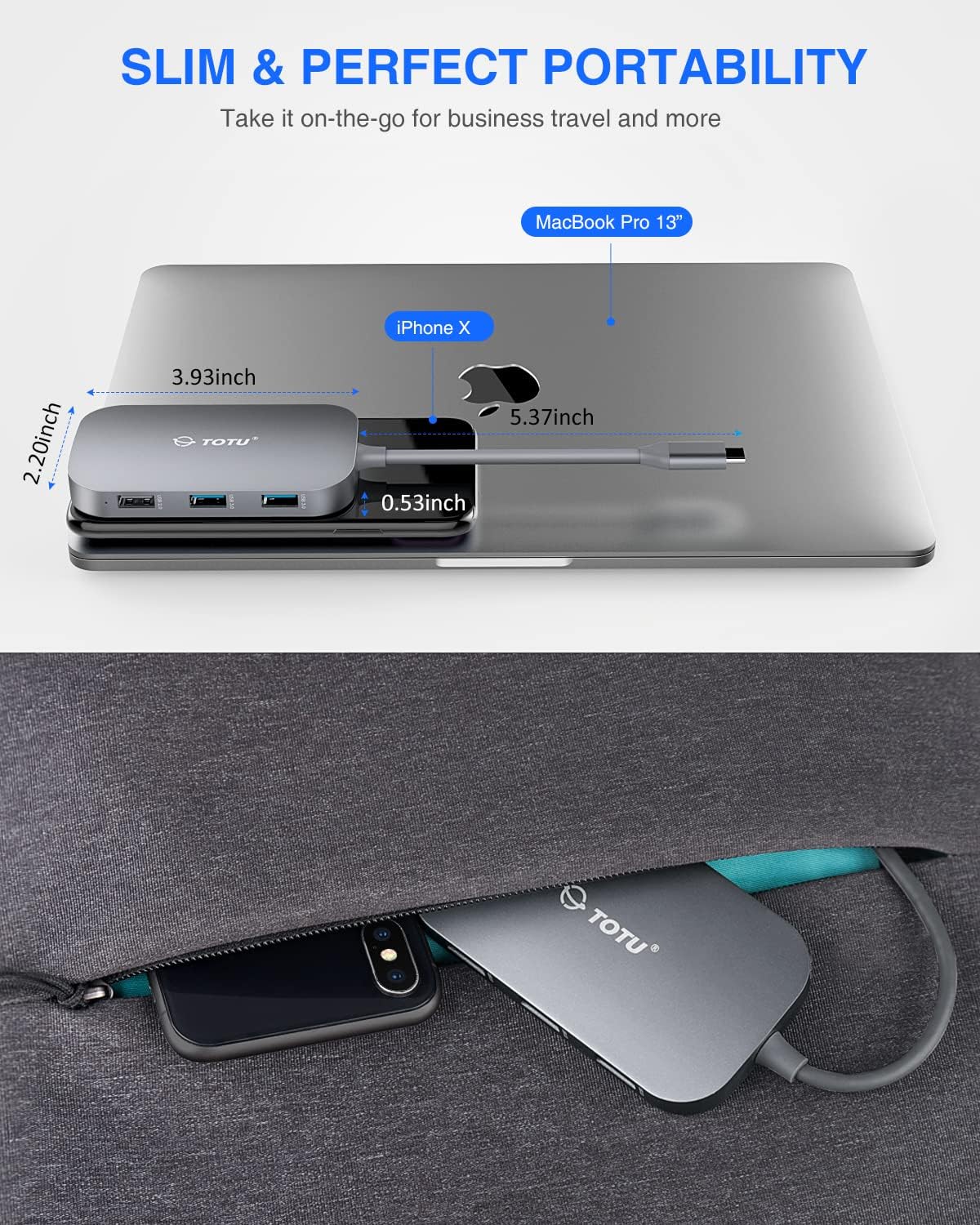
Figure 8: The slim and portable nature of the hub, demonstrating its ease of transport for business or travel.
Package Zviri mukati
Ndokumbira utarise kuti zvinhu zvese zvirimo mupasuru yako:
- 1 x TOTU USB C Hub
- 1 x Chinyorwa cheMushandisi
Gadzirira
- Kuenderana Kuongorora: Ensure your device's USB-C port supports DisplayPort Alt Mode and Power Delivery. Refer to your device's specifications for compatibility.
- Batanidza Hub: Plug the USB-C connector of the TOTU hub into the USB-C port on your laptop or compatible device.
- Kubatanidza Simba (Sarudzo): If your laptop requires charging or if you are connecting power-intensive peripherals, connect your laptop's original USB-C power adapter to the USB Type-C Female PD charging port on the hub.
- Batanidza Peripherals: Connect your desired peripherals (e.g., HDMI monitor, Ethernet cable, USB drives, SD/TF cards, keyboard, mouse) to the corresponding ports on the hub.
- Kuiswa kwemutyairi: The hub is generally plug-and-play. For certain operating systems (e.g., Windows) or specific functions (e.g., Ethernet, SD card reader), manual driver installation might be required if not automatically recognized. Refer to the troubleshooting section if issues arise.
Operating Instruction
Once the hub is connected, you can utilize its various ports:
- HDMI Port: Connect an HDMI cable from the hub to your external monitor, projector, or HDTV. Your device should automatically detect the external display. Adjust display settings (resolution, mirroring/extending) through your operating system's display preferences. Supports up to 4K resolution.
- Chiteshi cheEthernet (RJ-45): Connect an Ethernet cable from your router or modem to the RJ-45 port on the hub for a stable wired network connection. Ensure your device's network settings are configured for wired connection.
- USB 3.0 Zvidhori (2x): Use these ports for high-speed data transfer with USB 3.0 compatible devices such as external hard drives, SSDs, or high-speed flash drives. They are also backward compatible with USB 2.0/1.1 devices.
- USB 2.0 Port (1x): Ideal for connecting low-bandwidth devices like keyboards, mice, or printers to avoid interference with high-speed USB 3.0 devices.
- USB Type-C PD Charging Port: This port is for power input only. Connect your laptop's USB-C power adapter here to charge your laptop while using the hub. It supports up to 87W power delivery. This port does not support data transfer.
- SD/TF Kadhi Vaverengi: Insert your SD or TF (microSD) cards into the respective slots. Both card slots can be used simultaneously for data access. Your device will recognize them as removable storage.
Maintenance
- Kuchenesa: Use a soft, dry cloth to clean the hub. Avoid using liquid cleaners or aerosols.
- Kuchengeta: Chengetedza hubhu munzvimbo inotonhorera, yakaoma kure nechiedza chezuva uye tembiricha yakanyanyisa.
- Kubata: Avoid dropping the hub or subjecting it to strong impacts. Do not attempt to disassemble or modify the device.
- Port Care: Ensure connectors are inserted gently and correctly into the ports to prevent damage.
Kugadzirisa matambudziko
- Hapana Kuburitsa Kuburitsa kuburikidza neHDMI:
- Iva nechokwadi chekuti USB-C port yemudziyo wako inotsigira DisplayPort Alt Mode.
- Check the HDMI cable connection between the hub and the display.
- Verify the input source on your monitor is set to the correct HDMI port.
- Edza tambo yeHDMI yakasiyana kana yekutarisa.
- Tangazve komputa yako.
- Ethernet Connection Matambudziko:
- Ita shuwa kuti tambo yeEthernet yakabatana zvakachengeteka kune zvese hub uye router/modemu yako.
- Check your computer's network settings to ensure the wired connection is enabled and configured correctly.
- If using Windows, and the Ethernet port is not recognized, you may need to manually install a generic Broadcom NetXtreme driver.
- Edza tambo yeEthernet yakasiyana.
- USB Zvishandiso Hazvizivikanwe:
- Iva nechokwadi chekuti mudziyo weUSB waiswa zvakanaka muchiteshi chehub.
- Try connecting the USB device to a different port on the hub or directly to your computer to rule out device issues.
- Some high-power USB devices may require external power if the hub's PD port is not connected to a power source.
- SD/TF Card Reader Not Working:
- Iva nechokwadi chekuti kadhi rakaiswa zvakakwana munzvimbo yakakodzera.
- Try a different SD/TF card.
- On Windows, if the card reader is not recognized, try reinstalling the generic Microsoft driver and manually assigning a drive letter in Disk Management.
- Nyaya dzekuchaja (PD Port):
- Ensure your laptop's original USB-C power adapter is connected to the hub's PD port.
- Verify that your laptop supports USB-C Power Delivery.
- Note that the HDMI output may briefly interrupt (2-3 seconds) if external USB-C power is removed from the hub. This is normal behavior.
Zvinotsanangurwa
| Product Dimensions | 3.93 x 2.2 x 0.53 inches |
| Item Weight | 2.4 ounces |
| Model Number | TT-HB001C |
| Brand | TOTU |
| Color | Gireyi |
| Hardware inowanikwa | Ethernet, HDMI, USB, USB 2.0, USB 3.0 |
| Special Feature | Portable |
| Power Delivery | Kusvika ku87W |
| Ethernet Speed | 10/100/1000Mbps |
| HDMI Resolution | Kusvika ku4K |
Warranty uye Support
For warranty information and technical support, please refer to the official TOTU websaiti kana kubata basa ravo revatengi. Chengeta risiti yako yekutenga yezvichemo zvewaranti.
You can visit the TOTU Store for more information: TOTU Store on Amazon


