Nhanganyaya
Welcome to the user manual for your Google Pixel 3 smartphone. This guide provides comprehensive instructions on setting up, operating, maintaining, and troubleshooting your device. The Google Pixel 3 is designed to offer a seamless and intelligent smartphone experience, featuring an advanced camera system, the Google Assistant, and an all-day battery.
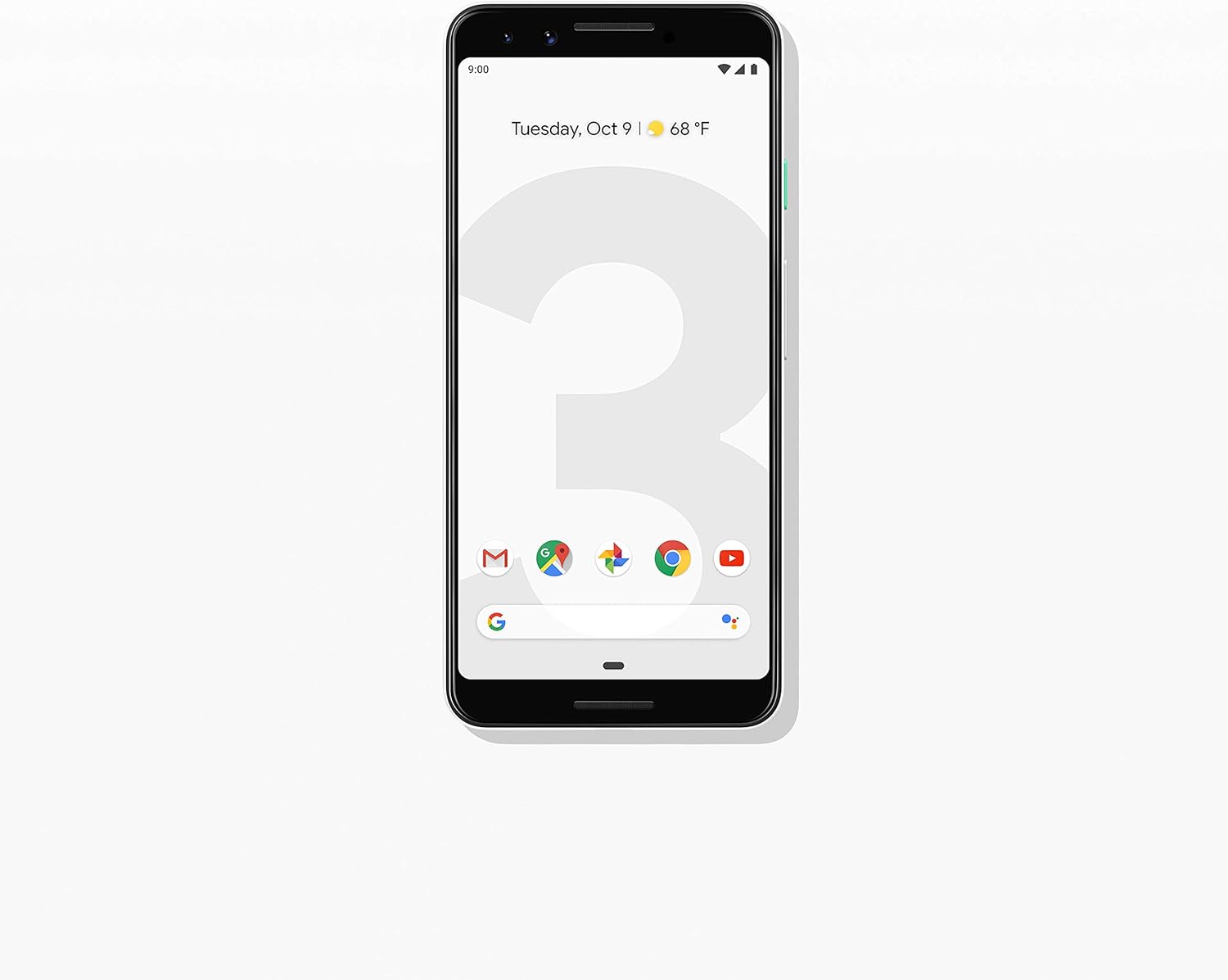
Mufananidzo: Mberi view of the Google Pixel 3 smartphone, showcasing its display and sleek design in Clearly White.
Gadzirira
1. Unboxing uye Kutanga Kuongorora
Upon opening the package, ensure all components are present and in good condition. The standard package for your Google Pixel 3 includes:
- Google Pixel 3 Smartphone
- USB-C digital earbud
- USB-C kuenda ku USB-C tambo
- USB-C to 3.5mm headphone adapter
- Quick Switch Adapter (USB-A to USB-C)
- SIM mudziyo
2. Kuiswa kweSIM Card
Kuti uise kadhi rako reNano-SIM:
- Tsvaga tireyi yeSIM card kuruboshwe rwefoni.
- Insert the SIM tool into the small hole on the tray to eject it.
- Isa Nano-SIM kadhi yako mutireyi ine macontacts egoridhe akatarisa pasi.
- Sunda tireyi zvinyoro nyoro mufoni kusvika yadzvanya panzvimbo.

Mufananidzo: Side view of the Google Pixel 3, highlighting the location of the SIM card tray and volume/power buttons.
3. Simba rekutanga On uye Setup Wizard
Press and hold the power button on the right side of the phone until the Google logo appears. Follow the on-screen instructions to complete the initial setup, including connecting to Wi-Fi, signing in with your Google account, and setting up security features.
4. Kuchaja Chishandiso
Connect the USB-C cable to the phone's charging port at the bottom and the other end to the power adapter. Plug the adapter into a wall outlet. The Pixel 3 supports fast charging and wireless charging. A full charge typically takes approximately 2 hours.
Operating Instruction
1. Basic Navigation (Android 9 Pie)
The Google Pixel 3 runs on Android 9 Pie, offering intuitive gesture navigation.
- Sikirini Yemba: Swipe kumusoro kubva pasi pechidzitiro kuti uende kuchiratidziro chekumba.
- App Drawer: Swipe up from the home screen to access all your applications.
- Zvichangoburwa Zvishandiso: Swipe uchikwira kubva pasi uye ubatisise view mapurogiramu achangobva kushandiswa.
- Kumashure: Tap the back arrow icon or swipe from the left or right edge of the screen (if gesture navigation is enabled).
- Zviziviso: Swipe pasi kubva pamusoro pechidzitiro kuenda view zviziviso uye zvigadziriso zvinokurumidza.

Image: The Google Pixel 3 display showing the home screen with various app icons and the date/weather widget.
2. Camera Features
The Pixel 3 camera is equipped with advanced features to capture high-quality photos and videos.
- MaSelfie eboka: Shandisa kamera yekumberi ine angle yakafara kuti vanhu vakawanda vakwanise kutora maselfie ako.
- Portrait Mode: Create professional-looking photos with a blurred background (bokeh effect).
- Mufananidzo Mukuru: Automatically recommends the best shot from a burst of photos, ensuring no blinks or missed moments.
- Kuona Husiku: Enhances low-light photography, capturing vibrant details in dark environments.
- 4K Kurekodha Vhidhiyo: Record high-resolution videos at 30 frames per second.
3. Google Assistant
Access the Google Assistant by squeezing the sides of your phone or by saying "Hey Google" or "Ok Google." The Assistant can help with tasks such as setting alarms, getting directions, making calls, sending messages, and providing information.
4. Call Screening
The Call Screen feature allows the Google Assistant to answer calls from unknown numbers and provide a real-time transcription of the conversation, helping you avoid spam and nuisance calls.
5. Digital Wellbeing
Monitor and manage your screen time with Digital Wellbeing. Set app timers, enable Wind Down mode to grayscale your screen and mute notifications for better sleep, and focus on what matters.
6. Google Lens
Use Google Lens to search what you see. Point your camera at objects, text, or landmarks to get information, translate languages, or identify plants and animals.
Maintenance
1. Battery Care
To maximize battery life (2915 mAh capacity):
- Dzivisa kupisa kwakanyanya.
- Use the provided charger or a certified wireless charger.
- Enable Adaptive Battery in settings to limit battery usage for infrequently used apps.
- Consider using Battery Saver mode when battery is low.
2. Software Updates
Chengetedza software yemudziyo wako ichivandudzwa kuti uve nechokwadi chekuti inoshanda zvakanaka, yakachengeteka, uye kuti uwane zvinhu zvitsva. Enda ku Settings > System > Advanced > System update kutarisa uye kuisa zvigadziriso.
3. Kuchenesa Mudziyo Wako
Use a soft, lint-free cloth to clean the screen and body of your Pixel 3. Avoid abrasive materials or harsh chemicals. For stubborn smudges, slightly dampen jira nemvura.
4. Kuchengetedza Kuchengetedza
The Pixel 3 comes with 64GB of internal storage. To manage storage effectively:
- Regularly clear app caches.
- Delete zvisina basa files, mapikicha, uye mavhidhiyo.
- Utilize cloud storage services like Google Photos (which offers free unlimited storage for Pixel users at original quality for photos and videos uploaded from the device).
Kugadzirisa matambudziko
This section addresses common issues you might encounter with your Google Pixel 3.
| Dambudziko | Solution |
|---|---|
| Foni haisi kubatika | Ensure the battery is charged. Connect to a charger for at least 15 minutes. If unresponsive, press and hold the power button for 30 seconds. |
| Upenyu hwebhatiri husina kunaka | Check battery usage in settings to identify draining apps. Reduce screen brightness, disable unnecessary features (Bluetooth, GPS when not in use), and enable Adaptive Battery. |
| Zvishandiso zvinoputsika kana kutonhora | Bvisa cache yeapp uye data (Settings > Apps & notifications > App info > [App Name] > Storage & cache). Update the app or reinstall it. Ensure system software is up to date. |
| Nyaya dzekubatanidza (Wi-Fi/Bluetooth) | Toggle Wi-Fi/Bluetooth off and on. Restart the phone. Forget and reconnect to the network/device. Reset network settings (Settings > System > Advanced > Reset options > Reset Wi-Fi, mobile & Bluetooth). |
| Nhare inononoka kana kuti haipinduri | Restart the phone. Clear cached data. Uninstall unused apps. Check for system updates. As a last resort, consider a factory reset (back up data first). |
Factory Reset
A factory reset will erase all data from your phone's internal storage. Chengetedza data rese rakakosha usati waenderera mberi.
- Enda ku Settings > System > Advanced > Reset options.
- Tap Dzima data rese (setazve mufekitari).
- Simbisa sarudzo yako uye isa yako PIN/pattern/password kana ukakurudzirwa.
- Tap Dzima data rese.
Zvinotsanangurwa
Key technical specifications for the Google Pixel 3 (Model: G013A):
| Feature | Detail |
|---|---|
| Product Dimensions | 5.73 x 2.69 x 0.31 inches |
| Item Weight | 12.8 ounces |
| Operating System | Android 9.0 Pie |
| RAM | 4 GB |
| Memory Storage Capacity | 64 GB |
| Screen Size | 5.5 inches |
| Resolution | 2560 x 1440 |
| Battery Capacity | 2915 mamiriyoniamp Maawa |
| Kuchaja Nguva | 2 Maawa (approx.) |
| Connectivity Technologies | Bluetooth, 4G Cellular |
| Special Features | 4K Video Recording, GPS |
| Color | Clearly White |
Warranty uye Support
Your Google Pixel 3 is covered by a limited warranty provided by Google LLC. For detailed warranty terms and conditions, please refer to the warranty information included with your device packaging or visit the official Google support website.
Kubata nerutsigiro
For technical assistance, troubleshooting beyond this manual, or warranty claims, please contact Google Support:
- Rutsigiro rwepamhepo: Visit support.google.com/pixelphone
- Nharaunda Forums: Engage with other Pixel users and experts on Google's official forums.
When contacting support, please have your device's model number (G013A) and serial number ready.


