Nhanganyaya
The Oculus Quest is an all-in-one virtual reality gaming system designed for immersive experiences without the need for a PC or external sensors. This manual provides essential information for setting up, operating, maintaining, and troubleshooting your Oculus Quest headset and controllers.
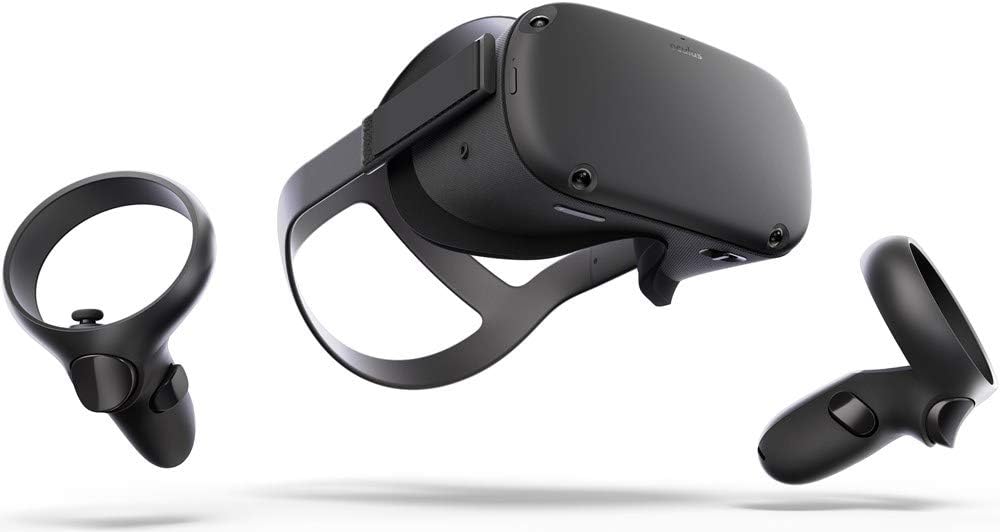
Image: The Oculus Quest headset and its two accompanying Touch controllers, showcasing dhizaini yavo yakapfava.
Chii chiri muBhokisi
Your Oculus Quest package includes the following components:
- Oculus Quest Headset (128GB)
- Oculus Touch Controllers (2)
- USB-C Kuchaja Cable
- Power Adapter
- AA Batteries (2, for controllers)
- Magirazi Spacer
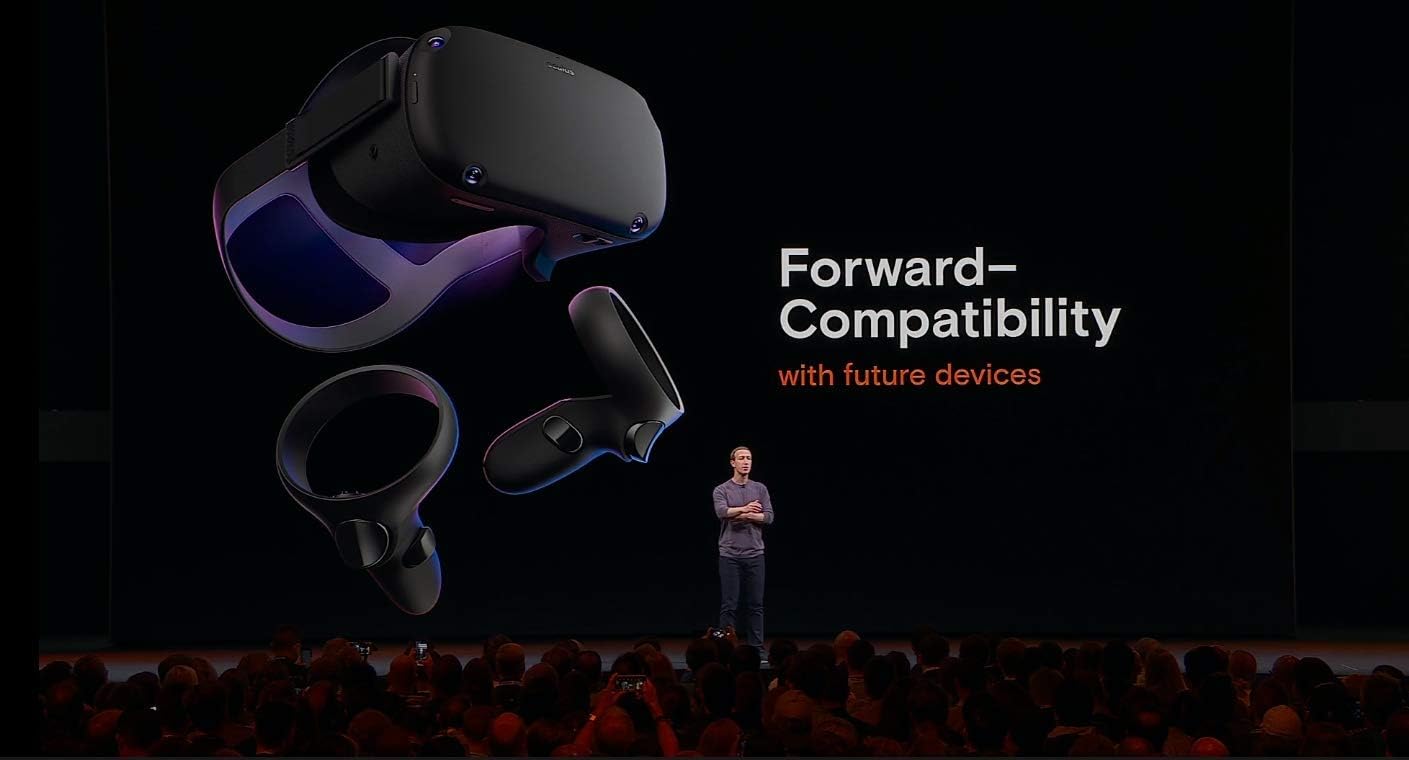
Image: All included components of the Oculus Quest system, neatly arranged for inspection.
Gadzirira
- Chaja mahedhifoni: Connect the USB-C charging cable to the headset and the power adapter, then plug it into a wall outlet. The LED indicator on the headset will show charging status.
- Insert Batteries into Controllers: Open the battery compartment on each Oculus Touch controller and insert the provided AA batteries, ensuring correct polarity.
- Kugadzirisa Kwekutanga kuburikidza neSoftware App: Download the Oculus mobile app on your smartphone. Follow the on-screen instructions to pair your headset, connect to Wi-Fi, and create or log in with your Facebook account.
- Gadzirisa Kukwana Kwemahedhifoni: Place the headset on your head. Adjust the top strap and side straps for a snug yet comfortable fit. Ensure the display is clear and centered. If you wear glasses, insert the included glasses spacer before wearing the headset.
- Set Up Guardian System: The Guardian system helps you define your play space and avoid obstacles. Follow the prompts in VR to draw your boundary. You can choose between Stationary (sitting/standing in one spot) or Roomscale (moving around a larger area).
Operating Instruction
Kushandisa Headset
- Batidza/Kudzima: Press and hold the power button on the side of the headset for a few seconds to turn it on or off.
- Navigating the Home Environment: Once powered on, you will enter the Oculus Home environment. Use your Touch controllers to interact with menus, launch applications, and browse content.
- Adjusting IPD: The Interpupillary Distance (IPD) slider at the bottom of the headset allows you to adjust the lens spacing to match your eye distance for optimal clarity.
Using the Touch Controllers
The Oculus Touch controllers provide intuitive interaction within VR. Each controller features:
- Analog Stick: For movement and navigation.
- Mabhatani Echiso (A/B/X/Y): For in-game actions and menu selections.
- Trigger Bhatani: Typically used for grabbing or firing.
- Grip Button: For gripping objects.
- Oculus Button: Press to open the universal menu or recenter your view.
- Bhatani reMenu: Used for in-app menus.
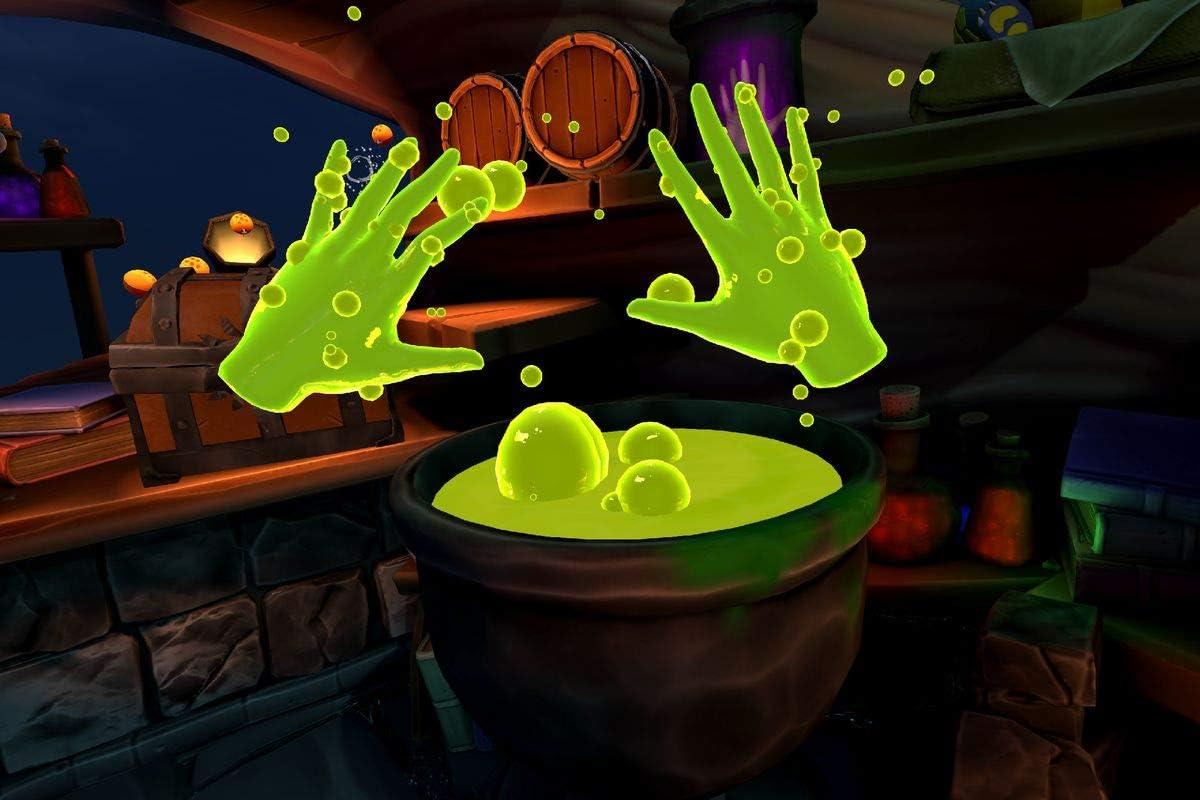
Image: A user demonstrating the proper way to wear the Oculus Quest headset and hold the Touch controllers during gameplay.
Mufananidzo: An example of in-game interaction, showing virtual hands with glowing effects above a cauldron, demonstrating the immersive experience.
Maintenance
- Kuchenesa maLens: Use a dry microfiber cloth specifically designed for lenses. Wipe gently from the center outwards in a circular motion. Do not use liquid cleaners, alcohol, or abrasive cloths.
- Cleaning the Headset and Controllers: Shandisa yakaoma kana zvishoma damp non-abrasive cloth. Avoid getting moisture into any openings.
- Kuchengeta: Store your Oculus Quest in a cool, dry place away from direct sunlight. Prolonged exposure to sunlight can damage the lenses and display.
- Battery Care: Kuti bhatiri rigare kwenguva refu, dzivisa kuburitsa headset yese nguva nenguva. Ichaje nguva dzose.
Kugadzirisa matambudziko
| Dambudziko | Possible Solution |
|---|---|
| Headset haisi kubatika | Ensure the headset is fully charged. Press and hold the power button for at least 10 seconds for a hard reset. |
| Controllers not pairing/tracking | Check controller batteries. Re-pair controllers via the Oculus mobile app. Ensure your play space has adequate lighting. |
| Blurry vision/display | Adjust the headset's fit and IPD slider. Clean the lenses with a microfiber cloth. |
| Guardian system issues | Redraw your Guardian boundary. Ensure your play space is well-lit and free of reflective surfaces. |
| Audio matambudziko | Check volume settings in VR. Ensure headphones (if used) are properly connected. |
Zvinotsanangurwa
- Zita remuenzanisi: 301-00171-01
- Kuchengeta: 128GB
- Dimensions: 14.7 x 9.1 x 5 inches
- Chinhu Weight: 1.1 makirogiramu
- Kubatana: Makaralı, Wi-Fi
- Operating System: Android-based
- Zvinosanganisirwa Zvikamu: Headset, 2 Touch Controllers, USB-C Cable, Power Adapter, 2 AA Batteries, Glasses Spacer
- Mugadziri: Oculus (Brand: Meta)
- Kutanga Kuwanikwa: Ndira 10, 2019
Warranty uye Support
For detailed warranty information and customer support, please refer to the official Meta (Oculus) websaiti kana kubata basa ravo revatengi zvakananga. Chengetedza humbowo hwako hwekutenga kune warranty claim.
Zvishandiso zvepaindaneti nemibvunzo inowanzo bvunzwa zviripo kuti zvibatsire nemibvunzo inowanzo bvunzwa uye mazano ekushandisa zvakanyanya.


