Nhanganyaya
This manual provides comprehensive instructions for the GameSir GK300 Wireless Mechanical Gaming Keyboard. It covers setup, operation, maintenance, and troubleshooting to ensure optimal performance and longevity of your device. Please read this manual thoroughly before using the keyboard.

Image: The GameSir GK300 Wireless Mechanical Gaming Keyboard, shown with its detachable wrist rest, highlighting its full-sized layout and sleek design.
Package Zviri mukati
Tarisa uone kuti zvinhu zvese zviripo mupakeji:
- GameSir GK300 Wireless Mechanical Gaming Keyboard
- USB Adapter (for 2.4GHz wireless connection)
- User Manual
- Wrist Rest
- Charging Cable (not explicitly listed but implied for rechargeable battery)
Gadzirira
1. Kuchaja kiyibhodhi
The keyboard features a built-in 3600mAh rechargeable Lithium battery. Before initial use, fully charge the keyboard. Connect the provided charging cable to the keyboard's charging port and to a USB power source. Charging typically takes 2.5 to 3 hours.
2. Kubatanidza kuburikidza ne2.4GHz Wireless
- Locate the USB adapter included in the package.
- Plug the USB adapter into an available USB port on your Windows PC, Laptop, or compatible Android device.
- Turn on the keyboard. The keyboard should automatically connect to the adapter.
- The 2.4GHz connection offers a 1ms report rate for high precision and responsiveness.
3. Kubatanidza kuburikidza neBluetooth
The GameSir GK300 supports Bluetooth 4.1 and below for connection to various devices, including Windows PCs, macOS, Android (4.4 or later), and iOS (7.0 or later).
- Ita shuwa kuti Bluetooth yakabatidzwa pane chako kifaa.
- Put the keyboard into Bluetooth pairing mode (refer to the keyboard's function key combinations for specific instructions, usually Fn + a specific key).
- On your device, search for available Bluetooth devices and select "GameSir GK300" to pair.
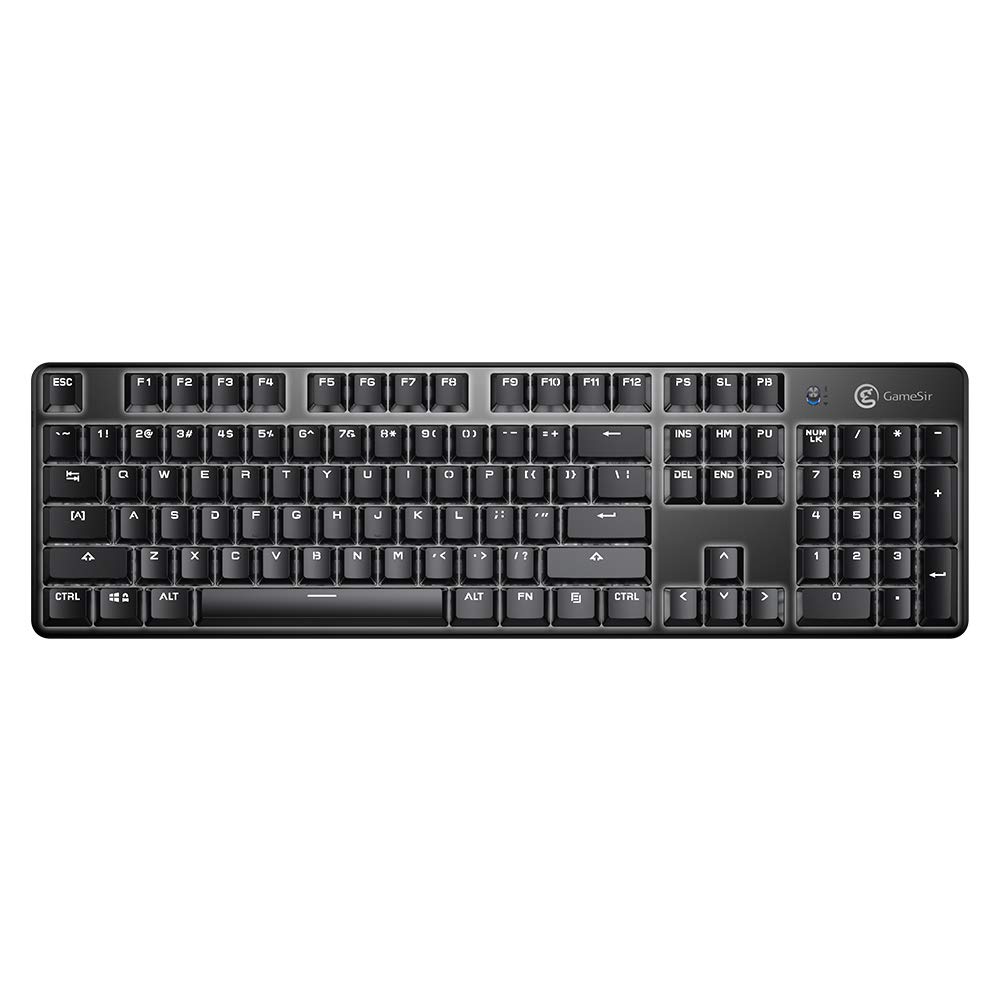
Mufananidzo: kumusoro-pasi view of the GameSir GK300 keyboard, showing the full 104-key layout and keycap spacing.
Operating Instruction
1. Dual Mode Connection Switching
The keyboard supports both 2.4GHz wireless and Bluetooth connections. Use the appropriate function key combination (e.g., Fn + 1/2/3 for Bluetooth profiles, or Fn + 4 for 2.4GHz) to switch between connected devices or modes.
2. Kudzora Kwemwenje
The GameSir GK300 features white LED backlighting with 5 adjustable brightness levels and various lighting effects. Use the dedicated function keys (e.g., Fn + arrow keys or other designated keys) to cycle through effects and adjust brightness.
3. Kurwisa Zvipoko
The keyboard is equipped with 10-key anti-ghosting, ensuring that up to 10 simultaneous key presses are registered accurately without conflict, which is crucial for gaming performance.
4. Swichi dzeMichina
The keyboard utilizes TTC Blue Mechanical Switches, known for their tactile feedback and audible click. These switches have a lifespan of 50 million keystrokes, providing durability and a distinct typing experience.

Image: The GameSir GK300 keyboard illuminated with its LED backlight, positioned within a gaming setup, demonstrating its visual appeal during use.
Maintenance
1. Kuchenesa
To clean your keyboard, power it off and disconnect it from any power source. Use a soft, dry cloth to wipe the surface. For dust and debris between keys, use compressed air. Avoid using harsh chemicals or abrasive materials.
2. Battery Care
To prolong battery life, avoid fully discharging the keyboard frequently. Charge the keyboard when the battery indicator is low. If storing the keyboard for an extended period, charge it to approximately 50% and store it in a cool, dry place.
Kugadzirisa matambudziko
- Kiyibhodhi haisi kubatanidza:
Ensure the keyboard is powered on and fully charged. For 2.4GHz, verify the USB adapter is securely plugged in. For Bluetooth, ensure the keyboard is in pairing mode and your device's Bluetooth is active. Try re-pairing the device.
- Interference with Wi-Fi:
The 2.4GHz wireless connection may experience interference from Wi-Fi routers operating on the same frequency band. If you experience missed keystrokes or erratic behavior, try changing the Wi-Fi channel on your router if possible, or move the keyboard closer to the USB adapter.
- Keys not responding or typing incorrectly:
Ensure the keyboard is clean and free of debris. If individual keys are consistently failing, this may indicate a switch issue. For persistent problems, contact customer support.
- Backlight isiri kushanda kana kudzima:
Check the battery level; low battery can affect backlight performance. Use the function keys to adjust brightness and cycle through lighting modes. If the issue persists, a factory reset (if available) or contacting support may be necessary.
- Automatic sleep mode:
The keyboard is designed to enter sleep mode after a period of inactivity to conserve battery. Press any key to wake it up. Note that the first key press after waking may not register as input.
Zvinotsanangurwa
| Feature | Detail |
|---|---|
| Brand | GameSir |
| Model Number | GK300 |
| Color | Nhema |
| Dimensions (LxWxH) | 46.5 x 14 x 6.5 cm |
| Item Weight | 816.47 g |
| Wireless Technology | 2.4GHz isina waya, Bluetooth 4.1 |
| Keys Kurongeka | Makiyi maviri eMichina |
| Anochinja Type | TTC Blue Switches |
| Keystroke Hupenyu | miriyoni imwe |
| Backlight Color | Ichena, 5-chikamu chinogadziriswa kupenya |
| Battery Capacity | 3600mAh rechargeable Lithium bhatiri |
| Kuchaja Nguva | Maawa matanhatu kusvika masere |
| Hupenyu hweBhatiri (Backlight Yakabatidzwa) | Kusvikira kumaawa makumi maviri nemashanu |
| Hupenyu hweBhatiri (Backlight Yadzimwa) | Kusvikira kumaawa makumi maviri nemashanu |
| Anti-Ghosting | 10 makiyi |
| Inoenderana Platforms | Windows PC (7+), macOS, Android (4.4+), iOS (7.0+) |
| Inosanganisirwa Zvikamu | Gaming Keyboard, User Manual, USB Adapter |
Product Videos
Video: Demonstrates the GameSir GK300 Wireless Mechanical Gaming Keyboard in action during Apex Legends gameplay, showcasing its responsiveness and suitability for gaming.
Video: Highlights the key features and design elements of the GameSir GK300 Wireless Mechanical Gaming Keyboard, providing a detailed overview zvekugona kwayo.
Warranty uye Support
The GameSir GK300 Wireless Mechanical Gaming Keyboard comes with a 3-month warranty. For warranty claims, technical support, or further assistance, please contact GameSir customer service or visit the official GameSir website.
Manufacturer: Gamesir, Room 6, 5/F EasternHarbour Centre, 28 Hoi Chak Street, Quarry Bay, Hong Kong
Importer: Bellstar Trading Pvt Ltd - A24, Naraina INDL Area Ph-1, Delhi-110028 - 01145629914


