Nhanganyaya
This manual provides essential instructions for setting up, operating, maintaining, and troubleshooting your Microsoft Surface Pro 2017. The Surface Pro 2017 is a versatile 2-in-1 device designed to function as both a powerful laptop and a portable tablet, offering a seamless computing experience.
Please read this manual thoroughly to ensure proper use and to maximize the lifespan of your device. Keep this manual for future reference.
Chii chiri muBhokisi
Upon unboxing your Microsoft Surface Pro 2017, verify that all components are present:
- Chishandiso cheMicrosoft Surface Pro 2017
- AC Simba Adapter
Note: Additional accessories such as the Surface Pen, Type Cover, or Surface Dial are sold separately and may not be included with your device.
Gadzirira
1. Kubatidza Kwekutanga uye Kuchaja
- Batanidza Power Adapter: Plug the AC power adapter into a wall outlet and then connect the magnetic charging connector to the charging port on your Surface Pro. The LED indicator on the connector will illuminate when charging.
- Power On: Press and hold the power button located on the top edge of the device for a few seconds until the Microsoft logo appears on the screen.
2. Windows Setup
Follow the on-screen prompts to complete the initial Windows setup. This process typically includes:
- Kusarudza dunhu rako uye mutauro.
- Kubatanidza kune network yeWi-Fi.
- Kugamuchira chibvumirano cherezinesi.
- Creating or signing in with a Microsoft account.
- Setting up security features like Windows Hello (facial recognition) or a PIN.
3. Kubatanidza kuWi-Fi
- During Windows setup, you will be prompted to connect to a network. Select your desired Wi-Fi network from the list and enter the password if required.
- If you need to connect later, go to Tanga > Settings > Network & Internet > Wi-Fi. Turn Wi-Fi on, select your network, and click Connect.
Operating Instruction
Basic Device Orientation and Controls
The Surface Pro 2017 features a 12.3-inch PixelSense display with multi-touch support. Key physical controls include:
- Bhatani reSimba: Located on the top edge, used to turn the device on/off, sleep, or wake.
- Mabhatani eVolume: Iri padivi, inoshandiswa kugadzirisa vhoriyamu yeruzha.
- Kickstand: Integrated on the back, allows for multiple viewing angles.
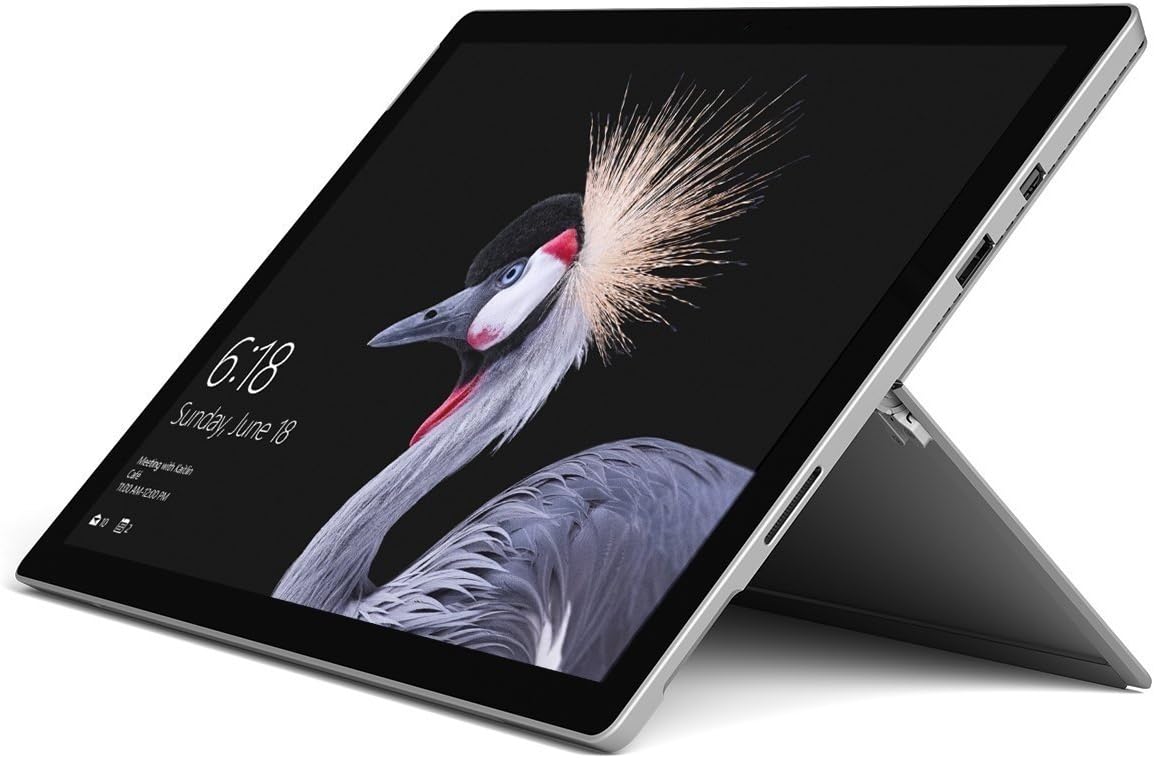
Image: Microsoft Surface Pro 2017 in laptop mode with its kickstand extended, showcasing the device's display.
Kushandisa Kickstand
The integrated kickstand allows you to position your Surface Pro at various angles for comfortable viewing, typing, or drawing. Gently pull the kickstand out from the back of the device until it reaches your desired angle.
Power Management
- Nzira yekurara: Briefly press the power button to put the Surface Pro into sleep mode. Press it again to wake the device.
- Vhara: Enda ku Tanga > Simba > Vhara.
- Tangazve: Enda ku Tanga > Simba > Restart.
Kubatanidza Peripherals
The Surface Pro 2017 includes various ports for connecting external devices:
- USB 3.0 Chiteshi: For connecting USB drives, keyboards, mice, and other compatible accessories.
- Mini DisplayPort: Zvekubatanidza kune ekunze monitors kana mapurojekita.
- MicroSD Card Reader: Yekuwedzera kuchengetedza kana kutamisa files kubva kumakadhi ememori.
- Surface Connect Port: For power and connecting to Surface Dock accessories.
- 3.5mm Headphone Jack: Zvekuburitsa audio.
Bluetooth: To connect Bluetooth devices (e.g., headphones, mice), go to Tanga > Settings > Devices > Bluetooth uye zvimwe zvishandiso. Ensure Bluetooth is turned on, then select "Add Bluetooth or other device" and follow the pairing instructions.

Mufananidzo: Side profile of the Microsoft Surface Pro 2017, highlighting the various ports available for connectivity.
Maintenance
Cleaning Your Surface Pro
- Sikirini Shandisa jira rakapfava, risina lint zvishoma dampened with water or an approved screen cleaner. Avoid harsh chemicals or abrasive materials.
- Muviri: Wipe the exterior with a soft, dry cloth. Do not allow liquids to enter openings.
- Zviteshi: Keep ports free of dust and debris. Use compressed air carefully if needed, holding the can upright.
Battery Care
- Dzivisa tembiricha yakanyanyisa, sezvo inogona kukanganisa hupenyu hwebhatiri.
- Kuti uwane hutano hwakakwana hwebhatiri, dzivirira kugara uchiburitsa bhatiri zvachose kana kurichengeta pa100% kuchaji kwenguva yakareba.
- Use only the official Microsoft AC power adapter or a compatible charger.
Software Updates
Regularly update your Windows operating system and device drivers to ensure optimal performance, security, and compatibility. Go to Tanga > Settings > Update & Chengetedzo > Windows Update kutarisa uye kuisa zvigadziriso.
Kugadzirisa matambudziko
Ichi chikamu chinogadzirisa zvinowanzoitika zvaungasangana nazvo neSurface Pro 2017 yako.
Device Will Not Turn On
- Ita shuwa kuti mudziyo wachajwa. Batanidza adapta yemagetsi uye mirira maminetsi mashoma usati waedza kubatidza.
- Perform a two-button shutdown: Press and hold the volume-up button and the power button simultaneously for at least 15 seconds, then release both. Wait 10 seconds, then press the power button again to turn on the Surface.
Screen Not Responding to Touch
- Tangazve mudziyo.
- Ita shuwa kuti skrini yakachena uye haina tsvina.
- Check for available Windows updates, as driver updates can resolve touch issues.
Matambudziko eWi-Fi
- Ita shuwa kuti Wi-Fi yakabatidzwa mukati Settings > Network & Internet > Wi-Fi.
- Restart your Surface Pro and your Wi-Fi router.
- Kanganwa nezve network wobva wabatanidzazve: Enda ku Settings > Network & Internet > Wi-Fi, click on your network, then Kanganwa. Reconnect and enter the password.
Zvinotsanangurwa
| Feature | Tsanangudzo |
|---|---|
| Model Name | Surface Pro 2017 |
| Item Model Number | 7Y30 |
| Screen Size | 12.3 inches |
| Screen Resolution | 2736 x 1824 pixels |
| processor | Intel Core m3-7Y30 (1 GHz Intel_Mobile_CPU) |
| RAM | 4 GB DDR4 SDRAM |
| Storage | 128 GB SSD |
| Graphics Card | Integrated (Intel) |
| Operating System | Windows |
| Wireless Type | 802.11abg |
| Item Weight | 1.89 makirogiramu |
| Product Dimensions | 11.5 x 7.9 x 0.3 inches |
| Color | Sirivha |
Warranty uye Support
For detailed warranty information, please refer to the warranty card included with your purchase or visit the official Microsoft support webnzvimbo. Mitemo nemipimo yewarandi inogona kusiyana zvichienderana nenzvimbo nemutengesi.
Kuti uwane rutsigiro rwehunyanzvi, kurodha mutyairi, uye zvimwe zviwanikwa, ndapota shanyira iyo yepamutemo Microsoft Tsigiro websaiti: support.microsoft.com/surface


