1. Nhanganyaya
This manual provides detailed instructions for the proper setup, operation, and maintenance of your Zerone USB Digital Microscope. This device is designed for various applications including industrial testing, laboratory research, educational purposes, and detailed examination of small objects. Please read this manual thoroughly before using the product to ensure optimal performance and longevity.
2. Safety Information
- Do not expose the device to extreme temperatures, humidity, or corrosive substances.
- Avoid direct exposure of the LED lights to eyes.
- Chengetedza mudziyo kure nevana.
- Use only the provided accessories or compatible replacements.
- Disconnect the device from the power source when not in use or during cleaning.
3. Package Zviri mukati
Tarisa uone kuti zvinhu zvese zviripo mupakeji:
- Zerone USB Digital Microscope
- Chimiro chinochinjika
- USB Cable with LED Dimming Knob
- Software Installation CD (or download link)

Image 3.1: Contents of the Zerone USB Digital Microscope package, including the microscope, stand, USB cable, and software CD.
4. Chigadzirwa Pamusoroview
The Zerone USB Digital Microscope features a compact design with adjustable magnification and integrated LED illumination. Key components include:
- Microscope Body: Contains the lens, sensor, and control buttons.
- Zoom/Focus Wheel: Located on the microscope body for adjusting magnification and focus.
- Mwenje ye LED: Eight adjustable LEDs surrounding the lens for illuminating the specimen.
- Snap Bhatani: Kuti utore mifananidzo isina kusimba.
- USB Cable: Connects the microscope to a computer.
- LED Dimming Knob: Integrated into the USB cable for brightness control.
- Adjustable Stand: Provides stable support and allows for precise positioning of the microscope.

Image 4.1: The Zerone USB Digital Microscope mounted on its adjustable stand, connected via USB cable.

Mufananidzo 4.2: Kuswedera pedyo view of the Zerone USB Digital Microscope on its stand, highlighting its portable design and 1000X zoom capability.
5. Setup
5.1 Kuiswa kweSoftware
- Insert the provided software installation CD into your computer's CD-ROM drive. If your computer does not have a CD-ROM drive, please refer to the manufacturer's websaiti yemirairo yekurodha software.
- Follow the on-screen prompts to install the digital microscope software.
- Once installation is complete, restart your computer if prompted.
5.2 Connecting the Microscope
- Attach the microscope to the adjustable stand. Ensure it is securely fastened.
- Connect the USB cable from the microscope to an available USB port on your computer.
- The computer should automatically detect the device. If not, check your device manager for driver installation status.

Image 5.1: The Zerone USB Digital Microscope set up on a surface, demonstrating its use in a typical research or inspection environment.
6. Operating Instructions
6.1 Kutanga iyo Software
Launch the digital microscope software installed on your computer. The live feed from the microscope should appear on your screen.
6.2 Adjusting Focus and Zoom
- Place the object you wish to examine under the microscope lens.
- Rotate the Zoom/Focus Wheel on the microscope body to adjust the magnification and bring the image into clear focus on your computer screen.
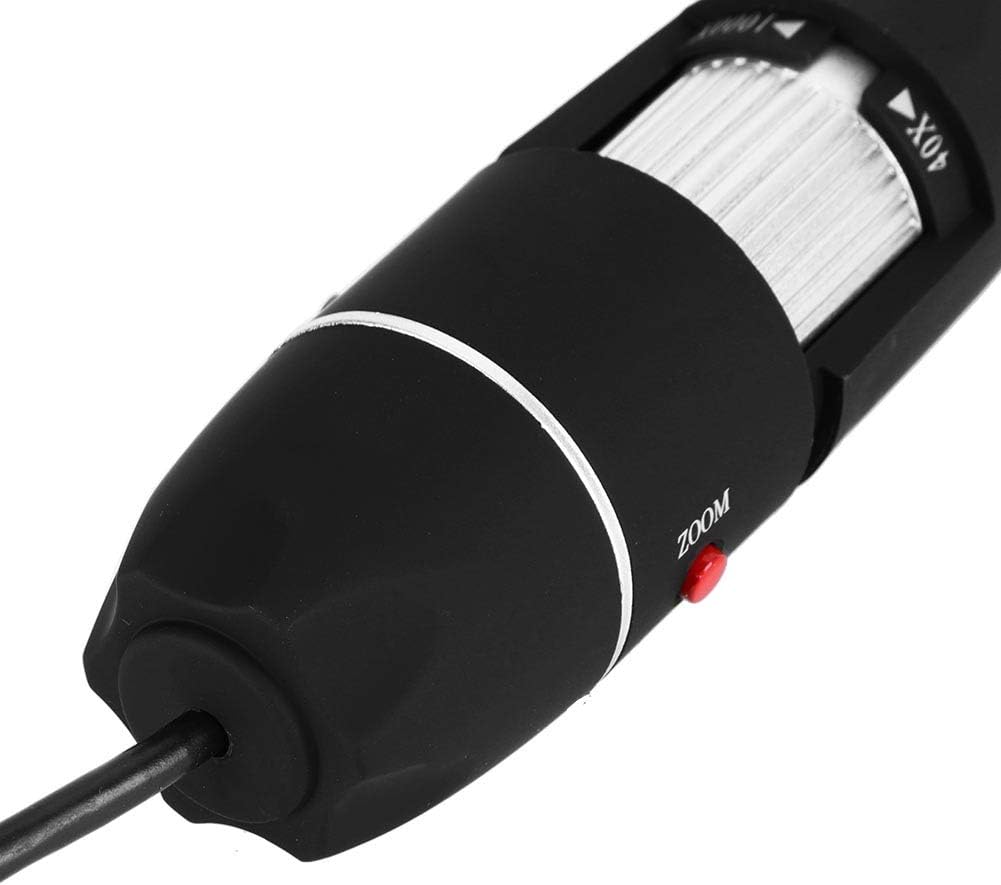
Mufananidzo 6.1: Yakadzama view of the zoom and focus adjustment wheel on the microscope body, used for precise image clarity and magnification.
6.3 Kugadzirisa Kupenya kwe LED
The microscope is equipped with 8 adjustable LED lights. Use the LED Dimming Knob located on the USB cable to increase or decrease the brightness. Adjust the lighting to achieve optimal visibility of your specimen.

Image 6.2: A close-up showing the arrangement of the 8 LEDs around the microscope lens, designed to provide even illumination.

Image 6.3: The front of the microscope with its 8 LEDs illuminated, demonstrating the lighting capability for viewing specimens.
6.4 Kutora mifananidzo nemavhidhiyo
To capture a still image, press the Snap Bhatani on the microscope body or use the corresponding function within the software. To record video, select the video recording option in the software and follow the prompts.

Image 6.4: A hand holding the Zerone USB Digital Microscope, illustrating its ergonomic design and portability for handheld use.
6.5 Chigadzirwa Chiratidziro Vhidhiyo
Watch this video for a visual guide on the features and operation of the Zerone USB Digital Microscope.
Video 6.1: A demonstration video showcasing the Zerone 1000X Zoom USB Digital Microscope, highlighting its features and how it functions as a digital magnifier and endoscope camera.
7. Kuchengeta
7.1 Kuchenesa
- Gently wipe the microscope body with a soft, dry cloth.
- Kune iyo lens, shandisa yakasarudzika lens yekuchenesa jira uye mhinduro kudzivirira mavanga.
- Usashandise abrasive cleaners kana solvents.
7.2 Kuchengeta
When not in use, store the microscope in a clean, dry place, away from direct sunlight and extreme temperatures. Use the original packaging or a protective case to prevent dust accumulation and physical damage.
8. Kugadzirisa matambudziko
| Dambudziko | Zvinogona Kukonzera | Solution |
|---|---|---|
| Hapana mufananidzo pachiratidziri | Microscope not connected properly; Software not launched; Driver issue. | Ensure USB cable is securely connected. Launch the software. Reinstall drivers if necessary. |
| Mufananidzo hauna kujeka | Incorrect focus; Incorrect working distance. | Adjust the Zoom/Focus Wheel. Ensure the microscope is at an appropriate distance from the object. |
| Ma LED haasi kuvhenekera | LED dimming knob set to minimum; Power issue. | Rotate the LED Dimming Knob to increase brightness. Check USB connection. |
| Software not detecting device | Driver not installed or corrupted; USB port issue. | Reinstall the software and drivers. Try a different USB port. |
9. Zvinotsanangurwa
| Feature | Detail |
|---|---|
| Brand | Zerone |
| Model Number | SKIESOARtbx1zsgua2 |
| Kukudza | Kusvika ku1000X |
| Light Source | 8 Inogadziriswa LEDs |
| Kubatana | USB |
| Inowirirana Devices | Personal Computer |
| Material | Metal |
| Color | Dema, Sirivha |
| Product Dimensions | 5.31 x 5.12 x 1.77 inches |
| Item Weight | 7 ounces |
10. Warranty uye Tsigiro
For warranty information and technical support, please refer to the documentation included with your product or visit the official Zerone website. Chengetedza risiti yako yekutenga sehumbowo hwekutenga kune chero vimbiso yewaranti.
