Nhanganyaya
Thank you for choosing the Macally Wireless Bluetooth Keyboard. This multi-device keyboard is designed to enhance your productivity across various platforms, including Mac, iOS, Windows, and Android devices. Featuring 110 keys, 20 Mac OS shortcuts, and a numeric keypad, it offers a comfortable and efficient typing experience. Its ultra-slim design and rechargeable battery make it an ideal companion for both work and leisure.

Image: The Macally Wireless Bluetooth Keyboard, showcasing its full layout and sleek silver design.
Package Zviri mukati
- Macally Wireless Bluetooth Keyboard
- Chaja Cable
- User Guide
Gadzirira
1. Kuchaja kiyibhodhi
Before initial use, fully charge the keyboard using the included charging cable. Connect the cable to the keyboard's charging port and a USB power source. The LED indicator will show charging status.

Image: Illustration showing the keyboard connected to a charging cable, emphasizing its rechargeable nature.
2. Kubatanidza neMidziyo
The Macally Wireless Bluetooth Keyboard supports connecting up to three Bluetooth-enabled devices simultaneously. Follow these steps to pair your devices:
- Batidza kiibhodhi uchishandisa switch yemagetsi.
- Press and hold one of the Bluetooth keys (BT1, BT2, or BT3) for a few seconds until the corresponding LED indicator starts blinking rapidly. This indicates pairing mode.
- On your device (computer, tablet, or smartphone), go to Bluetooth settings and search for available devices.
- Select "Macally Keyboard" (or similar name) from the list.
- If prompted, enter the pairing code displayed on your screen using the Macally keyboard and press Enter.
- Kana yabatanidzwa, chiratidzo che LED chinomira kupenya uye chinoramba chakasimba kwemasekonzi mashoma chisati chadzima.
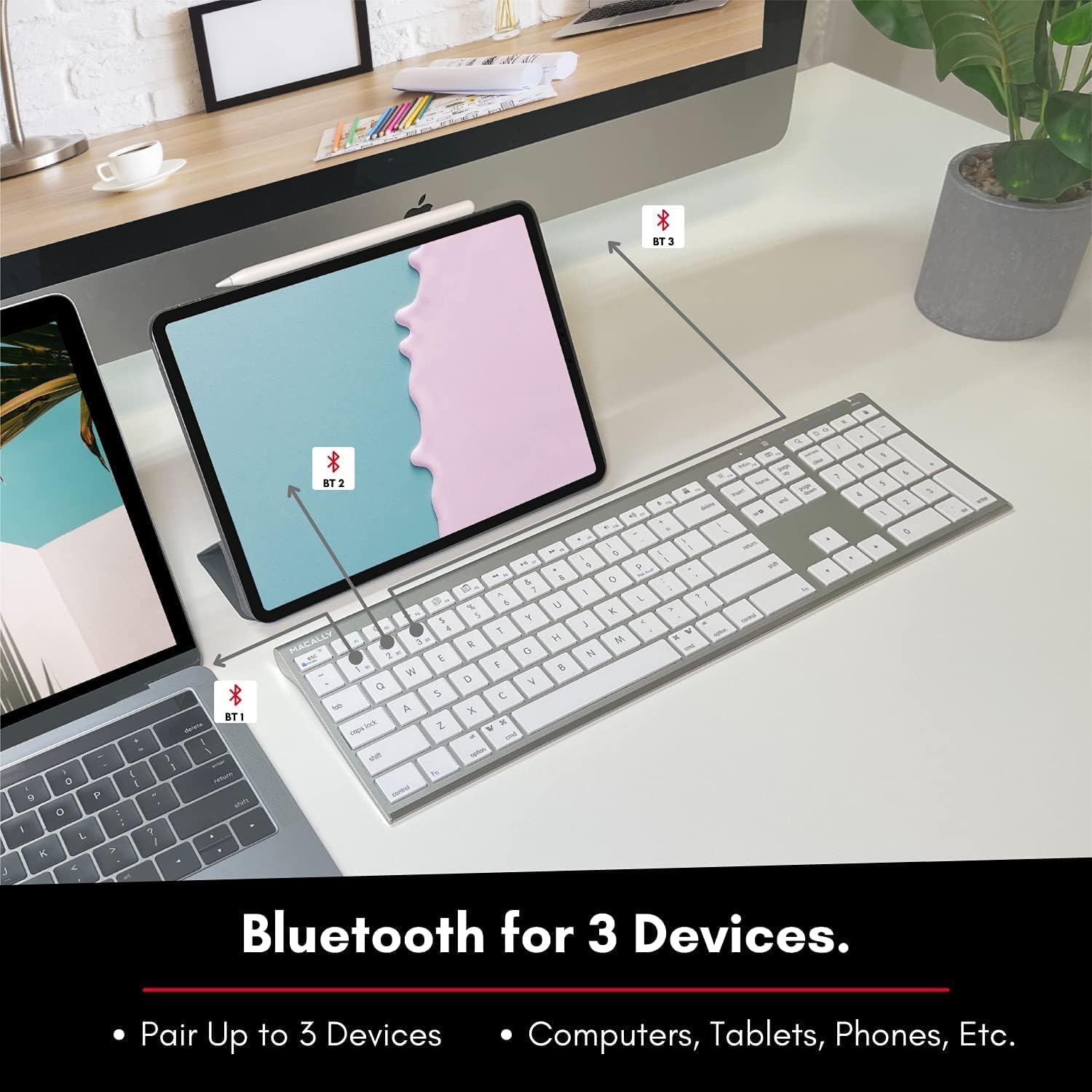
Image: The keyboard connected to a laptop and a tablet, illustrating its multi-device pairing capability.
Operating Instruction
Kuchinja pakati peMidziyo
To switch between paired devices, simply press the corresponding Bluetooth key (BT1, BT2, or BT3) once. The keyboard will automatically connect to the selected device within a few seconds.

Image: Visual representation of the keyboard seamlessly switching between a smartphone, iMac, and laptop, highlighting the multi-sync feature.
Makiyi eBasa uye Mapfupi
The keyboard features a full set of 110 keys, including a numeric keypad and 20 dedicated Mac OS shortcut keys. These shortcuts provide quick access to various functions such as brightness control, volume adjustment, media playback, and more. Refer to your device's operating system documentation for specific shortcut functionalities.
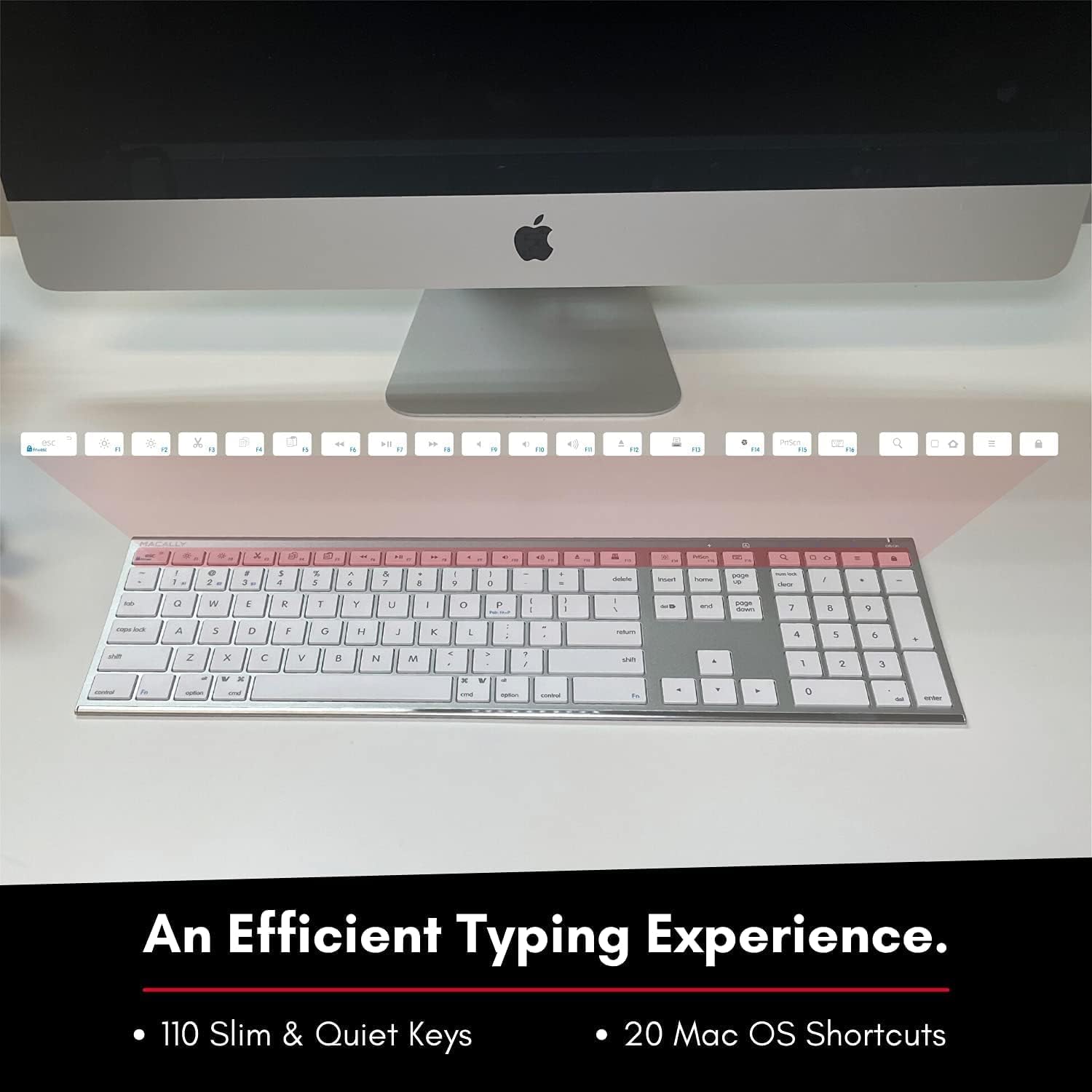
Image: Close-up of the keyboard's top row, highlighting the dedicated function and shortcut keys.
Kugarisana
This keyboard is broadly compatible with a range of operating systems and devices, including:
- macOS
- Windows
- iOS (iPhone, iPad)
- Android

Image: The keyboard positioned in front of an iMac, indicating its compatibility with Mac systems.
Maintenance
To ensure the longevity and optimal performance of your Macally Wireless Bluetooth Keyboard, follow these maintenance guidelines:
- Kuchenesa: Use a soft, lint-free cloth to wipe the surface of the keyboard. For stubborn dirt, slightly dampsn jira rine mvura kana mushonga wakapfava wekuchenesa. Dzivisa kunyorova kwakanyanyisa.
- Battery Care: The keyboard features a built-in rechargeable battery. To maximize battery life, avoid fully discharging the battery frequently. Charge the keyboard when the low battery indicator appears.
- Kuchengeta: Kana usingashandiswe kwenguva yakareba, dzima kiyibhodhi kuti uchengetedze hupenyu hwebhatiri. Chengeta panzvimbo inotonhorera, yakaoma kure nezuva rakananga uye tembiricha dzakanyanya.
- Dzivisa Kurasika: Chengetedza zvinwiwa kure nekhibhodi kudzivirira kukuvadzwa kwezvinhu zvemukati.
Kugadzirisa matambudziko
Keyboard Not Responding or Typing Incorrectly
- Ita shuwa kuti kiibhodhi yachajwa.
- Verify that the keyboard is powered on and the correct Bluetooth channel (BT1, BT2, or BT3) is selected for your device.
- Edza kubatanidza kiyibhodhi nemudziyo wako.
- Check if the Fn lock is active. On the top right, there should be a lock symbol with an FN in the lock. If there is a Blue LED light on the panel which is on the top right, then press and hold Fn uye dzvanya ESC to shut off the Fn lock.

Image: A troubleshooting tip for the Fn lock feature, showing the relevant keys.
Mouse Keys Issue (macOS)
- If your keyboard inputs are behaving like mouse movements, you may have "Mouse Keys" enabled.
- Go to System Preferences (or System Settings on newer macOS versions), then click on Accessibility. After that, scroll to Pointer Control uye disable Bvumira Makiyi eMouse.

Image: A troubleshooting tip for disabling Mouse Keys in system settings.
Bluetooth Connection Matambudziko
- Ita shuwa kuti Bluetooth yemudziyo wako inogoneswa uye inowanikwa.
- Move the keyboard closer to your device to ensure a strong signal.
- Bvisa chero zvingangokonzera kukanganisa (semuenzaniso, mamwe mawaya, simbi huru).
- Tangazve zvese kiibhodhi uye mudziyo wako.
Zvinotsanangurwa
| Brand | Macally |
| Model Number | ACEBTKEY-US |
| Product Dimensions | 18.11 x 6.3 x 0.91 inches |
| Item Weight | 14.9 ounces |
| Kubatana Technology | Bluetooth |
| Number of Keys | 110 |
| Inowirirana Devices | MacOS, Windows, iOS, Android |
| Bhatiri | 3 Lithium Polymer batteries (included, rechargeable) |
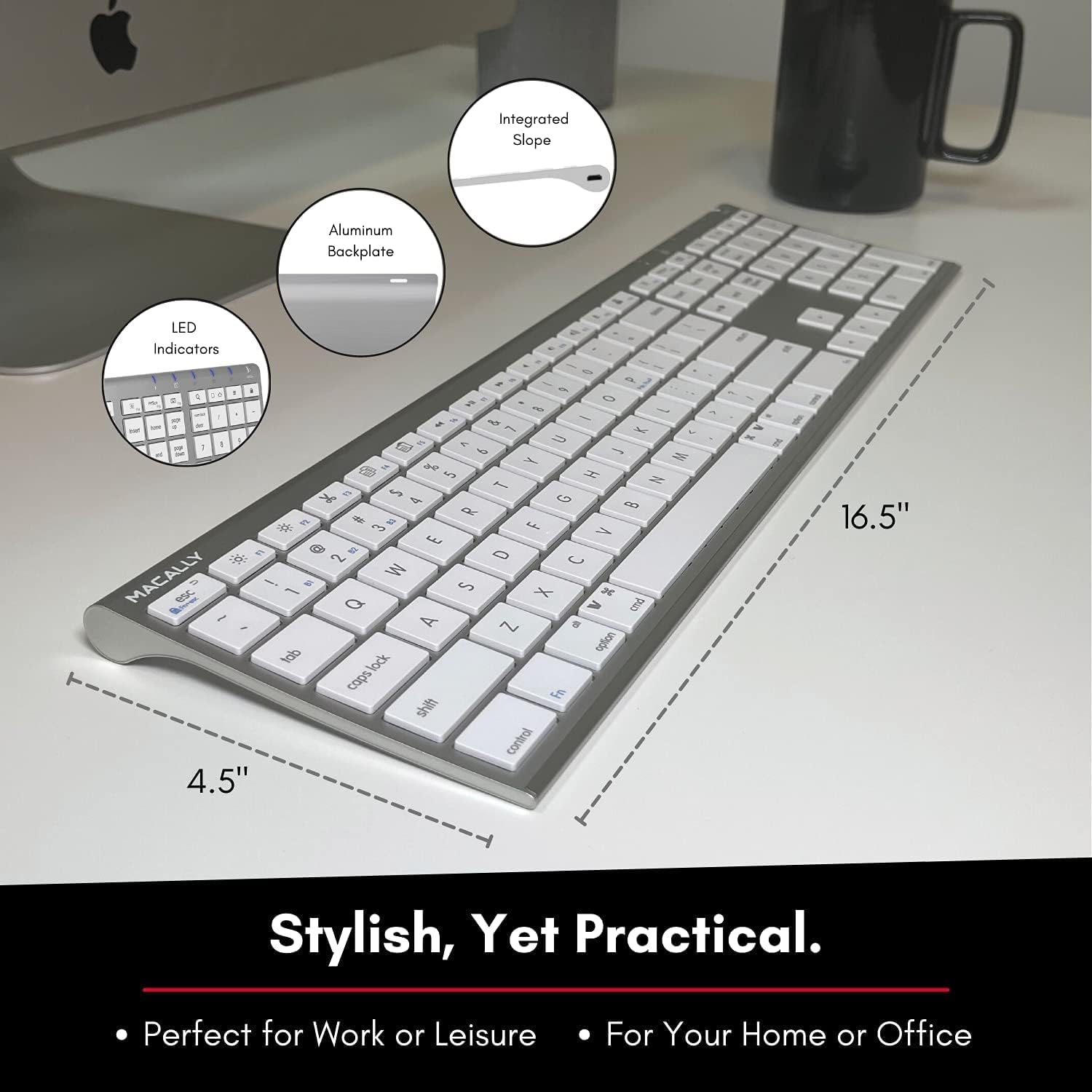
Image: Diagram illustrating the physical dimensions of the Macally Wireless Bluetooth Keyboard.
Warranty uye Support
Macally is committed to delivering high-quality, user-friendly workflow solutions. For any product inquiries, technical support, or warranty information, please visit the official Macally website or contact their customer service. You can find more information and support resources at the Macally Store on Amazon.


