1. Nhanganyaya
Ndatenda nekutengaasing the VIVIBRIGHT GP100UP LED Projector. This manual provides essential information for the safe and efficient operation of your device. Please read it thoroughly before use and retain it for future reference.
The VIVIBRIGHT GP100UP is an Android 6.0-based LED projector featuring built-in Wi-Fi and Bluetooth, designed for home theater and office presentations. It supports Full HD content and offers a bright projection experience.
2. Safety Information
- Magetsi: Shandisa adapta yemagetsi yakatarwa chete. Iva nechokwadi chekuti volttage inofanana nemagetsi emunharaunda yako.
- Kufefetedza Usavhare maburi emhepo. Iva nechokwadi chekuti mhepo inoyerera zvakanaka kutenderedza purojekita kudzivirira kupisa zvakanyanya.
- Liquid Exposure: Chengeta purojekita kure nemvura kana zvimwe zvinwiwa. Usashandise mukati memwedziamp nharaunda.
- Kuchenesa: Bvisa magetsi usati wageza. Shandisa jira rakapfava, rakaoma. Dzivisa zvinochenesa mvura kana zveaerosol.
- Kuiswa kwechinhu: Never insert objects of any kind into the projector openings as they may touch dangerous voltage mapoinzi kana zvikamu zvipfupi-kunze.
- Sevhisi: Usaedze kushandira chigadzirwa ichi iwe pachako. Tumira masevhisi ese kuvashandi vanokwanisa.
- Kudzivirira Kweziso: Usatarise zvakananga muprojekita lens kana iyo lamp iri on. Chiedza chakajeka chinogona kukuvadza maziso.
3. Package Zviri mukati
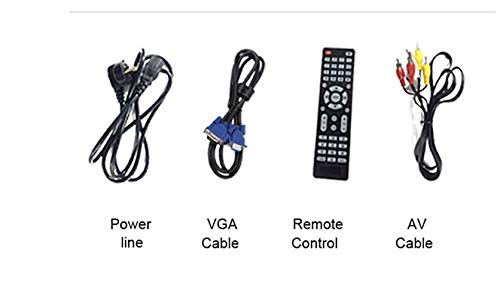
Tarisa kuti zvinhu zvese zvakanyorwa pazasi zvinosanganisirwa mupakeji yako:
- VIVIBRIGHT GP100UP Projector
- Power Cable
- VGA Cable
- AV Cable
- Remote Control
- Mushandisi Chinyorwa (gwaro iri)
Mufananidzo 3.1: Included accessories with the VIVIBRIGHT GP100UP projector, including power cable, VGA cable, remote control, and AV cable.
4. Chigadzirwa Pamusoroview
4.1. Projector Dimensions
Mufananidzo 4.1: Mberi nepamusoro view of the VIVIBRIGHT GP100UP projector with approximate dimensions: 11 inches (length), 8.85 inches (width), and 4 inches (height).
4.2. Machiteshi Ekupinda/Kubuda
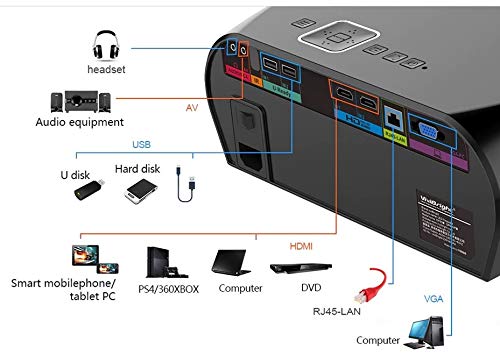
Purojekita ine maports akasiyana-siyana ekubatanidza zvishandiso zvekunze:
Mufananidzo 4.2: Detailed diagram of the projector's rear panel, illustrating connectivity options including headset, audio equipment (AV), USB ports for U disk and hard disk, HDMI ports, RJ45-LAN, and VGA port.
- HDMI: Connect to Blu-ray players, gaming consoles, laptops, or other HDMI-enabled devices.
- USB: For connecting USB drives (U disk) or external hard drives.
- YE: Kubatanidza zvishandiso zvekare uchishandisa vhidhiyo yakabatana uye odhiyo yestereo.
- VGA: For connecting to computers or laptops with a VGA output.
- RJ45-LAN: Yekubatanidza newaya network.
- Headphone Jack: Zvekubatanidza mahedhifoni ekunze kana vatauri.
4.3. Remote Control
The included remote control allows for convenient operation of the projector.
Mufananidzo 4.3: Remote control layout with key functions: ON/OFF, Volume Up/Down, OK, Menu, Home, Speed, Mute, Back, Mouse Mode, and the USB receiver.
- VABISA/KUDZIMA: Power on or off the projector.
- Vhoriyamu +/-: Rongedza vhoriyamu yekuteerera.
- ZVAKANAKA: Simbisa sarudzo.
- Menyu: Access projector settings.
- Kumba: Return to the main Android interface.
- Kumashure: Dzokera kune yapfuura skrini.
- Mouse Mode: Activate/deactivate air mouse function (if applicable).
- Nyarara: Nyarara kana kuti nyarara odhiyo.
5. Setup
5.1. Kugadzwa
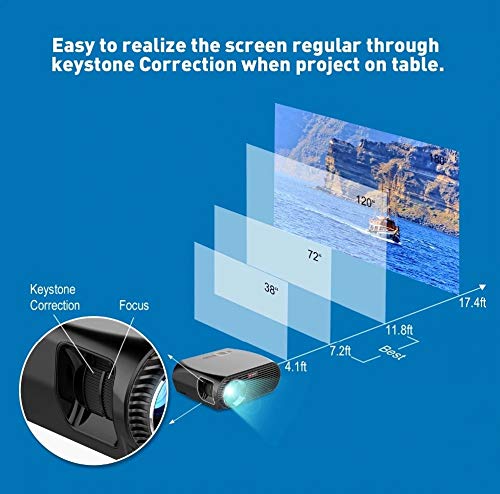
Place the projector on a stable, flat surface or mount it to the ceiling. Ensure there are no obstructions to the lens or ventilation ports. The optimal projection distance for a clear image is between 1 to 5 meters.
Mufananidzo 5.1: Illustration of projection distances and corresponding screen sizes, along with the location of the keystone correction and focus rings on the projector.
- For a 72-inch screen, the recommended distance is approximately 7.2 feet (2.2 meters).
- For a 120-inch screen, the recommended distance is approximately 11.8 feet (3.6 meters).
5.2. Simba Connection
- Batanidza tambo yemagetsi kune simba reprojekita.
- Batanidza imwe magumo etambo yemagetsi mune yakafanira magetsi.
- Chiedza chemagetsi chiri paprojekita chinofanira kupenya.
5.3. Focus uye Keystone Kururamisa
After powering on, adjust the image for clarity and proper geometry.
- Tarisa: Rotate the focus ring near the lens until the projected image is sharp and clear.
- Keystone Kugadziriswa: If the projected image appears trapezoidal (wider at the top or bottom), use the keystone correction ring or lever (usually located near the focus ring) to adjust the image until it is rectangular. The GP100UP supports +/- 15 degrees vertical keystone correction.
6. Operating Instructions
6.1. Initial Power On and Android Interface
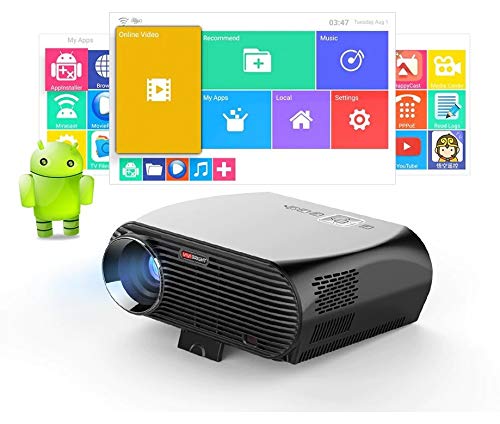
Press the power button on the projector or remote control to turn on the device. The projector will boot into its Android 6.0 operating system interface.
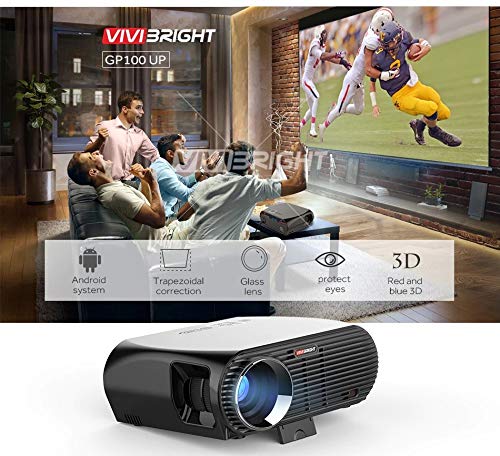
Mufananidzo 6.1: The VIVIBRIGHT GP100UP projector in operation, highlighting its Android system capabilities and other features.
Navigate the Android interface using the remote control. You can access pre-installed applications, settings, and media files.
6.2. Kubatanidza External Devices
To project content from external sources:
- Connect your device (e.g., laptop, gaming console, USB drive) to the appropriate port on the projector (HDMI, USB, AV, VGA).
- On the projector's Android interface, navigate to the "Input Source" or "Source" option.
- Select the corresponding input source (e.g., HDMI1, USB, AV, VGA) to display content from your connected device.
6.3. Wireless Connectivity (Wi-Fi, Bluetooth, Screen Mirroring)
The GP100UP supports various wireless functions:
- Wi-Fi:
- Go to "Settings" on the Android interface.
- Select "Wi-Fi" and turn it on.
- Choose your desired network and enter the password to connect.
- Bluetooth:
- Go to "Settings" on the Android interface.
- Sarudza "Bluetooth" woibatidza.
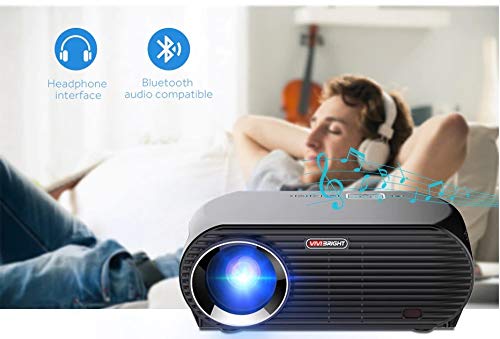
- Pair with Bluetooth audio devices like headphones or speakers.
Mufananidzo 6.2: The projector's Bluetooth audio compatibility, allowing connection to wireless headphones or speakers.
- Screen Mirroring (Miracast/Airplay/DLNA):
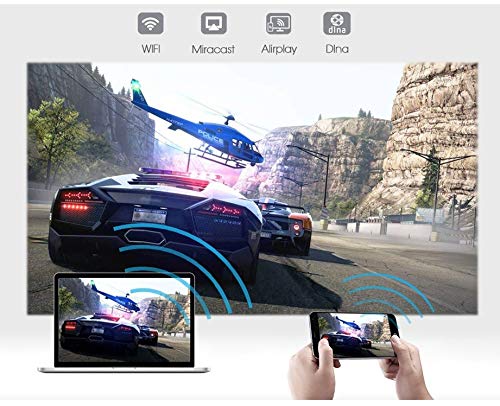
The projector supports mirroring content from compatible smartphones, tablets, and laptops via Wi-Fi, Miracast, Airplay, and DLNA.
- Ensure both your device and the projector are connected to the same Wi-Fi network.
- On the projector's Android interface, open the relevant screen mirroring application (e.g., Miracast, Airplay, DLNA).
- On your smartphone/tablet/laptop, activate its screen mirroring function (e.g., "Screen Mirroring," "Smart View," "Cast," "AirPlay").
- Select the projector from the list of available devices to begin mirroring.

Mufananidzo 6.3: Wireless screen mirroring capabilities, enabling content from mobile devices and laptops to be displayed on the projector.
7. Kuchengeta
7.1. Kuchenesa Lens
Shandisa jira rakapfava, risina ruvara rakagadzirirwa magirazi ekuona. Pukuta lenzi zvinyoro nyoro kubvisa guruva kana tsvina. Dzivisa kushandisa zvinhu zvinogumbura kana makemikari akaomarara.
7.2. Kuchenesa Purojekita Casing
Pukuta kunze kwepurojekita nejira rakapfava, rakaoma. Pazvibodzwa zvakasindimara, zvishoma damp cloth can be used, followed by a dry cloth. Ensure no liquid enters the ventilation openings.
7.3. Air Filter (if applicable)
While LED projectors typically have sealed optical engines, regularly check ventilation openings for dust accumulation. Use a soft brush or compressed air to clear any blockages.
8. Kugadzirisa matambudziko
| Dambudziko | Zvinogona Kukonzera | Solution |
|---|---|---|
| Hapana mufananidzo waratidzwa |
|
|
| Mufananidzo hauna kujeka |
|
|
| Mufananidzo uri trapezoidal |
|
|
| Hapana ruzha |
|
|
| Wi-Fi/Bluetooth nyaya dzekubatanidza |
|
|
9. Zvinotsanangurwa
| Feature | Detail |
|---|---|
| Model Number | GP100UP |
| Display Technology | LCD |
| Native Resolution | 1280x800dpi (WXGA) |
| Kupenya | 3500 Lumens |
| Kusiyanisa Ratio | 1000:1-2000:1 |
| Light Source | LED |
| Chitubu cheChiedza Upenyu | Not specified (typically 20,000+ hours for LED) |
| Projection Distance | 1-5m |
| Projected Dimension | 40-300 inches (Best image size: 72-120 inches) |
| Screen Scale | 4:3/16:9 |
| Kururamisa dombo rinokosha | Manual Correction, +/- 15 degrees (vertical) |
| System | Android 6.0.1, CPU: Quad core ARM Cortex-A53 |
| Memory (RAM/ROM) | RAM: 1G / ROM: 8G |
| Wireless Kubatana | Wi-Fi, Bluetooth, DLNA, Miracast, Airplay |
| Input Ports | HDMI, USB, AV, VGA, RJ45-LAN |
| Magetsi | AC 90-240V, 50/60Hz |
| Kushandisa Simba | 140W |
| Dimensions (approx.) | 37 x 30.5 x 15.9 cm |
| Huremu (approx.) | 2.6kg |
| 3D Rinoshanda | Red-blue 3D |
10. Warranty uye Tsigiro
The VIVIBRIGHT GP100UP Projector comes with a 1-Yegore Warranty kubva pazuva rekutenga. Iyi waranti inovhara kukanganisa kwekugadzira pasi pekushandiswa kwakajairwa.
For technical support, warranty claims, or service inquiries, please contact your retailer or the official VIVIBRIGHT customer service channel. Please have your product model number (GP100UP) and proof of purchase ready when contacting support.


