1. Chigadzirwa Pamusoroview
The TOTU 13-in-1 USB C Hub (Model TT-HB013A) is a versatile docking station designed to expand the connectivity of your USB-C enabled laptop or device. It provides multiple ports for display output, high-speed data transfer, and power delivery, enhancing productivity and convenience.
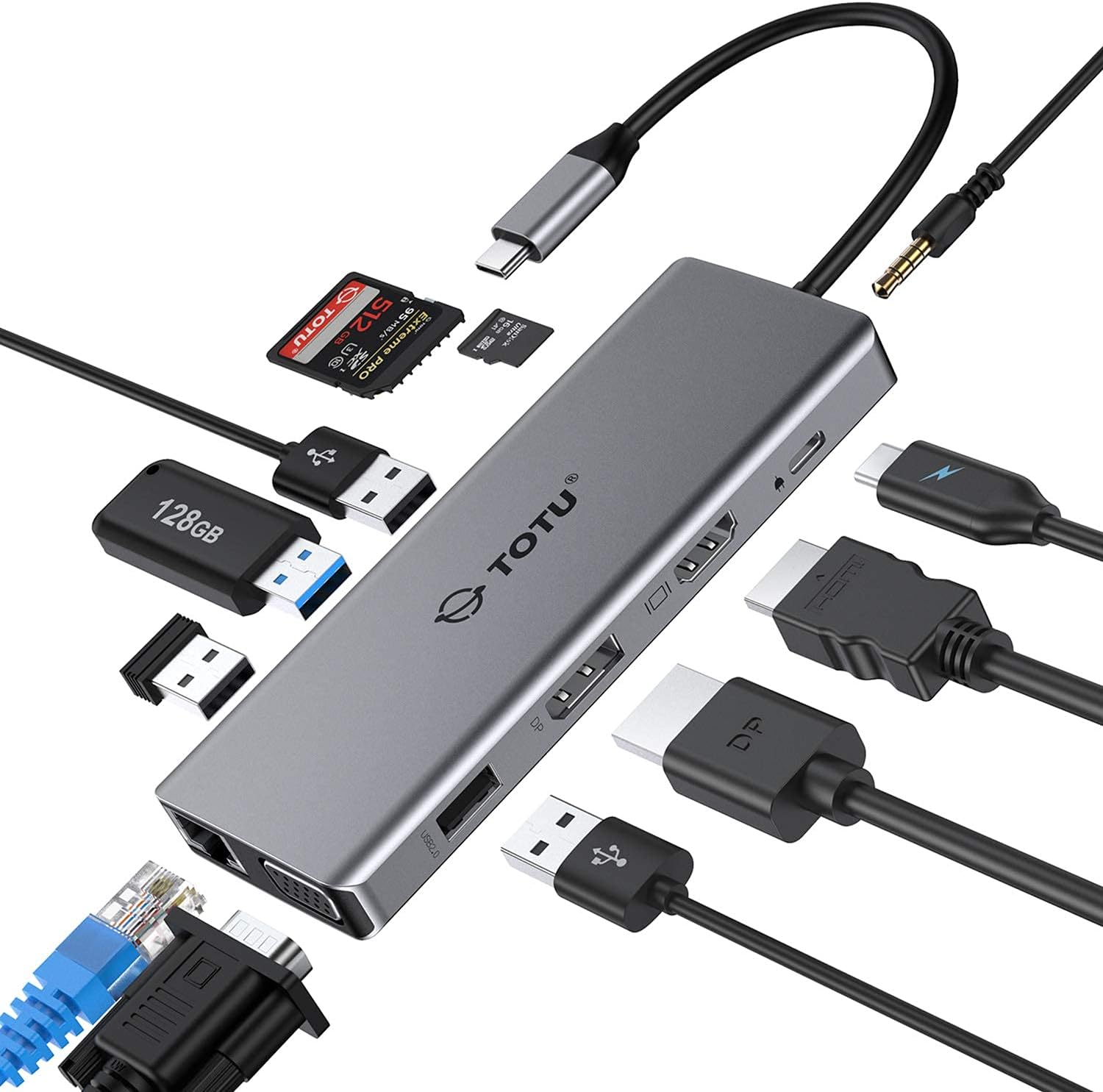
Figure 1: The TOTU 13-in-1 USB C Hub, showcasing its compact design and multiple connectivity options including USB, HDMI, DisplayPort, and audio jacks.
This hub is ideal for users seeking to connect multiple peripherals, external displays, and network connections through a single USB-C port.
2. Key Features and Port Layout
The TOTU 13-in-1 USB C Hub offers a comprehensive set of ports to meet diverse connectivity needs. Below is a detailed layout and description of each port:

- HDMI Port (1): Supports up to 4K UHD (3840x2160) at 30Hz for high-resolution video output.
- DisplayPort (2): Supports up to 4K UHD (3840x2160) at 30Hz for high-resolution video output.
- VGA Port (3): Supports up to 1080P (1920x1080) at 60Hz for standard video output.
- USB 3.0 Type-A Ports (2): Data transfer speed up to 5Gbps, ideal for connecting external hard drives, flash drives, and other high-speed peripherals.
- USB 2.0 Type-A Ports (2): Data transfer speed up to 480Mbps, recommended for connecting mouse, keyboard, and other low-bandwidth devices to avoid potential USB 3.0 radio frequency interference.
- SD Card Slot (6): Supports memory cards up to 512GB with read/write speeds up to 104 MB/s.
- TF Card Slot (7): Supports memory cards up to 512GB with read/write speeds up to 104 MB/s. SD/TF memory cards can be used simultaneously.
- USB Type-C Female PD3.0 Charging Port (8): For Type-C laptop or Type-C smartphone charging. Input power 20V/3A max (Please use a 45W or above adapter for laptop charging).
- RJ45 Gigabit Ethernet Port: Provides stable and fast wired network connection (10/100/1000 Mbps).
- 3.5mm Audio/Mic 2-in-1 Jack: Yekubatanidza mahedhifoni kana masipika.
3. Setup Guide
Follow these steps to set up your TOTU 13-in-1 USB C Hub:
- Kuenderana Kuongorora: Ensure your laptop's USB-C port supports DisplayPort Alt Mode and Power Delivery for full functionality. The hub is incompatible with USB-A to USB-C adapters.
- Batanidza kune Host Device: Plug the integrated USB-C cable of the hub into the USB-C port of your laptop or compatible device.
- Kuendesa Magetsi (Sarudzo asi Inokurudzirwa): For stable operation and charging your laptop, connect a 45W or above USB-C power adapter to the PD3.0 charging port on the hub.
- Batanidza Peripherals: Plug your desired peripherals (e.g., external monitors, USB drives, keyboard, mouse, Ethernet cable, audio devices) into the corresponding ports on the hub.
- Kuiswa kwemutyairi: The hub is generally plug-and-play for most operating systems (Windows 7/8/8.1/10, Mac OS X 10.6 or later, Linux 2.6.14 or later). No additional drivers are typically required.

Figure 2: Connecting the USB C Hub to a laptop and power source for charging.
4. Operating Instructions
4.1. Mamiriro ekuratidzira
The TOTU 13-in-1 USB C Hub supports various display configurations depending on your operating system:
Kune macOS Systems:
macOS only supports mirror display across multiple external monitors. The laptop's own screen will also mirror the external displays.

Figure 3: Mirror Mode on macOS, where all connected displays show identical content.
ZveWindows Systems:
Windows systems support triple display in extended mode, including the laptop's own display. The resolution for extended mode will be limited to 1080P.

Figure 4: Extended Mode on Windows, allowing different content on each display.

Figure 5: Multi-display mode comparison between Windows (supports MST) and macOS (mirror only).
4.2. Data Transfer
The hub features both USB 3.0 and USB 2.0 ports for efficient data transfer:
- USB 3.0 Ports: Offer ultra-high-speed data sync up to 5 Gbps, suitable for large file transfers and connecting high-bandwidth devices.
- USB 2.0 Ports: Provide transfer speeds of 480 Mbps. It is advisable to connect your mouse or keyboard to these ports to avoid potential radio frequency interference from USB 3.0 devices.

Figure 6: USB 3.0 and USB 2.0 ports for super fast and stable data transfer.
4.3. Audio Connectivity
The integrated 3.5mm audio/mic 2-in-1 jack allows you to connect headphones or speakers for an enhanced audio experience.

Figure 7: The 3.5mm audio jack enables connection to various audio devices.
5. Zvigadzirwa zveChigadzirwa
| Feature | Tsanangudzo |
|---|---|
| Brand | TOTU |
| Model Number | TT-HB013A |
| Material | Aluminium chiwanikwa, ABS |
| Connector | USB 3.1 Type-C chinongedzo |
| HDMI Port | Up to 4K UHD (3840x2160@30Hz) |
| DisplayPort | Up to 4K UHD (3840x2160@30Hz) |
| VGA Chiteshi | 1080P (1920x1080@60Hz) |
| USB 3.0 Type-A Ports | Data transfer speed up to 5Gbps |
| USB 2.0 Type-A Ports | Kuendesa data kumhanyisa kusvika ku480Mbps |
| SD Card Slot | Supported memory card capacity up to 512GB, Read/Write speed up to 104 MB/s |
| TF Kadhi Slot | Supported memory card capacity up to 512GB, Read/Write speed up to 104 MB/s |
| USB Type-C PD3.0 Charging Port | Input power 20V/3A max (Only for Type-C laptop or Type-C smartphone charging) |
| Operating System Kuenderana | Windows 7/8/8.1/10, Mac OS X 10.6 or later, Linux 2.6.14 or later |
| Item Weight | 3.68 ounces |
| Product Dimensions | 10.94 x 1.96 x 0.59 inches |
6. Kuchengeta
To ensure the longevity and optimal performance of your TOTU USB C Hub, please follow these maintenance guidelines:
- Kuchenesa: Use a soft, dry cloth to wipe the surface of the hub. Avoid using liquid cleaners or aerosols, as they may damage the device.
- Kuchengeta: When not in use, store the hub in a cool, dry place, away from direct sunlight and extreme temperatures. The included soft pouch can be used for protection.
- Kubata: Avoid dropping the hub or subjecting it to strong impacts. Do not bend or twist the integrated USB-C cable excessively.
- Kufefetedza Ensure the hub has adequate ventilation during use to prevent overheating. Do not cover the hub with cloths or place it in enclosed spaces.

Figure 8: The included soft pouch provides convenient storage and protection for the hub.
7. Kugadzirisa matambudziko
If you encounter issues with your TOTU USB C Hub, please refer to the following common troubleshooting tips:
- Hapana Kubuda
- Ita shuwa kuti laptop yako USB-C port inotsigira DisplayPort Alt Mode.
- Check all cable connections (USB-C from hub to laptop, HDMI/DP/VGA from hub to monitor).
- Try restarting your laptop and reconnecting the hub.
- Verify monitor input settings are correctly selected (e.g., HDMI 1, DisplayPort).
- For Windows, ensure display settings are configured for 'Extend' or 'Duplicate'. For macOS, remember it only supports mirror display.
- Kupenya kana Kusagadzikana kweChiratidziro:
- Reduce the display resolution if using multiple monitors, especially if exceeding 1080P/60Hz.
- Ensure you are using high-quality HDMI/DP/VGA cables.
- Connect a power adapter to the hub's PD port to provide stable power.
- USB Zvishandiso Hazvizivikanwe:
- Reconnect the USB device and the hub.
- Edza kubatanidza mudziyo kune imwe USB port iri pahub.
- Ensure the hub is receiving sufficient power, especially for power-hungry devices.
- Slow Data Transfer:
- Ensure you are using USB 3.0 compatible devices and cables for optimal speeds.
- Avoid connecting high-bandwidth devices to USB 2.0 ports.
- Hapana Simba rekutumira kune Laptop:
- Ensure your power adapter is 45W or above.
- Verify the power adapter and USB-C cable are functioning correctly.
8. Warranty & Tsigiro
TOTU offers a robust warranty and support system for its products:
- 100% Mari Yekudzoserwa Guarantee: For quality problems within 30 days of purchase.
- 12-Mwedzi Warranty: A standard 12-month warranty is provided for the product.
- 18-Month Extended Warranty: You can upgrade to an 18-month warranty by subscribing to the TOTU website.
- Hushamwari Mutengi Service: TOTU is committed to providing hassle-free customer service.
- Email Support: For any assistance or inquiries, please contact support@loopec.com.


