1. Nhanganyaya
The Roccat Vulcan 122 is a high-performance mechanical gaming keyboard designed for precision and durability. It features Roccat's unique Titan switches, advanced AIMO RGB lighting, and a robust aluminum construction. This manual provides detailed instructions for setting up, operating, maintaining, and troubleshooting your keyboard.

Image: The Roccat Vulcan 122 keyboard shown with a Roccat mouse and headset, demonstrating its vivid, dynamic lighting synergy with AIMO.
Zvinokosha:
- Unique design with lowered keycaps and reduced reaction time.
- RGB lighting with configurable LED effects and adjustable AIMO effects.
- High-quality and resistant design with robust materials and an anodized aluminum surface.
- Advanced anti-ghosting with N-Key Rollover (NKRO).
- Programmable macro keys and ROCCAT Easy-Shift[+].
2. Setup
2.1 Kubatanidza Kiyibhodhi
To connect your Roccat Vulcan 122 keyboard:
- Unpack the keyboard and its accessories.
- Plug the USB connector from the keyboard into an available USB port on your computer.
- Sisitimu yekushandisa ichaona otomatiki uye ichaisa madhiraivha anodiwa.
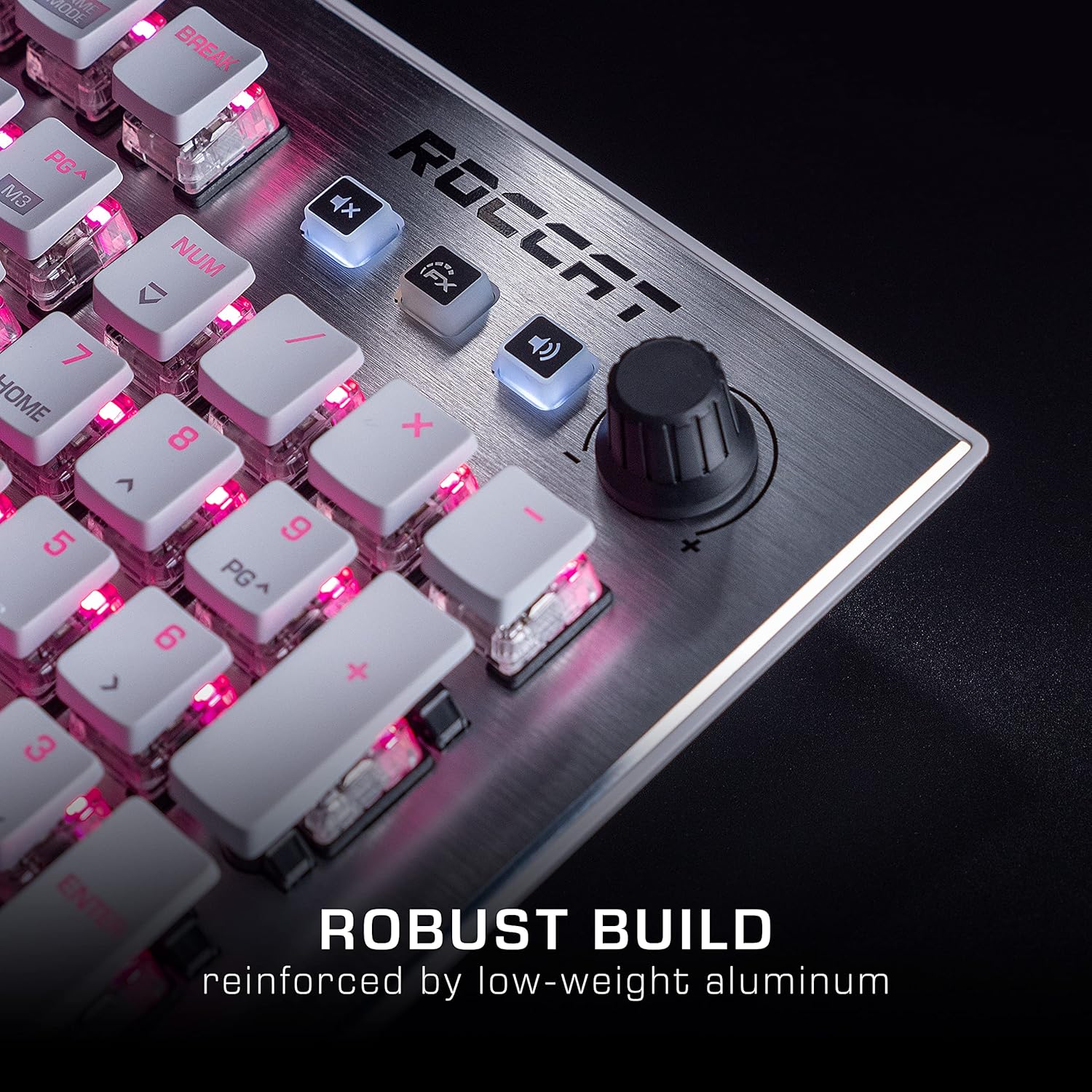
Image: The Roccat Vulcan 122 keyboard shown with its detachable wrist rest, ready for connection.
2.2 Software Installation (ROCCAT Swarm)
For full functionality and customization, install the ROCCAT Swarm software:
- Shanyira ROCCAT yepamutemo websaiti (www.yempesa.com) and navigate to the support section.
- Download the latest version of the ROCCAT Swarm software for your operating system.
- Mhanya iyo yekuisa uye tevera iyo pa-screen mirairo.
- After installation, launch ROCCAT Swarm to configure your keyboard settings, lighting, and macros.
3. Kushandisa Kiyibhodhi
3.1 Mabasa Akakosha Akajairwa
The Vulcan 122 functions as a standard QWERTY keyboard. All alphanumeric keys, function keys (F1-F12), navigation keys, and the numeric keypad operate as expected.
3.2 Media Controls
The keyboard features dedicated media controls for convenient audio management.
- Vhoriyamu Knob: Located in the upper right corner, rotate to adjust system volume.
- Mute Bhatani: Dzvanya kuti udzimise/ubvise ruzha.
- FX Bhatani: Cycles through lighting effects or other programmable functions.

Mufananidzo: Kuvhara view of the mixer-style media controls on the Roccat Vulcan 122, including the volume knob and dedicated function keys.
3.3 RGB Lighting Customization (AIMO)
The Vulcan 122 features advanced RGB lighting with Roccat's AIMO intelligent lighting system. Use the ROCCAT Swarm software to:
- Select from various pre-set lighting effects.
- Customize individual key illumination.
- Adjust brightness and speed of effects.
- Synchronize lighting with other AIMO-compatible devices.
3.4 Programmable Macro Keys and Easy-Shift[+]
The keyboard includes programmable macro keys and the Easy-Shift[+] function, allowing you to assign secondary functions to keys.
- Use the ROCCAT Swarm software to record and assign macros to designated keys.
- Easy-Shift[+] allows you to double the number of assignable functions by holding down the Easy-Shift[+] key (usually Caps Lock by default, configurable in Swarm) and pressing another key.
3.5 Anti-Ghosting with NKRO
The Vulcan 122 features advanced anti-ghosting technology with N-Key Rollover (NKRO), ensuring that every key press is registered accurately, even when multiple keys are pressed simultaneously.

Image: A hand demonstrating typing on the Roccat Vulcan 122 keyboard, emphasizing the ergonomic design of the keys for comfortable use.
4. Kuchengeta
4.1 Kuchenesa kiyibhodhi
To ensure the longevity and optimal performance of your Vulcan 122 keyboard, regular cleaning is recommended.
- Bvisa kiibhodhi kubva pakombuta yako usati wachenesa.
- Shandisa jira rakapfava, risina lint zvishoma dampened with water or a mild cleaning solution to wipe the keycaps and surface. Avoid harsh chemicals.
- For dust and debris between keys, use compressed air. The raised keycap design makes cleaning easier.
- Iva nechokwadi chekuti kiyibhodhi yakaoma zvachose usati waibatanidza zvakare.

Image: A close-up of the Roccat Vulcan 122 keyboard keys, illustrating their design which facilitates easy cleaning and resistance to dust and liquids.
5. Kugadzirisa matambudziko
If you encounter issues with your Roccat Vulcan 122 keyboard, refer to the following common problems and solutions:
- Kiyibhodhi haisi kudaira:
- Ita shuwa kuti tambo ye USB yakabatana zvakachengeteka kune zvese keyboard uye komputa.
- Edza kubaya kiibhodhi mune imwe USB port yakasiyana.
- Tangazve komputa yako.
- Check if the keyboard is disabled in your operating system's device manager.
- RGB mwenje isingashande kana isiriyo:
- Ensure the ROCCAT Swarm software is installed and up to date.
- Tarisa marongero emwenje mukati meSwarm software.
- Perform a firmware update for the keyboard via Swarm.
- Makiyi asina kunyoreswa kana kusashanda:
- Clean the affected keys as described in the Maintenance section.
- Ensure the keyboard's firmware is up to date.
- Edza kiibhodhi pane imwe komputa kuti ubvise matambudziko anokonzerwa nesystem.
- ROCCAT Swarm software not detecting keyboard:
- Iva nechokwadi chekuti kiyibhodhi yakabatana nemazvo.
- Restart the Swarm software and your computer.
- Reinstall the ROCCAT Swarm software.
- Check for any conflicting software or drivers.
6. Zvinotsanangurwa
| Feature | Detail |
|---|---|
| Brand | ROCCAT |
| Model Name | vhulcan 122 |
| Model Number | ROC-12-940-BN |
| Keyboard Tsanangudzo | Mechanical |
| Chinja Type | Tactile |
| Material | Aluminium |
| Special Features | Backlighting |
| Inowirirana Devices | Laptop (PC) |
| Operating System Support | Windows 10, Windows 7, Windows 8 |
| Product Dimensions | 46.2 x 23.5 x 3.2 cm |
| Item Weight | 1.15 kg |

Mufananidzo: Yakaputika view diagram illustrating the components of a Roccat Titan Tactile mechanical switch, highlighting its design for swift and precise response.
7. Warranty uye Tsigiro
7.1 Ruzivo rweWaranti
Your Roccat Vulcan 122 keyboard is covered by a manufacturer's warranty. The specific terms and duration of the warranty may vary by region and retailer. Please retain your proof of purchase for warranty claims. For detailed warranty information, refer to the warranty card included with your product or visit the official ROCCAT website.
7.2 Tsigiro yehunyanzvi
For technical assistance, driver updates, or further inquiries, please visit the official ROCCAT support page:
Unogona kuwana mibvunzo inowanzo bvunzwa (FAQs), gwara rekugadzirisa matambudziko, uye ruzivo rwekuonana nevatengi pawebhusaiti yavo. website.


