1. Nhanganyaya
Ndatenda nekutengaasing the Ematic LED Projector. This manual provides essential information for setting up, operating, and maintaining your projector to ensure optimal performance and longevity. Please read this manual thoroughly before using the product and retain it for future reference.
2. Safety Information
To prevent fire or electric shock, do not expose this appliance to rain or moisture. To avoid electric shock, do not open the cabinet. Refer servicing to qualified personnel only.
- Usatarise zvakananga muprojekita lens kana iyo lamp iri on.
- Iva nechokwadi chekufefetera kwakaringana kwakatenderedza purojekita. Usavhare kuvhurika kwemhepo.
- Shandisa chete adapta yemagetsi inopihwa nepurojekita.
- Keep the projector away from water or any liquids.
- Do not place the projector on an unstable surface.
- Bvisa purojekita kubva pamagetsi panguva yekubuda kwemheni kana kuti kana isingashandiswi kwenguva yakareba.
3. Package Zviri mukati
- Ematic LED Projector
- Remote Control
- Power Adapter
- User Manual
- AV Cable (if included)
4. Chigadzirwa Pamusoroview
4.1 Kumberi View
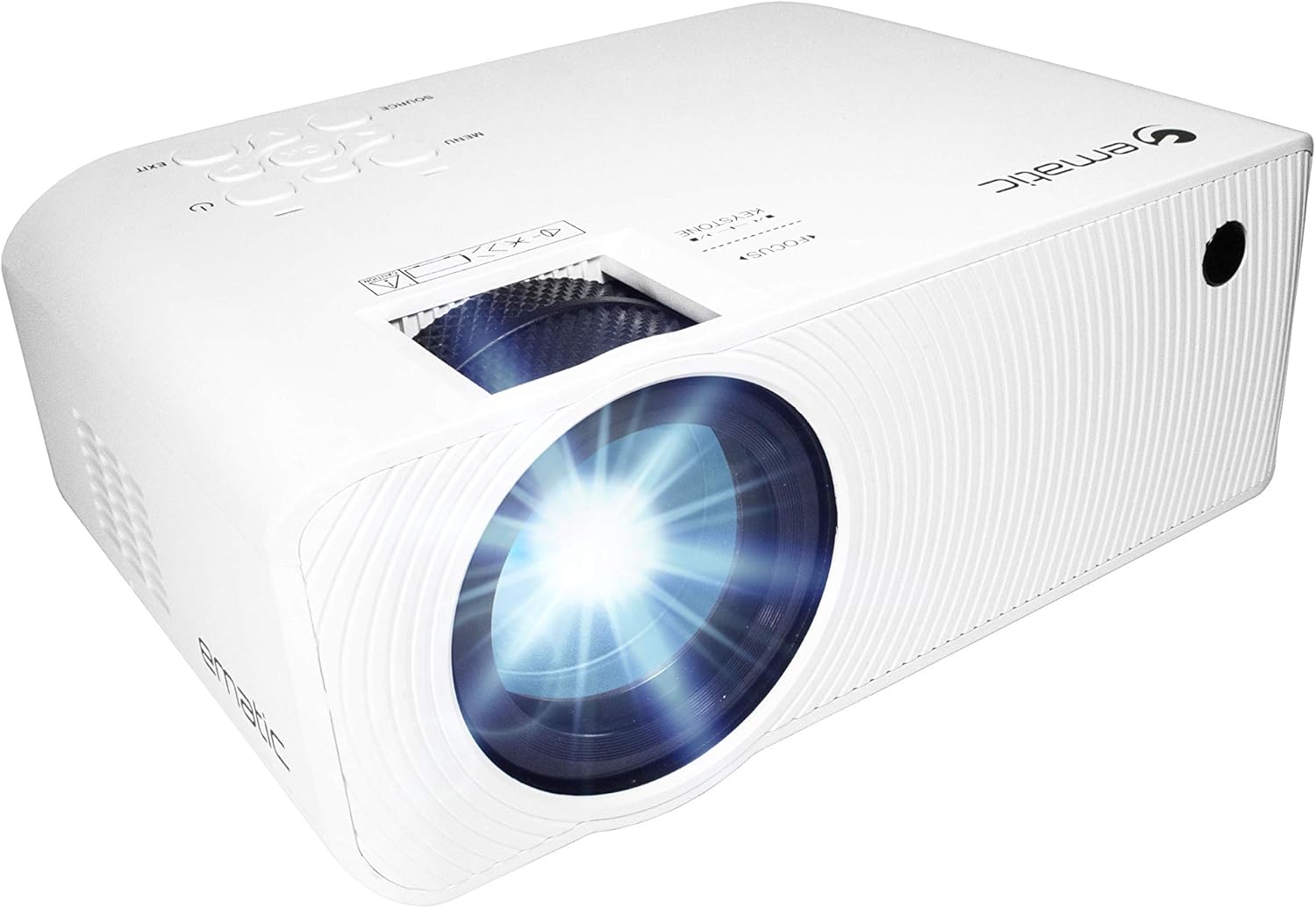
Mufananidzo 4.1: Mberi view of the Ematic LED Projector, highlighting the projection lens.
4.2 Pamusoro View uye Zvinodzora

Mufananidzo 4.2: Pamusoro view of the projector showing the control panel (Menu, Source, Exit, Navigation buttons) and the Focus and Keystone correction dials. A remote control is also visible.
- Funga Mhete: Inogadzirisa kujeka kwemufananidzo.
- Keystone Kugadziriswa: Corrects trapezoidal image distortion.
- Control Panel: Buttons for Menu, Source selection, Exit, and navigation.
4.3 Rear and Side Views with Ports

Figure 4.3: Rear panel of the projector displaying the connectivity options: AUX audio output, AV input, MicroSD card slot, two HDMI inputs, USB port, and DC power input.

Mufananidzo 4.4: Rutivi view of the projector, highlighting the VGA input port and the infrared (IR) receiver for the remote control.
- AUX: 3.5mm audio output for external speakers or headphones.
- YE: Composite video and stereo audio input.
- MicroSD: Slot for MicroSD memory cards.
- HDMI 1 / HDMI 2: High-Definition Multimedia Interface inputs for digital audio/video.
- USB: USB port for media playback from USB drives.
- DC IN: Kupinza simba kwepurojekita.
- VGA: Video Graphics Array input for computer connection.
5. Setup
- Kuiswa: Place the projector on a stable, flat surface. Ensure there is adequate space around the projector for ventilation. For optimal viewing, position the projector perpendicular to the projection screen or wall.
- Power Connection: Connect the supplied power adapter to the DC IN port on the projector and then plug the adapter into a power outlet.
- Kutanga Kubatidza Press the power button on the projector or the remote control to turn on the unit. The power indicator light will illuminate.
- Focus Adjustment: Once the projector is on, rotate the Focus Ring (refer to Figure 4.2) until the projected image is clear and sharp.
- Keystone Kugadziriswa: If the image appears trapezoidal (wider at the top or bottom), adjust the Keystone Correction dial (refer to Figure 4.2) until the image is rectangular.
6. Operating Instructions
- Kubatidza/Kudzima: Press the power button on the projector or remote control. Press again to turn off.
- Sarudzo yeKupinda Press the "Source" button on the projector or remote control to cycle through available input sources (HDMI 1, HDMI 2, AV, VGA, USB, MicroSD). Select the desired input.
- Menu Navigation: Press the "Menu" button to access the projector's settings. Use the navigation buttons on the projector or remote to browse options and the "OK" button to confirm selections.
- Media Playback (USB/MicroSD): Insert a USB drive or MicroSD card into the respective port. Select "USB" or "MicroSD" as the input source. The projector will display a file browser. Navigate to your desired media file (video, photo, music, text) and press "OK" to play.
- Audio Output: The projector has built-in speakers (refer to Figure 6.1). For external audio, connect headphones or external speakers to the AUX port (3.5mm audio jack).
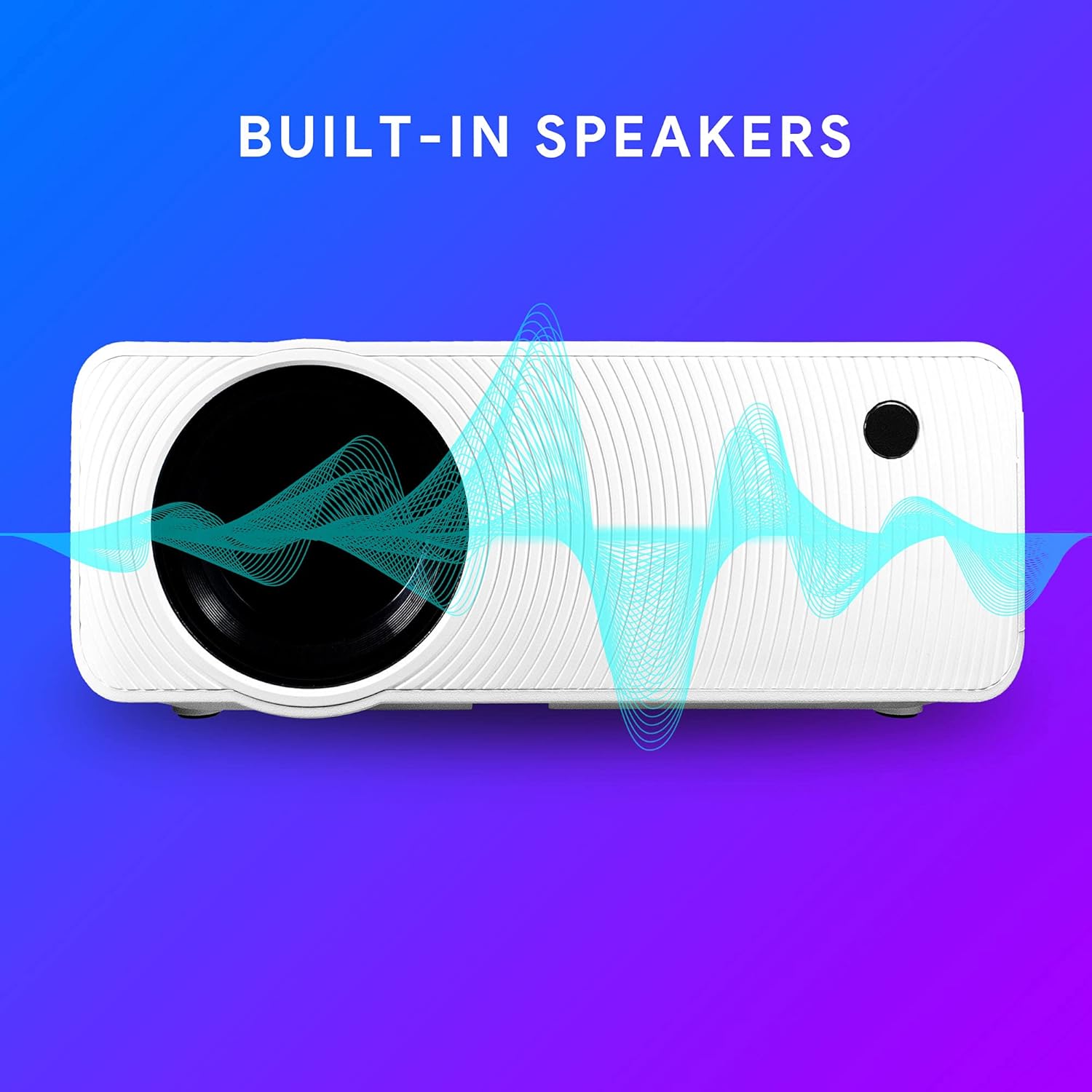
Figure 6.1: Projector highlighting its built-in speaker functionality.
7. Kubatana
The Ematic LED Projector offers multiple connection options to various devices, ensuring versatility for your entertainment and presentation needs.

Figure 7.1: Multimedia device compatibility chart for the projector.

Mufananidzo 7.2: Examples of projector connections to a laptop and smartphone, highlighting supported input types.
- HDMI: Connect Blu-ray players, game consoles (PS4, Xbox), streaming devices (Amazon Fire TV Stick, Chromecast), laptops, and other HDMI-enabled devices.
- USB: Tamba midhiya files (videos, photos, music) directly from USB flash drives.
- MicroSD: Tamba midhiya files directly from MicroSD memory cards.
- YE: Connect older devices like DVD players or VCRs using the included AV cable.
- VGA: Connect desktop computers or older laptops.
- Audio Out (AUX): Connect external speakers or headphones for enhanced audio experience.
8. Kuchengeta
- Kuchenesa Lens: Shandisa jira rakapfava, risina ruvara rwakagadzirirwa malenzi ekuona kuti upukute zvinyoro nyoro lenzi yepurojekita. Usashandise zvinochenesa zvinogumbura kana simba rakawandisa.
- Kubvisa Dust: Regularly clean the ventilation grilles with a soft brush or compressed air to prevent dust buildup, which can affect performance and lifespan.
- Kucheneswa Kwekunze: Wipe the projector's exterior with a soft, damp jira. Dzivisa kushandisa makemikari ane hasha.
- Kuchengeta: Kana isiri kushandiswa kwenguva yakareba, chengetedza purojekita munzvimbo inotonhorera, yakaoma, zvakanaka mupakeji yayo yepakutanga kana kesi yekudzivirira, kudzivirira kuunganidzwa kweguruva uye kukuvara.
9. Kugadzirisa matambudziko
| Dambudziko | Zvinogona Kukonzera | Solution |
|---|---|---|
| Hapana mufananidzo wakaratidzwa | No power; Incorrect input source; Cable not connected properly. | Check power connection; Select correct input source; Reconnect cables securely. |
| Mufananidzo hauna kujeka | Kutarisa hakugadziriswe; Purojekita iri kure zvakanyanya/pedyo nechidzitiro. | Adjust the Focus Ring; Adjust projection distance. |
| Mufananidzo uri trapezoidal | Keystone not adjusted; Projector not level. | Adjust the Keystone Correction dial; Ensure projector is on a flat surface. |
| Hapana ruzha | Volume too low; Muted; External speakers not connected or off. | Increase volume; Unmute; Check external speaker connection and power. |
| Remote control haisi kushanda | Batteries dead; Obstruction between remote and IR receiver. | Replace batteries; Remove obstructions; Point remote directly at the projector's IR receiver. |
10. Zvinotsanangurwa
| Feature | Detail |
|---|---|
| Brand | Ematic |
| Model | EMP-720 (Generic) |
| Display Resolution | 1280 x 720 (Yemuno) |
| Kubatana Technology | HDMI, USB, AV, VGA, MicroSD, AUX |
| Special Feature | Portable, Built-in Speakers |
| Item Weight | 3.5 makirogiramu |
| Product Dimensions | 13.85 x 5 x 8.8 inches |
| Lamp Hupenyu | Kusvikira kumaawa makumi mana (Yakajairika Mode) |
11. Warranty uye Tsigiro
For warranty information and technical support, please refer to the warranty card included with your product or visit the official Ematic website. Chengetedza humbowo hwako hwekutenga kune warranty claim.
Ematic Customer Support: www.ematic.us/support (Eksample Link)


