1. Nhanganyaya
This manual provides essential information for the setup, operation, and maintenance of your Elo 10-inch I-Series for Android (Model E461790). The I-Series 3.0 for Android is a commercial-grade touchscreen solution designed for various interactive applications, integrating Google Play Services.
It is built for continuous public use in environments such as retail, hospitality, self-service kiosks, and corporate offices. Please read this manual thoroughly before using the device to ensure proper functionality and longevity.
2. Chigadzirwa Pamusoroview
The Elo 10-inch I-Series for Android is a compact, high-performance touchscreen display. It features a 10.1-inch LCD with 1280 x 800 resolution, powered by a 2 GHz Cortex A53 processor, 3GB RAM, and 32GB storage. The device operates on the Android platform and supports Google Play Services.
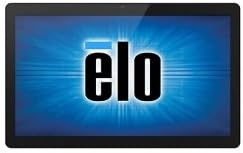
Mufananidzo: Mberi view of the Elo 10-inch I-Series for Android touchscreen display, showing the Elo logo on the screen.
This unit is designed to support various peripherals and offers robust performance for demanding applications requiring continuous operation.
3. Chii chiri muBhokisi
Kana wabvisa bhokisi, ndapota iva nechokwadi chekuti zvikamu zvese zvinotevera zviripo:
- Elo 10-inch I-Series for Android Device (Model E461790)
- Power adapter
- Quick Start Guide (if included, not specified in input)
- Safety and Regulatory Information (if included, not specified in input)
If any items are missing or damaged, please contact Elo customer support immediately.
4. Setup
- Kuburitsa: Carefully remove the device and all accessories from the packaging. Retain the packaging for future transport or storage.
- Kuiswa: Place the device on a stable, flat surface. Ensure adequate ventilation around the unit to prevent overheating. Avoid placing it near heat sources or in direct sunlight.
- Kubatanidza Simba:
- Connect the power adapter cable to the power input port on the back of the device.
- Batanidza adapta yemagetsi mune yakafanira magetsi outlet.
- Kutanga Kubatidza Press the power button, usually located on the side or back of the unit. The device will boot up and display the Elo logo, followed by the Android operating system interface.
- Network Connection:
- For Wi-Fi: Navigate to Android Settings > Network & Internet > Wi-Fi. Select your network and enter the password.
- For Wired Ethernet: Connect an Ethernet cable from your network router/switch to the Ethernet port on the device (if available on your specific model).
- Google Play Services Setup: Follow the on-screen prompts to set up your Google account and access Google Play Services, if required for your application.
5. Operating Instructions
5.1 Touchscreen Kushanda
The device features a multi-touch display. Use standard touch gestures such as tap, double-tap, pinch-to-zoom, and swipe to navigate the Android interface and interact with applications.
5.2 Android Interface Navigation
- Sikirini Yemba: Iyo huru skrini inoratidzwa maapuro icons uye majeti.
- App Drawer: Vhura mapurogiramu ese akaiswa.
- Notifications Panel: Swipe pasi kubva pamusoro pechidzitiro kuenda view zviziviso uye zvigadziriso zvinokurumidza.
- Settings: Access system settings to configure Wi-Fi, display, sound, and other device options.
5.3 Kuisa Zvishandiso
Applications can be installed via the Google Play Store (requires a Google account) or by sideloading APK files, depending on your deployment strategy and security policies.
5.4 Power Management
- Nzira yekurara: Briefly press the power button to put the device into sleep mode. Press again to wake it up.
- Restart/Power Off: Press and hold the power button until a menu appears, then select "Restart" or "Power Off".
6. Kuchengeta
6.1 Kuchenesa Chiratidziro
To clean the touchscreen, power off the device and gently wipe the screen with a soft, lint-free cloth. For stubborn marks, slightly dampen the cloth with water or a non-abrasive, ammonia-free glass cleaner. Do not spray cleaner directly onto the screen.
6.2 Kutarisira Kwese
- Rega kuisa mudziyo kune tembiricha yakanyanyisa, mwando, kana zuva rakananga.
- Usadzivirire kuvhurika kwemhepo.
- Do not attempt to disassemble the device. Refer all servicing to qualified personnel.
7. Kugadzirisa matambudziko
| Dambudziko | Zvinogona Kukonzera | Solution |
|---|---|---|
| Mudziyo haubatike. | No power, faulty power adapter. | Ensure power adapter is securely connected to device and outlet. Try a different outlet. |
| Touchscreen haidaire. | Kukanganisika kwesoftware, kukuvara kwemuviri. | Restart the device. Ensure screen is clean and free of obstructions. If problem persists, contact support. |
| Hapana chinongedzo cheWi-Fi. | Password isiriyo, yakarasika, dambudziko re router. | Verify Wi-Fi password. Move closer to the router. Restart router and device. |
| Applications crashing. | App incompatibility, low memory. | Clear app cache/data. Update the app. Ensure sufficient storage space. |
For issues not listed here, or if solutions do not resolve the problem, please contact Elo customer support.
8. Zvinotsanangurwa
| Feature | Detail |
|---|---|
| Model Name | E461790 |
| Screen Size | 10 inches |
| Display Resolution | 1280 x 800 Pixels |
| processor | 2 GHz (Cortex A53) |
| Graphics Coprocessor | ARM Mali T604 |
| Operating System | Android |
| RAM | 3 GB (DDR3 SDRAM) |
| Storage Capacity | 32 GB (Flash Memory) |
| Wireless Type | 802.11n |
| Item Weight | 1.94 makirogiramu |
| Zviyero zveChigadzirwa (LxWxH) | 9.45 x 13.39 x 5.91 inches |
| Rear Webcam Resolution | 5 MP |
Ongorora: Magadzirirwo anogona kuchinja pasina ziviso.
9. Warranty uye Tsigiro
Elo products are designed for reliability and come with a standard manufacturer's warranty. For specific warranty terms and conditions applicable to your region and purchase, please refer to the warranty card included with your product or visit the official Elo website.
For technical support, service, or to inquire about replacement parts, please contact Elo customer support. You can find contact information and additional resources on the official Elo websaiti:
(This link directs to the Elo brand store on Amazon, which may contain links to official support resources.)


