1. Nhanganyaya
The FreedConn TCOM-SC is a Bluetooth communication system designed for motorcycle helmets. It allows for wireless communication, music streaming, FM radio, and GPS voice instructions, enhancing safety and convenience during rides. This manual provides detailed instructions for installation, operation, and maintenance of your TCOM-SC unit.
2. Zvigadzirwa zveChigadzirwa
- Bluetooth 3.0 Kubatana: For stable wireless connections.
- Intercom Basa: Supports pairing of up to 3 riders, with 2 riders communicating simultaneously over a range of up to 800 meters.
- Chiratidziro cheLCD: Provides clear visual information on status, battery, and FM radio frequency.
- Waterproof Design: Inovimbisa kushanda kwakavimbika mumamiriro ekunze akasiyana-siyana.
- FM Radio: Built-in FM radio for entertainment.
- Kudzora Ruzha Rwepamusoro: Reduces background noise for clear audio.
- Kuridza Mumhanzi: Stereo music streaming with playback control.
- Rechargeable Battery: Long standby time and usage duration.
- Kukodzera Kwose: Suitable for full-face and flip-up helmets.

Mufananidzo: Pamusoroview of FreedConn TCOM-SC product features, including 3-rider connection, 800m duplex intercom, phone connectivity, last number redial, FM radio, advanced noise control, stereo music, playback control, individual volume control, rechargeable battery, waterproof, sunproof, dustproof, and hard & soft microphone options.
3. Package Zviri mukati
Ndokumbira utarise pasuru kuti uone kuti zvinhu zvese zviripo:
- 1 x Intercom Host
- 1 x Headset (Soft Mic/Hard Mic options)
- 1 x USB Cable
- 1 x 3M Clip
- 1 x Clip
- 1 x Screwdriver
- 1 x Chinyorwa cheMushandisi
- 6 x Headset Velcro Pads

Image: Visual representation of the FreedConn TCOM-SC package contents, including the intercom host, headset with microphone, USB cable, mounting clips, screwdriver, user manual, and headset velcro pads.
4. Chigadzirwa Pamusoroview uye Zvikamu
Familiarize yourself with the main components of the TCOM-SC unit:
- Chiratidziro cheLCD: Inoratidza chimiro chekushanda.
- Jog Wheel: Multi-function control for volume, track skipping, and menu navigation.
- Multi-function Bhatani: For power, intercom, and phone calls.
- Charger and Headset Socket: For connecting the charging cable and headset.
- MaSpeaker Enzeve eStereo: Zvekuburitsa audio.
- Ruzha Kudzima Maikorofoni: Available in hard cable (boom mic) and soft cable (flexible mic) versions.

Image: Diagram illustrating the components of the FreedConn TCOM-SC headset, including stereo ear speakers, power on/off and intercom button, LCD display screen, jog wheel, multi-function button, charger and headset socket, noise canceling microphone (hard and soft cable options), and slot cable.
5. Kuiswa
Follow these steps to install the TCOM-SC unit on your helmet:
- Sarudza Mounting Method: Sarudza pakati pe clamp mount (for helmets with an edge) or the adhesive mount (for helmets without a suitable edge).
- Batanidza Mount: Securely attach the chosen mount to the left side of your helmet.
- Insert Intercom Unit: Slide the TCOM-SC unit onto the mount until it clicks into place.
- Isa maSpeaker: Attach the Velcro pads to the inside of your helmet, then place the stereo speakers over the Velcro pads, aligning them with your ears.
- Isa Maikorofoni: For full-face helmets, use the soft cable microphone and position it inside the chin bar. For open-face or flip-up helmets, use the hard cable boom microphone and position it in front of your mouth.
- Batanidza Mahedhifoni: Plug the headset cable into the headset socket on the TCOM-SC unit.
- Route Cables: Neatly tuck all cables under the helmet padding to avoid obstruction and ensure comfort.
6. Kuchaja Bhatiri
The TCOM-SC unit is powered by a rechargeable battery. Ensure it is fully charged before first use.
- Connect the provided USB cable to the charging port on the TCOM-SC unit.
- Connect the other end of the USB cable to a USB power adapter (not included) or a computer USB port.
- The LCD display will indicate charging status.
- Charging typically takes approximately 2.5 hours.
- A full charge provides up to 10 hours of phone calling time, 8 hours of intercom time, and up to 300 hours of standby time.
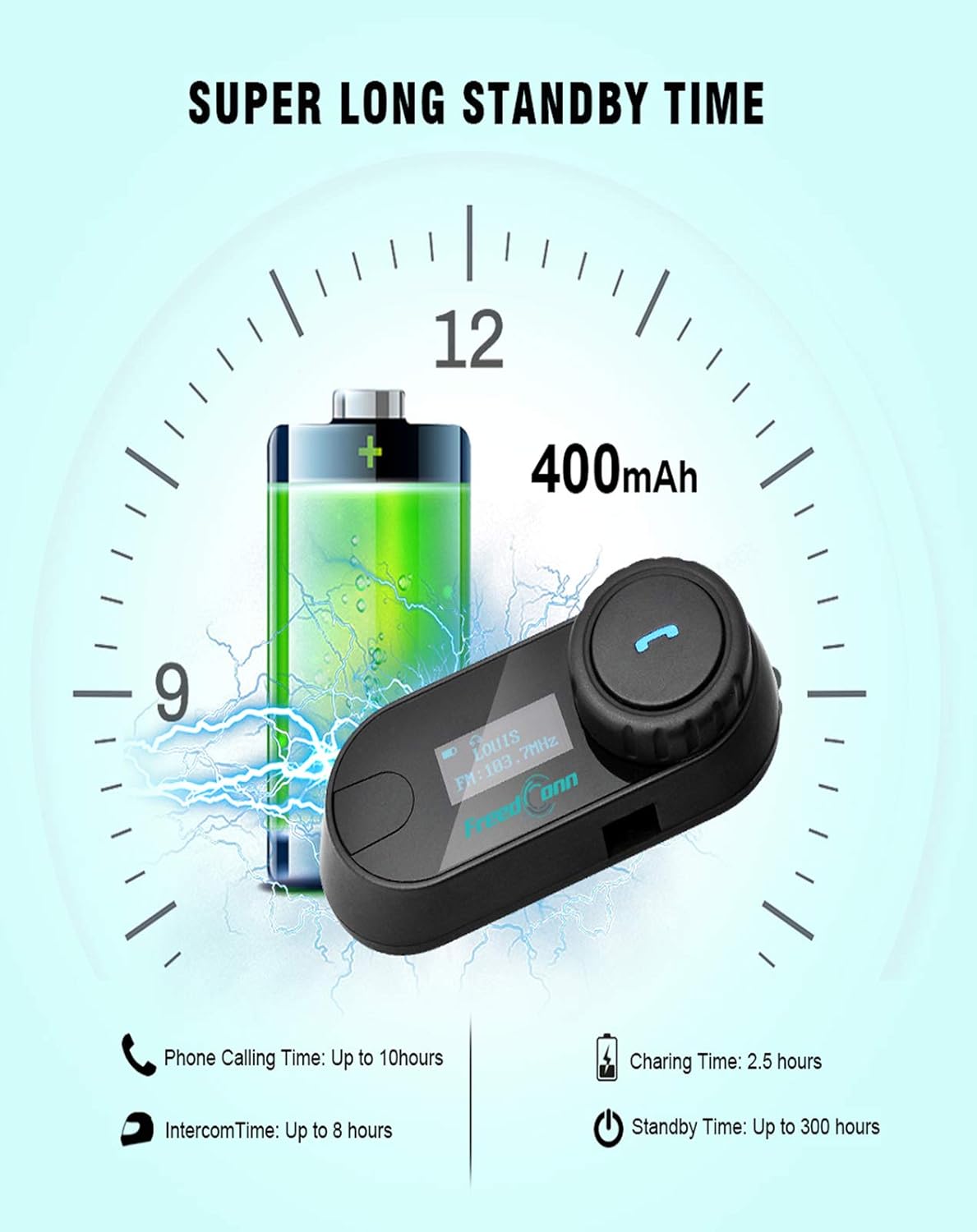
Image: Illustration of FreedConn TCOM-SC battery life and charging details, showing a 400mAh battery, 2.5 hours charging time, up to 10 hours phone calling time, up to 8 hours intercom time, and up to 300 hours standby time.
7. Basic Operations
7.1 Simba On/Kudzima
- Power On: Press and hold the Multi-function Button for approximately 3 seconds until you hear a voice prompt and the LCD screen illuminates.
- Power Off: Press and hold the Multi-function Button for approximately 5 seconds until you hear a voice prompt and the LCD screen turns off.
7.2 Kugadziridza Vhoriyamu
- Rotate the Jog Wheel forward to increase volume.
- Rotate the Jog Wheel backward to decrease volume.
8. Bluetooth Kubatanidza
8.1 Kubatana nefoni mbozha
- Ensure the TCOM-SC unit is powered off.
- Press and hold the Multi-function Button for approximately 5-7 seconds until the LCD screen shows "Pairing" and the indicator light flashes red and blue alternately.
- Panharembozha yako, shandisa Bluetooth uye tsvaga zvishandiso.
- Select "FreedConn TCOM-SC" from the list of available devices.
- If prompted, enter the PIN code "0000".
- Once paired, the LCD will show "Connected" and the indicator light will flash blue slowly.
8.2 Pairing with Another TCOM-SC Unit (Intercom)
To establish intercom communication between two TCOM-SC units:
- Ensure both TCOM-SC units are powered off.
- On both units, press and hold the Multi-function Button for approximately 5-7 seconds until they enter pairing mode (red and blue indicator lights flashing alternately).
- Briefly press the Multi-function Button on Poshi of the units. It will search for the other unit.
- Once connected, both units will show "Intercom" on their LCD screens and the indicator lights will flash blue slowly.
For multi-rider intercom (up to 3 units), repeat the pairing process with the third unit, ensuring only two units are actively communicating at any given time.
9. Mabasa Ekushanda
9.1 Kufona
- Pindura Call: Briefly press the Multi-function Button.
- Pedzisa Kufona: Briefly press the Multi-function Button.
- Ramba Kufona: Dhinda uye ubatisise iyo Multi-function Bhatani kwemasekondi maviri.
- Dhonzazve Nhamba Yekupedzisira: Dzvanya kaviri Bhatani reMulti-function.
9.2 Kuridza Mumhanzi
- Tamba/Kumbomira: Briefly press the Multi-function Button.
- Next Track: Rotate the Jog Wheel forward and hold for 2 seconds.
- Previous Track: Rotate the Jog Wheel backward and hold for 2 seconds.
9.3 FM Radio
- Batidza/dzima FM: Double-press the Multi-function Button to switch between music/intercom and FM radio.
- Nzvimbo dzekuongorora: Rotate the Jog Wheel forward or backward to change stations.
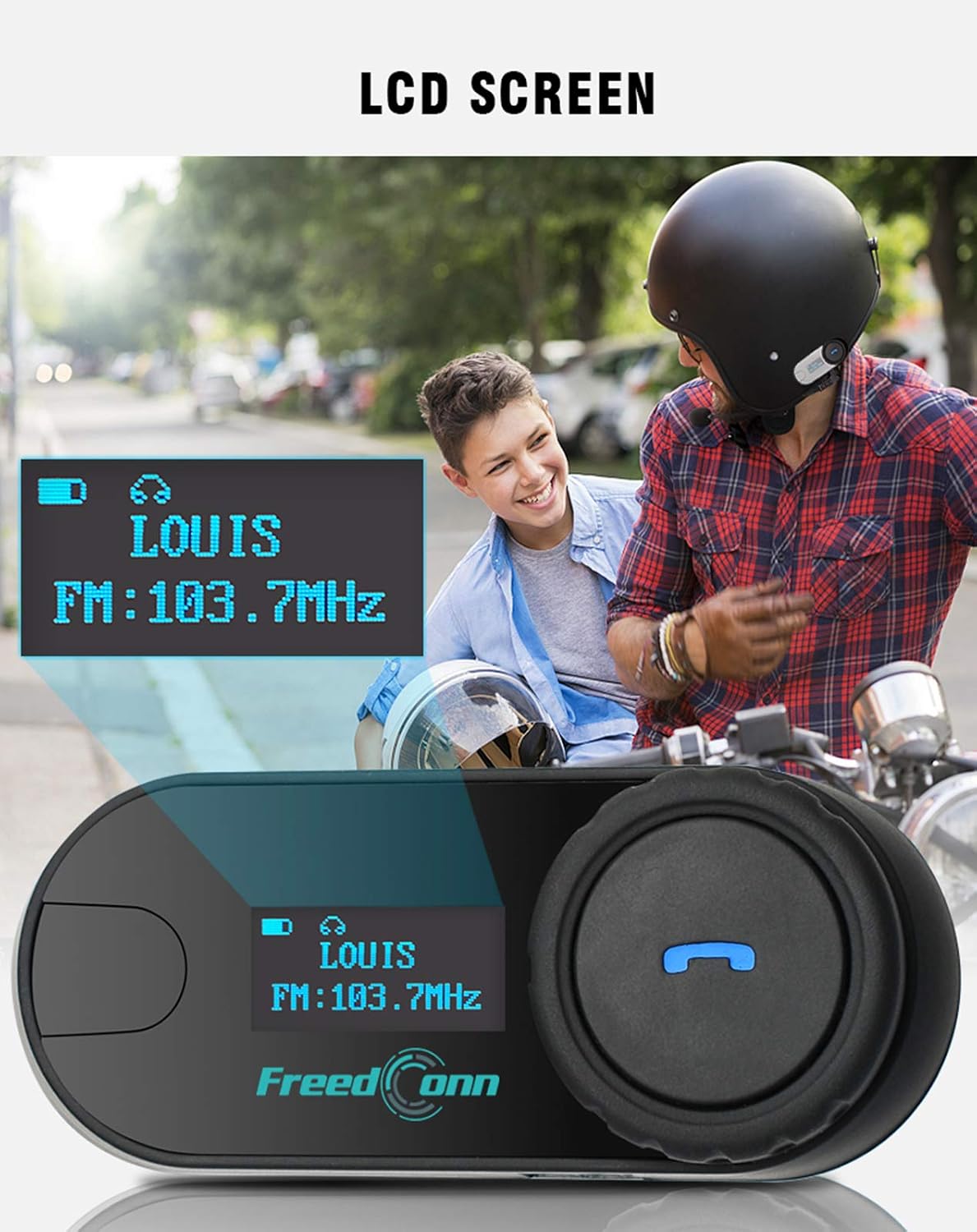
Mufananidzo: Pedyo-up view of the FreedConn TCOM-SC LCD screen, displaying information such as connected device name (e.g., LOUIS) and FM radio frequency (e.g., FM: 103.7MHz).
10. Kuchengeta
- Chenesa chidimbu nechinyoro, damp jira. Usashandise makemikari ane hasha kana zvinonyungudutsa.
- Iva nechokwadi chekuti chifukidziro chechiteshi chekuchaja chakavharwa zvakanaka kana chisiri kuchaja kuti mvura isapinda.
- Chengetedza chikwata munzvimbo inotonhorera, yakaoma kana isiri kushandiswa.
- Dzivisa kuisa chikamu kune tembiricha yakanyanyisa.

Image: The FreedConn TCOM-SC unit shown with water splashing around it, illustrating its waterproof, sun protection, and dust-proof capabilities, highlighting its durable and protective design.
11. Kugadzirisa matambudziko
- Hapana Simba: Iva nechokwadi chekuti bhatiri rachajwa. Batanidza pachaja woedza zvakare.
- Haikwanise Kubatanidza: Make sure both devices are in pairing mode. Turn off and restart both devices, then try pairing again. Ensure no other Bluetooth devices are interfering.
- Hapana Inzwi: Check volume levels on both the TCOM-SC and the connected device. Ensure the headset is properly plugged into the unit.
- Kubviswa kweIntercom: Ensure units are within the 800m range and there are no major obstructions. Re-establish the intercom connection.
- Hunhu Hwekunzwika Husina kunaka: Check microphone placement. Ensure speakers are correctly positioned over your ears. Reduce background noise if possible.
12. Zvinotsanangurwa
| Model Number | TCOM-SC |
| Bluetooth Version | 3.0 |
| Intercom Range | Kusvika pamamita 800 (vatasvi vana) |
| Battery Capacity | 400mAh |
| Phone Calling Time | Kusvikira kumaawa makumi maviri nemashanu |
| Intercom Nguva | Kusvikira kumaawa makumi maviri nemashanu |
| Standby Time | Kusvikira kumaawa makumi maviri nemashanu |
| Kuchaja Nguva | Anenge maawa maviri |
| Mvura Resistance Level | Isingapindi mvura |
| Product Dimensions | 1.22 x 0.98 x 3.19 inches |
| Item Weight | 10.2 ounces |
13. Warranty uye Tsigiro
For warranty information and technical support, please refer to the official FreedConn websaiti kana kubata mutengesi wako. Chengeta risiti rako rekutenga seumboo hwekutenga.