Nhanganyaya
This manual provides detailed instructions for the setup, operation, and maintenance of your LTC Nimbleback LK-301 Low Profile Mechanical Keyboard. Please read this manual thoroughly before using the product to ensure proper functionality and to maximize your user experience.

Image: The LTC Nimbleback LK-301 Low Profile Kiyibhodhi yeMechanical, showcasing marongerwo ayo akazara uye dhizaini yakanaka.
Product Features
- Yakaderera Profile Mechanical Switch: Equipped with responsive and comfortable white mechanical switches.
- Dual Connectivity: Supports both Bluetooth 3.0 wireless and wired USB Type-C connections.
- Kuchinjana Kwemidziyo Yakawanda: Seamlessly switch between up to three connected Bluetooth devices.
- 96-Makiyi Magadzirirwo: A compact layout that retains essential keys, including a numeric keypad.
- White Backlighting: Features white backlighting with 17 different modes, adjustable brightness, and speed.
- RGB Side Lighting: Customizable RGB lighting on the sides of the keyboard.
- Durable Construction: Built with an all-metal frame for enhanced durability and a premium feel.
- Mutete uye Akareruka Dhizaini: Ideal for portability and comfortable use.
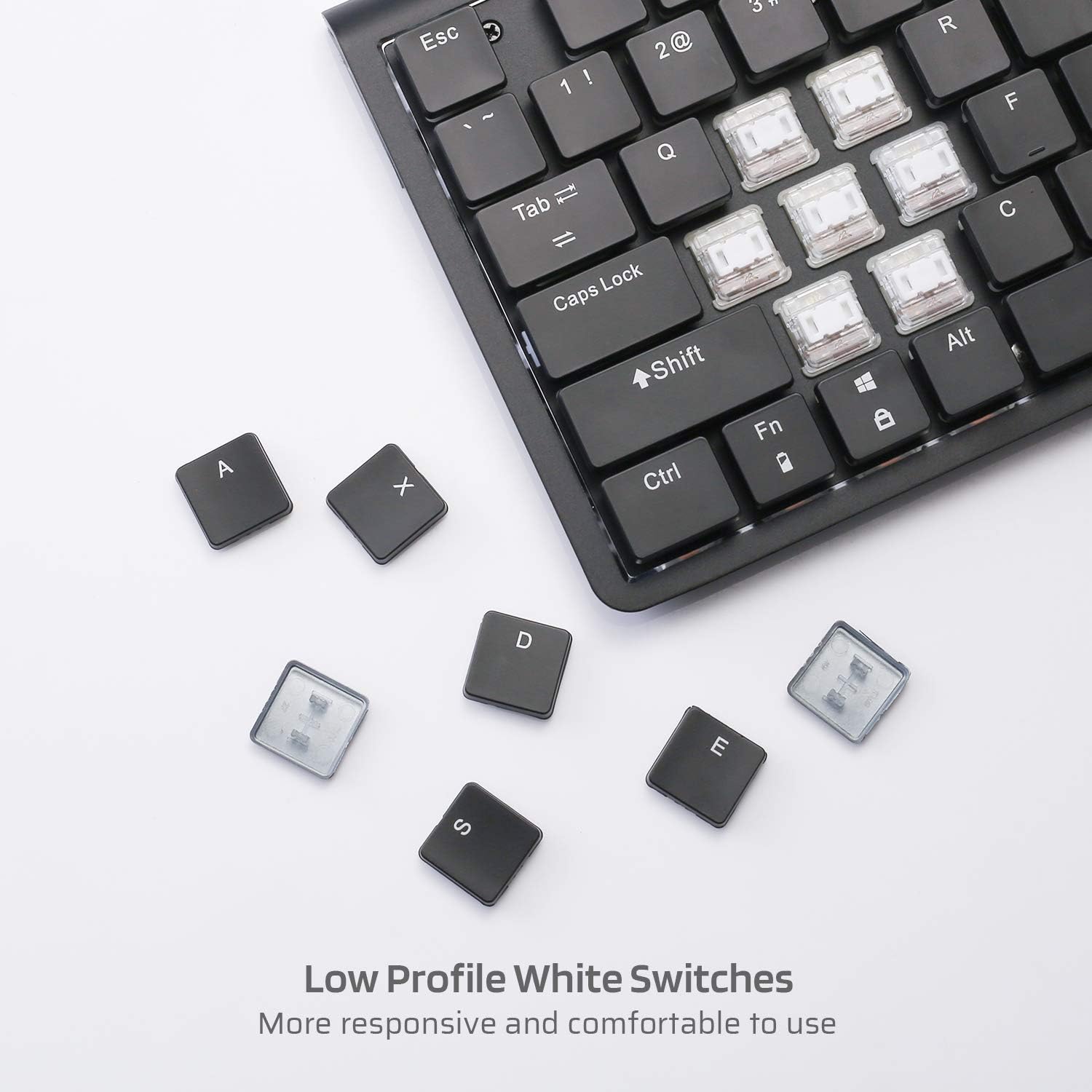
Mufananidzo: Pedyo-up view of the low profile white mechanical switches, highlighting their design.
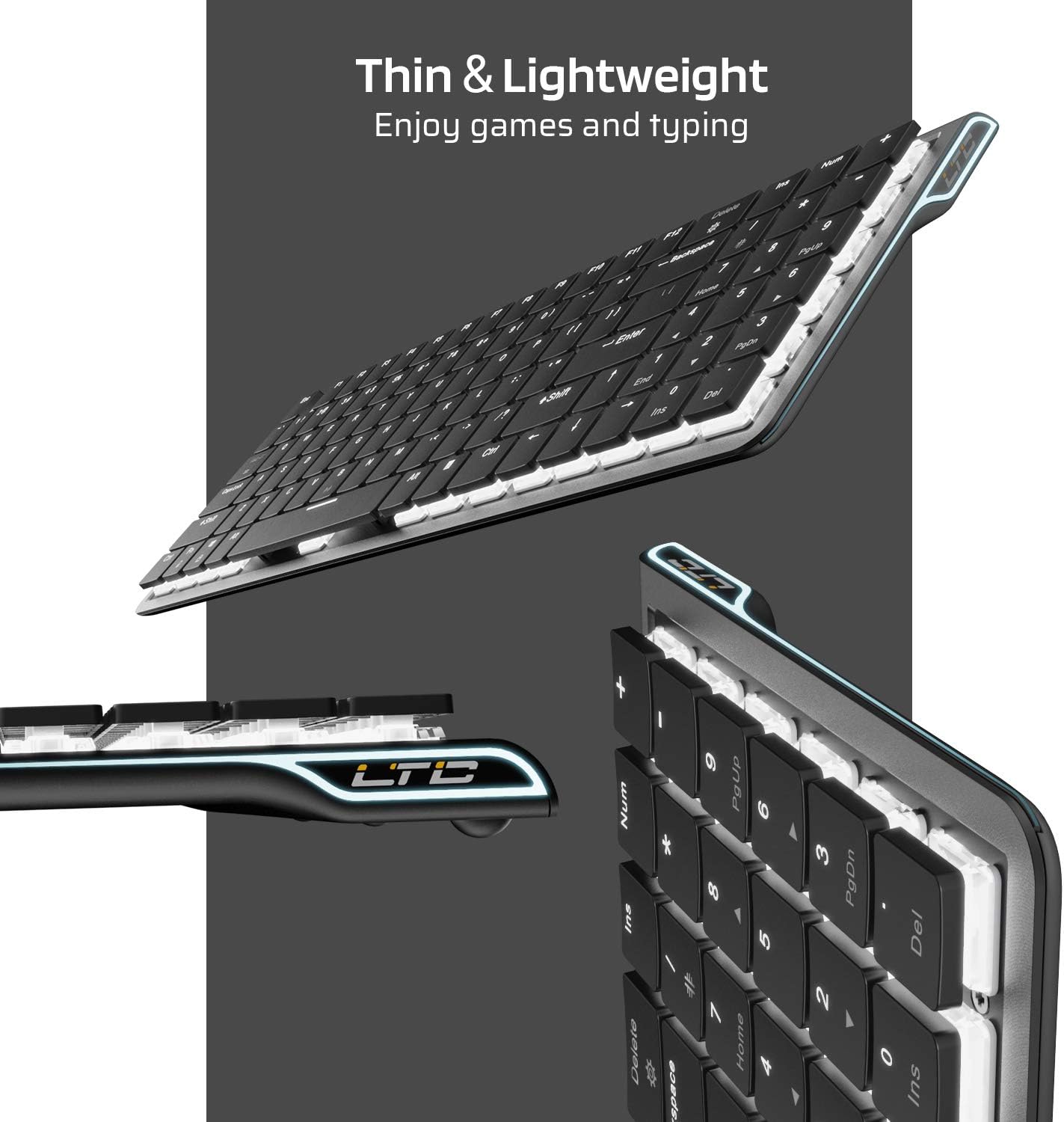
Mufananidzo: Side view of the keyboard, emphasizing its thin and lightweight profile.
Setup Instructions
Wiring Yakabatana
- Locate the USB Type-C cable included in the package.
- Connect one end of the USB Type-C cable to the port on the keyboard.
- Batanidza imwe magumo etambo kune inowanikwa USB port pakombuta yako.
- Kiibhodhi ichaonekwa otomatiki uye yagadzirira kushandiswa.
Makaralı Wireless Kubatanidza
- Ensure the keyboard is charged or connected via USB-C initially.
- Locate the ON/OFF switch on the underside of the keyboard and slide it to the 'ON' position.
- Press Fn + Tab to switch the keyboard to wireless mode. The keyboard's backlight will blink twice to indicate wireless mode.
- To select a Bluetooth device slot, press Fn + Q, Fn + W, kana Fn + E. The corresponding key will blink slowly.
- To enter pairing mode, long-press Fn+B for 3 seconds. The selected Bluetooth key (Q, W, or E) will blink quickly, indicating it is ready to pair.
- On your device (computer, tablet, or mobile phone), enable Bluetooth and search for available devices. Select "LTC Nimbleback LK-301" from the list.
- Once paired, the selected Bluetooth key will stop blinking and remain steadily lit.

Image: Illustration showing both wireless Bluetooth 3.0 and wired USB Type-C connection options for the keyboard.

Image: The keyboard connected to multiple devices (smartphone, tablet, laptop), demonstrating its multi-device switching capability.
Vhidhiyo: Kuperaview of the LTC Nimbleback LK-301 Low Profile Mechanical Keyboard, demonstrating its features and design. This video is provided by AceGadget.
Operating Instruction
Backlight Control
- Chinja Backlight Mode: Press Fn+Delete to cycle through 17 different white backlight modes.
- Pre-set Backlight Modes:
- Press Fn +1 for FPS (First-Person Shooter) backlight mode.
- Press Fn +2 for LOL (League of Legends) backlight mode.
- Press Fn +3 for Office backlight mode.
- Gadzirisa Backlight Kupenya: Press Fn + Museve Wekumusoro kuwedzera kupenya, uye Fn + Down Arrow kuderedza kupenya.
- Gadzirisa Backlight Speed: Press Fn + Museve Wekurudyi to increase animation speed, and Fn + Museve Wekuruboshwe to decrease animation speed.
Side RGB Lighting Control
- Change Side Light Mode/Color: Press Fn + /? (located on the numeric keypad) to cycle through various RGB side lighting effects and colors.
Vhidhiyo: Yakadzama review of the LTC Nimbleback LK-301 Low Profile Mechanical Keyboard, including demonstrations of its backlighting and side RGB effects. This video is provided by AngelPGC Store.
Maintenance
Kuti uve nechokwadi chekugara kwenguva refu uye kuita kwakakwana kwekhibhodi yako, tevera iyi nhungamiro yekugadzirisa:
- Kuchenesa: Use a soft, dry cloth to wipe down the keyboard surface. For deeper cleaning, use compressed air to remove dust and debris from between the keycaps. Avoid using harsh chemicals or abrasive materials.
- Kuchengeta: When not in use, store the keyboard in a cool, dry place away from direct sunlight and extreme temperatures. The included fabric bag can be used for protection during storage or travel.
- Liquid Exposure: Avoid spilling liquids on the keyboard. In case of accidental spills, immediately disconnect the keyboard, turn it off, and allow it to dry completely before attempting to use it again.
Kugadzirisa matambudziko
Keyboard Not Responding (Wired Mode)
- Iva nechokwadi chekuti tambo yeUSB Type-C yakabatana zvakachengeteka nekhibhodi nekombuta.
- Edza kubatanidza kiibhodhi kune imwe nzvimbo ye USB pakombiyuta yako.
- Edza kiibhodhi pane imwe komputa kuti ubvise matambudziko anokonzerwa nesystem.
Keyboard Not Connecting (Bluetooth Mode)
- Verify that the keyboard's ON/OFF switch is in the 'ON' position.
- Ensure the keyboard is in wireless mode (Fn + Tab).
- Confirm that the correct Bluetooth device slot is selected (Fn + Q/W/E).
- Re-enter pairing mode by long-pressing Fn+B kwe 3 seconds.
- Check your device's Bluetooth settings to ensure Bluetooth is enabled and the keyboard is visible or already paired. Try removing and re-pairing the device.
- Ita shuwa kuti bhatiri rekhibhodi rine mari yakakwana.
Backlight Not Working or Dim
- Gadzirisa kupenya uchishandisa Fn + Museve Wekumusoro.
- Tembedza mwenje yekumashure uchishandisa nzira dzemwenje Fn+Delete kuti uone kana imwe nzira ichaita kuti mwenje ishande.
- Ensure the keyboard battery has sufficient charge, as low battery can affect backlight performance.
Zvinotsanangurwa
| Feature | Detail |
|---|---|
| Model Number | LK-301 |
| Kubatana Technology | Bluetooth 3.0, USB Type-C (Wired) |
| Keyboard Tsanangudzo | Mechanical Gaming Khibhodi |
| Special Features | Bluetooth, Lighting (White Backlit, RGB Side), Wireless |
| Color | Nhema |
| Material | Metal |
| Item Weight | 1.76 pounds (inenge 0.8 kg) |
| Package Dimensions | 15.28 x 6.3 x 2.2 inches |
| Inosanganisirwa Zvikamu | USB Receiver (Note: USB Type-C cable is also included for wired connection and charging) |
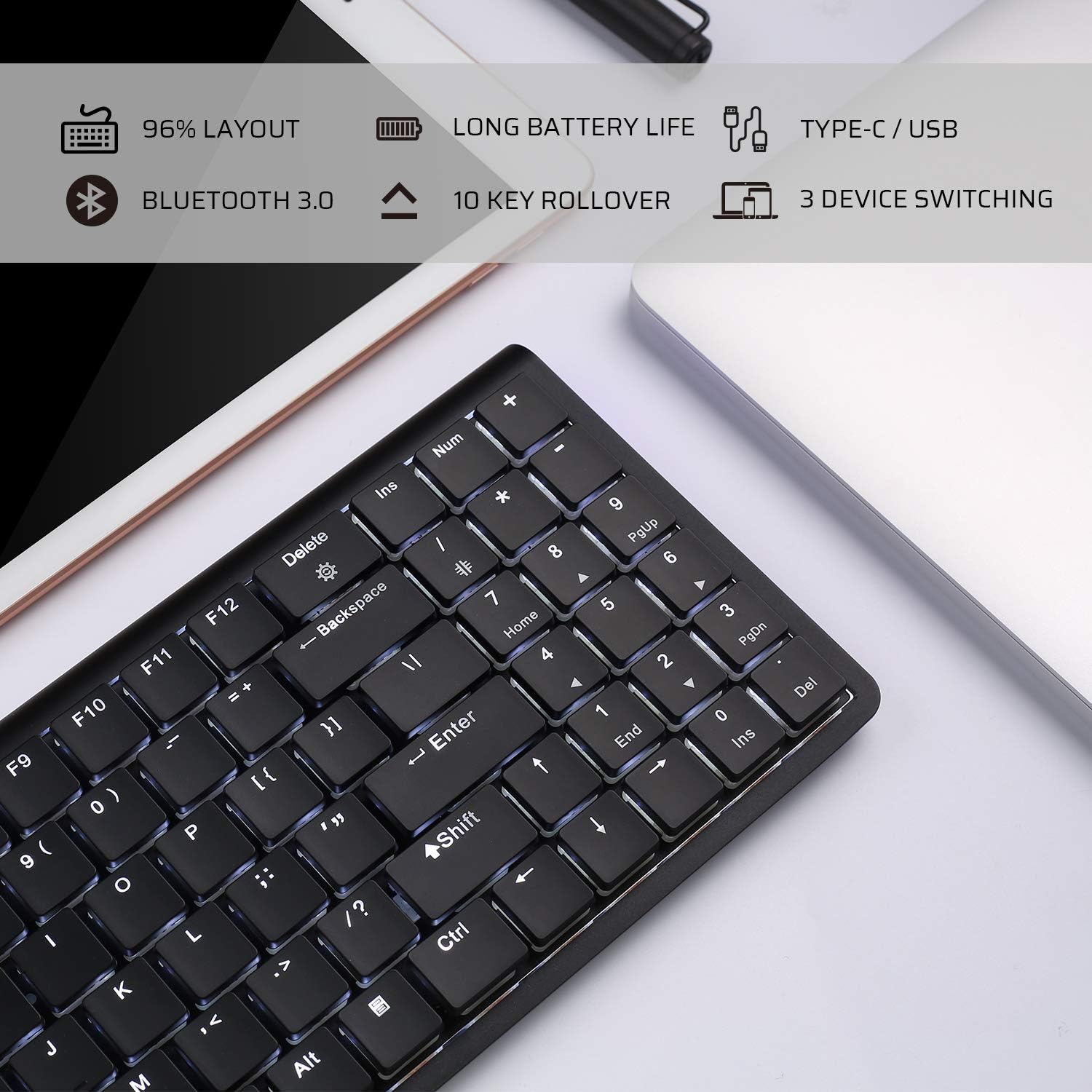
Image: An infographic highlighting key features such as 96% layout, long battery life, Type-C/USB, Bluetooth 3.0, 10-key rollover, and 3-device switching.
Warranty uye Support
For warranty information and customer support, please refer to the warranty card included in your product packaging or visit the official LTC website. Chengetedza risiti yako yekutenga sehumbowo hwekutenga kune chero vimbiso yewaranti.


