1. Nhanganyaya
Thank you for choosing the Xiaomi Mi 55-inch 4K UHD Smart Android TV. This manual provides essential information for the safe and efficient use of your television. Please read it thoroughly before operating the device and retain it for future reference.

Mufananidzo 1.1: Mberi view of the Xiaomi Mi 55-inch 4K UHD Smart Android TV.
2. Safety Information
Kuti uve nechokwadi chekushanda kwakachengeteka uye kudzivirira kukuvadzwa, chengeta zvinotevera zvekudzivirira:
- Usafumure TV kunaya kana kunyorova.
- Usadzivirire kuvhurika kwemhepo.
- Ensure proper grounding for the power plug.
- Dzivisa kuisa TV panzvimbo isina kugadzikana.
- Chengetedza TV kure nezuva rakananga, nzvimbo dzinopisa, uye moto wakashama.
- Bvisa TV panguva yemadutu emheni kana kuti isina kushandiswa kwenguva refu.
- Tumira masevhisi ese kuvashandi vanokwanisa.
3. Package Zviri mukati
Tarisa uone kuti zvinhu zvese zviripo mupakeji:
- 1 × Xiaomi Mi 55-inch TV
- 1 × Remote control with voice control
- 1 × Remote control batteries
- 1 × Simba tambo
- 1 × User manual (this document)
- 1 × Support legs
- 4 × Screws for support legs
4. Setup
4.1. Kuiswa Kwenyama
Your TV can be installed on a stand or wall-mounted. The TV is VESA mounting standard compatible.
4.1.1. Mira Kuiswa
- Isa TV zvakanaka-naka panzvimbo yakapfava, yakati sandara kudzivirira kukuvara kwechiso.
- Attach the support legs to the designated slots at the bottom of the TV using the provided screws. Ensure they are securely fastened.
- Place the TV on a stable, level surface.
4.1.2. Kukwirisa madziro (Sarudzo)
If you choose to wall-mount your TV, use a VESA-compatible wall mount kit (sold separately) and follow the instructions provided with the wall mount. Ensure the wall can support the weight of the TV.
4.2. Kubatanidza Peripherals
Connect your external devices to the TV's ports:
- HDMI: Connect Blu-ray players, game consoles, or set-top boxes to the HDMI ports (3 available). HDMI ARC is supported for audio return channel functionality.
- USB: Connect USB storage devices for media playback (2 available).
- LAN: Kuti uwane internet yakabatana newaya, batanidza waya yeEthernet kune LAN port.
- Digital Audio Out (Optical): Connect to an external audio system for high-quality digital sound.
4.3. Chekutanga Power On
- Batanidza tambo yemagetsi kuTV uye ipapo kune chinobuda magetsi.
- Dzvanya bhatani remagetsi paremote control kana paTV.
- Tevedzera mirairo iri pachikirini kuti upedze kugadzirisa kwekutanga, kusanganisira kusarudza mutauro, kubatana kwenetiweki (Wi-Fi kana Ethernet), uye kupinda muakaundi yeGoogle.
5. Operating Instructions
5.1. Remote Control
The included remote control allows you to navigate the TV's features. It supports voice control for convenient interaction with Google Assistant.
- Bhatani reSimba: Batidza kana kudzima TV.
- Navigation Pad (Kumusoro/Kudzika/Kuruboshwe/Kurudyi/Zvakanaka): Inofamba nemamenu uye inosarudza sarudzo.
- Mabhatani eVolume: Inogadzirisa danho reruzha.
- Mabhatani eChannel: Inochinja chiteshi cheTV.
- Bhatani reMubatsiri weGoogle: Inoita kuti kudzora inzwi kushande.
- Bhatani Repamba: Inodzokera kuchidzitiro chekutanga cheAndroid TV.
- Back Button: Inodzokera kune yakapfuura skrini.
- Mabhatani eApp: Dedicated buttons for popular apps like Netflix and YouTube.
5.2. Smart TV Features (Android TV)
Your TV runs on Android TV (version 9), providing access to a wide range of smart features:
- Google Assistant: Shandisa mirairo yezwi kutsvaga zviri mukati, kudzora zvishandiso zvepamba zvakangwara, uye kuwana ruzivo.
- Google Play Store: Download and install various apps, games, and streaming services.
- Chromecast yakavakirwa mukati: Kanda zvirimo kubva kusmartphone yako, piritsi, kana komputa zvakananga kuTV.
- Pre-installed Apps: Access Netflix, YouTube, and a web browser zvakananga.
- SmartThings App Tsigiro: Integrate with other compatible smart home devices.
5.3. Mufananidzo uye Inzwi Zvirongwa
Gadzirisa marongero emifananidzo neruzha kuti ugadzirise yako viewchiitiko:
- Mifananidzo Modes: Sarudza kubva pane zvakasiyana-siyana (semuenzaniso, Standard, Vivid, Movie, Game) kana kugadzirisa kupenya, kusiyana, ruvara, uye kupinza.
- HDR: The TV supports HDR for enhanced contrast and color with compatible content.
- Manzwi modes: Choose from presets like Standard, Music, Movie, or customize equalizer settings.
- DTS/Dolby Audio: The TV supports DTS and Dolby audio technologies for immersive sound.
6. Kuchengeta
6.1. Kuchenesa
To clean your TV:
- Gara uchisunungura TV usati wachenesa.
- Shandisa jira rakapfava, rakaoma kupukuta skrini uye kabati.
- Pazvibodzwa zvakasindimara, zvishoma dampIsa jira nemvura kana muchina wekuchenesa sikirini wakasarudzika. Usambofa wapfapfaidza muchina wekuchenesa sikirini zvakananga pa sikirini.
- Dzivisa kushandisa abrasive cleaners kana solvents.
6.2. Software Updates
Periodically check for software updates to ensure your TV has the latest features and performance improvements. Updates can usually be found in the TV's settings menu under 'About' or 'System Update'.
7. Kugadzirisa matambudziko
Kana ukasangana nematambudziko, tarisa kune anotevera akajairika matambudziko uye mhinduro:
| Dambudziko | Possible Solution |
|---|---|
| Hapana simba | Tarisa kana tambo yemagetsi yakabatana zvakanaka uye kana soketi yemagetsi iri kushanda. Edza imwe soketi yakasiyana. |
| Hapana mufananidzo, asi inzwi riripo | Iva nechokwadi chekuti kwasarudzwa nzvimbo chaiyo yekuisa. Tarisa kubatana kwetambo nemidziyo yekunze. |
| Hapana ruzha, asi mufananidzo uripo | Check volume level and mute settings. Verify audio cable connections. If using external audio, ensure it's powered on and correctly configured. |
| Remote control haisi kushanda | Replace batteries. Ensure there are no obstructions between the remote and the TV. Re-pair the remote if it's a Bluetooth remote. |
| Haikwanisi kubatana neWi-Fi | Check if the Wi-Fi router is on and working. Re-enter the Wi-Fi password. Try restarting the TV and router. |
| Zvishandiso zvinononoka kana kuparara | Vhara maapplication asina kushandiswa. Bvisa cache yeapp. Tangazve TV. Iva nechokwadi chekuti internet inomhanya zvakakwana. |
Kana dambudziko rikaramba riripo, bata rutsigiro rwevatengi.
8. Zvinotsanangurwa
| Feature | Detail |
|---|---|
| Model Number | L55M5-5ASP |
| Screen Size | 55 inches |
| Display Technology | LED |
| Resolution | 3840 x 2160 (4K UHD) |
| Refresh Rate | 60Hz |
| Viewing Angle | 178 madhigirii |
| Vhidhiyo Features | HDR rutsigiro |
| Operating System | Android TV (Android 9) |
| RAM | 2GB |
| Storage Capacity | 8GB |
| Audio Output | 2 x 10W vatauri |
| Sravana Sameeralu Serial 4th Audio Technologies | DTS/Dolby Audio |
| Smart Features | Google Assistant, Google Play, Web Browser, SmartThings app support, YouTube, Netflix (subscription not included), Chromecast built-in, DVB-T2 + DVB-C tuner |
| Kubatana | 3 x HDMI (with ARC), 2 x USB, 1 x LAN (Ethernet 100Mbps), 1 x Digital Optical Audio Out, Built-in Wi-Fi (2.4G/5G), Bluetooth 4.2 |
| Aspect ratio | 16:9 |
| Standard yekuisa | VESA inoenderana |
| Chigadzirwa Zviyero (W x D x H) | 124.2 x 24.5 x 78 masendimita (pamwe nechigadziko) |
| Product Weight | 13 kg |
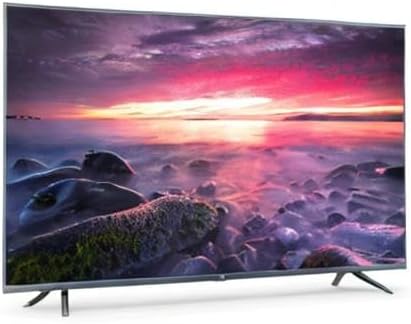
Image 8.1: Energy efficiency label for the Xiaomi Mi 55-inch TV.
9. Warranty uye Tsigiro
For warranty information, please refer to the warranty card included with your product or visit the official Xiaomi webnzvimbo yedunhu rako. Chengeta risiti rako rekutenga seumboo hwekutenga.
For technical support, troubleshooting assistance beyond this manual, or service inquiries, please contact Xiaomi customer service through their official channels.


