1. Nhanganyaya
Welcome to the user manual for your Orbic Journey V Verizon Postpaid 4G LTE Flip Phone. This guide provides essential information on setting up, operating, maintaining, and troubleshooting your device. The Orbic Journey V is a compact and reliable flip phone designed for clear communication and essential smart features, running on the KaiOS operating system and supporting 4G LTE connectivity.
Please read this manual thoroughly to ensure proper use and to maximize the performance and longevity of your phone.
2. Setup
2.1. Unboxing uye Package Zviri mukati
Upon opening your Orbic Journey V package, verify that all components are present:
- Orbic Rwendo V Flip Phone
- Rechargeable Lithium Ion Battery
- Charger
2.2. Kuiswa kwebhatiri
- Locate the battery cover on the back of the phone.
- Gently pry open the battery cover using the designated notch.
- Align the battery's gold contacts with the terminals inside the battery compartment.
- Dzvinya bhatiri pasi zvakasimba kusvika rapinda panzvimbo yaro.
- Replace the battery cover, ensuring it is securely latched.
2.3. Kuiswa kweSIM Card
Your Orbic Journey V requires a Nano-SIM card for cellular service. Ensure the phone is powered off before inserting or removing the SIM card.
- Remove the battery cover and the battery as described in Section 2.2.
- Locate the SIM card slot, typically near the battery compartment.
- Insert the Nano-SIM card into the slot with the gold contacts facing down and the notched corner aligned with the slot's guide.
- Gently push the SIM card until it locks into place.
- Dzorera bhatiri nevhavha yebhatiri.
2.4. Kutanga Kubatidza uye Kuchaja
To power on your phone for the first time, press and hold the Power/End Call button until the screen illuminates. It is recommended to fully charge the phone before first use.
- Batanidza charger pachiteshi chekuchaja chefoni.
- Batanidza charger pamagetsi emazuva ese.
- Iyo yekuchaja chiratidzo ichaonekwa pachiratidziri.
- Kana yanyatsochajiswa, bvisa charger.
3. Kushandisa Foni Yako
3.1. Phone Layout and Keys
Familiarize yourself with the physical components and buttons of your Orbic Journey V.
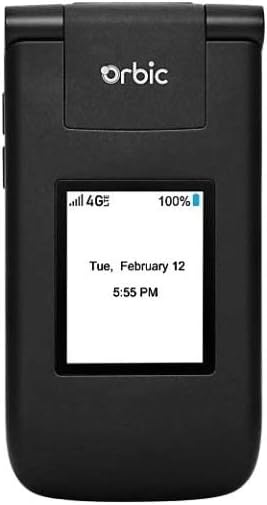
Mufananidzo 3.1: Mberi view of the Orbic Journey V, closed. The external display shows signal strength, battery level, and the current time and date.

Figure 3.2: Orbic Journey V in open position, revealing the main screen and the full alphanumeric keypad with navigation buttons.

Mufananidzo 3.3: Kumashure view of the Orbic Journey V, highlighting the main camera lens and the Verizon branding.
- Kuratidzwa Kwekunze: Shows time, date, notifications, and caller ID when the phone is closed.
- Internal Display: Main screen for navigating menus, viewing content, and interacting with applications.
- Navigation Key (D-Pad): Inoshandiswa kufamba mumamenyu nekusarudza sarudzo.
- Center Select Key: Inosimbisa sarudzo.
- Kiyi Yekufonera/Kutumira: Anotanga mafoni uye anopindura mafoni anouya.
- Kiyi Yekudzima Kufona/Kushandisa Simba: Ends calls, returns to the home screen, and powers the phone on/off.
- Back/Clear Key: Returns to the previous screen or deletes characters.
- Vhoriyamu Keys: Adjusts call volume, media volume, and ringer volume.
- Kiyi yekamera: Quick access to the camera function.
3.2. Basic Navigation
The Orbic Journey V operates on KaiOS. Use the Navigation Key to scroll through menu options and the Center Select Key to open applications or confirm actions.
- From the home screen, press the Navigation Key (up, down, left, right) to access shortcuts or navigate the main menu.
- Press the Center Select Key to open the main application menu.
- Press the Back/Clear key to go back to the previous screen.
3.3. Kuita uye kugamuchira mafoni
- Kufona: Enter the phone number using the keypad and press the Call/Send key. Alternatively, navigate to Contacts, select a contact, and press the Call/Send key.
- Kupindura Call: Kana foni yarira, tinya bhatani rekuti Call/Send.
- Kupedza Kufona: Press the End Call/Power key.
3.4. Kutumira nekugamuchira mameseji
- To Send a Message: From the main menu, select 'Messages'. Choose 'New Message', enter the recipient's number or select from contacts, type your message using the keypad, and press 'Send'.
- To Receive a Message: New messages will typically display a notification on the screen. Navigate to the 'Messages' application to view inbox yako.
3.5. Kushandiswa kwekamera
The Orbic Journey V is equipped with front and rear cameras. The rear camera is located on the upper-right back of the phone.
- To Open Camera: Press the dedicated Camera key or navigate to the 'Camera' application from the main menu.
- Kutora Mufananidzo: Frame your shot on the screen and press the Center Select key to capture the image.
- Viewing Photos: Access your photos through the 'Gallery' application.
3.6. Connectivity (Bluetooth, Wi-Fi)
Your phone supports Bluetooth and Wi-Fi for wireless connectivity.
- Bluetooth: Go to 'Settings' > 'Network & Connectivity' > 'Bluetooth'. Turn Bluetooth on, and the phone will search for available devices. Select a device to pair.
- Wi-Fi: Go to 'Settings' > 'Network & Connectivity' > 'Wi-Fi'. Turn Wi-Fi on, select an available network, and enter the password if required.
4. Kuchengeta
4.1. Cleaning Your Phone
To keep your phone in optimal condition, clean it regularly:
- Shandisa jira rakapfava, risina lint kupukuta skrini nemuviri.
- Dzivisa kushandisa makemikari ane hasha, abrasive cleaners, kana aerosol sprays.
- Ensure the phone is powered off and unplugged before cleaning.
4.2. Battery Care
Proper battery care can extend its lifespan:
- Dzivisa kupisa kwakanyanya.
- Do not leave the phone charging for excessively long periods after it's full.
- If the phone will not be used for an extended period, store it with a partial charge (around 50%).
4.3. Software Updates
Regular software updates provide new features, security enhancements, and bug fixes.
- Batanidza foni yako kuWi-Fi.
- Go to 'Settings' > 'Device' > 'Software Update'.
- Follow the on-screen prompts to check for and install any available updates.
5. Kugadzirisa matambudziko
This section addresses common issues you might encounter with your Orbic Journey V.
5.1. Nhare Haisi Kuvhurwa
- Ensure the battery is correctly installed and charged. Connect the charger and wait a few minutes before attempting to power on.
- Try removing and reinserting the battery, then attempt to power on again.
5.2. Poor Call Quality or No Signal
- Tarisa nzvimbo yauri kuona kuti network yako yakavharwa here. Enda kunzvimbo ine chiratidzo chiri nani.
- Ita shuwa kuti SIM kadhi rako rakaiswa zvakanaka.
- Tangazve foni.
- Verify that your account with Verizon is active and in good standing.
5.3. Kukurumidza Kubvisa Mabhatiri
- Vhara maapplication asina kushandiswa arikumashure.
- Deredza kupenya kwescreen.
- Turn off Wi-Fi, Bluetooth, or GPS when not in use.
- Check for and install any available software updates, as these often include battery optimizations.
5.4. Software or Navigation Issues
- If the phone is unresponsive, try a soft reset by removing and reinserting the battery.
- Ensure the phone's software is up to date.
- Kana matambudziko akaramba aripo, funga nezvekugadzirisa zvakare chigadzirwa chako (Note: This will erase all data on the phone. Back up important information first.). Navigate to 'Settings' > 'Device' > 'Reset Phone'.
6. Zvinotsanangurwa
| Feature | Detail |
|---|---|
| Model Name | Orbic Rwendo V |
| Brand | Orbic |
| ASIN | B08971YYM1 |
| Operating System | KaiOS |
| Wireless Carrier | Verizon |
| Nhoroondo ye Cellular Technology | LTE |
| Connectivity Technologies | Makaralı, Wi-Fi |
| Fomu Factor | Flip |
| Color | Nhema |
| Screen Size | 5.8 inches (Standing screen display size) |
| Resolution | 1520 x 720 |
| Camera Features | Mberi, Kumashure |
| Sravana Sameeralu Serial 4th Audio Jack | Hapana headphone jack |
| Mabhatiri | 1 Lithium Ion bhatiri (inosanganisirwa) |
| Item Weight | 12.8 ounces |
| Package Dimensions | 5 x 3 x 3 inches |
| Zuva Rokutanga Kuwanikwa | Chivabvu 26, 2020 |
7. Warranty uye Tsigiro
For warranty information and technical support regarding your Orbic Journey V phone, please refer to the documentation provided with your purchase or contact Orbic directly. You can also visit the official Orbic webnzvimbo yekutsigira zviwanikwa.
For service-related inquiries, please contact your wireless carrier, Verizon.
- Mugadziri: Orbic
- Wireless Carrier: Verizon


