Nhanganyaya
This manual provides detailed instructions for the installation, operation, and maintenance of your BINIZE Double Din Car Stereo. Please read this manual thoroughly before using the product to ensure proper functionality and to prevent damage. Keep this manual for future reference.
Product Overview
The BINIZE Double Din Car Stereo is a 10.1-inch multimedia player running on an Android 13 system. It offers a range of features designed to enhance your in-car entertainment and navigation experience.
Zvinokosha:
- 10.1-inch capacitive touch screen with 1024x600 resolution.
- Android 13 Operating System with Quad-core Coretex-A7 processor (up to 1.3GHz).
- 2GB RAM + 32GB yekuchengetera mukati.
- Wireless CarPlay and Android Auto support.
- Wired MirrorLink for Android and iOS devices.
- Built-in Bluetooth for hands-free calling and audio streaming.
- Integrated GPS receiver for online and offline navigation.
- FM Radio tuner.
- Support for AUX, front, and rear camera inputs.
- Steering Wheel Control compatibility (manual learning required).
- Built-in Wi-Fi receiver and support for 4G communication (via external dongle, not included).
- Expandable options for OBD and tire pressure monitoring (accessories sold separately).

Figure 1: BINIZE Double Din Car Stereo Front View zvinhu zvikuru zvakasimbiswa.
Setup uye Installation
Proper installation is crucial for the optimal performance of your car stereo. If you are unfamiliar with car audio wiring and installation, professional assistance is recommended.
Zvenyama:
The unit measures approximately 251mm (width) x 146mm (height) x 56mm (depth). Ensure your vehicle's dashboard opening is compatible with these dimensions.
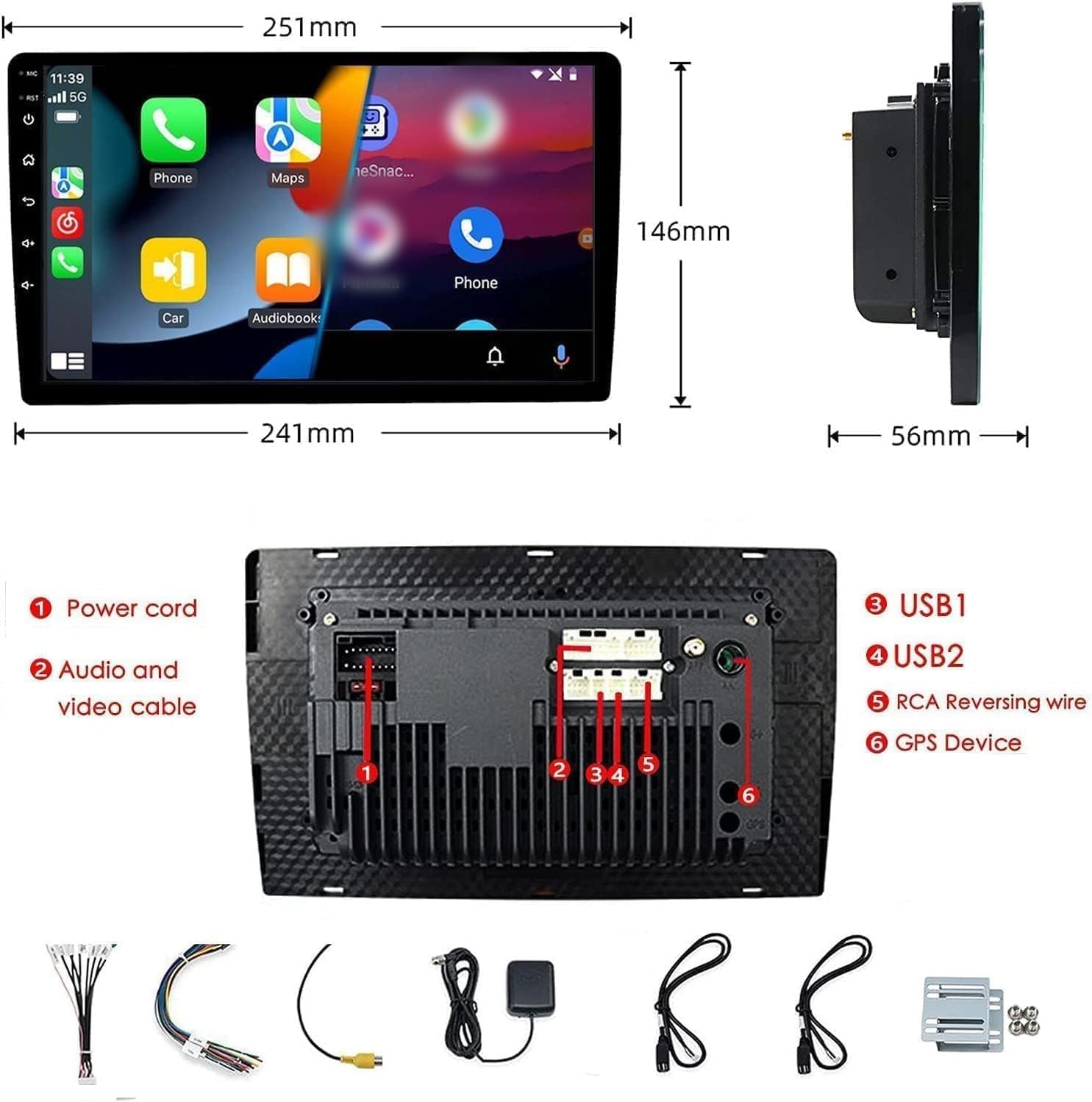
Figure 2: Unit dimensions and rear panel connection points.
Wiring Connections:
Refer to the included wiring diagram for specific connections. Key connections include:
- Power Cord: Connect to vehicle's power supply (constant 12V, accessory 12V, ground).
- Audio and Video Cable: For external audio/video devices.
- USB Ports (USB1, USB2): For media playback, phone charging, and wired CarPlay/Android Auto.
- RCA Reversing Wire: Connect to the backup camera trigger wire.
- GPS Device: Connect the external GPS antenna for navigation functionality.
- Steering Wheel Control Wires (Key/SW): Kuti zvibatanidzwe nezvinodzora mavhiri emotokari.
Iva nechokwadi chekuti ma connection ese akachengeteka uye anodzivirira kupisa kuti asaite ma short circuits.
Operating Instruction
Batidza/Kudzima:
The unit will power on automatically when the vehicle's ignition is turned on. To manually power off or restart, use the power button on the front panel.
Bata Screen Operation:
Navigate the interface by tapping, swiping, and pinching on the 10.1-inch capacitive touch screen, similar to a smartphone or tablet.
FM Radio:
Access the FM Radio application from the main menu. You can scan for stations, save presets, and adjust volume. The unit supports standard FM frequencies.

Mufananidzo 3: FM Radio interface.
Bluetooth Pairing:
- Ita shuwa kuti Bluetooth yakabatidzwa pafoni yako.
- On the car stereo, open the Bluetooth application.
- Tsvaga available devices on your phone and select "BINIZE" or a similar device name.
- Simbisa kodhi yekubatanidza pamidziyo miviri kana wakurudzirwa.
- Kana wangobatanidzwa, unogona kufona usingashandise maoko uye woteerera odhiyo.
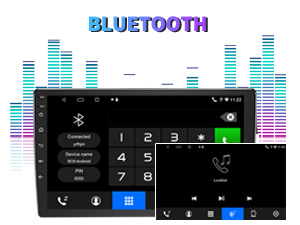
Figure 4: Bluetooth pairing screen.
Kudzora Wheel:
To use your vehicle's steering wheel controls, manual learning is required. Access the Steering Wheel Control settings in the system menu and follow the on-screen instructions to map your vehicle's buttons to the stereo functions.
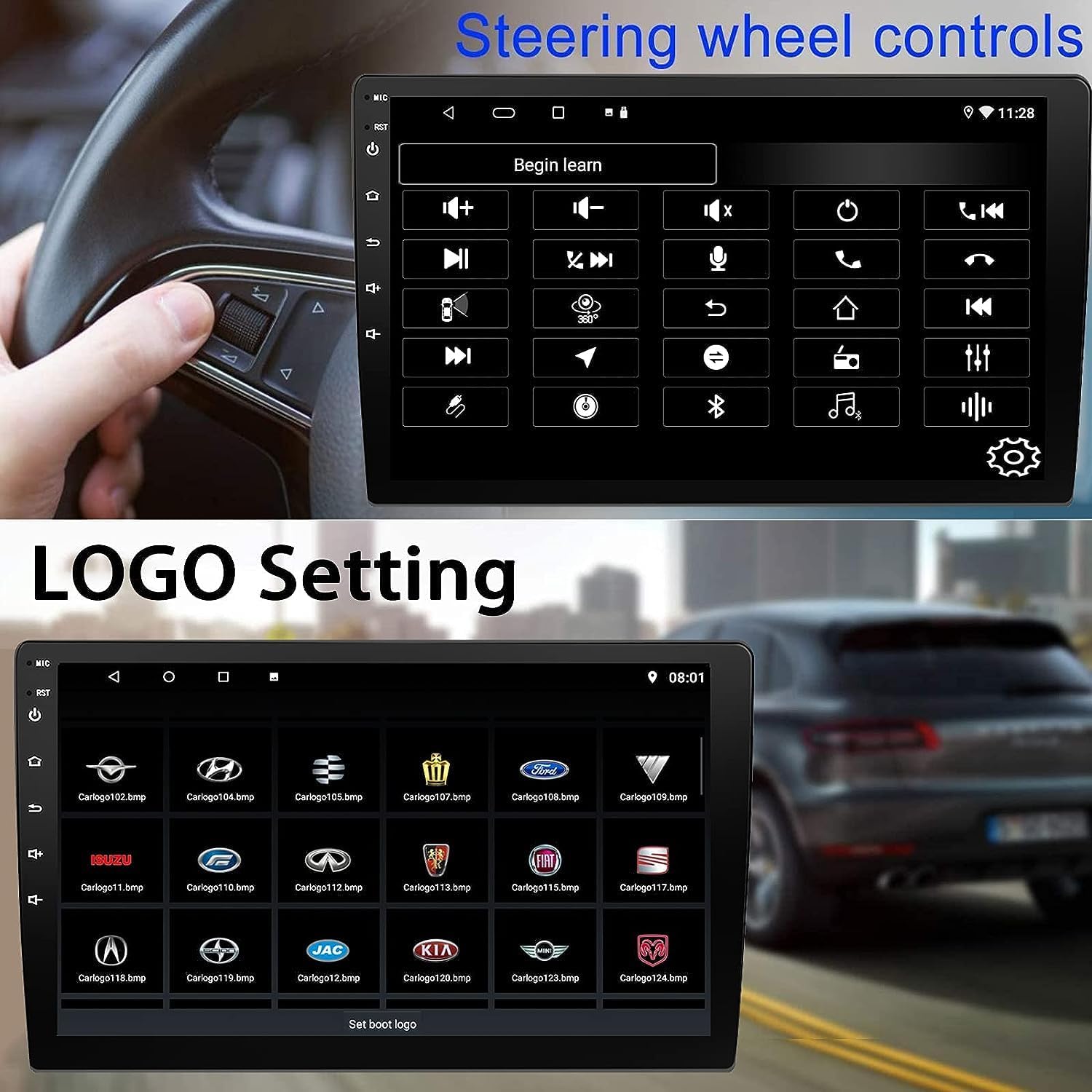
Figure 5: Steering Wheel Control setup screen.
Connectivity: CarPlay, Android Auto, and MirrorLink
Wireless CarPlay:
Connect your iPhone wirelessly to access CarPlay features such as navigation, music, messages, and calls directly on the stereo display. Ensure Wi-Fi and Bluetooth are enabled on your iPhone.
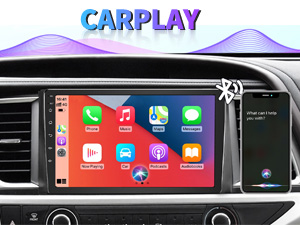
Figure 6: Wireless CarPlay interface.
Wireless Android Auto:
Connect your Android phone wirelessly to use Android Auto for navigation, communication, and entertainment apps. Ensure Wi-Fi and Bluetooth are enabled on your Android device.

Figure 7: Wireless Android Auto interface.
MirrorLink:
MirrorLink allows you to display your smartphone's screen directly onto the car stereo. This feature works with both Android and iOS devices via a wired connection. Note that CarPlay/Android Auto and MirrorLink cannot be used simultaneously.

Figure 8: MirrorLink feature displaying a phone screen on the stereo.
Navigation
The car stereo features an integrated GPS receiver, supporting both online and offline navigation. Connect to Wi-Fi or a mobile hotspot to use online navigation apps. For offline navigation, you may need to download map data.

Figure 9: GPS navigation map display.
Kupinza kwekamera
Backup Kamera:
The unit supports backup camera input. When properly connected, the display will automatically switch to the rear view when the vehicle is put into reverse, providing parking assistance with guidelines.
Mberi View Kamera:
The stereo also supports front view camera input, allowing for enhanced visibility when maneuvering in tight spaces.

Figure 10: Backup camera and front view camera displays.
Maintenance
To ensure the longevity and optimal performance of your BINIZE car stereo, follow these maintenance guidelines:
- Kuchenesa Screen: Shandisa jira rakapfava, risina ruvara kuti upukute zvinyoro nyoro sikirini yekubata. Kana paine tsvina yakaoma, pukuta zvishomaampsn jira rine mvura kana chidzitiro-chisina njodzi chekuchenesa. Dzivisa makemikari ane hasha kana abrasive zvinhu.
- General Cleaning: Keep the unit and surrounding areas free from dust and debris. Use a soft brush or compressed air to clean vents and button areas.
- Zvigadziriso zveSoftware: Periodically check for available software updates through the system settings to ensure you have the latest features and performance improvements.
- Dzivisa Kunyanya Kupisa: Usaise mudziyo wacho pakupisa kwakanyanya kana kutonhora kwenguva yakareba, sezvo izvi zvinogona kukanganisa zvikamu zvawo zvemagetsi.
Kugadzirisa matambudziko
If you encounter issues with your car stereo, refer to the following common problems and solutions:
| Dambudziko | Zvinogona Kukonzera | Solution |
|---|---|---|
| Unit haibatike. | Incorrect wiring; Blown fuse; Vehicle power issue. | Check power connections and vehicle fuses. Ensure constant 12V and accessory 12V are correctly wired. |
| Hapana ruzha. | Volume too low; Mute activated; Speaker wiring issue. | Wedzera vhoriyamu. Tarisa kana mutezo uri kushanda. Simbisa kubatana kwespika. |
| CarPlay/Android Auto not connecting wirelessly. | Bluetooth/Wi-Fi off on phone; Pairing issue; Software glitch. | Ensure phone's Bluetooth and Wi-Fi are on. Try re-pairing the device. Restart both phone and stereo. Some users reported needing to open phone's Bluetooth settings each time. |
| Screen too bright/dim at night. | Magadzirirwo ekuratidzira haana kugadziriswa. | Adjust brightness settings in the display menu. Consider using a screen dimming app if available. |
| Kamera yekusevha haisi kuratidzwa. | Camera not connected; RCA reversing wire not connected or faulty. | Check camera and RCA reversing wire connections. Ensure the camera is powered. |
Zvinotsanangurwa
| Feature | Detail |
|---|---|
| Brand | BINIZE |
| Model Number | Binize |
| Operating System | Android 13 |
| Screen Size | 26 cm (diagonal inooneka ine 10.1 cm) |
| Resolution | 1024x600 |
| processor | Quad-core Coretex-A7, 1.3GHz |
| Memory (RAM) | 2GB |
| Kuchengetera (ROM) | 32GB |
| Kubatana | Bluetooth, Wi-Fi, USB, Auxiliary |
| Special Features | Wireless CarPlay, Wireless Android Auto, MirrorLink, GPS Navigation, Touchscreen, Built-In Bluetooth |
| Audio Output Mode | Stereo (2.0 Surround Sound Channel Configuration) |
| Item Weight | 2.94 makirogiramu |
| Color | Nhema |
Warranty uye Support
Ruzivo rwewaranti:
The BINIZE Double Din Car Stereo comes with a 1-gore yemahara waranti kubva pazuva rekutenga. Iyi waranti inovhara kukanganisa kwekugadzira uye kusashanda pasi pekushandiswa kwakajairwa. Ndapota chengetedza humbowo hwako hwekutenga kwezvichemo zvewaranti.
Tsigiro yehunyanzvi:
For any technical assistance, questions, or issues not covered in this manual, please contact our professional technical support team. You can reach us via Amazon email for 24/7 online technical support. Our team is available to assist with system upgrades and parts replacement.
We are committed to providing enthusiastic customer service and ensuring your satisfaction with the BINIZE product.


