1. Nhanganyaya
This manual provides comprehensive instructions for setting up, operating, and maintaining your Microsoft Surface Go 2 tablet. The Surface Go 2 is a versatile 10.5-inch touch-screen device, powered by an Intel Pentium processor, 8GB of RAM, and a 128GB SSD, running Windows 10. It is designed for portability and efficiency, suitable for various tasks from productivity to entertainment.
2. Zvikamu uye Zviteshi
Familiarize yourself with the physical components and connection ports of your Surface Go 2.
2.1 Chishandiso Pamusoroview
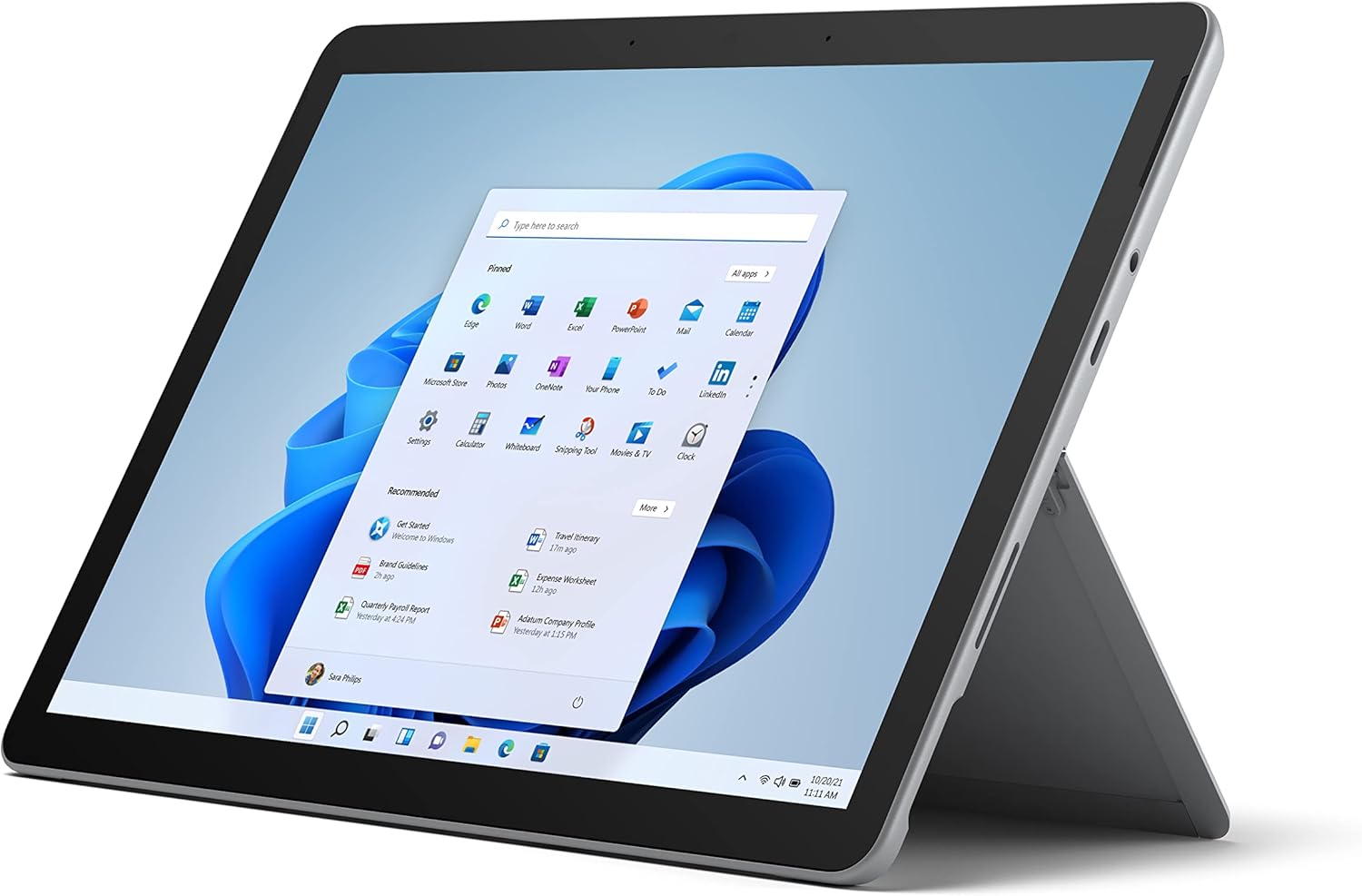
Figure 2.1: Microsoft Surface Go 2 tablet in landscape orientation, showcasing the Windows desktop interface.
2.2 Side Ports and Buttons
- USB Type-C Port: Kutumira data, kuburitsa vhidhiyo, uye kuchaja.
- Jeki reHeadphone re 3.5 mm: Yekubatanidza mahedhifoni kana zvishandiso zvekunze zveaudio.
- Surface Connect Port: Magnetic port for charging and connecting to Surface Dock (sold separately).
- MicroSD Card Reader: For expanding storage with a microSD card.
- Mabhatani eVolume: Kugadzirisa vhoriyamu yeaudio.
- Bhatani reSimba: To turn the device on/off or put it to sleep.

Mufananidzo 2.2: A divi profile of the Surface Go 2, illustrating the various ports and buttons along its edge.
2.3 Kickstand Yakabatanidzwa
The Surface Go 2 features an integrated kickstand on the back, allowing for multiple viewing angles. This enables comfortable use in various modes, such as tablet, laptop (with Type Cover), or studio mode.

Figure 2.3: The Surface Go 2 with its Type Cover keyboard attached and the kickstand deployed, demonstrating its laptop-like configuration.
3. Kutanga Setup
Follow these steps to set up your Surface Go 2 for the first time.
3.1 Powering On uye Basic Configuration
- Chaja Chishandiso: Connect the included power adapter to the Surface Connect port on your device and plug it into a power outlet.
- Power On: Dzvanya uye ubate bhatani remagetsi riri pamucheto wepamusoro pechishandiso kudzamara Microsoft logo yaonekwa pachiratidziri.
- Tevera On-Screen Mazano: The device will guide you through selecting your region, language, and connecting to a Wi-Fi network.
- Microsoft Account Setup: Sign in with an existing Microsoft account or create a new one. This is essential for accessing Microsoft services and applications.
- Zvakavanzika Settings: Review and adjust your privacy settings as prompted.
- Windows Hello: Set up facial recognition for faster and more secure sign-in (optional).
4. Operating Instructions
The Surface Go 2 offers flexible interaction methods.
4.1 Touchscreen Navigation
The 10.5-inch PixelSense display supports 10-point multi-touch. You can navigate Windows 10 using gestures similar to a smartphone or tablet:
- Top: Sarudza zvinhu kana kuvhura maapplication.
- Rova zvakasimba: Shamba mukati memukati kana kufamba pakati pezvikirini.
- Pina-ku-Zoom: Wedzera kana kuderedza saizi yemukati.
- Dzvanya uye Bata: Access context menus (right-click equivalent).
4.2 Using the Type Cover Keyboard (Sold Separately)
Attach the Type Cover keyboard to transform your Surface Go 2 into a laptop. The keyboard connects magnetically to the bottom edge of the tablet.
- Kunamatira: Align the Type Cover with the magnetic connector at the bottom of the Surface Go 2 until it snaps into place.
- Kunyora: Use the physical keys for efficient text input.
- Trackpad: The integrated trackpad allows for precise cursor control and multi-touch gestures.

Figure 4.1: The Surface Go 2 tablet separated from its Type Cover keyboard, illustrating the modular design.
4.3 Using the Surface Pen (Sold Separately)
The Surface Pen (sold separately) enhances creativity and productivity, allowing for natural writing and drawing directly on the screen.

Figure 4.2: The Surface Go 2 tablet displayed with a compatible Surface Pen, highlighting its digital inking capabilities.
5. Kuchengeta
Proper care ensures the longevity and performance of your Surface Go 2.
- Kuchenesa Screen: Shandisa jira rakapfava, risina lint zvishoma dampyakavharwa nemvura kana chidzitiro chekuchenesa chinotenderwa. Dzivisa makemikari ane hasha.
- Kuchenesa Muviri Wechishandiso: Pukuta kunze nemucheka wakapfava, wakaoma.
- Zvigadziriso zveSoftware: Regularly check for and install Windows updates to ensure optimal performance and security. Go to Zvirongwa> Gadziridza & Chengetedzo> Windows Kwidziridzo.
- Battery Care: Kuti uwedzere hupenyu hwebhatiri, dzivirira kupisa kwakanyanya uye edza kuchengetedza bhatiri kuchaja pakati pe20% ne80% pazvinogoneka.
- Kuchengeta Kuchengeta: Periodically clear temporary files and unnecessary data to free up storage space. Go to Settings> System> Storage.
6. Kugadzirisa matambudziko
Nyaya dzakajairika uye mhinduro dzadzo.
- Mudziyo Haubatike: Ita shuwa kuti mudziyo wachajwa. Batanidza adapta yemagetsi uye mirira maminetsi mashoma usati waedza kubatidza zvakare.
- Touchscreen Haisi kupindura: Restart the device. If the issue persists, check for pending Windows updates or consider a system restore.
- Matambudziko ekubatanidza paWi-Fi: Verify your Wi-Fi network is active. Restart your router and the Surface Go 2. Check Wi-Fi settings on the device.
- Kuita Kunonoka: Close unnecessary applications. Check for background processes consuming high resources (Task Manager). Ensure sufficient free storage space.
- Bhatiri Kudonha Nekukurumidza: Adjust screen brightness, disable unnecessary background apps, and ensure all software is up to date.
7. Zvinotsanangurwa
| Feature | Detail |
|---|---|
| Display | 10.5" PixelSense 10-Point Touch Display |
| Resolution | 1920 x 1280 (216 ppi) |
| processor | 1.6 GHz Intel Pentium 4425Y Dual-Core Processor |
| RAM | 8GB |
| Storage | 128GB SSD |
| Graphics | Yakabatanidzwa Intel HD Graphics 615 |
| Wireless | Wi-Fi 5 (802.11ac) | Bluetooth 4.1 |
| Makamera | 8MP Rear Camera | 5MP Front Camera |
| Ports | USB Type-C, 3.5 mm Headphone Jack, Surface Connect, MicroSD Card Reader |
| Hupenyu hwebhatiri | Kusvikira kumaawa gumi nemana (yakajairika kushandiswa) |
| Operating System | Windows 10 |
| Kurema | 1.15 lbs (approx.) |
| Dimensions | 6.8 x 9.64 x 0.32 inches |
8. Warranty uye Tsigiro
This Microsoft Surface Go 2 is a renewed product. Renewed products are eligible for replacement or refund under the Amazon Renewed Guarantee if you are not satisfied with your purchase. For specific terms and conditions, please refer to the Amazon Renewed program details.
For further technical support or inquiries, please visit the official Microsoft Surface support websaiti kana kubata basa ravo revatengi.


