Nhanganyaya
The AXIS Q1615-LE Mk III is a high-performance 2-megapixel outdoor network camera, engineered to deliver exceptional imaging and video quality. This model integrates advanced hardware and processing capabilities, making it an ideal platform for analytics powered by artificial intelligence (AI) and deep learning. Its robust design ensures reliable operation in diverse outdoor environments.
Key Features
- Powerful AI with Deep Learning: Equipped with a dual chipset (Axis ARTPEC and DLPU) for advanced AI-based object classification.
- Granular Object Classification: Distinguishes between various vehicle types (bikes, cars, buses, trucks) and humans, reducing false alarms.
- Support for 3rd-Party AI Applications: Open Axis platform allows integration of tailor-made AI applications.
- Edge-Based Processing for Scalability: Analytics run directly on the camera, reducing server load, improving speed, and lowering costs.
- Premium Axis Q-line Camera Features: Includes high-quality imaging, OptimizedIR (up to 60m/196ft) for clear night vision, and robust outdoor ratings (IP66, IP67, NEMA 4X).
Safety Information
Please read all safety instructions carefully before installation and operation. Failure to follow these instructions may result in injury, damage to the product, or voiding of the warranty.
- Kuchengetedzwa Kwemagetsi: Installation must be performed by qualified personnel in accordance with all local and national electrical codes. Ensure power is disconnected before any installation or maintenance.
- Kukwidza: The camera must be securely mounted to a surface capable of supporting its weight. Use appropriate fasteners for the mounting surface.
- Environmental Conditions: While designed for outdoor use, avoid exposing the camera to extreme conditions beyond its specified operating temperature and humidity ranges.
- Kuchenesa: Shandisa nyoro chete, damp cloth for cleaning. Avoid abrasive cleaners or solvents that could damage the camera's finish or lens.
Package Zviri mukati
Iva nechokwadi chekuti zvinhu zvese zviripo mupakeji usati waenderera mberi nekuisa:
- AXIS Q1615-LE Mk III Network Camera
- AXIS T94Q01A Wall Mount
- Installation Guide
- Resistorx T20 Tool
- Sunshield Connector Kit
- Windows Decoder 1-user License
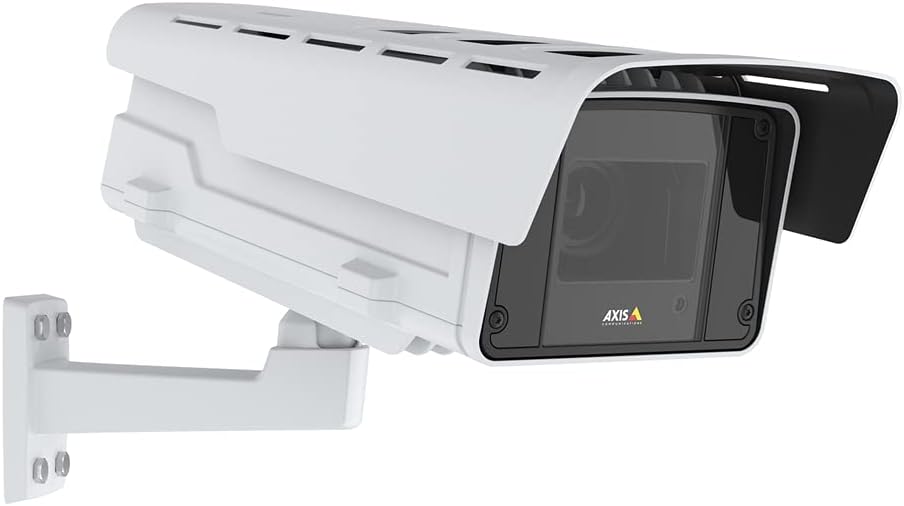
Figure 1: AXIS Q1615-LE Mk III Network Camera with included wall mount.
Gadzirira
Kuisa Kamera
- Sarudza Nzvimbo: Select a suitable outdoor location that provides the desired field of view and is within reach of power and network connections. Ensure the mounting surface is sturdy.
- Attach Wall Mount: Use the included AXIS T94Q01A Wall Mount. Securely fasten the mount to the chosen surface using appropriate screws (not included, typically).
- Attach Camera to Mount: Align the camera with the wall mount and secure it using the provided hardware. Adjust the camera's angle for optimal viewing.
- Install Sunshield: Attach the sunshield using the Sunshield Connector Kit to protect the lens from direct sunlight and reduce glare.
Powering On
The AXIS Q1615-LE Mk III camera can be powered via Power over Ethernet (PoE) or a DC power supply.
- PoE Connection: Connect an Ethernet cable from a PoE-enabled switch or injector to the camera's Ethernet port. This provides both power and network connectivity.
- DC Simba: If not using PoE, connect a compatible DC power adapter (not included) to the camera's DC input port.
Network Connection
Connect the camera to your network using a standard Ethernet cable. For initial setup, it is recommended to connect the camera directly to a computer or a local network segment where you can easily discover its IP address.
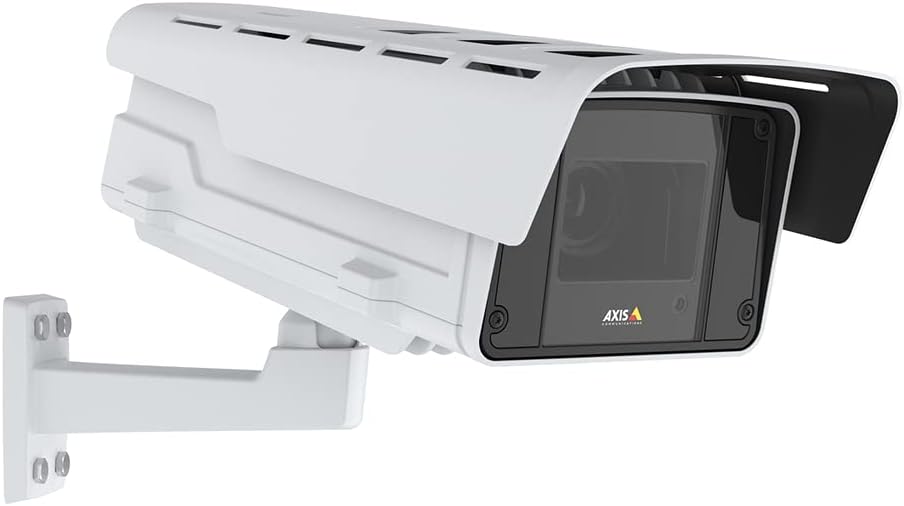
Mufananidzo 2: Rutivi view of the camera illustrating potential mounting and connection points.
Operating Instruction
Accessing the Camera Interface
- Kamera yeDiscover: Use the AXIS IP Utility or AXIS Device Manager software to discover the camera on your network and find its IP address.
- Log In: Vhura a web browser and enter the camera's IP address. Log in using the default credentials (typically username 'root' and password 'pass' for first-time setup, which you will be prompted to change).
Configuring Video Settings
Once logged in, navigate to the 'Video' or 'Stream' settings to adjust parameters such as resolution, frame rate, compression, and image quality. The camera supports 1080p video capture resolution.
Using Object Analytics
The AXIS Q1615-LE Mk III features powerful AI-based object analytics. Access the 'Analytics' section in the camera's web interface to configure detection zones, set up rules for different object types (e.g., cars, bikes, humans), and define actions to be triggered upon detection (e.g., send notifications, record video).
Maintenance
Kuchenesa
Kuchenesa nguva dzose kunobatsira kuchengetedza kunaka kwemufananidzo uye kunoita kuti kamera irarame kwenguva refu.
- Lenzi: Gently wipe the lens with a soft, lint-free cloth. For stubborn dirt, use a lens cleaning solution designed for optical surfaces.
- Dzimba: Clean the camera housing with a soft, damp jira. Dzivisa kushandisa makemikari ane hasha kana abrasive zvinhu.
Firmware Dzokorora
Nguva nenguva tarisa Axis Communications website for firmware updates. Keeping your camera's firmware up-to-date ensures access to the latest features, performance improvements, and security patches. Follow the instructions provided by Axis for the update process.
Kugadzirisa matambudziko
Ichi chikamu chinopa mhinduro kune zvakajairika zvaungasangana nazvo.
- Hapana Simba:
- Verify that the PoE switch/injector is powered on and functioning correctly.
- Kana uchishandisa adapta yeDC, iva nechokwadi chekuti yakabatana zvakanaka uye ichipa simba rakakodzeratage.
- Tarisa tambo yeEthernet kuti ione kana yakakuvara kana kuti haina kubatana zvakanaka.
- Hapana Network Connection:
- Iva nechokwadi chekuti tambo yeEthernet yakabatana zvakanaka kumativi ese ari maviri.
- Tarisa mamiriro e switch yenetiweki/router.
- Verify the camera's IP address and network settings are correct and not conflicting with other devices.
- Temporarily disable any firewall on your computer during initial setup.
- Hunhu Hwakashata Wemufananidzo:
- Chenesa lenzi yekamera.
- Adjust focus settings in the camera's web interface (Auto Focus is available).
- Check lighting conditions. Ensure OptimizedIR is enabled for low-light environments.
- Adjust video resolution and compression settings.
- False Alarms from Analytics:
- Refine detection zones and sensitivity settings in the analytics configuration.
- Ita shuwa kuti kamera view is clear of obstructions that might trigger false detections.
- Update camera firmware to the latest version for improved analytics performance.
For more detailed troubleshooting or issues not covered here, please refer to the comprehensive support documentation on the Axis Communications websaiti kana kubata rutsigiro rwavo rwehunyanzvi.
Zvinotsanangurwa
| Feature | Tsanangudzo |
|---|---|
| Model Name | Q1615-LE Mk III |
| Indoor / Outdoor Kushandiswa | Kunze |
| Vhidhiyo Capture Resolution | 1080p |
| Inoshanda Zvakadaro Resolution | 2 MP |
| Kubatana Technology | Ethernet, Wi-Fi (Wireless Communication Technology) |
| Simba Source | DC |
| Wattage | 11 watts |
| International Protection Rating | IP67 |
| Chinhu Dimensions L x W x H | 27.5 x 11.5 x 11 inches |
| Item Weight | 20.1 Pondo |
| Max Shutter Speed | 1/125000 - 2 Seconds |
| Focus Type | Auto Focus |
| Low Light Technology | Masikati/Husiku |
| Alert Type | Motion Chete |
| Inosanganisirwa Zvikamu | AXIS T94Q01A Wall Mount, Installation Guide, Q1615-LE Mk III Network Camera, Resistorx T20 Tool, Sunshield Connector Kit, Windows Decoder 1-user License |
Warranty uye Support
Warranty Information
The AXIS Q1615-LE Mk III Network Camera comes with a 5-year mugadziri waranti. Ndapota chengetedza humbowo hwako hwekutenga kwezvichemo zvewaranti. Iyo waranti inovhara kukanganisa mune zvigadzirwa uye magadzirirwo pasi pekushandiswa kwakajairwa.
Technical Support
For technical assistance, product registration, or to download the latest software and documentation, please visit the official Axis Communications website. Their support resources include FAQs, troubleshooting guides, and contact information for direct technical support.
Websaiti: www.neloop.com


