Nhanganyaya
This user manual provides comprehensive instructions for the setup, operation, maintenance, and troubleshooting of your Trust Ozaa Rechargeable Wireless Mouse. Please read this manual carefully before using the product to ensure optimal performance and longevity.

Image: The Trust Ozaa Rechargeable Wireless Mouse shown with its USB receiver and micro-USB charging cable. This image illustrates the main components included with the mouse.
Package Zviri mukati
Tarisa uone kuti zvinhu zvese zviripo mupakeji:
- Trust Ozaa Rechargeable Wireless Mouse
- USB Receiver
- Micro-USB yekuchaja Cable
- Mirayiridzo Yekushandisa (Bhuku rino)

Image: The retail packaging for the Trust Ozaa Rechargeable Wireless Mouse, highlighting its key features such as 10m wireless range, comfortable design, and silent click buttons.
Gadzirira
- Chaja Mouse: Before first use, connect the supplied micro-USB charging cable to the mouse's charging port and to a USB power source (e.g., computer USB port, USB wall adapter). The charging indicator light will illuminate. Allow the mouse to fully charge.
- Isa USB Receiver: Locate the USB receiver, typically stored in a compartment on the underside of the mouse. Remove it and plug it into an available USB-A port on your computer (PC or Mac).
- Power On: Turn on the mouse using the on/off switch located on the underside.
- Automatic Connection: The mouse should automatically connect to your computer. No additional drivers are typically required for basic functionality (Plug and Play).

Image: A user operating the Trust Ozaa mouse wirelessly next to a laptop, demonstrating its plug-and-play functionality and 10-meter wireless range.
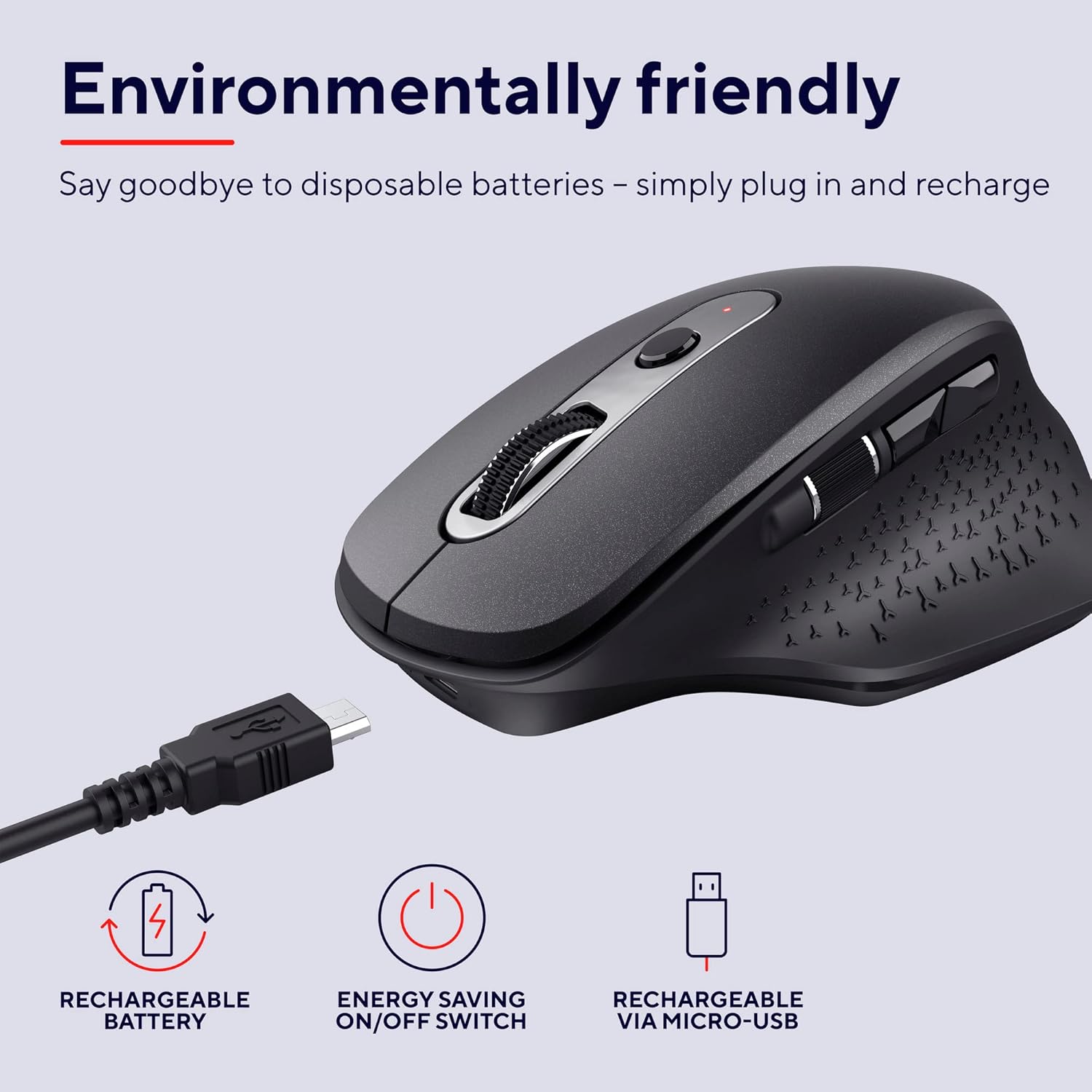
Image: The Trust Ozaa mouse being charged via its micro-USB cable, highlighting its rechargeable battery and energy-saving features.
Operating Instruction
Bhatani Mabasa
- Bhatani reKudzvanya Kuruboshwe: Standard primary click. Designed for silent operation.
- Bhatani rekudzvanya kurudyi: Standard secondary click. Designed for silent operation.
- Scroll Wheel (Middle Button): Skrora magwaro wakatwasuka uye web pages. Press down for middle-click functionality.
- DPI Kugadzirisa Bhatani: Located behind the scroll wheel. Press to cycle through different cursor speeds (DPI settings: 800, 1200, 1600, 2400 DPI).
- Side Scroll Wheel: Located on the left side. Allows for horizontal scrolling.
- Mabhatani Ekumberi/Kumashure: Located above the side scroll wheel. Used for navigating forward and backward in web browsers kana file vaongorori.

Mufananidzo: Musoro wepamusoro view of the Trust Ozaa mouse, visually indicating the DPI adjustment, silent buttons, and convenient side scroll wheel.
DPI Kugadziriswa
The mouse features an adjustable cursor speed (DPI) ranging from 800 to 2400 DPI. To change the DPI, press the dedicated DPI button located behind the main scroll wheel. Each press will cycle through the available settings, allowing you to select the sensitivity that best suits your task or preference.
Kuchengetedza Simba
To conserve battery life, the mouse is equipped with an on/off switch on its underside. It also features an automatic sleep mode that activates after a period of inactivity. To wake the mouse, simply move it or click any button.
Maintenance
- Kuchenesa: Shandisa jira rakapfava, rakaoma kuchenesa mbeva. Kana iine tsvina yakaoma, bvisa d zvishomaamp cloth can be used, but ensure no moisture enters the internal components. Do not use harsh chemicals or abrasive cleaners.
- Kuchaja: Recharge the mouse when the battery indicator light signals low power or when performance degrades. Use only the provided charging cable or a compatible micro-USB cable.
- Kuchengeta: Kana usingashandiswe kwenguva yakareba, dzima mouse kuti bhatiri rirambe richishanda. Chengeta panzvimbo inotonhorera, yakaoma.
Kugadzirisa matambudziko
| Dambudziko | Zvinogona Kukonzera | Solution |
|---|---|---|
| Mbeva haisi kupindura. |
|
|
| Mufambiro wecursor unorasika kana kusvetuka. |
|
|
| Buttons not working. |
|
|
Zvinotsanangurwa
| Brand | Vimba |
| Model Number | 23812 |
| Kubatana Technology | Mafambiro eRadio (Asina Waya) |
| Wireless Range | Kusvika 10 metres |
| DPI Zvirongwa | 800, 1200, 1600, 2400 DPI (Inochinjika) |
| Nhamba yeMabhatani | 6 (Left, Right, Scroll Wheel Click, DPI, Forward, Backward) + Side Scroll Wheel |
| Mabhatani Makuru | Silent Left and Right Buttons |
| Simba Source | Rechargeable Battery (1 AAA battery included, contained in equipment) |
| Kuchaja Port | Micro-USB |
| Zviyero zveChigadzirwa (L x W x H) | 7.7 x 11.8 x 4.6 cm |
| Item Weight | 122 g |
| Hardware Platform Kuenderana | PC, Mac |
| Operating System Kuenderana | Chrome OS, Windows, Mac OS |
| Special Features | Wireless, Rechargeable, Quiet, Ergonomic Design, Energy-saving On/Off Switch |
Warranty uye Support
Kuti uwane ruzivo rwewarandi uye rutsigiro rwehunyanzvi, ndapota tarisa kuTrust yepamutemo websaiti kana kubata basa ravo revatengi zvakananga. Chengetedza humbowo hwako hwekutenga kune warranty claim.
Mukuru weTrust Websaiti: www.tree.com
Hapana mavhidhiyo epamutemo ezvigadzirwa kubva kumutengesi akawanikwa kuti aiswe mubhuku rino.


