
1. Nhanganyaya
This manual provides detailed instructions for the setup, operation, and maintenance of your AOC Essential-line Q32E2N monitor. Please read this manual thoroughly before using the product to ensure proper and safe operation.
The AOC Q32E2N monitor features a 31.5-inch VA/SNB panel with QHD (2560 x 1440) resolution, designed for professional use. Key features include a slim 3-sided frameless design, wide 178°/178° viewing angles, built-in speakers, 250 cd/m² brightness, 4ms response time, and automatic source input detection. It also incorporates eye-friendly technologies such as Flicker-Free and Low Blue Mode for enhanced viewing comfort.

Visual representation of the AOC Q32E2N monitor's main features, including its size, display technologies, and mounting options.
2. Setup
2.1 Kusunungura uye Zviri mukati
Carefully remove all components from the packaging. Ensure all items listed below are present. If any items are missing or damaged, contact your retailer.
- AOC Q32E2N Monitor
- Monitor Stand (Base and Neck)
- Power Cable
- HDMI Cable
- DisplayPort Cable (inogona kusiyana nenzvimbo)
- Mushandisi Chinyorwa (gwaro iri)
- Warranty Card
2.2 Stand Assembly
- Isa chekutarisa pasi panzvimbo yakapfava, yakachena kudzivirira mavanga.
- Isa mutsipa wekumira kumashure kwechigadziro, kuenzanisa maburi ekukwira.
- Simbisa mutsipa wako nezvikuruu zviripo.
- Attach the stand base to the bottom of the stand neck and tighten the thumb screw or screws.

Rear view of the monitor, illustrating the VESA mount compatibility and the location of various input ports.
2.3 Kubatanidza kune Computer
Connect the monitor to your computer using one of the available video input ports. Ensure both the monitor and computer are powered off before making connections.
- HDMI Connection: Connect one end of the HDMI cable to the HDMI port on your computer and the other end to an HDMI port on the monitor.
- DisplayPort Connection: Connect one end of the DisplayPort cable to the DisplayPort on your computer and the other end to the DisplayPort on the monitor.
- Audio Kubatanidza: If using external speakers or headphones, connect them to the audio output jack on the monitor.

Pedyo-up view of the monitor's bottom-facing ports, including power, HDMI, DisplayPort, and audio jacks.
2.4 Simba Connection
Batanidza tambo yemagetsi kune magetsi emonitor uye wozovharira imwe magumo mumagetsi akadzikwa.
3. Kushandisa Monitor
3.1 Kubatidza/Kudzima
Dzvanya bhatani rekudzima simba riri pasi kurudyi rwemonitor kuti uribatidze kana kudzima. Chiedza chemagetsi chinozopenya kana monitor yabatidzwa.
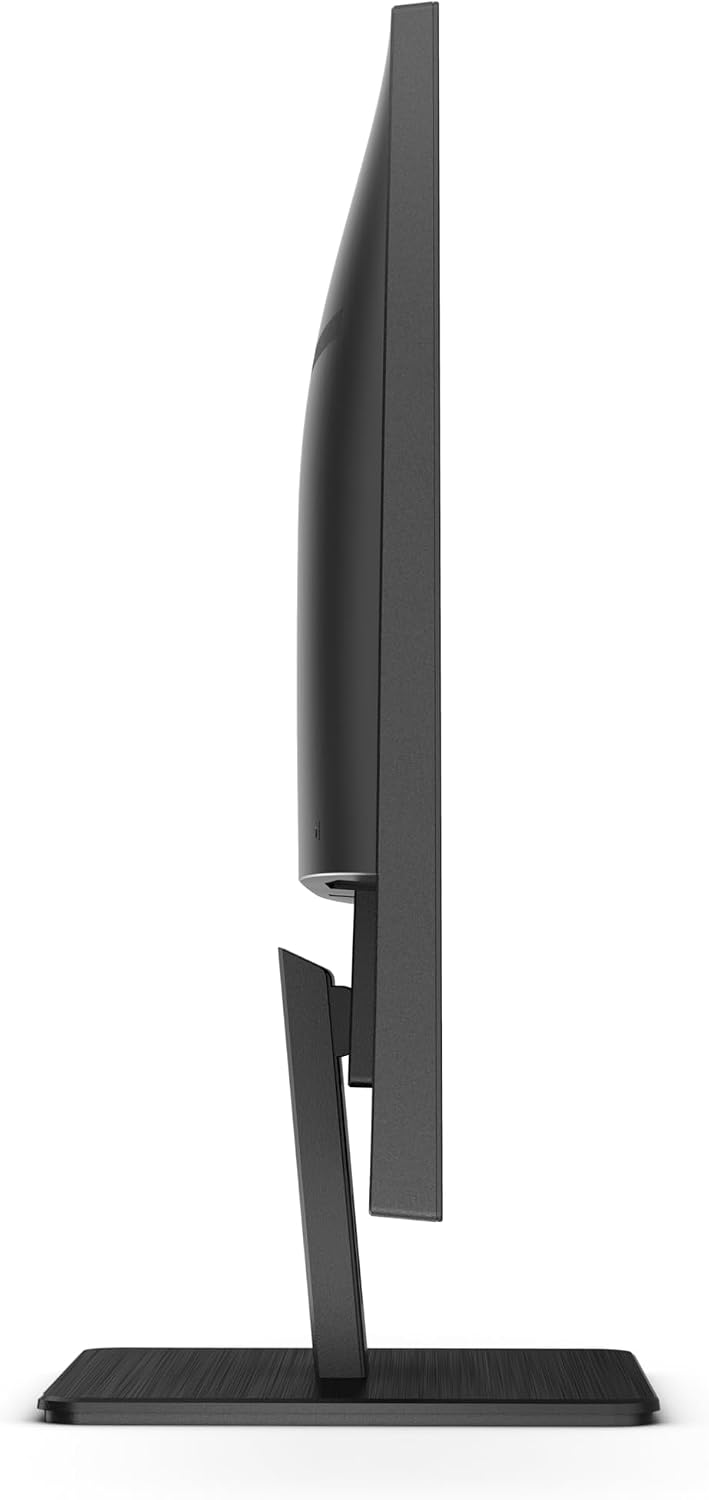
Side view of the monitor, indicating the slim profile and the general area of the control buttons.
3.2 Pa-Screen Display (OSD) Menu Navigation
The OSD menu allows you to adjust various display settings. Use the control buttons on the bottom right bezel of the monitor to navigate the menu.
- Press the Menu bhatani rekuvhura OSD.
- Shandisa iyo Kumusoro/Kudzika or Kuruboshwe/Kurudyi buttons to navigate through options.
- Press the Enter or OK button to select an option or confirm a setting.
- Press the Exit button to close the OSD or go back to the previous menu.

Pamusoro-pasi view of the monitor, highlighting the position of the OSD control buttons on the lower right side.
3.3 Sarudzo Yekupinza Kwemukati
The monitor can automatically detect the active input source. If multiple sources are connected, you can manually switch between them using the OSD menu or a dedicated input select button (if available).
3.4 Kugadzirisa Zvirongwa zvekuratidza
Mukati meiyo OSD menyu, unogona kugadzirisa akasiyana ekuratidzira paramita:
- Kupenya/Kusiyanisa: Adjust the overall luminance and contrast ratio of the display.
- Rudzi Settings: Shandura tembiricha yeruvara, gamma, uye nhanho dzeRGB dzemunhu.
- Mufananidzo Mode: Select from predefined modes (e.g., Standard, Text, Game, Movie) for optimized viewing.
- Flicker-Yemahara Tekinoroji: This feature reduces screen flickering, minimizing eye strain during prolonged use.
- Low Blue Mode: Reduces harmful blue light emissions to protect your eyes, especially during nighttime viewing.
- Audio: Gadzirisa vhoriyamu yemasipika akavakirwa mukati kana mahedhifoni akabatana.
4. Kuchengeta
4.1 Kuchengeta uye Kuchenesa
- Gara uchibvisa cheki kubva pamagetsi usati wachenesa.
- Shandisa jira rakapfava, risina lint zvishoma dampened with water or a non-abrasive screen cleaner to wipe the screen. Do not spray cleaner directly onto the screen.
- Zvemonitori casing, use a soft, dry cloth. Avoid using strong detergents or abrasive cleaners.
- Do not allow liquids to enter the monitor's interior.
4.2 Kuchengeta
When storing the monitor for an extended period, place it in its original packaging or a suitable protective container. Store in a cool, dry place away from direct sunlight and extreme temperatures.
5. Kugadzirisa matambudziko
Tarisa kutafura iri pasi apa kune zvinowanzoitika uye mhinduro dzadzo. Kana dambudziko rikaramba riripo, bata rutsigiro rwevatengi.
| Dambudziko | Zvinogona Kukonzera | Solution |
|---|---|---|
| Hapana mufananidzo pachiratidziri | Monitor not powered on; Video cable loose or disconnected; Incorrect input source selected. | Ensure power cable is securely connected and monitor is on; Check video cable connections (HDMI/DisplayPort) at both ends; Select the correct input source via OSD. |
| Mufananidzo hauna kujeka kana kukanganiswa | Incorrect resolution setting; Video cable issue. | Set the display resolution to 2560 x 1440 (QHD) in your computer's display settings; Try a different video cable. |
| Hapana ruzha kubva kumatauri | Volume too low or muted; Incorrect audio output selected on computer; Audio cable disconnected. | Increase monitor volume via OSD; Check computer's audio settings to ensure monitor is selected as output device; Ensure audio cable (if used) is connected. |
| Screen flickering | Refresh rate mismatch; Environmental interference. | Adjust refresh rate in computer display settings; Ensure no strong electromagnetic devices are near the monitor. |
6. Zvinotsanangurwa
Detailed technical specifications for the AOC Q32E2N monitor:
- Muenzaniso: Q32E2N
- Kukura Kwesikirini: 31.5 inches
- Panel Type: VA/SNB
- Resolution: 2560 x 1440 (QHD)
- Aspect ratio: 16:9
- Kupenya: 250 cd/m²
- Nguva Yemhinduro: 4ms
- Viewing Angles: 178°/178°
- Vakavakwa-Vatauri: Ehe
- VESA Mount Inoenderana: Ehe
- Kurema 21.9 makirogiramu (Uremu hwechinhu)
- Mugadziri: AOC
- Zuva Rokutanga Kuwanikwa: Gunyana 23, 2020
For more detailed energy information, please refer to the official product information sheet:

Official Product Information Sheet providing comprehensive technical and energy-related data for the AOC Q32E2N monitor.
You can also find this information and more on the EPREL database: https://eprel.ec.europa.eu/qr/424528
7. Warranty uye Tsigiro
7.1 Ruzivo rweWaranti
AOC provides a limited warranty for the Q32E2N monitor. Please refer to the warranty card included in your product packaging for specific terms, conditions, and duration of the warranty. Keep your purchase receipt as proof of purchase for warranty claims.
7.2 Mutengi Tsigiro
For technical assistance, troubleshooting, or warranty service, please contact AOC customer support. You can find contact information on the official AOC website or through the details provided in your product documentation.
Visit the official AOC Store for more products and support: Chitoro cheAOC paAmazon


