1. Nhanganyaya
This manual provides detailed instructions for the installation, operation, and maintenance of your Overmax Camspot 3.7 Full HD Wireless Indoor Camera. Please read this manual thoroughly before using the product to ensure proper function and safety. Keep this manual for future reference.
2. Package Zviri mukati
Tarisa kuti zvese zvirimo zviripo mupakeji:
- Overmax Camspot 3.7 Wireless Indoor Camera
- Power Cable with Adapter
- Mounting Kit (screws, wall plugs, bracket)
- Mushandisi Chinyorwa (gwaro iri)
3. Chigadzirwa Pamusoroview
Familiarize yourself with the camera's components and interfaces.
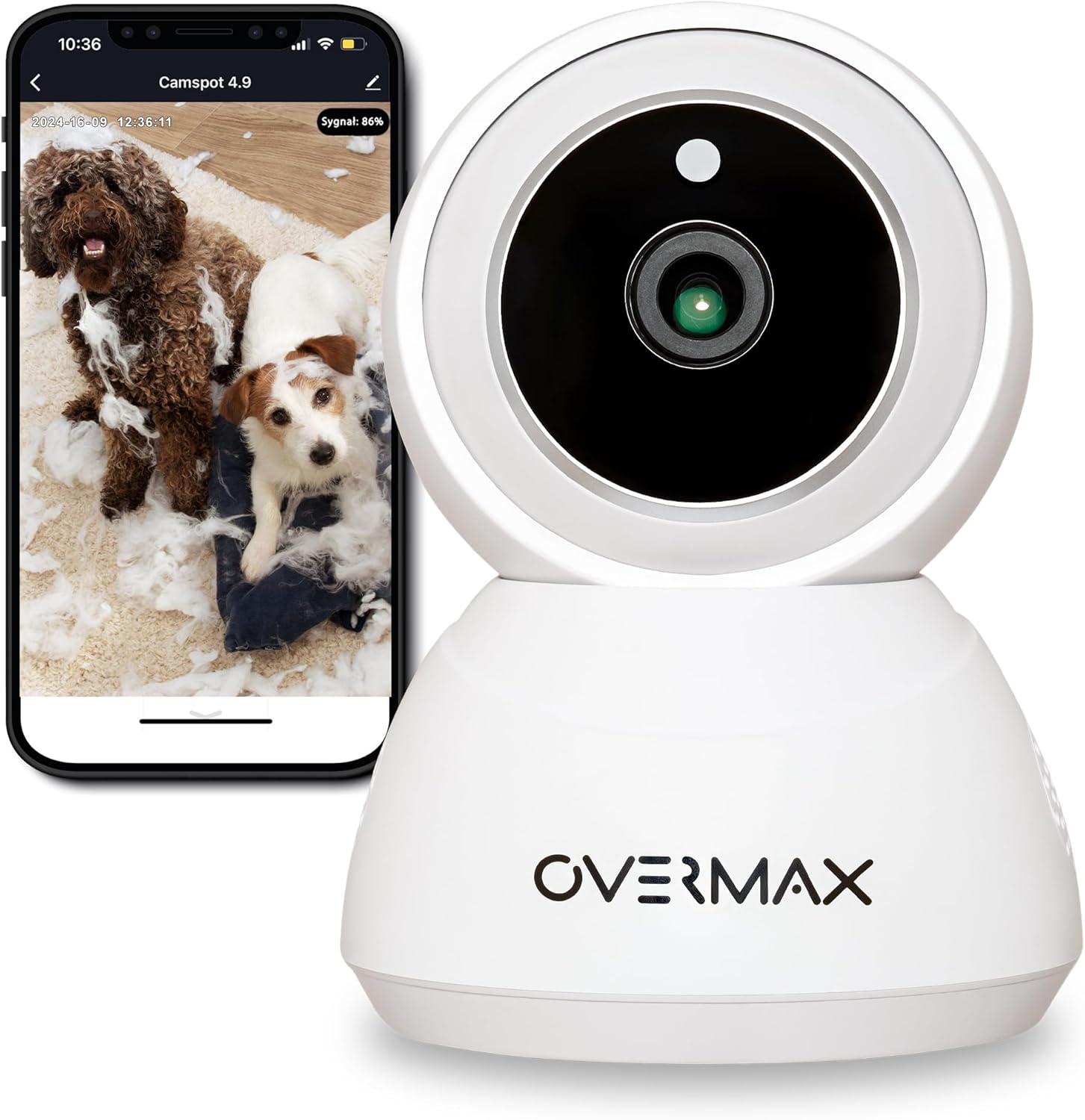
Mufananidzo 3.1: Mberi view of the Overmax Camspot 3.7 camera with a smartphone showing the live video feed.

Mufananidzo 3.2: Rutivi view of the Overmax Camspot 3.7 camera, showing its dome shape and speaker grille.

Mufananidzo 3.3: Kumashure view of the camera, highlighting the LAN port, Reset button, and DC 5V power input.

Mufananidzo 3.4: View of the camera with the microSD card slot visible, located beneath the lens assembly.
4. Setup
4.1 Kuiswa Kwenyama
The Camspot 3.7 can be placed on a flat surface or mounted to a wall or ceiling.
- Sarudza Nzvimbo: Sarudza nzvimbo inoenderana nezvaunoda viewing angle and is within range of your Wi-Fi network or an Ethernet connection.
- Kuisa (Zvichida):
- Attach the mounting bracket to the desired surface using the provided screws and wall plugs.
- Secure the camera to the mounting bracket. Ensure it is firmly attached.

Figure 4.1: The Overmax Camspot 3.7 camera shown mounted on a wall bracket, illustrating a typical installation.
4.2 Kuisa App uye Kugadzira Akaunti
The Overmax Control app is required to operate the camera.
- Dhaunirodha App: Tsvaga "Overmax Control" in your smartphone's app store (iOS or Android) and download it.
- Gadzira Akaundi: Open the app and follow the on-screen instructions to create a new user account.

Figure 4.2: The Overmax Camspot 3.7 camera alongside a smartphone displaying the 'CONTROL' app logo, indicating the required application for setup and operation.
4.3 Power On and Network Connection
- Power On: Connect the power cable to the camera's DC 5V port and plug the adapter into a power outlet. The camera will power on and initiate its startup sequence.
- Network Connection:
- Wi-Fi: Follow the in-app instructions to connect the camera to your 2.4GHz Wi-Fi network.
- Ethernet (Zvichida): Connect an Ethernet cable from your router to the camera's LAN port for a wired connection.
4.4 Kubatanidza Kamera
Once the camera is powered on and the app is installed, proceed with pairing:
- Wedzera Mudziyo: In the Overmax Control app, tap the "Add Device" or "+" icon.
- Select Camera Type: Choose the appropriate camera model (Camspot 3.7).
- Scan QR kodhi: The app will prompt you to scan a QR code. Position your smartphone's screen with the QR code approximately 15-20 cm in front of the camera lens. The camera will emit a sound upon successful scanning.
- Zadzisa Setup: Follow any remaining on-screen prompts in the app to finalize the pairing process.

Figure 4.3: The Overmax Camspot 3.7 camera positioned to scan a QR code displayed on a smartphone, a common method for device pairing.
5. Operating Instructions
5.1 Rarama View
Access the live video feed from your camera through the Overmax Control app. This allows real-time monitoring of the camera's surroundings.
5.2 Kudzora Pan/Kutsveyamisa
The Camspot 3.7 features motorized pan and tilt capabilities.
- Horizontal Rotation: 355 madhigirii
- Vertical Rotation: 120 madhigirii
Use the directional controls within the Overmax Control app to adjust the camera's viewkona iri kure.

Figure 5.1: Diagram illustrating the camera's extensive pan (355°) and tilt (120°) rotation range.
5.3-Nzira mbiri Audio
The camera is equipped with a microphone and speaker, enabling two-way communication. You can listen to the camera's environment and speak through the camera using the app.
5.4 Motion Detection and Auto-Tracking
The camera can detect moving objects and automatically track their movement within its field of view. Configure motion detection sensitivity and alerts in the app settings.
5.5 Chiratidzo chehusiku
The Camspot 3.7 features infrared technology for clear viewing in low-light or complete darkness, with a night vision range of up to 10 meters. The camera automatically switches to night mode when ambient light is insufficient.
5.6 Kurekodha uye Kuchengeta
The camera supports two primary storage methods for video recordings:
- MicroSD Kadhi: Insert a microSD card (up to 128GB, not included) into the designated slot for local storage. This allows for continuous recording for up to 3 weeks.
- Cloud Storage: The camera supports real-time cloud storage for recordings. Refer to the app for subscription details and options.
5.7 Smart Home Kubatanidzwa
The Camspot 3.7 is compatible with Google Home and Amazon Alexa. Follow the instructions within the respective smart home apps to integrate your camera for voice control and automation.
5.8 Baby Monitor Function
Utilize the camera's features, including two-way audio and night vision, to monitor an infant. The app provides a comprehensive interface for this purpose.

Figure 5.2: The Overmax Camspot 3.7 camera shown with a smartphone displaying the app's control interface, including options for screenshot, speaking, recording, cloud storage, and direction control.
6. Kuchengeta
- Kuchenesa: Use a soft, dry cloth to clean the camera lens and body. Do not use harsh chemicals or abrasive cleaners.
- Firmware Dzokorora: Regularly check the Overmax Control app for available firmware updates to ensure optimal performance and security.
- Kuchengeta Kuchengeta: Nguva nenguva review and manage recordings on your microSD card or cloud storage to free up space if needed.
7. Kugadzirisa matambudziko
- Kamera Haisi Kubatana neWi-Fi:
- Iva nechokwadi chekuti network yako yeWi-Fi iri 2.4GHz. Kamera haitsigire network ye5GHz.
- Tarisa password yeWi-Fi yekururama.
- Fambisa kamera pedyo nerouter.
- Tangazve kamera nerouter yako.
- No Live View:
- Verify internet connection on your smartphone and the camera.
- Check if the camera is powered on and connected to the network.
- Tangazve app.
- Motion Detection Haisi Kushanda:
- Iva nechokwadi chekuti kuona mafambiro kwagoneswa mumasetingi eapp.
- Rongedza sensitivity settings.
- Check for obstructions in the camera's view.
- Kadhi reMicroSD Risiri Kurekodha:
- Iva nechokwadi chekuti microSD card yakaiswa nemazvo.
- Format the microSD card through the app.
- Check if the card is full or corrupted.
- Kamera Haisikudaira:
- Press and hold the Reset button (located at the back) for approximately 5-10 seconds to factory reset the camera. You will need to re-pair it after a reset.
8. Zvinotsanangurwa
| Feature | Tsanangudzo |
|---|---|
| Model Name | Overmax Camspot 3.7 |
| Vhidhiyo Resolution | Full HD (1080p) |
| Lens | 3.6 mm |
| Mafuremu paSekondi (FPS) | 25-30 |
| Video Compression | H.264 |
| Horizontal Rotation | 355° |
| Vertical Rotation | 120° |
| Night Vision Range | Kusvika ku10 metres (Infrared) |
| Rutsigiro rweKadhi reMicroSD | Kusvikira ku128 GB |
| Kubatana | Wi-Fi (2.4GHz), Ethernet |
| Inotsigirwa Systems | Windows XP/7/8/10, Android, iOS, Mac |
| Mbiri-Nzira Audio | Yes (Microphone, 1W Speaker) |
| Motion Detection | Yes (Automatic Detector) |
| Magetsi | 12 Volts, 1 Watt |
| Dimensions (L x W x H) | 8.5 x 8.2 x 10.5 cm |
| Kurema | 180 magiramu |
| Material | Metal |
| Color | Chena |
9. Warranty uye Tsigiro
Overmax products are covered by a manufacturer's warranty. For specific warranty terms and conditions, please refer to the warranty card included in your package or visit the official Overmax website.
For technical support, troubleshooting assistance, or any product-related inquiries, please contact Overmax customer service through the contact information provided on the official website or within the Overmax Control application.


