This manual provides comprehensive instructions for the Ezonetronics 9-inch Android Car Stereo, featuring wireless CarPlay and Android Auto, designed for 2010-2013 Mazda 3 vehicles. This system offers a 1280x720 touch screen, GPS navigation, Bluetooth connectivity, USB player functionality, 2GB RAM, 32GB ROM, and Mirror Link capabilities. Please read these instructions carefully before installation and operation to ensure proper use and longevity of your device.
Chii chiri muBhokisi
Iyo package inosanganisira zvinotevera zvikamu:
1x Ezonetronics 9-inch Android Car Stereo Unit with Install Kit
1x Simba Tambo
1x RCA Cable
1x GPS Antenna
2x USB Tambo
Mufananidzo: Pamusoroview of the Ezonetronics car stereo components, including the main unit, power cables, RCA cables, GPS antenna, and USB cables.
Setup & Kuisa
Proper installation is crucial for optimal performance. It is recommended to consult a professional for installation if you are unfamiliar with car audio systems. The following steps provide a general overview:
Kugadzirira: Ensure the vehicle's ignition is off and the battery is disconnected before starting any electrical work.
Bvisa Chigadzirwa Chiripo: Carefully remove the factory radio and dashboard trim using appropriate tools to avoid damage.
Mawaya ekubatanidza: Connect the provided power cord, RCA cable, and USB cables to the corresponding ports on the new Ezonetronics unit and the vehicle's wiring. Ensure all connections are secure.
Isa GPS Antenna: Isa antenna yeGPS panzvimbo ine chiedza chakajeka view yedenga, kazhinji padashboard kana pasi pegirazi repamberi.
Test Mashandiro: Before fully reassembling the dashboard, reconnect the battery and test the unit's basic functions (power, audio, touch screen, etc.).
Secure Unit & Reassemble: Once tested, secure the new unit in the dashboard and reassemble all trim pieces.
Video: Detailed installation and introduction for the Ezonetronics car stereo, demonstrating the process of removing the old unit and installing the new one.
Video: Demonstration of central control installation, providing visual guidance for the installation process.
Image: The Ezonetronics 9-inch Android Car Stereo seamlessly integrated into the dashboard of a Mazda 3.
Wiring Diagram
Refer to the following diagram for proper wiring connections. Ensure each wire is connected to its corresponding function in the vehicle's harness.
Image: A comprehensive wiring diagram illustrating the various connections for the Ezonetronics car stereo, including power, audio inputs/outputs, and peripheral connections.
Video: Guide on car radio connection, detailing how to connect the various wires and harnesses.
Video: Instructions on how to connect the included camera to the car stereo system.
Operating Instruction
Wireless CarPlay & Android Auto
Connect your smartphone via the original USB cable to enable wireless Apple CarPlay or wired Android Auto. This allows access to navigation, music, calls, and messages through the touch screen or voice commands.
Video: Short preview demonstrating the CarPlay interface and functionality.
Video: Instructions on how to display original car door and A/C information on the radio screen.
Bluetooth & AM/FM/RDS Radio
The unit features Bluetooth 4.0 for hands-free calling and audio streaming. The built-in FM/AM/RDS radio allows you to listen to live traffic, news, and weather updates.
Image: The car stereo screen showing the Bluetooth music interface, indicating active music playback.
Image: The car stereo screen showing the FM radio interface with frequency display and preset station options.
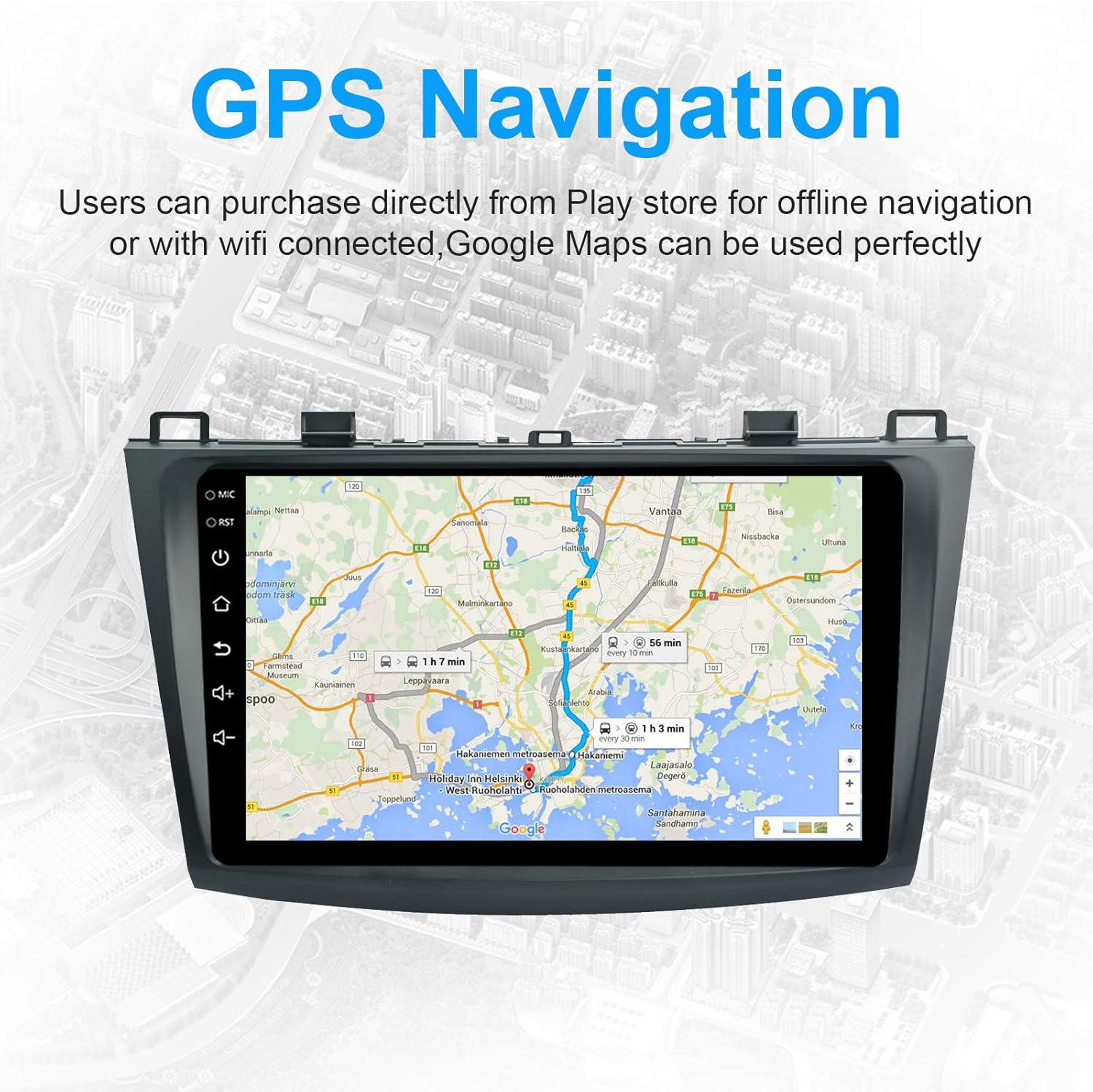
GPS Navigation
Utilize the built-in GPS receiver for navigation. Compatible with popular navigation apps like Waze, Navfree, and Yandex Map (downloadable from the Play Store after connecting to Wi-Fi).
Image: The car stereo screen showing a detailed GPS navigation map with a highlighted route and estimated travel time.
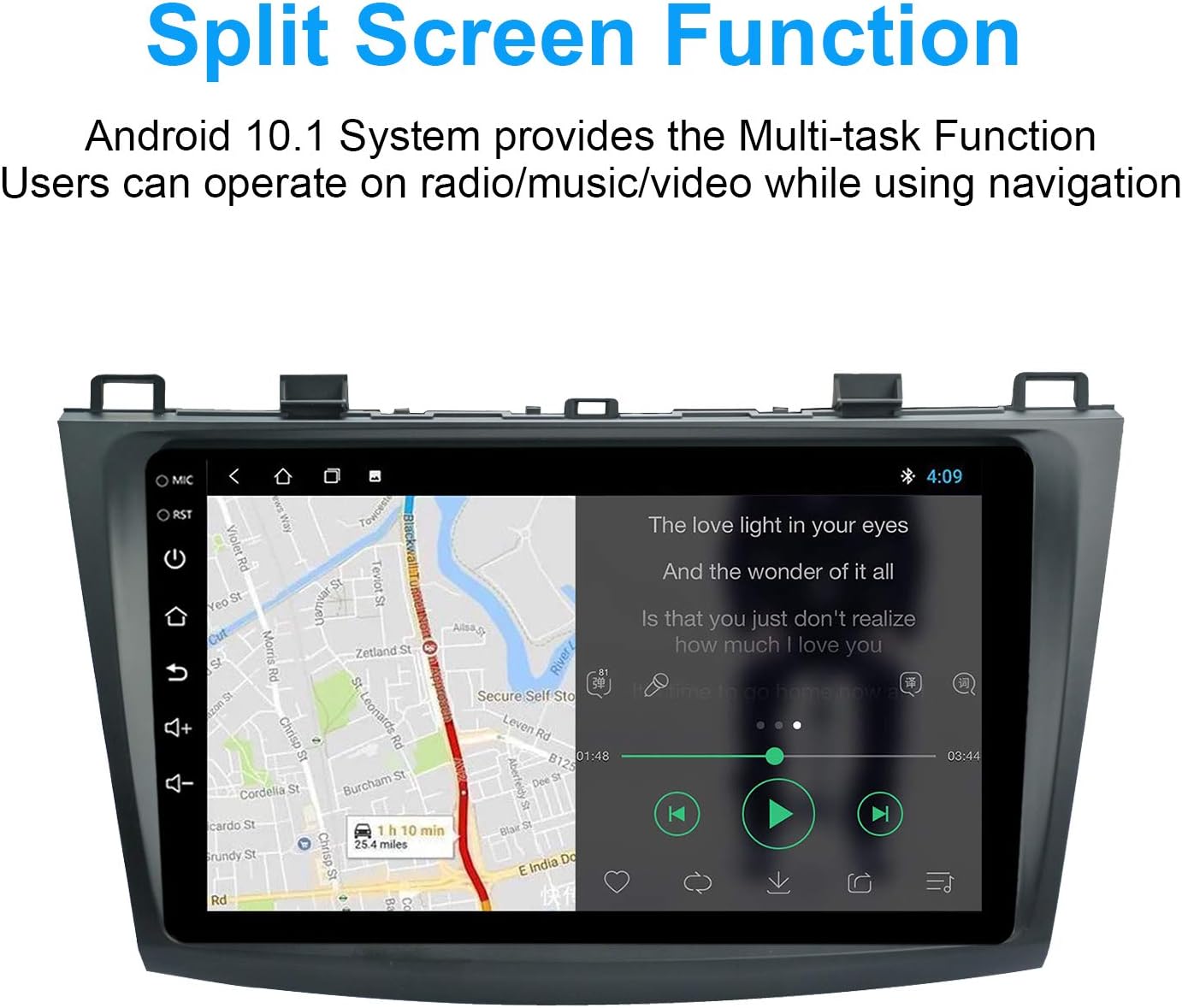
Split Screen Basa
The Android 10.1 system supports multi-tasking with its split-screen function, allowing you to run two applications simultaneously, such as navigation and music playback.
Image: The car stereo screen in split-screen mode, showing a navigation map on one side and a music player on the other.
Mirror Link
Mirror Link allows you to display your smartphone's screen directly on the car stereo. Connect iOS devices via AirPlay mirroring and Android devices via USB cable.
Image: The car stereo screen showing a mirrored display from a smartphone, demonstrating the Mirror Link feature.
Desktop Settings
Customize your main page by downloading launchers from the app market after connecting to the internet. Access settings to change the desktop display.
Image: The car stereo screen showing options for customizing the desktop layout and appearance.
Zvinotsanangurwa
Brand
Ezonetronics
Model
2013 2012 2011 2010 mazda 3 radio
RAM
2 GB
Memory Storage Capacity
32 GB
Operating System
Android
Scanner Resolution
1024 x 600
Inowirirana Devices
Smartphone
Special Features
Android Auto, Apple CarPlay, Built-In Bluetooth, Split Screen, Touchscreen
If you encounter issues, refer to the troubleshooting section in the full user manual or contact customer support. Common issues may include connectivity problems, audio output issues, or display malfunctions. Ensure all wiring is correctly connected and the device is powered properly.