1. Nhanganyaya
Thank you for choosing the Dynavin D9-V8 Premium Flex Android Car Radio Navigation System. This manual provides essential information for the proper installation, operation, and maintenance of your new device. Please read it thoroughly before use to ensure optimal performance and safety.
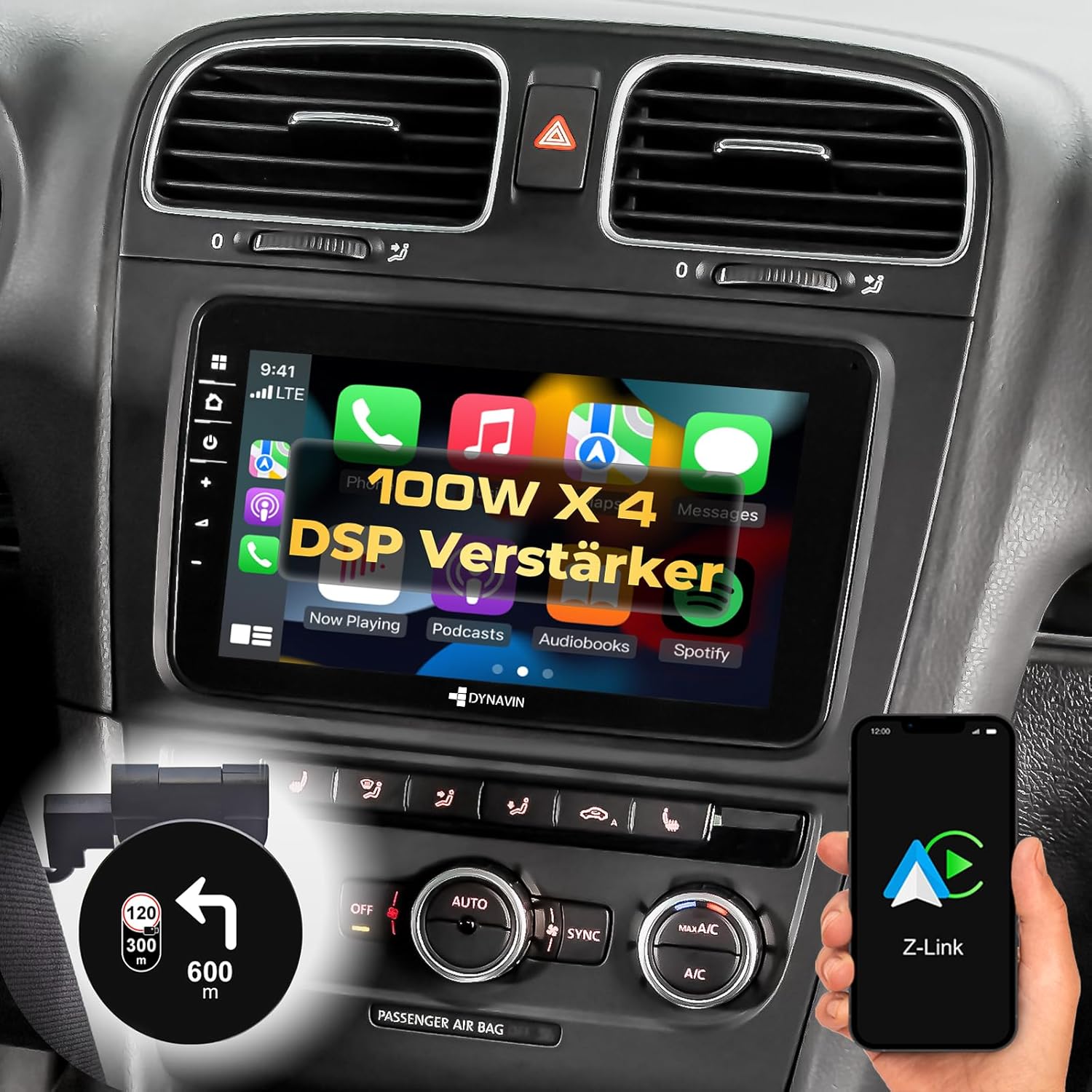
Figure 1: The Dynavin D9-V8 Premium Flex car radio installed in a vehicle dashboard, showcasing its large touchscreen display with various app icons.
2. Kugarisana
The Dynavin D9-V8 Premium Flex Android Car Radio is designed to be compatible with a wide range of Volkswagen, Skoda, and SEAT vehicles. Specific compatible models and years include:
- VW Golf V (2003-2008)
- VW Golf VI (2008-2012)
- VW Golf Plus (2005-2014)
- VW Eos (2006-2011)
- VW Polo V (from 2009)
- VW Passat B6 (2005-2010)
- VW Passat B7 (2010-2014)
- VW Passat CC (2008-2012)
- VW Passat CC Facelift (from 2012)
- VW Caddy III 2K Facelift (from 2010)
- VW Tiguan (2007-2011)
- VW Beetle (from 2011)
- VW Sharan II (from 2010)
- VW T5 GP (from 2009)
- VW T5 (from 2009)
- Skoda (2008-2012)
- SEAT (2004-2009)
3. Key Features
- High-Resolution Anti-Reflection Display: Features an 8-inch screen with 1024 x 600 pixels, optimized for clarity and reduced glare.
- Kuita Kwakasimba: Runs on Android 11 OS with a Quad-Core CPU and 4GB RAM for smooth operation.
- Integrated Head-up Display (HUD): Displays navigation information from Dynaway, Apple Maps (with CarPlay), Google Maps (with Android Auto), vehicle speed, and Blitzer.de speed camera data.
- Advanced Audio Processing: Equipped with an integrated 4 x 60W RMS Class D DSP amplifier, offering less than 1% distortion (THD+N), adjustable crossover, and speaker gain. Vehicle-specific sound setup files are available for download from the Dynavin website.
- Wireless Kubatana: Supports wireless CarPlay, Android Auto, and Smartphone Mirroring. Note: A 31-day trial period applies, after which an activation code must be purchased online for continued use.
- Enhanced Call Quality: Includes a compact digital dual-microphone with a unique noise reduction algorithm for excellent call voice quality.
- Seamless Vehicle Integration: Compatible with VW Lane Assist and traffic sign recognition. Supports steering wheel controls, Multifunction Display (MFD+), Climatronic control status, and virtual parking line display.
- Dynapp-Pack (Optional): Offers access to the Dynaway navigation app, Google Playstore, third-party app installation, and display of speed limits with Blitzer.de data on the Head-up Display. A 31-day trial period applies, followed by an online activation code purchase.
- Integrated GPS Navigation: Includes navigation software with Blitzer.de data. A 31-day trial period applies and is part of the Dynapp-Pack.
- Bluetooth Hands-free and Audio Streaming: Connect your smartphone for hands-free calls and audio streaming.
- Multimedia Support: USB mass storage for multimedia playback.
- Rear Camera Input: Supports aftermarket and original VW rear cameras (original VW camera requires optional adapter ASIN B0DCVCVLBP).

Figure 2: A split image showing the Head-up Display unit mounted on the dashboard, displaying navigation turn-by-turn instructions and time.

Figure 3: The Dynavin D9-V8 Premium Flex unit in a car dashboard, highlighting its 100W x 4 Class-D High Power Ampkugona kwe lifier.

Figure 4: A close-up of the compact Dynavin Digital Dual-Microphone, designed for clear call quality, typically installed near the speedometer.
4. Setup uye Kuiswa
The Dynavin D9-V8 Premium Flex is designed for straightforward installation, often described as 'plug and play' for compatible vehicles. Official YouTube videos with installation guides are available to assist you.
4.1. Kutanga Kubatana
- Connect the main unit using the provided Quadlock adapter.
- Ensure all necessary cables, including antenna (DAB+ and GPS), are properly routed and connected. An adapter for dual Fakra antennas may be required for some vehicles.
- Connect the included microphone to the dedicated port on the rear of the unit. Consider optimal placement for clear voice pickup.
- Route the two rear USB connections to an accessible location within your vehicle.
4.2. Kutanga Simba Pa
Upon the first power-on, the unit may take approximately 30-40 seconds to boot up. This is normal. The initial user interface is clean and touch-friendly.
4.3. Firmware Updates
It is recommended to update the firmware to the latest version available on the Dynavin website. This can improve performance and stability, and may resolve connectivity issues (e.g., for wireless Android Auto/CarPlay).

Figure 5: A diagram illustrating the rear connections of the Dynavin D9-V8 Premium Flex unit, including DAB+ antenna, GPS antenna, BT/Wi-Fi input, and original radio antenna connection. Below, a list of included accessories: connection cables, digital radio antenna, BT/Wi-Fi antenna, rear camera adapter, GPS antenna, HUD 150, double Fakra adapter, 2x USB extension cables, microphone, and quick guide.
5. Operating Instructions
5.1. Mushandisi Interface uye Navigation
The system features an intuitive touchscreen interface. Navigate through menus and applications by tapping the corresponding icons. The main screen provides quick access to frequently used functions like Radio, Media, Navigation, Sound, and Phone.
5.2. Kubatana kweBluetooth
Kubatanidza smartphone yako neBluetooth:
- Gonesa Bluetooth pane yako smartphone.
- On the Dynavin unit, go to the Bluetooth settings.
- Tsvaga available devices and select your smartphone.
- Simbisa kodhi yekuwiriranisa pamidziyo yese miviri.
Once connected, you can make hands-free calls and stream audio from your phone.
5.3. Wireless CarPlay and Android Auto (Zlink)
The unit supports wireless CarPlay and Android Auto via the Zlink app. To use this feature:
- Download the Zlink app to your smartphone (available from the Dynavin website, not Google Play Store).
- Ensure your unit's firmware is up to date.
- Connect your phone via USB initially, then follow on-screen prompts for wireless setup.
While wireless connection is convenient, a wired connection may offer slightly faster response times. Remember that a license fee is required after the 31-day trial period.
5.4. Radio Functionality (FM/DAB+)
The radio function supports both FM and DAB+ (Digital Audio Broadcasting). It offers improved RDS support compared to many aftermarket units, displaying station names and logos. For optimal DAB+ reception, ensure the included DAB+ antenna is correctly installed.
5.5. Sound Adjustment (DSP)
Utilize the integrated DSP (Digital Sound Processor) for comprehensive sound customization. Access the Equalizer, Fader/Balance, Delay, and Amplifier settings to tailor the audio output to your preference and vehicle acoustics. Vehicle-specific sound presets can be downloaded from the Dynavin website.
5.6. OBD Function
The unit includes an OBD (On-Board Diagnostics) function, which can display various vehicle parameters such as temperature and battery voltage. The extent of displayed parameters may vary by vehicle.
5.7. Official Instruction Video
Video 1: Official instruction video for the Dynavin Android Car Radio, demonstrating various features and functionalities.
6. Kuchengeta
To ensure the longevity and optimal performance of your Dynavin D9-V8 Premium Flex, follow these maintenance guidelines:
- Kuchenesa Chiratidziro: Use a soft, lint-free cloth specifically designed for electronic screens. Do not use abrasive cleaners or solvents. Gently wipe the screen to remove dust and fingerprints.
- General Cleaning: Keep the unit and surrounding dashboard area clean and free of dust. Use a soft, dry cloth for exterior surfaces.
- Zvigadziriso zveSoftware: Regularly check the Dynavin website for available firmware updates. Keeping your software up-to-date can improve stability, add new features, and resolve potential issues.
- Dzivisa Kunyanya Kupisa: Do not expose the unit to extreme heat or cold for prolonged periods, as this can affect its electronic components.
7. Kugadzirisa matambudziko
If you encounter issues with your Dynavin D9-V8 Premium Flex, refer to the following common troubleshooting steps:
| Dambudziko | Zvinogona Kukonzera | Solution |
|---|---|---|
| Unit freezes or crashes | Temporary software glitch | Locate the small reset hole (often near the USB port or on the side) and gently press it with a thin, non-metallic object (e.g., a straightened paperclip) to restart the system. |
| Bluetooth audio dropouts | Interference, temporary connection issue | Restart both the Dynavin unit and your smartphone. Ensure no other Bluetooth devices are causing interference. |
| Kugamuchirwa kweDAB+ kwakashata | Antenna placement or connection | Ensure the DAB+ antenna is correctly installed and positioned for optimal signal reception. Avoid placing it near metal obstructions. |
| Umlauts (ä, ö, ü) not displayed correctly in RDS | Software kukamurwa | This is a known minor display limitation and does not affect functionality. |
| CarPlay/Android Auto isina waya haisi kubatana | Outdated firmware, incorrect app version, or trial expired | Ensure the unit has the latest firmware. Verify you have the correct Zlink app version from the Dynavin website. Check if the trial period has expired and if a license needs to be purchased. |
8. Zvinotsanangurwa
- Zviyero zvechigadzirwa: 33 x 25 x 19 cm
- Kurema 2.71 makirogiramu
- Model Number: D9-V8 Premium Flex
- Kubatana Technology: Bluetooth
- Anodzora Mhando: Android
- Special Feature: DAB
- Zvishandiso Zvinoenderana: Smartphone
- Yese HDMI Ports: 1
- Type yekubatanidza: USB
- Audio Output Mode: Stereo, Kutenderedza
- Yakapoteredza Sound Channel Configuration: 2.0
- Vhidhiyo Encoding: H.264, H.265/HEVC, MPEG-4, nezvimwewo.
9. Chii chiri muBhokisi
The Dynavin D9-V8 Premium Flex package typically includes the following components:
- Dynavin D9-V8 Premium Flex Head Unit
- Connection Cables (Quadlock adapter)
- Digital Radio Antenna (DAB+)
- BT/Wi-Fi Antenna
- GPS Antenna
- 2x USB Extension Cables
- Maikorofoni
- HUD 150 (Chikamu chekuratidza musoro)
- Double Fakra Adapter (for antenna connection)
- Kurumidza Kutungamira
10. Warranty uye Tsigiro
For technical support, firmware updates, and service requests, please visit the official Dynavin website. You can typically open a support ticket through their online portal. While phone support may be limited, the website is the primary channel for assistance.
Please note that certain advanced features, such as full access to the Google Playstore, Dynaway navigation, and continued use of CarPlay/Android Auto after the trial period, require separate activation codes which must be purchased online.


