1. Nhanganyaya
This manual provides detailed instructions for the setup, operation, and maintenance of your CHERRY DW 9100 Slim Wireless Keyboard and Mouse Set. This rechargeable desktop set offers both 2.4 GHz wireless and Bluetooth connectivity, featuring a slim design and silent keystroke SX Scissor Mechanism for comfortable and efficient use in various environments.

Image 1.1: The CHERRY DW 9100 Slim Wireless Keyboard and Mouse Set, including the USB nano receiver.
2. Package Zviri mukati
Ndokumbira utarise zviri mukati mepakeji pane unboxing kuti uve nechokwadi chekuti zvikamu zvese zviripo:
- CHERRY DW 9100 Slim Wireless Keyboard
- CHERRY DW 9100 Slim Wireless Mouse
- USB Nano Mugamuchiri
- USB-C Kuchaja Cable
- Mushandisi Chinyorwa (gwaro iri)
3. Setup
3.1 Kuchaja Zvishandiso
Both the keyboard and mouse are equipped with rechargeable lithium batteries.
- Connect the supplied USB-C charging cable to the USB-C port on the keyboard and mouse.
- Batanidza rimwe divi retambo kune USB port ine simba (semuenzaniso, komputa, adapta yemadziro eUSB).
- The status LED on each device will indicate the charging status. A full charge is indicated when the LED changes color or turns off (refer to Section 4.3 for LED indicators).
3.2 Connecting via 2.4 GHz Wireless
For a stable and fast wireless connection, use the included USB nano receiver.
- Locate the USB nano receiver.
- Batanidza USB nano receiver mu USB port iripo pakombuta yako.
- On both the keyboard and mouse, locate the connectivity switch. Set the switch to the 2.4 GHz position (often indicated by a receiver icon or "RF").
- Midziyo yacho inofanira kubatana otomatiki pakombuta yako.
3.3 Kubatanidza kuburikidza neBluetooth
The set supports Bluetooth connectivity for devices that have Bluetooth capabilities.
- On both the keyboard and mouse, locate the connectivity switch. Set the switch to the Bluetooth position (often indicated by a Bluetooth icon).
- Pakombuta yako kana mudziyo, vhura marongero eBluetooth.
- Initiate the pairing process on your device. The keyboard and mouse should appear in the list of discoverable devices (e.g., "CHERRY DW 9100 Keyboard", "CHERRY DW 9100 Mouse").
- Select each device to pair them. Follow any on-screen prompts, such as entering a pairing code for the keyboard.
Cherechedza: The keyboard and mouse can be paired with multiple Bluetooth devices. Use the connectivity switch to toggle between paired devices or 2.4 GHz mode.
4. Operating Instructions
4.1 Keyboard Mabasa
The CHERRY DW 9100 Slim Keyboard features a full-size layout with an SX Scissor Mechanism for silent and precise keystrokes.
- Makiyi Akajairika: Makiyi ese e alphanumeric ne symbol anoshanda sezvaitarisirwa.
- Makiyi Ekushanda (F1-F12): These keys may have secondary functions (e.g., media control, volume, brightness) accessible by pressing the Fn key simultaneously. Refer to your operating system's settings for specific function key behavior.
- Numeric Keypad: Provides dedicated number entry.

Mufananidzo 4.1: Side profile of the CHERRY DW 9100 Slim Keyboard, highlighting its thin design.

Image 4.2: Visual representation of the CHERRY SX Scissor Mechanism, responsible for silent and precise keystrokes.
4.2 Mouse Mabasa
The CHERRY DW 9100 Slim Mouse features 6 buttons and a scroll wheel for versatile navigation.
- Kudzvanya kuruboshwe/Kurudyi: Standard mouse buttons.
- Mupumburu Wheel: Yekuscrolla yakamira uye bhatani rekudzvanya pakati.
- Side Buttons: Typically used for forward/backward navigation in web mabhurawuza.
- DPI Shandura: A button, usually near the scroll wheel, allows adjustment of the mouse's sensitivity (DPI - Dots Per Inch). Pressing this button cycles through different DPI settings, indicated by the mouse's status LED.

Mufananidzo 4.3: Pamusoro view of the CHERRY DW 9100 Slim Mouse, showing the left/right click buttons, scroll wheel, and DPI switch.
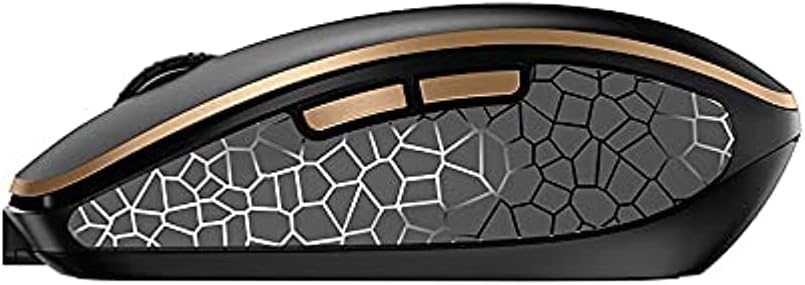
Mufananidzo 4.4: Kurutivi view of the CHERRY DW 9100 Slim Mouse, illustrating the ergonomic design and side buttons.
4.3 Status LEDs
Both the keyboard and mouse feature status LEDs to provide information on battery level, charging status, and mouse resolution.
- Bhatiri rakaderera: The LED will flash or illuminate in a specific color (e.g., red) when the battery level is low, indicating that charging is required.
- Kuchaja: The LED will illuminate while charging and typically change color or turn off when fully charged.
- Mouse Resolution (DPI): When adjusting the DPI, the mouse LED may briefly flash to indicate the current setting.
5. Kuchengeta
5.1 Kuchenesa
Kuchengetedza kuita uye kutaridzika kwemidziyo yako:
- Bvisa zvishandiso kubva pakombuta yako usati wachenesa.
- Shandisa jira rakapfava, risina lint zvishoma dampyakavharwa nemvura kana munyoro wekuchenesa.
- Avoid using harsh chemicals, abrasive cleaners, or solvents, as these can damage the surfaces.
- Pakhibhodi, shandisa mhepo yakamanikidzwa kubvisa guruva nemarara pakati pemakiyi.
5.2 Kuchengeta Battery
The integrated lithium batteries are designed for long-term use.
- Recharge the devices when the low battery indicator appears.
- Avoid fully discharging the batteries frequently to prolong their lifespan.
- If storing the devices for an extended period, charge them to approximately 50% before storage.
6. Kugadzirisa matambudziko
If you encounter issues with your CHERRY DW 9100 Slim set, refer to the following common solutions:
6.1 Nyaya dzeBatanidzo
- No Connection (2.4 GHz):
- Ensure the USB nano receiver is securely plugged into a working USB port.
- Verify the keyboard and mouse connectivity switches are set to the 2.4 GHz chinzvimbo.
- Edza kubaya mugamuchiri mune imwe chiteshi che USB chakasiyana.
- Ensure the devices are sufficiently charged.
- No Connection (Bluetooth):
- Ensure the keyboard and mouse connectivity switches are set to the Bluetooth chinzvimbo.
- Confirm Bluetooth is enabled on your computer/device.
- Remove previous pairings from your device's Bluetooth settings and attempt to re-pair.
- Ensure the devices are sufficiently charged.
6.2 Nyaya dzemagetsi nekuchaja
- Midziyo isingachaji:
- Check that the USB-C charging cable is properly connected to both the device and the power source.
- Try a different USB-C cable or a different USB power source.
- Ita shuwa kuti sosi yemagetsi inoshanda.
- Hupenyu Hupfupi Hwebhatiri:
- Ensure devices are fully charged before use.
- Battery life can vary based on usage patterns.
6.3 Mouse Tracking Issues
- Inaccurate or No Tracking:
- Ensure the mouse sensor is clean and free of debris.
- Use the mouse on a suitable surface (e.g., mouse pad). Highly reflective or transparent surfaces may cause issues.
- Adjust the DPI setting using the DPI switch on the mouse.
7. Zvinotsanangurwa
| Feature | Detail |
|---|---|
| Model Number | JD-9100US-2 |
| Product Dimensions | 17.32 x 5.12 x 0.59 inches |
| Item Weight | 2.35 makirogiramu |
| Mabhatiri | Rechargeable Lithium (USB-C) |
| Kubatana Technology | Bluetooth, 2.4 GHz Radio Frequency (USB) |
| Special Feature | Rechargeable, Silent Keystroke (SX Scissor Mechanism) |
| Inowirirana Devices | Personal Computer |
| Mugadziri | CHERY |
Note on Batteries: The product description indicates USB-C rechargeable lithium batteries. The specification "1 AA batteries required. (included)" in the source data appears to be a discrepancy. Please rely on the USB-C rechargeable feature for this model.
8. Warranty uye Tsigiro
CHERRY products are manufactured to high-quality standards. For detailed warranty information, including terms and conditions, please refer to the official CHERRY websaiti kana kadhi rewaranti rinosanganisirwa nechigadzirwa chako.
For technical support, troubleshooting assistance beyond this manual, or to inquire about replacement parts, please visit the official CHERRY support portal or contact their customer service directly.
- Official CHERRY Websaiti: www.cherry.de/en/ (or regional equivalent)
- Tsigiro yeVatengi: Tarisa kune websaiti kuti uwane ruzivo.


