Nhanganyaya
Thank you for choosing the Xgody 3-Channel Dash Cam. This manual provides detailed instructions for the installation, operation, and maintenance of your new dash camera. Please read this manual thoroughly before using the product to ensure proper function and to maximize your user experience. Keep this manual for future reference.
Product Overview and What's in the Box
The Xgody 3-Channel Dash Cam is designed to record video from the front, inside, and rear of your vehicle simultaneously, providing comprehensive coverage. It features high-definition recording, infrared night vision, G-sensor for emergency locking, loop recording, and parking monitoring.
Package Zviri mukati:
- Xgody Dash Cam Unit
- Rear View Camera (6M cable)
- Car Charger
- USB Data Cable
- User Manual
- 64GB SD Card
- Anonamira Sticker
- Card Pin
- Screws (for rear camera installation)
- 3M Glue Stick Card Line
- Crowbar (for cable routing)

Figure 1: Xgody Dash Cam and Included Accessories
Key Features
Three-Channel Recording
The dash cam simultaneously records video from three perspectives: front (1080p), inside (720p), and rear (720p). For clearer internal and external footage, the front and cabin dual-lens cameras can operate independently at 1080p+1080p.

Figure 2: Three-Channel Recording Overview
Infrared (IR) Night Vision
The inside-facing camera is equipped with 4 IR LED lights and an F/2.0 aperture. This technology automatically increases exposure in low-light or dark conditions, ensuring clear video footage of the vehicle's interior. The operating temperature range is -31°F to 167°F (-35°C to 75°C).

Figure 3: Infrared Night Vision in Operation
Loop Recording
Continuous loop recording automatically overwrites the oldest unlocked video files when the memory card is full. This ensures that recording never stops due to a full card, providing uninterrupted surveillance.

Mufananidzo 4: Kushanda Kwekurekodha Kweropu
G-Sensor (Emergency Lock)
The built-in G-sensor detects sudden shocks or collisions. When such an event occurs, the dash camera automatically locks the current video footage, preventing it from being overwritten by loop recording. This ensures critical evidence is preserved.
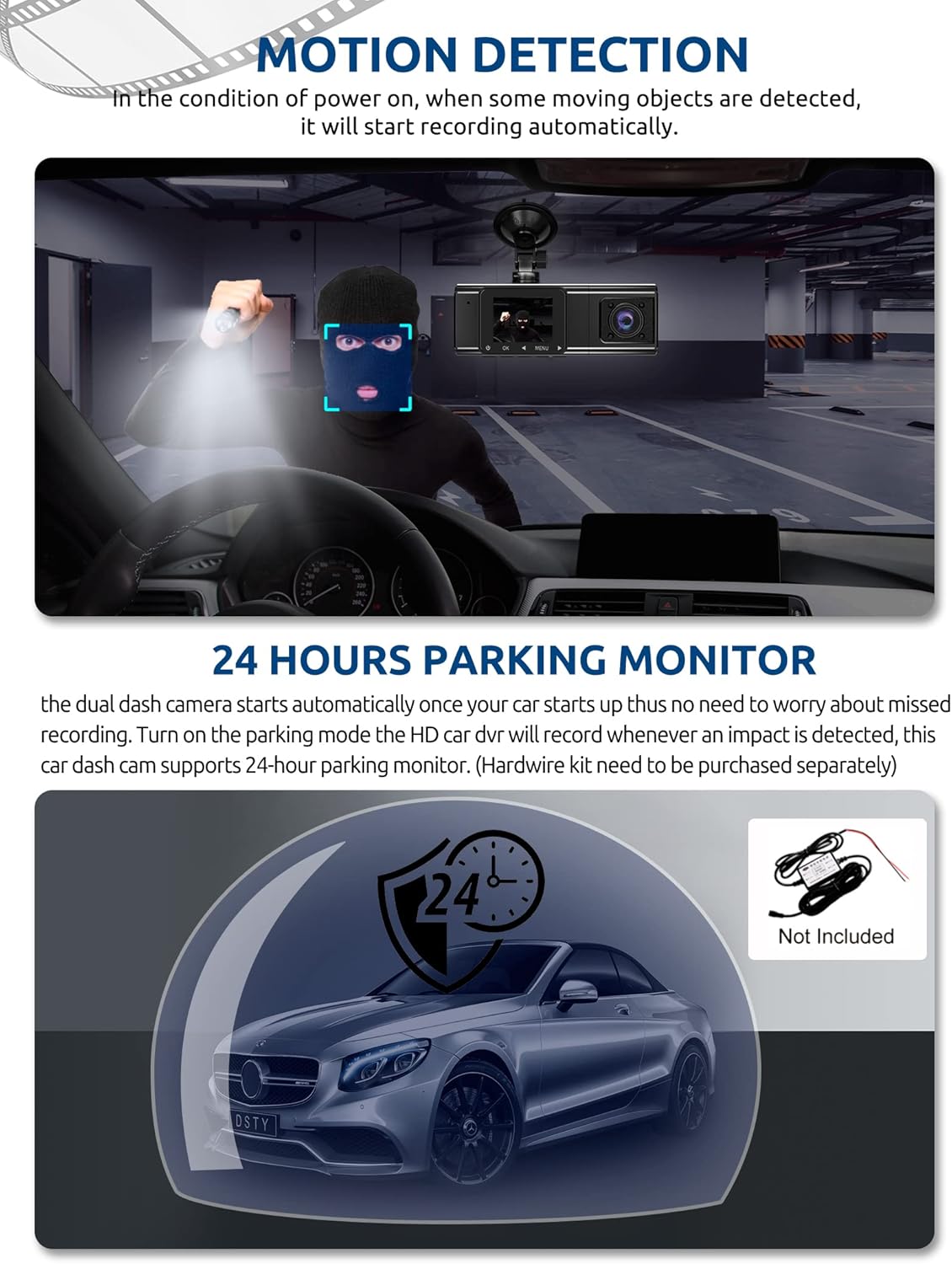
Figure 5: G-Sensor Activating During an Impact
Motion Detection & 24-Hour Parking Mode
In motion detection mode, the video recorder begins recording automatically when it detects movement in front of the camera. For continuous 24-hour surveillance, even when the car is off, the dash cam can be connected to the car battery via a hardwire kit (not included). This enables parking mode, which records when an impact is detected.

Figure 6: Motion Detection and Parking Monitoring
Setup Instructions
1. Insert the SD Card
- Locate the SD card slot on the side of the dash cam.
- Insert the provided 64GB SD card with the gold contacts facing the back of the camera until it clicks into place.
- Iva nechokwadi chokuti kadhi rakanyatsoiswa.
2. Isa Dash Cam
- Chenesa nzvimbo yegirazi repamberi pauri kuda kuisa dash cam.
- Batanidza chibatiso chekapu yekusveta ku dash cam.
- Press the suction cup firmly against the windshield and lock it into place. Position the camera to ensure a clear view of the road ahead without obstructing your driving vision.
3. Isa Kamera Yekumashure
- Batanidza tambo yekamera yekumashure kune dash cam unit huru.
- Route the cable neatly along the vehicle's headliner and trim to the rear of the car. Use the provided crowbar to tuck the cable under panels.
- Mount the rear camera on the rear windshield using the adhesive sticker or screws, ensuring it has a clear view yemugwagwa kumashure.
4. Batanidza Simba
- Plug the car charger into your vehicle's cigarette lighter socket.
- Connect the other end of the car charger cable to the dash cam's power input port.
- Kamera ye dashboard inowanzo shanda yoga kana mota yatanga uye inodzima kana mota yadzimwa.
Operating Instruction
Simba On/Kudzima
- Automatic: The dash cam powers on and starts recording automatically when connected to power and the vehicle ignition is on. It powers off automatically when the ignition is turned off.
- Manual: Press and hold the power button for a few seconds to manually turn the device on or off.
Recording Modes
- Kurekodha Kwakajairika: The default mode, continuously recording video in segments.
- Emergency Recording (G-Sensor): Automatically activated upon impact, locking the current video file.
- Motion Yekuona Kurekodha: Records when motion is detected while the vehicle is parked (requires activation in settings).
- Parking Monitoring: Records when an impact is detected while the vehicle is parked (requires hardwire kit and activation in settings).
Menyu Navigation
- Use the 'MENU' button to access settings.
- Use the 'UP' and 'DOWN' arrow buttons to navigate through menu options.
- Press the 'OK' button to confirm selections.
- Common settings include video resolution, loop recording duration, G-sensor sensitivity, parking mode, date/time, and language.
Viewing Footage
- Pamudziyo: Enter playback mode via the menu to view recorded videos directly on the dash cam screen.
- On Computer: Remove the SD card from the dash cam and insert it into a computer's card reader. The video files can then be accessed and played using standard media player software.
Maintenance
SD Kadhi Formatting
It is recommended to format the SD card regularly (e.g., once a month) to ensure optimal performance and prevent data corruption. This can typically be done through the dash cam's menu settings. Formatting will erase all data on the card, so back up any important files kutanga.
Lens Kuchenesa
Periodically clean the lenses of the front, inside, and rear cameras with a soft, lint-free cloth. Avoid using abrasive cleaners that could scratch the lens surface. Clean lenses ensure clear video quality.
Firmware Dzokorora
Check the official Xgody website periodically for any available firmware updates. Updates can improve performance, add new features, or fix bugs. Follow the instructions provided with the firmware update carefully.
Kugadzirisa matambudziko
| Dambudziko | Zvinogona Kukonzera | Solution |
|---|---|---|
| Kamera yeDash haibatidzi. | Hapana magetsi; charger yemota isina kunaka; kubatana kwakasununguka. | Check car charger connection; ensure vehicle's cigarette lighter socket is functional; try a different power source if available. |
| Kurekodha kunomira kana files dzakaora. | SD card full; SD card error; incompatible SD card. | Format the SD card regularly; use a high-speed (Class 10 or U3) SD card; replace the SD card if issues persist. |
| Screen is unresponsive or distorted. | Extreme temperatures; software glitch. | Allow the device to return to normal operating temperature; perform a factory reset (refer to manual for specific steps); ensure the device is not exposed to direct sunlight for extended periods in hot climates. |
| Hunhu hwevhidhiyo hwakashata. | Dirty lens; protective film still on lens; incorrect resolution setting. | Clean camera lenses; remove any protective film; check video resolution settings in the menu. |
| G-sensor yakanyanyisa kunzwa/haina kunzwisiswa zvakakwana. | G-sensor yekunzwa kuseta yakakwira zvakanyanya/yakaderera. | Adjust G-sensor sensitivity in the dash cam's settings menu. |
Zvinotsanangurwa
| Feature | Tsanangudzo |
|---|---|
| Product Dimensions | 4.25 x 1.77 x 1.57 inches |
| Item Weight | 1.26 makirogiramu |
| Kubatana Technology | USB, Wireless |
| Vhidhiyo Capture Resolution | 1080p (Front), 720p (Inside), 720p (Rear) |
| Screen Size | 1.5 inches |
| Flash Memory Type | SD |
| Operating Temperature | -31°F kusvika 167°F (-35°C kusvika 75°C) |
| Inosanganisirwa Zvikamu | Memory Card (64GB) |
| Color | Nhema |
Warranty uye Support
Xgody provides 18 months of service for this product. If you have any questions or require assistance regarding your Xgody Dash Cam, please contact our customer support. We aim to respond with helpful advice within 24 hours.
For support, please refer to the contact information provided in the packaging or on the official Xgody website.


