Nhanganyaya
The Logitech POP Mouse is a compact, wireless mouse designed for enhanced productivity and personal expression. Featuring SilentTouch Technology for quiet clicks, a customizable top button for emojis or shortcuts, and a SmartWheel that shifts between precision and speed scrolling, it offers a versatile user experience. This mouse supports multi-device connectivity via Bluetooth, allowing seamless switching between up to three devices. It is built with durability in mind, offering up to 24 months of battery life and auto-sleep power-saving features.
Chii chiri muBhokisi
- Logitech POP Mouse
- 1 x AA Battery (pre-installed)
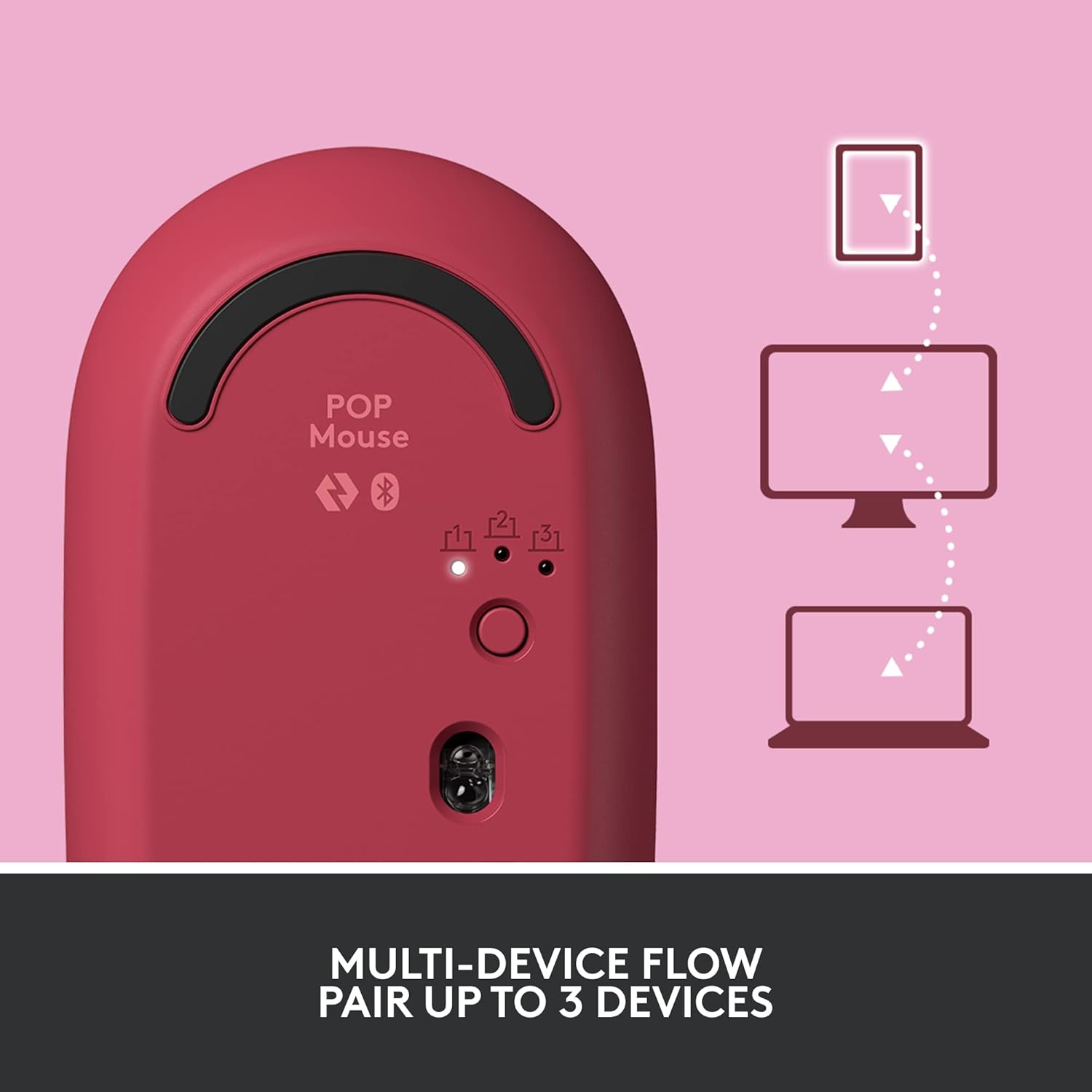
Image: The Logitech POP Mouse and an included AA battery, as typically found in the product packaging.
Gadzirira
1. Kuiswa kwebhatiri
- Tsvaga nzvimbo yebhatiri pazasi pegonzo.
- Gently slide the top cover of the mouse backward to remove it.
- Isa bhatiri reAA riripo, uchivimbisa kuti polarity (+/-) yakakodzera.
- Replace the top cover by aligning it and sliding it forward until it clicks into place.
2. Simba On
- Flip the mouse over. Locate the On/Off switch on the bottom of the mouse.
- Slide the switch to the 'On' position (usually indicated by green color).
3. Device Pairing (Bluetooth)
- On the bottom of the mouse, press and hold the Easy-Switch button (labeled with 1, 2, or 3) for 3 seconds until the LED light starts blinking rapidly. This indicates pairing mode.
- On your computer, tablet, or phone, open your Bluetooth settings.
- Select "Logitech POP Mouse" from the list of available devices.
- Follow any on-screen prompts to complete the pairing process. The LED light on the mouse will turn solid for 5 seconds when connected.
4. Kuchinjana Kwemidziyo Yakawanda
- The POP Mouse can be paired with up to three devices. To switch between paired devices, simply press the Easy-Switch button on the bottom of the mouse. The corresponding LED (1, 2, or 3) will light up to indicate the active device.
Image: The Logitech POP Mouse can seamlessly connect and switch between up to three different devices, such as a tablet, desktop computer, and laptop.
Kushandisa Mouse
1. Basic Mabasa
- Kuruboshwe: Kusarudzwa kwekutanga uye kudyidzana.
- Right Click: Inopinda mukati memenu.
- Mupumburu Wheel: Inoskora magwaro akatwasuka uye web mapeji.
2. SmartWheel Technology
- The SmartWheel automatically shifts between high-precision scrolling for detailed work and super-fast scrolling for quickly navigating long documents or web mapeji.

Image: The SmartWheel on the Logitech POP Mouse dynamically adjusts its scrolling mode for precision or speed.
3. Tekinoroji yeSilentTouch
- Enjoy a quiet working environment with SilentTouch Technology, which significantly reduces click noise without compromising tactile feedback.

Image: SilentTouch Technology ensures a quiet and comfortable user experience.
Customization
1. Customizable Top Button
- The top button, located below the scroll wheel, is customizable. By default, it opens an emoji menu for quick access to your favorite emojis.

Image: The customizable top button allows for quick access to an emoji menu on your screen.
2. Logi Options+ App
- Download the Logi Sarudzo + App (Windows and macOS only) to personalize your POP Mouse.
- You can reassign the top button to perform various shortcuts, such as Snip Screen, Mic Mute, Voice-to-Text, or any other function you desire.
- The app also allows you to adjust pointer speed, scroll speed, and enable Flow for cross-computer control.
Maintenance
- Kuchenesa: Shandisa nyoro, damp cloth to clean the exterior of the mouse. Avoid harsh chemicals or abrasive materials.
- Kutsiva Bhatiri: Replace the AA battery when the low battery indicator light appears.
- Kuchengeta: When not in use for extended periods, turn off the mouse using the On/Off switch to conserve battery life.
Kugadzirisa matambudziko
- Mouse haisi kubatanidza: Ensure the mouse is powered on and within range of your device. Check your device's Bluetooth settings to confirm it's enabled and the mouse is paired. Try re-pairing the mouse.
- Kufamba-famba kwenguva refu kana kusina kurongeka: Replace the battery if it's low. Ensure there are no obstructions between the mouse and your device. Avoid using the mouse on highly reflective or uneven surfaces.
- Custom button not working: Verify that the Logi Options+ App is installed and running on your computer. Check the button assignments within the app.
Zvinotsanangurwa
| Brand | Logitech |
| Model Number | 910-006545 |
| Kubatana Technology | Bluetooth 5.1 |
| Wireless Range | 32.81 ft (10 m) |
| Sensor Technology | Logitech High Precision Optical Tracking |
| Nhamba yeMabhatani | 4 (Left/Right click, Scroll wheel click, Top button) |
| Customizable Bhatani | Yes (Top button, via Logi Options+ App) |
| Bhatiri Type | 1 x AA bhatiri |
| Hupenyu hwebhatiri | Kusvikira kumwedzi 24 (inogona kusiyana zvichienderana nekushandiswa) |
| Operating System Kuenderana | Windows 10 kana gare gare, macOS 10.15 kana gare gare, iPadOS, Chrome OS, Android |
| Item Weight | 2.89 ounces |
| Zviyero zveChigadzirwa (LxWxH) | 4.3 x 2.6 x 1.7 inches |
| Material | Plastic parts include certified post-consumer recycled plastic (Heartbreaker Rose: 29%) |
Warranty uye Support
Kuti uwane ruzivo rwewarandi uye rutsigiro rwehunyanzvi, ndapota shanyira rutsigiro rwepamutemo rweLogitech website or refer to the warranty card included with your product. You can find detailed FAQs, troubleshooting guides, and contact options for customer service.
- Rutsigiro rwepamhepo: Visit support.logi.com
- Chigadzirwa Kunyoresa: Bhalisa chigadzirwa chako kuti uwane zvigadziriso uye rutsigiro.