1. Nhanganyaya
This manual provides detailed instructions for the setup, operation, and maintenance of your AWOW AK41 Mini PC. The AK41 is a compact and powerful desktop computer featuring an Intel Celeron J4125 processor, 8GB DDR4 RAM, and a 128GB NVMe M.2 SSD, pre-installed with Windows 11 Pro. It is designed for various applications including office work, home theater, study, and security monitoring.
2. Package Zviri mukati
Ndokumbira utarise kuti zvinhu zvese zvirimo mupasuru yako:
- AWOW AK41 Mini PC
- Power Adapter
- HDMI Cable
- Mounting Bracket with Screws (for VESA mounting)
- User Manual

Image 2.1: AWOW AK41 Mini PC with included accessories.
3. Chigadzirwa Pamusoroview
The AWOW AK41 Mini PC is engineered for efficiency and versatility. Below is an overview of its key components and ports.
3.1 Front and Side Panel

Mufananidzo 3.1: Mberi uye parutivi view of the AWOW AK41 Mini PC, highlighting the USB 3.0 ports, audio jack, and power button.
- Bhatani reSimba: Dzvanya kuti ubatidze kana kudzima mudziyo.
- USB 3.0 Zvidhori (x2): Yekubatanidza yakakwirira-kumhanya USB zvishandiso.
- Audio Jack (3.5mm): Yemahedhifoni kana ekunze matauri.
3.2 Rear Panel

Mufananidzo 3.2: Kumashure view of the AWOW AK41 Mini PC, illustrating the DC power input, HDMI ports, Gigabit Ethernet, USB 2.0 ports, and Type-C port.
- DC Power Input: Batanidza iyo inosanganisirwa magetsi adapta.
- Maports eHDMI 2.0 (x2): Connect to displays for 4K@60Hz output.
- Gigabit Ethernet Port: Yekubatanidza newaya network.
- USB 2.0 Zvidhori (x2): Yekubatanidza yakajairwa USB midziyo.
- Full-Function Type-C Port (x1): Supports data transfer, video output (4K), and PD fast charging.
- Micro SD Kadhi Slot: For additional storage expansion.
4. Setup Guide
Follow these steps to set up your AWOW AK41 Mini PC:
- Batanidza kuChiratidziro: Connect your monitor(s) to the Mini PC using the HDMI ports or the Type-C port. The device supports up to three displays simultaneously.
- Batanidza Peripherals: Plug in your keyboard, mouse, and any other USB devices into the available USB 2.0 or USB 3.0 ports.
- Network Connection: For a wired connection, connect an Ethernet cable to the Gigabit Ethernet port. For wireless, the device supports 2.4G/5G dual-band WiFi.
- Power On: Connect the power adapter to the DC power input on the Mini PC, then plug the adapter into a power outlet. Press the power button on the front panel to turn on the device.
- Kutanga Setup: Upon first boot, follow the on-screen instructions to complete the Windows 11 Pro setup, including language, region, and network configuration.
5. Operating Instructions
5.1 Windows 11 Pro
Your AWOW AK41 Mini PC comes pre-installed with Windows 11 Pro 64-bit. Familiarize yourself with the Windows 11 interface for optimal use.
- Start Menu: Svika maapplication, marongero, uye sarudzo dzemagetsi.
- Taskbar: Pin frequently used applications and manage open windows.
- Settings: Customize system preferences, network settings, and display options.
5.2 Kugadzika Kwezviratidziro Zvakawanda
The AK41 supports connecting up to three displays simultaneously at 4K@60Hz. This can be achieved using the two HDMI 2.0 ports and the full-function Type-C port.

Image 5.1: The AWOW AK41 Mini PC supporting multiple 4K displays for enhanced productivity.
To configure multiple displays in Windows 11:
- Dzvanya kurudyi pa desktop wobva wasarudza "Zvirongwa zvekuratidza."
- Windows will detect the connected displays. You can arrange them, choose display modes (Extend, Duplicate, Show only on 1/2/3), and adjust resolution.
6. Kuwedzera Kwekuchengetedza
The AWOW AK41 Mini PC offers flexible storage expansion options:

Image 6.1: Visual guide for expanding storage on the AWOW AK41 Mini PC.
- 2.5-inch SATA HDD/SSD: You can add a 2.5-inch SATA hard drive or SSD (up to 2TB, not included) into the dedicated bay.
- M.2 SATA SSD: An additional M.2 SATA SSD (up to 2TB, not included) can be installed. Note that the M.2 port supports PCIe X2, and compatibility with PCIe X4 might vary.
- Kuchengetera Kwekunze: Utilize the USB 3.0 and USB 2.0 ports to connect external hard drives or USB flash drives.
- Micro SD Kadhi: Insert a Micro SD card into the dedicated slot for portable storage.
7. Kubatana
7.1 WiFi
The AK41 supports dual-band 2.4G/5G Wi-Fi (802.11a/b/g/n/ac) for robust wireless connectivity.
- Click the Wi-Fi icon in the Windows taskbar.
- Sarudza network yako yaunoda kubva pane iyo rondedzero.
- Enter the network password if prompted and click "Connect."
7.2 Ethernet
For a stable and high-speed internet connection, use the Gigabit Ethernet port.
- Connect one end of an Ethernet cable to the Gigabit Ethernet port on the Mini PC.
- Batanidza imwe magumo eEthernet tambo kune yako router kana modem.
- The system will automatically detect and connect to the wired network.
7.3 Makaralı
The Mini PC includes Bluetooth 4.2 for connecting wireless peripherals.
- Go to Windows Settings > Bluetooth & devices.
- Iva nechokwadi chekuti Bluetooth yakavhurwa.
- Click "Add device" and select "Bluetooth."
- Select your Bluetooth device from the list and follow the pairing instructions.
8. Kuchengeta
Kugadziriswa kwakakodzera kunovimbisa kugara kwenguva refu uye kushanda zvakanaka kweMini PC yako.
- Kuchenesa: Use a soft, dry cloth to clean the exterior. For dust accumulation in vents, use compressed air. Ensure the device is powered off and unplugged before cleaning.
- Kufefetedza Do not block the ventilation holes. Ensure adequate airflow around the device to prevent overheating. The AK41 features a built-in quiet fan for efficient heat dissipation.
- Zvigadziriso zveSoftware: Regularly update Windows 11 and device drivers to maintain security and performance.
- Environmental Conditions: Operate the Mini PC in a clean, dry environment, away from direct sunlight, extreme temperatures, and excessive humidity.

Image 8.1: The AWOW AK41 Mini PC's internal cooling system with a quiet large fan for effective heat dissipation.
9. Kugadzirisa matambudziko
If you encounter issues with your AWOW AK41 Mini PC, refer to the following common solutions:
- Hapana Simba:
- Iva nechokwadi chekuti adapta yemagetsi yakabatana zvakachengeteka neMini PC pamwe nemagetsi ari kushanda.
- Edza imwe simba remagetsi rakasiyana.
- Hapana Chiratidziro:
- Verify that the HDMI or Type-C cable is firmly connected to both the Mini PC and the monitor.
- Iva nechokwadi chekuti monitor yakabatidzwa uye yakaiswa panzvimbo chaiyo yekuisa.
- Test with a different cable or monitor if possible.
- Hapana Indaneti:
- For Wi-Fi, check if the Wi-Fi adapter is enabled in Windows settings and if you are connected to the correct network with the right password.
- For Ethernet, ensure the cable is properly connected and your router/modem is functioning.
- Tangazve router/modem yako uye Mini PC.
- Kuita Kunonoka:
- Vhara zvisina basa zvikumbiro zvinomhanya kumashure.
- Tarisa uye isa chero zvakamirira Windows updates.
- Ensure there is sufficient free space on your SSD.
10. Zvinotsanangurwa
| Feature | Tsanangudzo |
|---|---|
| Brand | AWOW |
| Model Number | AK41 |
| Operating System | Windows 11 Pro |
| processor | Intel Celeron J4125 Quad-Core (2.0 GHz base, up to 2.7 GHz burst) |
| RAM | 8 GB DDR4 |
| Kuchengeta Kwemukati | 128 GB NVMe M.2 SSD (PCIe x2) |
| Graphics | Intel UHD Graphics 600 |
| Ratidza Output | 2x HDMI 2.0, 1x Full-Function Type-C (supports 4K@60Hz, triple display) |
| Resolution | Kusvika ku4096 x 2304 (4K) |
| Wireless Kubatana | Dual-band Wi-Fi (802.11a/b/g/n/ac), Bluetooth 4.2 |
| Wired Connectivity | 1x Gigabit Ethernet |
| USB Ports | 2x USB 3.0, 2x USB 2.0 |
| Zvimwe Zviteshi | 1x 3.5mm Audio Jack, 1x Micro SD Card Slot, 1x DC Power Input |
| Dimensions (L x W x H) | 12.5 x 11 x 4 cm |
| Kurema | 710 magiramu |
| Power Type | DC |
| Mashandisirwo Akananga | Multimedia, Personal, Professional |
11. Warranty uye Tsigiro
AWOW is committed to providing reliable products and customer satisfaction.
- Warranty: Your AWOW AK41 Mini PC comes with a 1-year warranty.
- Inodzoka: Enjoy a 1-month free return period.
- Tsigiro yehunyanzvi: AWOW offers lifetime technical consulting services and 24-hour customer support.
If you encounter any issues or have questions, please contact AWOW customer service for assistance.
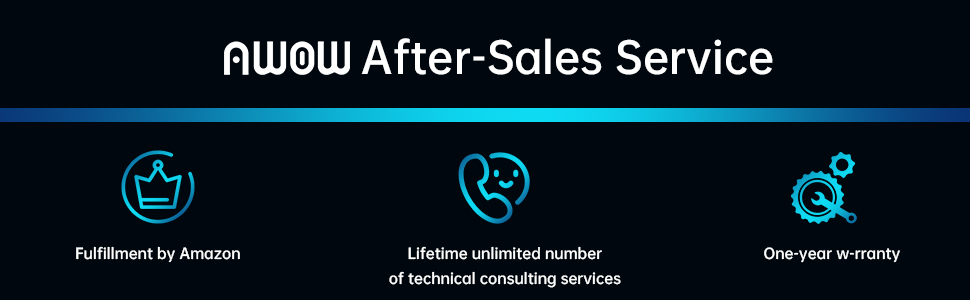
Mufananidzo 11.1: Pamusoroview of AWOW's after-sales service commitments.


