Nhanganyaya
This manual provides essential information for setting up, operating, maintaining, and troubleshooting your TomTom GO Expert Truck Sat Nav. Please read it carefully to ensure optimal performance and safe use of your device.
The TomTom GO Expert is designed for professional large vehicle navigation, offering custom routing and POIs for buses, trucks, and coaches, along with live alerts for various road restrictions.
Chii chiri muBhokisi
Pakuvhura pasuru, simbisa kuti zvese zvirimo zviripo:
- TomTom GO Expert Device
- Car Charger
- Click-and-Drive Mount
- Quick Start Guide

Mufananidzo: Mberi view of the TomTom GO Expert Sat Nav device, showing its 5-inch capacitive screen and the TomTom logo at the bottom.
Gadzirira
1. Kuisa Chishandiso
- Chenesa Windshield: Ensure the area where you intend to mount the device is clean and dry.
- Batanidza Gomo: Securely attach the Click-and-Drive mount to your windshield or dashboard. Press the suction cup firmly against the surface and flip the lever to lock it in place.
- Batanidza Chishandiso: Slide the TomTom GO Expert device onto the mount until it clicks securely.
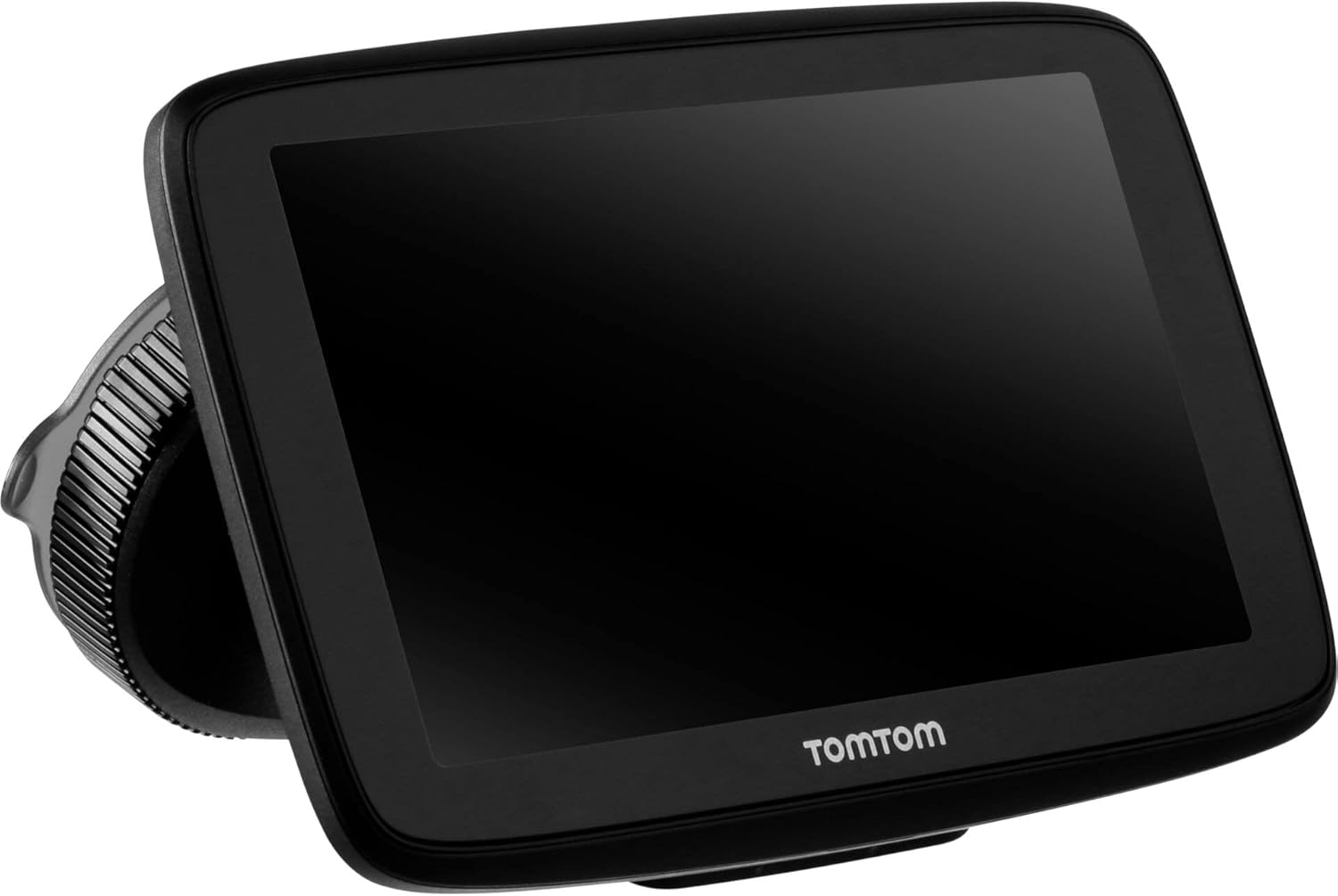
Image: The TomTom GO Expert Sat Nav device attached to its Click-and-Drive mount, viewed from an angle, showing the suction cup base.
2. Kugonesa On uye Kubhadharisa
- Connect the Car Charger: Plug the car charger into your vehicle's 12V power outlet.
- Batanidza kuChishandiso: Connect the other end of the charger to the TomTom GO Expert device.
- Chekutanga Charge: Allow the device to charge for at least 30 minutes before first use, or until the battery indicator shows sufficient charge.

Mufananidzo: Side profile of the TomTom GO Expert Sat Nav device, showing its slim design and how it connects to the Click-and-Drive mount.
3. Kugadzika Kwekutanga uye Kubatanidza Wi-Fi
- Tevedzera zviri pa-screen kuti usarudze mutauro wako nenzvimbo.
- Connect to a Wi-Fi network for quick map updates and traffic information. Navigate to Zvirongwa > Wi-Fi and select your network.
- Configure your vehicle profile (truck, bus, coach) by entering dimensions, weight, and other relevant details. This is crucial for custom routing.
Kushandisa mudziyo wako
Navigation Basics
- Entering a Destination: Tap the search icon on the main menu and enter an address, POI, or coordinates.
- Custom Routing: The device will automatically calculate routes based on your configured vehicle profile, avoiding unsuitable roads for large vehicles.
- Live Traffic Updates: With an active Wi-Fi connection, the device provides real-time traffic information to help you avoid delays.
- Lane Guidance: The device displays clear lane guidance to help you prepare for exits and turns.
- Voice Control: Use voice commands for hands-free operation. Refer to the on-screen guide for available commands.
Map Updates and Services
Your TomTom GO Expert receives 3X faster updates via Wi-Fi. Ensure your device is connected to a stable Wi-Fi network to download the latest maps and software updates conveniently and at no extra cost.
- Mepu Updates: Enda ku Zvirongwa > Zvidzoreso & Zvinhu Zvitsva to check for and install map updates.
- Zviziviso zveKamera Yekumhanya: The device includes 1 year of speed camera alerts. Ensure this service is active for safer driving.
Maintenance
- Kuchenesa: Use a soft, lint-free cloth to clean the screen and device casing. Usashandise zvinochenesa zvinogumbura kana zvinonyungudutsa.
- Zvigadziriso zveSoftware: Regularly check for and install software updates via Wi-Fi to ensure optimal performance and access to new features.
- Battery Care: To prolong battery life, avoid exposing the device to extreme temperatures. If storing for an extended period, ensure the battery is partially charged.
- Kuchengeta: When not in use, store the device in a cool, dry place, away from direct sunlight.
Kugadzirisa matambudziko
Matambudziko Anowanikwa uye Mhinduro
- Mudziyo Haubatiki.
- Ensure the car charger is securely connected to both the device and the vehicle's power outlet.
- Check the vehicle's power outlet for functionality.
- Try resetting the device by holding the power button for 15-20 seconds.
- No GPS Signal:
- Ita shuwa kuti mudziyo une yakajeka view of the sky. Obstructions like tall buildings or tunnels can block the signal.
- Move to an open area and allow the device a few minutes to acquire satellites.
- Check for any pending software updates that might improve GPS performance.
- Map Not Updating:
- Verify that the device is connected to a stable Wi-Fi network.
- Ensure there is sufficient storage space on the device for the new map data.
- Restart the device and try the update again.
- Touchscreen Haisi kupindura:
- Ita reset zvinyoro nyoro nekubata bhatani rekudzima kusvika mudziyo watangazve.
- Ita shuwa kuti skrini yakachena uye haina tsvina.
Zvinotsanangurwa
| Feature | Detail |
|---|---|
| Product Dimensions | 5.51 x 0.79 x 3.54 inches |
| Item Weight | 12.7 ounces |
| Model Number | 1YB5.002.20 |
| Mabhatiri | 1 Lithium Ion bhatiri inodiwa (inosanganisirwa) |
| Operating System | Windows (internal OS) |
| Connectivity Technologies | Bluetooth, Wireless (Wi-Fi) |
| Special Features | Bluetooth, Lane Assist, Touchscreen |
| Human Interface Input | Touchscreen |
| Color | Nhema |
| YeMotokari Sevhisi Type | Bus, Truck |
| Screen Size | 5 inches |
| Mepu Type | Munyika yose |
| Audio Output Mode | Mutauri |
Warranty uye Support
For detailed warranty information and technical support, please visit the official TomTom support websaiti kana tarisa kune waranti kadhi inosanganisirwa nechigadzirwa chako.
Rutsigiro rwepamhepo: www.tomtom.com/support
Ensure you have your device's serial number and model number (1YB5.002.20) ready when contacting support.


