1. Nhanganyaya uye Pamusoroview
The TOA N-8000RS CU IP Intercom Sub Station Interface Unit is designed to facilitate the connection of up to 16 RS-1xx series call switches or door stations using twisted pair shielded cable. This unit leverages packet audio technology for efficient communication within an IP intercom system. It supports 10/100BaseTX Ethernet network connections and provides two external speech links.
The N-8000RS CU requires an IP master station or connection to a 2-wire or 4-wire Exchange with at least one master station on the exchange to function correctly.
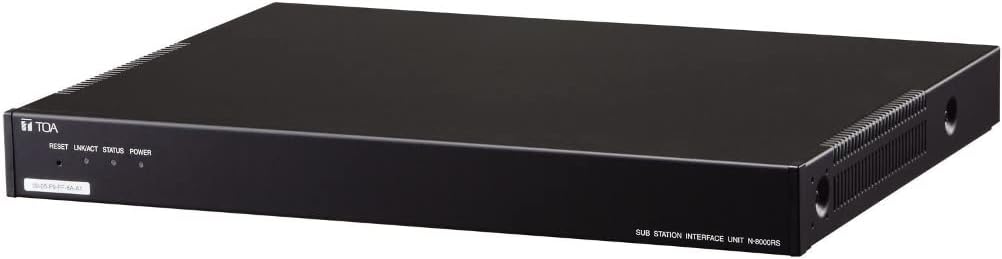
Mberi view of the TOA N-8000RS CU IP Intercom Sub Station Interface Unit, showing the TOA logo, reset button, and indicator lights for LINK/ACT, STATUS, and POWER. The unit is black with a rack-mountable design.
2. Key Features
- Occupies one network node (maximum 191 nodes; at least one node must be a master station or N-8000/8010EX exchange).
- Connects up to 16 substations using twisted pair shielded cable.
- Enables connection of exchanges, IP stations, and various interface units over a data communications network.
- Compatible with existing Local Area Networks (LAN) or Wide Area Networks (WAN).
- Dedicated software program for centralized control via a personal computer.
- System maintenance, including operation log verification and line supervision, can be performed using a personal computer and Internet browser.
- Each port provides 1W @25V to a door station or 25V loudspeaker attached to a call switch.
- Supports 2 voice links.
3. Setup uye Kuiswa
3.1 Kuburitsa uye Kuongorora
Carefully unpack the N-8000RS CU unit and inspect it for any signs of damage. Ensure all components listed in the packing material are present.
3.2 Mounting Sarudzo
The unit can be set up using one of the following methods:
- Rack Mount: Install the unit into a standard equipment rack.
- Desk Mount: Isa chikwata panzvimbo yakagadzikana, yakatsetseka.
- Surface Mount: Secure the unit to a suitable surface.
3.3 Network Kubatana
Connect the N-8000RS CU to your network using a standard Ethernet cable (10/100BaseTX). Ensure the network connection is stable and configured correctly for IP communication.
3.4 Substation Connections
Connect up to 16 RS-1xx series call switches or door stations to the unit using twisted pair shielded cable. Each port is designed to provide power and audio signals to the connected substations.
3.5 Simba Connection
Connect the provided power cable to the unit and a 120V AC, 50/60Hz power source. The Power-on indication lamp on the front panel will illuminate once power is supplied.
4. Operating Instructions
4.1 Yekutanga Simba-Kukwira
After connecting all necessary cables, power on the unit. Observe the Network LNK/ACT and Status lamps on the front panel to confirm proper network connectivity and operational status.
4.2 Software Control
Utilize the dedicated software program on a personal computer for centralized control and configuration of the N-8000RS CU and connected substations. Refer to the software's user guide for detailed instructions on its functionalities.
4.3 System Monitoring
The system allows for monitoring of operation logs and line supervision through a personal computer and an Internet browser. This feature helps in verifying system performance and identifying potential issues.
5. Kuchengeta
5.1 Firmware Updates
The N-8000RS CU supports firmware updates. Regularly check the manufacturer's website for the latest firmware versions to ensure optimal performance and access to new features. Follow the provided instructions carefully during the update process.
5.2 System Data Hold
The unit includes a system data hold function, which helps preserve configuration settings during power cycles or minor interruptions.
5.3 Kuchenesa
To maintain the unit's appearance and functionality, periodically clean the exterior with a soft, dry cloth. Avoid using abrasive cleaners or solvents.
6. Kugadzirisa matambudziko
6.1 No Power Indication
- Check the power cable connection to the unit and the power outlet.
- Iva nechokwadi chekuti nzvimbo yekubuditsa magetsi inoshanda.
6.2 Netiweki Yekubatanidza Nyaya
- Simbisa kubatana kwetambo yeEthernet.
- Check the Network LNK/ACT indicator on the front panel. If it's not lit or blinking, there might be a network issue.
- Ensure the network settings on the unit and the connected network are compatible.
- Try resetting the unit using the Reset switch on the front panel.
6.3 Substation Communication Problems
- Check the twisted pair shielded cable connections to the substations.
- Ensure the substations are powered and functioning correctly.
- Verify the configuration settings for each substation within the control software.
6.4 Sisitimu haiteereri
- Press the Reset switch on the front panel to restart the unit.
- If the issue persists, power cycle the unit by disconnecting and reconnecting the power cable.
7. Zvinotsanangurwa
| Feature | Tsanangudzo |
|---|---|
| Simba Source | 120V AC, 50/60Hz |
| Kushandisa Simba | 35W (rated), 45W (max.) |
| Network Connection | 10/100BaseTX Ethernet |
| Substation Capacity | Up to 16 substations (RS-1xx series) |
| Substation Connection Type | Twisted Pair Shielded Cable |
| Port Output | 1W @25V per door station/loudspeaker |
| Voice Links | 2 external speech links |
| Zviratidzo | Network LNK/ACT, Status lamp, Power-on lamp |
| Mamwe Mabasa | Firmware update, System data hold, Reset switch (front panel), Forced air cooling |
| Setting Method | Rack, Desk, Surface mount |
| Operating Temperature | 0°C kusvika +40°C (32°F kusvika 104°F) |
| Kushanda Humidity | 90% RH kana pasi (hapana condensation) |
| Zviyero (W x H x D) | 16.54" x 1.74" x 12.81" (420mm x 44.2mm x 325.4mm) |
| Kurema | 8.6 lbs (3.9 kg) |
| Item Model Number | N-8000RS CU |
| ASIN | B09WWWTXNJ |
| UPC | 785249833427 |
| Mugadziri | Iyo kambani TOA Electronics |
| Inowirirana Devices | Personal Computer |
| Operating System | Windows |
8. Warranty uye Tsigiro
For warranty information and technical support, please refer to the official TOA Electronics websaiti kana kubata basa ravo revatengi. Chengetedza risiti yako yekutenga sehumbowo hwekutenga kwezvichemo zvewaranti.
Online resources, including FAQs and additional documentation, may also be available on the manufacturer's support pages.


