1. Nhanganyaya
The FINGERS Lil’Clicks is a versatile mini keyboard designed for seamless connectivity across multiple devices and operating systems. It offers dual connectivity options: Bluetooth and 2.4 GHz Wireless, allowing you to switch between your laptop, tablet, or smartphone effortlessly. This manual provides detailed instructions for setup, operation, maintenance, and troubleshooting to ensure optimal use of your keyboard.

Image 1.1: The FINGERS Lil’Clicks Bluetooth Wireless Mini Keyboard, showcasing yayo compact dhizaini.
2. Package Zviri mukati
Ndokumbira utarise bhokisi rezvinhu zvinotevera:
- 1 x FINGERS Lil’Clicks Bluetooth Wireless Mini Keyboard
- 1 x Wireless USB Receiver (for 2.4 GHz connection)
- 1 x Micro USB yekuchaja Cable
- 1 x Kurumidza Kushandisa Gaidhi
- 1 x Brand Note

Image 2.1: Contents included in the FINGERS Lil’Clicks keyboard package.
3. Setup uye Kubatana
The Lil’Clicks keyboard offers two primary connection methods: Bluetooth and 2.4 GHz Wireless.
3.1. Kuchaja kiyibhodhi
Before initial use, ensure the keyboard is fully charged. Connect the provided Micro USB charging cable to the keyboard's charging port and the other end to a USB power source (e.g., computer USB port, USB wall adapter). The charging indicator light will show the charging status.
3.2. 2.4 GHz Wireless Connection
- Locate the USB Wireless Receiver in the keyboard package.
- Batanidza USB inogamuchira mune inowanikwa USB port pakombuta yako kana mudziyo.
- Batidza kiibhodhi uchishandisa switch yemagetsi, kazhinji inowanikwa padivi kana kumashure.
- The keyboard should automatically connect to your device. No additional drivers are typically required.
3.3. Bluetooth Connection (Up to 3 Devices)
The Lil’Clicks keyboard can connect to up to three Bluetooth devices simultaneously.
- Batidza kiibhodhi uchishandisa switch yemagetsi.
- Dzvanya uye ubate iyo Fn key and one of the Bluetooth keys (BT1, BT2, kana BT3) for 3-5 seconds until the corresponding Bluetooth indicator light starts blinking. This indicates the keyboard is in pairing mode.
- Pamudziyo wako (laptop, piritsi, smartphone), enda kuBluetooth marongero uye wogonesa Bluetooth.
- Tsvaga available devices. You should see "FINGERS Lil’Clicks" or a similar name appear in the list.
- Select the keyboard to pair. If prompted, enter the displayed code on the keyboard and press Enter.
- Once paired, the indicator light will stop blinking and remain solid for a few seconds before turning off.
- To connect another device, repeat steps 2-5 using a different Bluetooth key (BT2 or BT3).
3.4. Kuchinja pakati peMidziyo Yakabatanidzwa
To switch between paired Bluetooth devices or the 2.4 GHz wireless connection:
- For Bluetooth devices: Briefly press the Fn key along with the desired Bluetooth key (BT1, BT2, kana BT3).
- For 2.4 GHz Wireless: Briefly press the Fn key along with the 2.4G key (if available, otherwise ensure the USB receiver is plugged in and no Bluetooth connection is active).

Image 3.1: The Lil’Clicks keyboard demonstrating multi-device connectivity with a laptop, monitor, phone, and tablet.
4. Kushandisa Kiyibhodhi
4.1. Basic Typing
The keyboard features a standard QWERTY layout. Simply type as you would on any other keyboard.
4.2. Kudzora Midhiya
The Lil’Clicks keyboard includes 12 soft-touch media control keys. These functions are typically accessed by pressing the Fn key simultaneously with the corresponding function key (F1-F12 or dedicated media keys).
- Fn+F1-F12: Access various media functions such as play/pause, volume control, track skipping, and more. Refer to the quick usage guide for specific key mappings.

Mufananidzo 4.1: Pedyo-up view of the keyboard layout, highlighting the media control keys and function row.
4.3. Using the Built-in Cradle
The keyboard features a built-in cradle designed to hold most phones and tablets up to 10 mm thick and 265 mm wide. This allows you to position your device at an optimal viewing angle for comfortable typing.
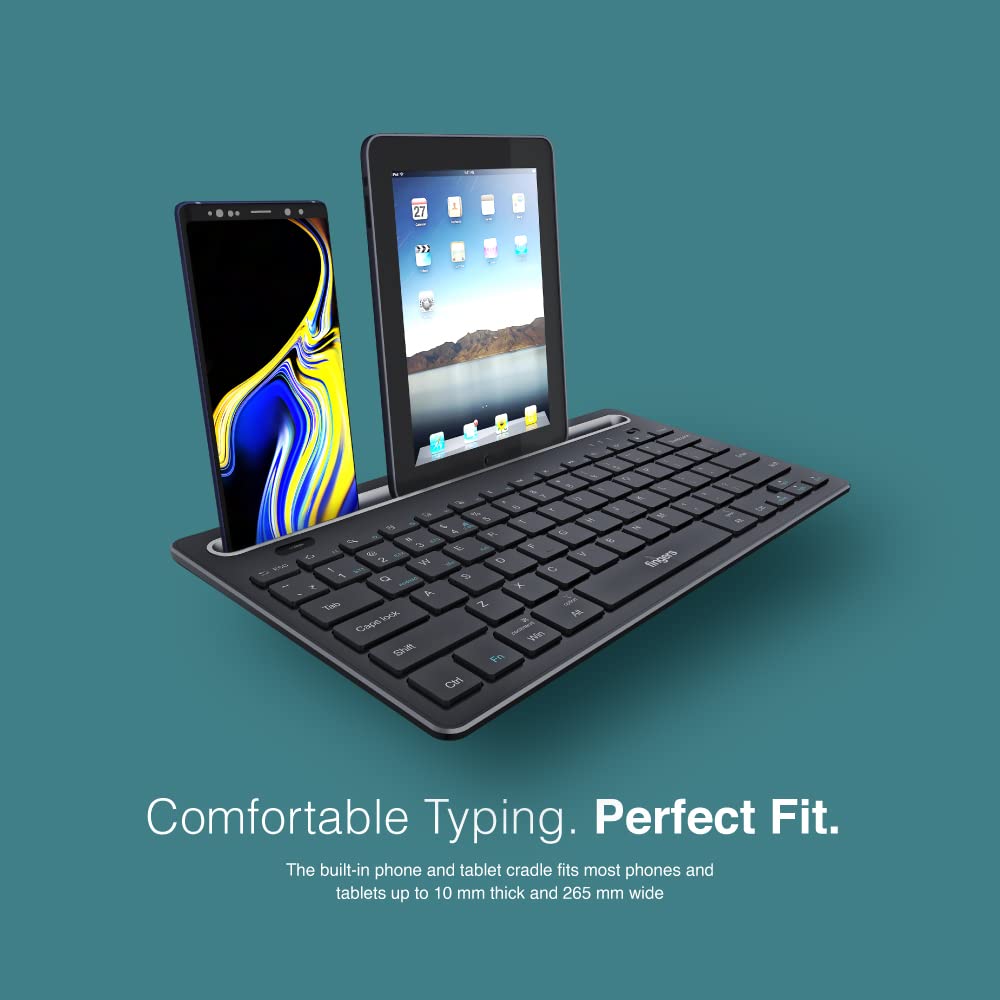
Image 4.2: The keyboard's integrated cradle holding a smartphone and a tablet for ergonomic viewing.
4.4. Operating System Compatibility
The Lil’Clicks keyboard is compatible with a wide range of operating systems:
- Windows
- macOS
- Android
- Linux
- Chrome OS
The keyboard automatically adapts to the connected operating system for optimal functionality. Some function key behaviors may vary slightly depending on the OS.
5. Kuchengeta
5.1. Kuchenesa
Kuti uchenese kiibhodhi yako, pukuta pamusoro zvinyoro nyoro nekanyoro, damp, lint-free cloth. Avoid using harsh chemicals, abrasive cleaners, or excessive moisture, as these can damage the keyboard. The membrane-coated sheet beneath the keys helps protect against dust and minor spills.
5.2. Battery Care
The keyboard features a long-lasting battery, providing up to 45 days of usage on a single charge. To prolong battery life:
- Chaja kiibhodhi zvizere usati watanga kushandisa.
- Dzivisa kubvisa zvachose bhatiri nguva nenguva.
- If storing the keyboard for an extended period, charge it to about 50% and store in a cool, dry place.
5.3. Kuchengeta
When not in use, store the keyboard in a clean, dry environment away from extreme temperatures and direct sunlight. Its compact and lightweight design makes it easy to carry and store.

Image 5.1: The Lil’Clicks keyboard's portability, shown being carried and used in a cafe setting.
6. Kugadzirisa matambudziko
If you encounter issues with your FINGERS Lil’Clicks keyboard, please refer to the following troubleshooting steps:
6.1. Keyboard Not Connecting/Pairing
- Tarisa Simba: Iva nechokwadi chekuti kiyibhodhi yakabatidzwa uye ine bhatiri rakakwana.
- Nyorazve Pairing Mode: For Bluetooth, press and hold Fn + BT1/BT2/BT3 until the indicator blinks. For 2.4 GHz, ensure the USB receiver is securely plugged in.
- Bluetooth yemudziyo: Ita shuwa kuti Bluetooth yakabatidzwa pamudziyo wako uye inowanikwa.
- Forget Device (Bluetooth): If previously paired, try removing/forgetting the keyboard from your device's Bluetooth list and then re-pairing.
- USB Receiver: Try plugging the 2.4 GHz USB receiver into a different USB port on your device.
- Kupindira: Fambisa kiibhodhi padhuze nemudziyo wako uye kure nemimwe michina isina waya inogona kukonzera kukanganisa.
6.2. Keys Not Responding or Typing Incorrectly
- Battery Level: A low battery can affect key responsiveness. Charge the keyboard fully.
- Kugadzikana Kwekubatanidza: Ensure a stable connection. If using Bluetooth, try switching to a different Bluetooth channel (BT1, BT2, BT3) or re-pairing. If using 2.4 GHz, ensure the receiver is firmly connected.
- Kupindira: Wireless interference can sometimes cause missed keystrokes. Try moving to a different location or reducing other wireless activity.
- Makiyi Akachena: Check for any debris or foreign objects under the keys that might be obstructing their movement.
- Maitiro eSisitimu Yekushanda: Ensure the keyboard is in the correct operating system mode if there are specific key combinations for OS switching (e.g., Fn + Android/Win/Mac keys).
6.3. Bhatiri Risingachaji
- Tarisa Cable: Ensure the Micro USB charging cable is securely connected to both the keyboard and the power source.
- Kunobva Simba: Try a different USB power source (e.g., another USB port on your computer, a different wall adapter).
- Cable Integrity: Inspect the charging cable for any signs of damage. Try using a different Micro USB cable if available.
7. Zvinotsanangurwa
| Brand | FINGERS |
| Model | Lil’Clicks |
| Kubatana | Bluetooth, 2.4 GHz Wireless |
| Kugarisana | Windows, macOS, Android, Linux, Chrome OS |
| Color | Nhema |
| Dimensions (LxWxH) | 29 x 16 x 2 cm |
| Item Weight | 400 g |
| Hupenyu hwebhatiri | Kusvika mazuva makumi mana (pakubhadharisa kamwe chete) |
| Keystroke Hupenyu | 5 miriyoni keystrokes |
| Cradle Dimensions | Fits devices up to 10 mm thick and 265 mm wide |
| Simba Source | Battery Powered |
8. Warranty uye Tsigiro
8.1. Ruzivo rweWaranti
The FINGERS Lil’Clicks Bluetooth Wireless Mini Keyboard comes with a 1 Year Warranty from the date of purchase. This warranty covers manufacturing defects under normal use. Please retain your purchase receipt as proof of purchase for warranty claims.
Warranty haivharidzi kukanganisa kunokonzerwa ne:
- Accidental damage, misuse, abuse, or negligence.
- Kugadzirisa kana kugadzirisa zvisina mvumo.
- Normal kupfeka uye kubvarura.
8.2. Manufacturer and Importer Details
Mugadziri: Dynamic Conglomerate Pvt. Ltd., 329/330, GIDC Phase II, Near Sardar Chowk, Vapi, Dist. Valsad, Gujarat - 396195.
Importer: Dynamic Conglomerate Pvt. Ltd. 4th Floor, Simba Tower, Vishveshwar Nagar, Goregaon (E), Mumbai - 400063, Maharashtra
8.3. Mutengi Tsigiro
For technical assistance, warranty claims, or any other inquiries, please contact FINGERS customer support through their official website or the contact information provided in your Quick Usage Guide.


