Introduction to Your Google Pixel Watch LTE
The Google Pixel Watch LTE combines a beautiful circular, domed design with the advanced capabilities of Wear OS by Google. This smartwatch is engineered to help you live healthier with integrated Fitbit activity tracking, heart rate monitoring, and other health insights. Stay connected and productive on the go with essential Google apps like Assistant, Maps, Wallet, Calendar, and Gmail, even without your phone nearby thanks to 4G LTE connectivity. This manual provides essential information for setting up, operating, and maintaining your device.
Chii chiri muBhokisi
- Google Pixel Watch
- Active Band (Large size attached)
- Additional Active Band (Small size)
- USB-C Magnetic Kuchaja Cable
- Quick Start Guide
Image: The Google Pixel Watch box contents, showing the watch with a large active band, an additional small active band, and the USB-C magnetic charging cable.
Setup uye Yekutanga Kushandisa
Unboxing uye Kutanga Kutarisa
Vhidhiyo: Kuburitsa bhokisi uye kutanga kwekupedzisiraview of the Google Pixel Watch, demonstrating the packaging and first impressions of the device.
Video: An unboxing of both the Google Pixel 7 Pro and the Google Pixel Watch, showing how the watch is presented in its packaging.
Attaching/Detaching Bands
The Google Pixel Watch comes with two active band sizes (small and large) to ensure a comfortable fit. To attach or detach a band:
- Locate the small button on the underside of the watch, near where the band connects.
- Press and hold the button while gently sliding the band away from the watch face.
- To attach a new band, align it with the slot and slide it in until you hear a click, ensuring the button is pressed during insertion.

Mufananidzo: Mberi view of the Google Pixel Watch with a gray active band, highlighting its circular display and sleek design.
Kubatanidza nefoni yako
To begin using your Google Pixel Watch, you must pair it with a compatible Android phone (Android 8.0 or newer). Download the Google Pixel Watch app and the Fitbit app from the Google Play Store on your phone. Follow the on-screen instructions in the Pixel Watch app to complete the pairing process. Fast Pair technology simplifies connecting your watch to Pixel phones and Pixel Buds.
Key Features
Health and Fitness Tracking (Powered by Fitbit)
Your Google Pixel Watch integrates seamlessly with Fitbit for comprehensive health and fitness tracking. Key features include:
- Activity Tracking: Monitor steps, calories burned, and active zone minutes.
- Kuongorora Kwemoyo Continuous heart rate monitoring for insights into your cardiovascular health.
- Kutsvaga Kurara: Gain insights into your sleep patterns and quality.
- ECG app: Assess your heart rhythm for signs of AFib (available in select countries, not for users under 22).
- Stress Management: Tools to help you understand and manage stress levels.
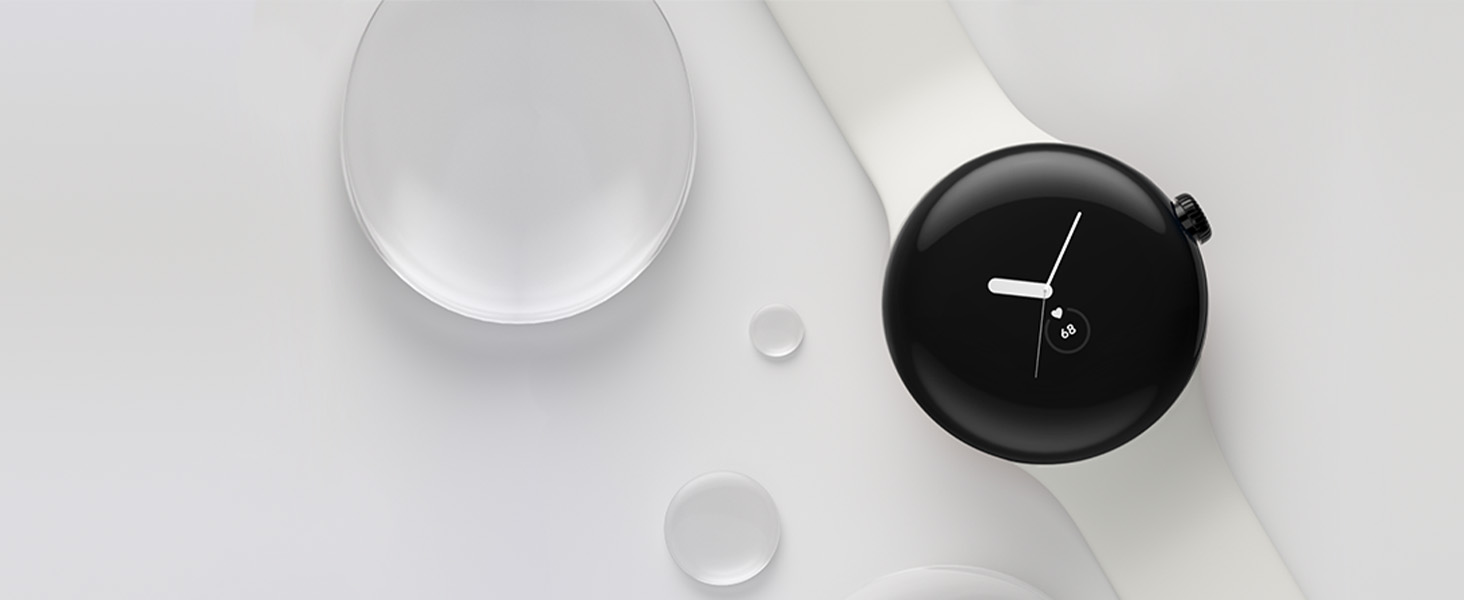
Image: The Google Pixel Watch screen showing various fitness and health metrics, including active zone minutes, steps, heart rate, and sleep tracking, powered by Fitbit.
Vhidhiyo: A review of the Google Pixel Watch highlighting its Fitbit activity tracking features and user interface for health monitoring.
Google Apps Integration
Access your favorite Google apps directly from your wrist:
- Google Assistant: Tsvaga rubatsiro paunenge uchifamba nemirairo yezwi.
- Chikwama cheGoogle: Make contactless payments quickly and securely.
- Google Mepu: Gamuchira mirayiridzo yekufamba-famba.
- Gmail neKarenda: Rongai bhokisi renyu rekutumira mameseji uye zviziviso zvezviitiko.
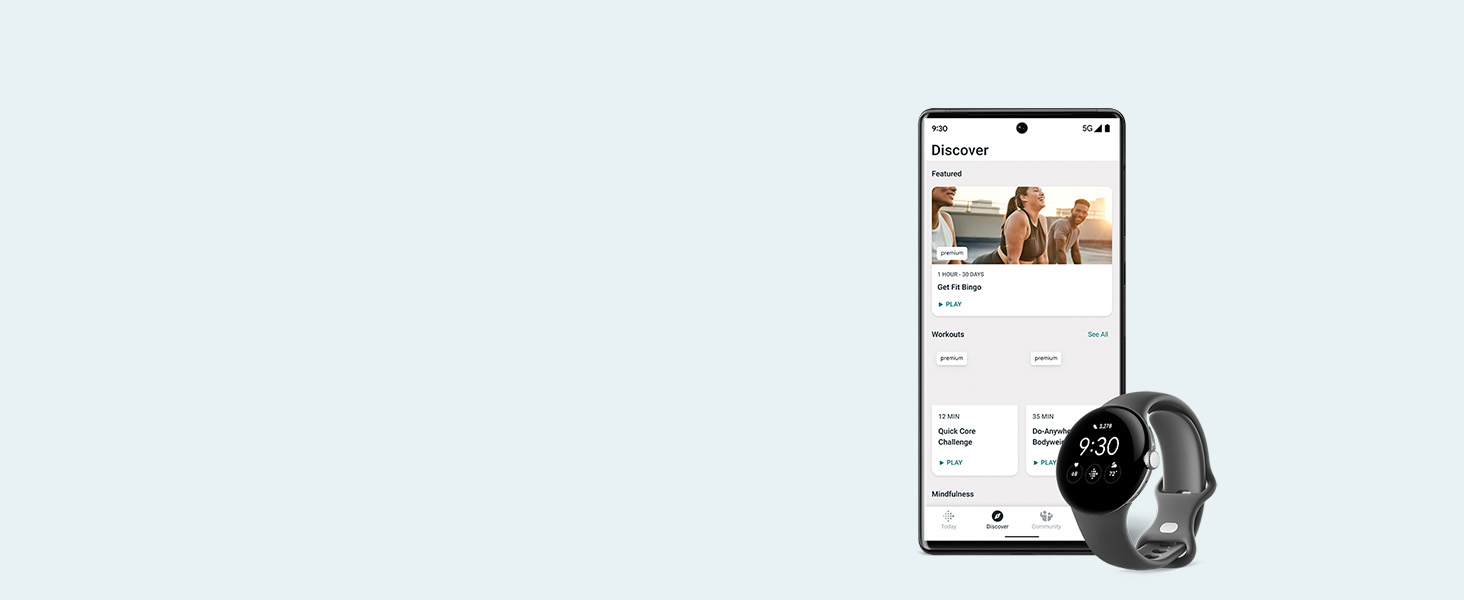
Image: The Google Pixel Watch screen showing icons for Google Assistant, Google Wallet, Google Maps, and Gmail, illustrating app integration.
Safety Features
The Pixel Watch includes important safety features for your peace of mind:
- Emergency SOS: Alert trusted contacts or 911 when feeling unsafe (requires location enabled and 4G LTE service or internet connection).
- Kuwira Kuwana: Automatically detects hard falls and can initiate an emergency call.
- Chengetedzo Yekuchengetedza: Schedule a check-in with loved ones, and if you don't respond, it can alert emergency contacts.
Kushandisa Chishandiso
Navigation uye Interface
The Pixel Watch features a circular, domed display with a responsive touchscreen and a digital crown for navigation. Swiping and tapping allow you to access notifications, quick settings, and various apps. The digital crown can be rotated to scroll through content and pressed to return to the home screen or access power options.
Customizing Watch Faces and Tiles
Personalize your watch face and the information displayed on your tiles through the Google Pixel Watch app on your phone. You can select from a variety of watch faces, customize colors, and choose which complications (widgets) appear on your screen. Manage the order and content of your tiles to quickly access your most important information, such as steps, heart rate, sleep data, and upcoming events.

Image: The Google Pixel Watch showing a customizable watch face with digital time, date, and activity tracking rings.
Kuchaja uye Hupenyu hweBhatiri
The Google Pixel Watch is equipped with a Lithium Ion battery. To charge your watch, use the provided USB-C Magnetic Charging Cable. Simply place the back of the watch onto the magnetic charging pad. A full charge typically takes approximately 75 minutes and provides up to 24 hours of battery life with an always-on display, though actual battery life may vary based on usage and features enabled.

Image: The Google Pixel Watch connected to its magnetic charging cable, illustrating the charging process.
Kuramba Mvura
The Google Pixel Watch is designed to comply with a water protection rating of 5 ATM under ISO standard 22810:2010 when manufactured. This means it can withstand pressures equivalent to a depth of 50 meters. It is suitable for shallow-water activities like swimming but should not be used for activities involving high-velocity water or high temperatures. Water resistance is not a permanent condition and may decrease over time due to normal wear and tear or damage. Some accessory bands are not water-resistant.
Zvinotsanangurwa
| Feature | Detail |
|---|---|
| Product Dimensions | 10.81 x 0.55 x 1.69 inches |
| Item Weight | 9.5 ounces |
| Item Model Number | GWT9R |
| Mabhatiri | 1 Lithium Ion mabhatiri anodiwa (akabatanidzwa) |
| Operating System | Android (Wear OS by Google) |
| Wireless Communication Technologies | Cellular, Bluetooth |
| Connectivity Technologies | USB, Wi-Fi |
| GPS | Yakavakwa-mukati GPS |
| Special Features | Activity Tracker, Always On Display, Notifications, Text Messaging, Heart Rate Tracking, ECG |
| Human Interface Input | Touchscreen |
| Screen Size | 41 mamirimita |
| Memory Storage Capacity | 32 GB |
| RAM Memory Yakaiswa Saizi | 2 GB |
| Mugadziri | |
| Zuva Rokutanga Kuwanikwa | Gumiguru 6, 2022 |
Warranty uye Support
For detailed warranty information and support, please refer to the documentation included in your product packaging or visit the official Google support website. Google provides resources for troubleshooting, FAQs, and contact options for technical assistance.


