1. Nhanganyaya
This manual provides detailed instructions for the setup, operation, and maintenance of your Optoma GT1080HDRx Short Throw Gaming Projector. Designed for immersive gaming and home cinema, this projector delivers bright, high-definition images with a fast response time.
2. Chii chiri muBhokisi
Iva nechokwadi chekuti zvinhu zvese zviripo mupakeji:
- Optoma GT1080HDRx Projector
- AC Simba Cable
- 2x AAA mabhatiri
- Remote Control
- Quick Start Guide
3. Setup
3.1 Kuiswa kwePurojekita
The Optoma GT1080HDRx is a short-throw projector, allowing for large images from a short distance. For example, a 120-inch image can be projected from approximately four feet away. Ensure the projector is placed on a stable, level surface or securely mounted.

Figure 3.1: Diagram illustrating short-throw projection, showing the projector placed approximately 4 feet from the screen to achieve a 120-inch image.
For optimal image geometry, position the projector directly in front of the screen. Avoid using digital keystone correction extensively, especially when using Enhanced Gaming Mode, as it can introduce input lag and image distortion.
3.2 Kubatana
Connect your video sources (gaming consoles, media players, etc.) to the projector using HDMI cables. The projector features dual HDMI inputs (1.4a 3D support).
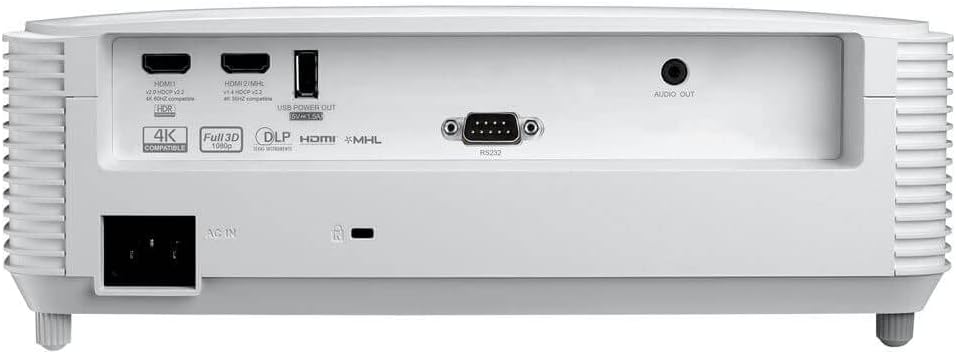
Mufananidzo 3.2: Kumashure view of the Optoma GT1080HDRx projector, highlighting the various input and output ports, including dual HDMI, USB, and audio out.
- HDMI 1 & 2: Connect to gaming consoles, Blu-ray players, streaming devices (e.g., Google Chromecast, Amazon Fire Stick, Apple TV).
- USB Power Out: For powering compatible streaming devices.
- Audio Out: Batanidza kune masisitimu ekunze enzwi kuti unzwe ruzha rwakanaka.
3.3 Simba On/Kudzima
Connect the AC power cable to the projector and a power outlet. Press the power button on the projector's top panel or the remote control to turn the projector on or off.

Mufananidzo 3.3: Pamusoro view of the projector, showing the control panel with buttons for power, menu navigation, and source selection.

Figure 3.4: The remote control for the Optoma GT1080HDRx projector, featuring buttons for power, source selection, menu, and image adjustments.
3.4 Focus Adjustment
Tenderedza rin'i yekutarisa iri pagirazi reprojekita kusvika mufananidzo waoneka wakajeka pachiratidziro.
3.5 Kugadziriswa Kwemufananidzo
Use the projector's menu or remote control to access image settings. Adjust keystone correction if the image is not perfectly rectangular. Note that extensive keystone correction can degrade image quality. For optimal performance, physically adjust the projector's position.
4. Operating Instructions
4.1 Source Selection
Press the 'Source' button on the remote control or projector to cycle through available input sources (HDMI 1, HDMI 2).
4.2 Mode Yemitambo Yakavandudzwa
Activate Enhanced Gaming Mode for a fast response time of 8.4ms at 1080p with a 120Hz refresh rate. This mode optimizes display for maximum contrast and vivid colors, crucial for competitive gaming. Note that some image adjustments like keystone, zoom, image shift, or edge masking may be disabled in this mode.

Figure 4.1: An image depicting a gaming scenario, illustrating the benefits of Enhanced Game Mode for responsive gameplay.
4.3 HDR (Yakakura Dhizaini)
The projector supports HDR10 technology with 4K input, providing brighter whites and deeper black levels for improved detail and texture. Ensure your source device is also HDR compatible and configured correctly.

Figure 4.2: A split image demonstrating the visual difference with HDR enabled, showing enhanced contrast and color detail.
4.4 Rudzi Settings
The six-segment color wheel (RYGCWB) produces accurate color with sRGB & REC. 709 color profile support. Adjust color settings via the OSD (On-Screen Display) menu to suit your viewing environment and preferences. Cinema mode is often recommended for accurate color reproduction.
5. Kuchengeta
5.1 Lamp Hupenyu
Purojekita lamp has a life of up to 15,000 hours. To maximize lamp life, ensure proper ventilation and avoid frequent power cycles. Replace the lamp when its brightness significantly diminishes or if the projector indicates a lamp kukanganisa.
5.2 Kuchenesa
Regularly clean the projector lens with a soft, lint-free cloth designed for optical surfaces. Use a soft brush or compressed air to remove dust from the projector's vents. Do not use abrasive cleaners or solvents.
6. Kugadzirisa matambudziko
- Hapana Mufananidzo:
- Iva nechokwadi chekuti purojekita yakabatidzwa uye tambo yemagetsi yakabatana zvakanaka.
- Iva nechokwadi chekuti sosi yekuisa yakasarudzwa nemazvo uye kuti mudziyo wekuisa uri kushanda.
- Tarisa HDMI tambo dzekubatanidza.
- Hunhu Hwakashata hweMufananidzo:
- Adjust the focus ring for sharpness.
- Check the resolution settings on your source device and ensure they are compatible with the projector's native resolution (1080p).
- Iva nechokwadi chekuti nzvimbo inoonekwa yakachena uye yakati sandara.
- Avoid excessive keystone correction.
- Hapana Inzwi:
- Check the volume settings on the projector and your source device.
- If using external speakers, ensure they are properly connected to the Audio Out port and powered on.
7. Zvinotsanangurwa
| Feature | Tsanangudzo |
|---|---|
| Model Name | GT1080HDRx |
| Kupenya | 3,800 Lumens |
| Native Resolution | 1920 x 1080 (1080p) |
| Ratidza Resolution Maximum | 3840 x 2160 Pixels (4K UHD input support) |
| Kusiyanisa Ratio | 50,000:1 |
| Response Time (Enhanced Gaming Mode) | 8.4ms (at 1080p 120Hz) |
| Kubatana Technology | HDMI, USB |
| HDMI Zvinowanikwa | Dual HDMI (1.4a 3D support) |
| Chiedza Chiri Kushanda Hupenyu | Kusvikira kuMaawa mashanu |
| Minimum Kukanda Distance | 1.3 Tsoka |
| Yakanyanya Kukanda Distance | 11.3 Tsoka |
| Zviyero (L x W x H) | 12.4"L x 9.5"W x 4.5"H |
| Item Weight | 7.7 Pondo |
8. Warranty uye Tsigiro
Warranty: The Optoma GT1080HDRx projector comes with a 1-year limited parts and labor warranty. The lamp is covered by a 90-day warranty. Please retain your proof of purchase for warranty claims.
For technical support, service, or further information, please visit the official Optoma website or contact Optoma customer service. Contact details can typically be found on the Optoma website or in the quick start guide included with your product.


