Nhanganyaya
Thank you for choosing the VANTRUE E3 3 Lens 2.7K Dashcam. This manual provides detailed instructions on how to set up, operate, and maintain your dashcam to ensure optimal performance and longevity. The E3 dashcam offers comprehensive 360-degree surveillance with its front, interior, and rear cameras, advanced features like 5GHz WiFi, voice control, and buffered parking mode, providing reliable protection and peace of mind on the road.
Chii chiri muBhokisi

Image: All components included in the VANTRUE E3 Dashcam package.
The VANTRUE E3 Dashcam package includes the following items:
- VANTRUE E3 Dashcam (Main Unit)
- Remote Control
- Rear Camera
- GPS Suction Cup Mount
- USB-C Data Cable (1M)
- Rear Camera Cable (6M)
- Pry Tool
- Replacement Adhesive Pads
- Zvinamati zveElectrostatic (x2)
- User Manual
- USB-C Car Charger (3.5M)
- Warning Stickers (x2)
Cherechedza: A CPL filter, Hardwire Kit, and Micro SD card are sold separately and are not included in the standard package.
Product Overview uye Features
The VANTRUE E3 Dashcam is designed to provide comprehensive vehicle surveillance with its advanced features and multi-camera system.
Zvinokosha:
- Triple Channel Recording: Simultaneous recording from front (1944P), interior (1080P), and rear (1080P) cameras at 30FPS, offering a 360-degree view (160° front, 165° interior, 160° rear).
- High-Resolution Imaging: Equipped with STARVIS sensor for ultra-clear image quality, capturing license plates and crucial details.
- 5GHz WiFi & GPS: Fast video download, editing, and sharing via the VANTRUE APP. Integrated GPS records precise location, speed, and route.
- Kudzora Izwi Kwakangwara: Hands-free operation for commands like "Turn on/off WiFi," "Take photo," and "Lock the video."
- Yakanatsiridzwa Night Vision: Features 4 infrared lights for the interior camera and WDR/HDR functions for front and rear cameras, ensuring clear recordings in low-light conditions.
- 24-Hour Buffered Parking Mode: Activated by motion or collision, recording 15 seconds before and 30 seconds after an event. Includes options for motion detection, collision detection, low bitrate, or low-frame-rate modes.
- G-Sensor: Automatically detects sudden shakes or collisions and locks the current video to prevent overwriting.
- Loop Recording: Automatically overwrites the oldest unlocked files kana kadhi rememori razara, zvichiita kuti kurekodha kurambe kuripo.
- Supercapacitor: Provides higher temperature resistance and a longer lifespan compared to traditional lithium batteries.
- Magnetic Mount: Ensures stable connection and easy installation/removal.

Mufananidzo: Pamusoroview of the E3 Dashcam's three recording channels.

Image: Detailed feature set of the VANTRUE E3 Dashcam.
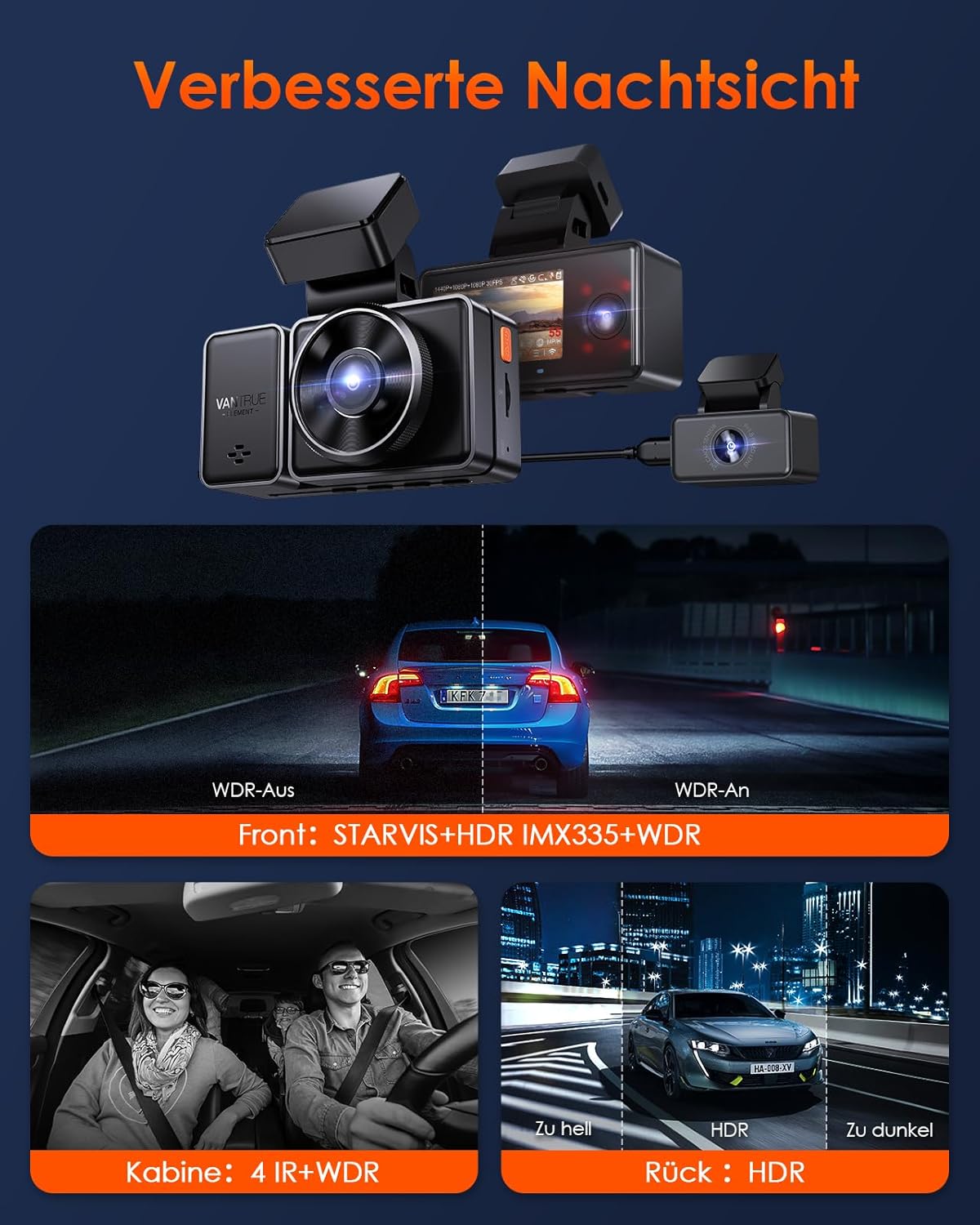
Image: Demonstration of enhanced night vision capabilities.
Setup Guide
1. Preparing the Micro SD Card
Before first use, format the Micro SD card (Class 10 or higher, up to 512GB) in the dashcam. This ensures compatibility and optimal performance. Insert the card into the designated slot until it clicks.
2. Kuisa Dashcam
- Chenesa nzvimbo yegirazi repamberi paunoda kuisa dashcam.
- Apply the electrostatic sticker to the clean windshield. This helps in easy removal without leaving residue.
- Attach the GPS suction cup mount to the electrostatic sticker or directly to the windshield. Ensure it is securely fastened.
- Slide the main dashcam unit onto the magnetic mount until it clicks into place.
- Connect the rear camera cable to the main unit and route it to the rear of your vehicle. Mount the rear camera on the rear windshield.
- Connect the USB-C car charger to the dashcam and plug it into your vehicle's cigarette lighter socket.
3. Yekutanga Power On uye Settings
Once powered, the dashcam will automatically turn on and begin recording. You can adjust settings such as video resolution, loop recording duration, G-sensor sensitivity, and parking mode options through the dashcam's menu or via the VANTRUE APP.
4. Connecting to the VANTRUE APP (5GHz WiFi)
The E3 dashcam supports 5GHz WiFi for faster data transfer. Follow these steps to connect:
- Download the "VANTRUE Cam" app from the Google Play Store or Apple App Store.
- On the dashcam, enable WiFi (you can use a voice command like "Turn on WiFi").
- On your smartphone, go to WiFi settings and connect to the dashcam's WiFi network (usually named "VANTRUE_E3_XXXX"). The default password is "12345678".
- Open the VANTRUE Cam app. You should now see a live preview and be able to access settings, view recordings, and download files.

Image: Illustration of 5GHz WiFi and GPS connectivity with the mobile app.
Operating Instruction
1. Kurekodha Kwepakutanga
The dashcam automatically starts recording when powered on. Videos are saved in segments according to your loop recording settings. In case of a collision, the G-sensor will automatically lock the current video file to the "Event" folder, preventing it from being overwritten.
2. Kudzora Izwi
The E3 dashcam supports intelligent voice commands for hands-free operation. Speak clearly and directly to the dashcam. Examples of commands include:
- "Video Start"
- "Video Stop"
- "Take Photo"
- "Turn On WiFi"
- "Turn Off WiFi"
- "Lock The Video"
- "Turn Off Screen"
- "Turn On Audio"
- "Turn Off Audio"

Mufananidzo: Eksamples of voice commands for the dashcam.
3. Kudzora Kure Kusina Waya
The included wireless remote control allows for quick actions without touching the dashcam. It typically has buttons for:
- Audio Yabatidzwa/Yakadzimwa: Toggle microphone recording.
- Emergency Lock: Manually lock the current video file.
- Mufananidzo: Tora mufananidzo wakanyarara.

Image: Functions of the wireless remote control.
4. Parking Mode (24-Hour Surveillance)
The E3 dashcam offers several parking mode options to protect your vehicle when parked. Ensure the dashcam is connected to a continuous power source (e.g., via a hardwire kit, sold separately) for 24-hour surveillance.
- Buffered Motion Detection: Records 15 seconds before and 30 seconds after a detected motion or collision.
- Collision Detection: Records when a collision is detected.
- Low Bitrate Mode: Records continuously at a lower bitrate to save storage space.
- Low-Frame-Rate Mode: Records continuously at a lower frame rate (e.g., 1/5/10/15 FPS) to save storage space and create time-lapse like videos.
You can select your preferred parking mode in the dashcam settings or via the app.

Image: Explanation of the 24-hour parking mode features.
Maintenance
1. SD Card Management
Regularly format your Micro SD card (e.g., once a month) to maintain optimal performance and prevent data corruption. You can format the card directly through the dashcam's menu or via the VANTRUE APP. Replace the SD card if you notice frequent errors or degraded performance.
2. Cleaning the Dashcam
Use a soft, dry cloth to clean the dashcam's lens and body. Avoid using abrasive cleaners or solvents that could damage the device. Ensure the windshield area around the camera is clean for clear recordings.
3. Firmware Updates
VANTRUE regularly releases firmware updates to improve performance and add new features. You can update the firmware via the VANTRUE APP (OTA Upgrade) or by downloading the firmware file from the official VANTRUE website and manually updating it using an SD card. Always ensure the dashcam is fully charged or connected to power during a firmware update.
Kugadzirisa matambudziko
| Dambudziko | Possible Solution |
|---|---|
| Dashcam haibatike. |
|
| Kurekodha kunomira zvisingatarisirwi. |
|
| WiFi yekubatanidza nyaya. |
|
| Hunhu hwevhidhiyo husina kunaka husiku. |
|
| Kudzora inzwi hakupinduri. |
|
Zvinotsanangurwa
| Feature | Detail |
|---|---|
| Chip Processor | Novatek High-Performance Processor |
| Image Sensor | STARVIS |
| G-Sensor | Built-in Triaxial Sensor |
| WiFi | 2.4GHz uye 5GHz |
| Sikirini | 2.45" IPS-Display |
| Viewing Angle | Front 160°, Cabin 165°, Rear 160° |
| Aperture | Front: F1.8, Cabin: F2.0, Rear: F1.8 |
| Storage | Micro SD Card (supports 32GB - 512GB) |
| Power Input | 5V 2.4A |
| Kushandiswa Kwemagetsi | 6W |
| Operating Temperature | -20°C kusvika 60°C |
| Bhatiri | Bhatiri reLithium-Polymer rimwe chete (rinosanganisirwa) |
| Mounting Type | Windshield Gomo |
| YeMotokari Sevhisi Type | Car, Bus, Truck |
Warranty uye Support
The VANTRUE E3 Dashcam comes with a warranty of up to 18 months. For warranty claims, technical support, or any inquiries, please contact VANTRUE customer service through their official websaiti kana ruzivo rwekusangana rwunopihwa mune yako chigadzirwa kurongedza.
You can also visit the official VANTRUE store on Amazon for more information and support: VANTRUE Amazon Store.


