1. Nhanganyaya
This manual provides essential information for the installation, operation, and maintenance of your Intenso 2TB M.2 SSD PCIe Premium. Please read these instructions carefully before proceeding with installation to ensure optimal performance and longevity of your device.
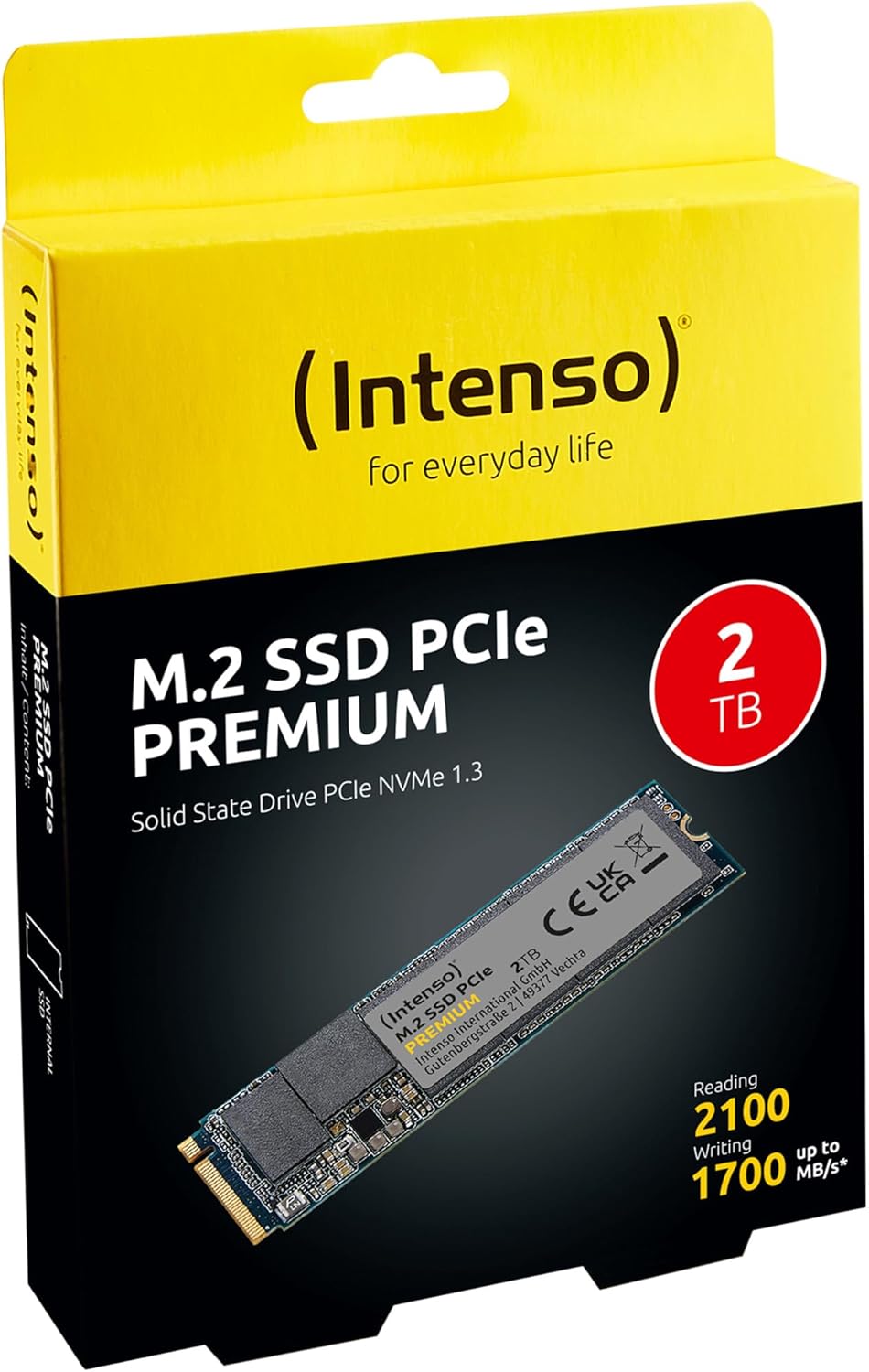
Image 1: Intenso 2TB M.2 SSD PCIe Premium product packaging. The box displays the SSD, capacity, and read/write speeds.
2. Setup uye Kuiswa
Proper installation is crucial for the functionality of your M.2 SSD. Follow these steps carefully.
2.1 Pre-installation Checklist
- Kuenderana: Ensure your motherboard has an available M.2 slot that supports PCIe NVMe SSDs. Refer to your motherboard's manual for specific M.2 slot specifications.
- Static Electricity: Take precautions against electrostatic discharge (ESD). Use an anti-static wrist strap or touch a grounded metal object before handling the SSD.
- Zvishandiso: You may need a small Phillips head screwdriver and a motherboard screw for securing the M.2 drive.
2.2 Kuiswa Kwenyama
- Power Off: Completely shut down your computer and disconnect the power cable.
- Open Case: Vhura komputa yako kuti uwane iyo mamaboard.
- Tsvaga M.2 Slot: Identify an available M.2 slot on your motherboard. It typically looks like a small horizontal slot with a screw stand-off nearby.
- Isa SSD: Gently insert the Intenso M.2 SSD into the slot at a 30-degree angle. The gold contacts on the SSD should align with the slot. Push it in until it is fully seated.
- Chengetedza SSD: Carefully push the SSD down until it is parallel with the motherboard. Secure it with the small screw provided with your motherboard or the SSD.
- Vhara Nyaya: Vhara komputa yako wobatanidza tambo yemagetsi.
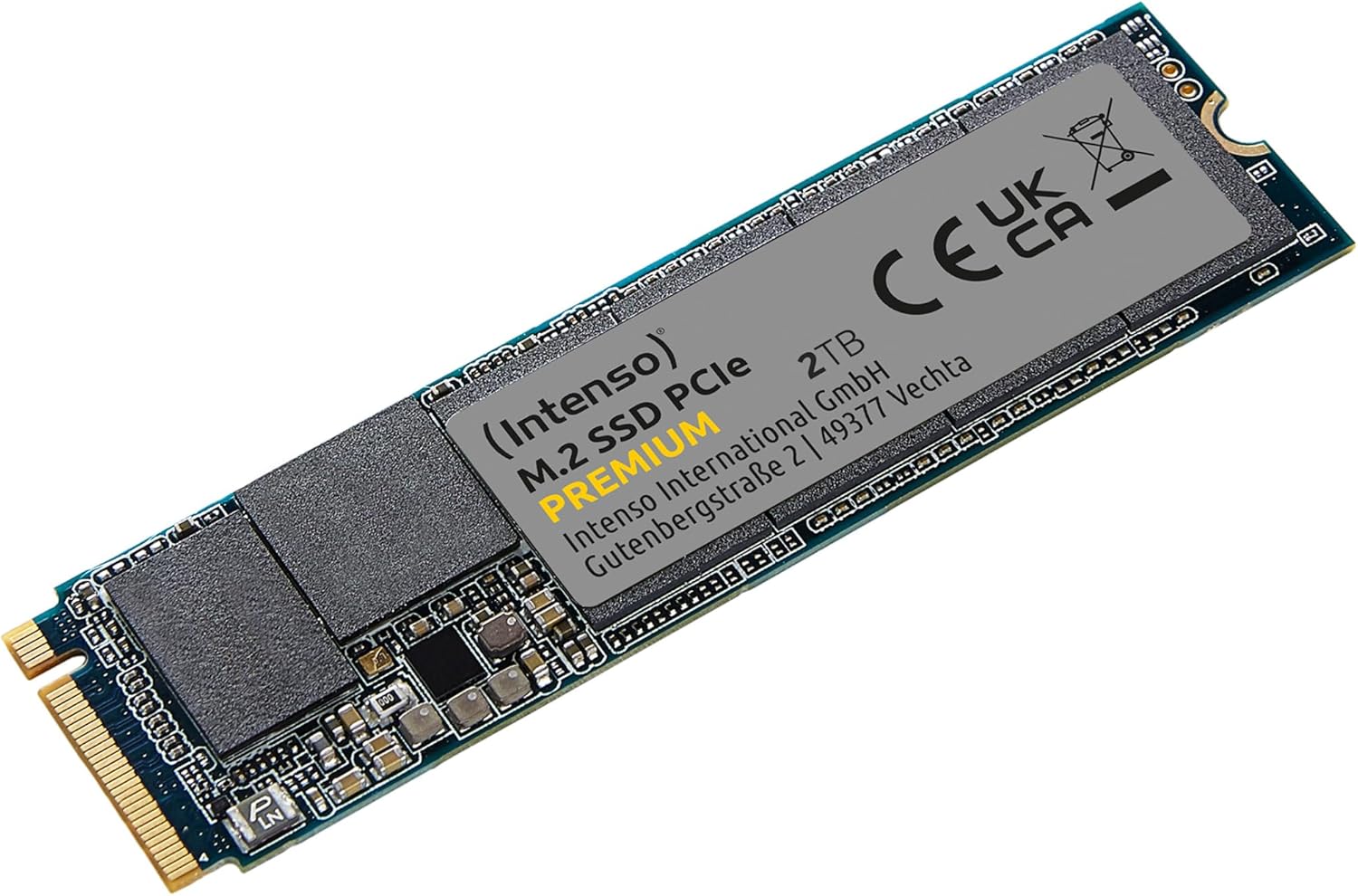
Image 2: The Intenso 2TB M.2 SSD PCIe Premium, showing its compact M.2 2280 form factor and labeling.
2.3 Initial Software Setup (Windows)
- Boot Computer: Start your computer.
- Kutarisira Dhisiki rekupinda: Dzvanya kurudyi pabhatani reStart wobva wasarudza 'Disk Management'.
- Tanga Dhisiki: If prompted, initialize the new SSD. Choose GPT (GUID Partition Table) for modern systems.
- Gadzira Vhoriyamu Itsva Iri Nyore: Right-click on the unallocated space of your new SSD and select 'New Simple Volume'. Follow the wizard to assign a drive letter and format the drive (NTFS is recommended for Windows).
- Yakagadzirira Kushandiswa: Your Intenso M.2 SSD is now ready for use as a storage drive. If you intend to install an operating system, refer to your OS installation guide.
3. Kushanda neSSD
The Intenso M.2 SSD PCIe Premium is designed for high-speed data access, making it suitable for various applications from everyday computing to demanding tasks like gaming and graphic design.
- Boot Drive: For fastest system startup and application loading, install your operating system on the SSD.
- Storage Drive: Shandisa SSD kuchengetedza nzvimbo inowanikwa nevanhu vakawanda files, games, or applications that benefit from high read/write speeds.
- Kuita: This SSD offers sequential read speeds up to 2100 MB/s and sequential write speeds up to 1700 MB/s, significantly faster than traditional SATA SSDs.
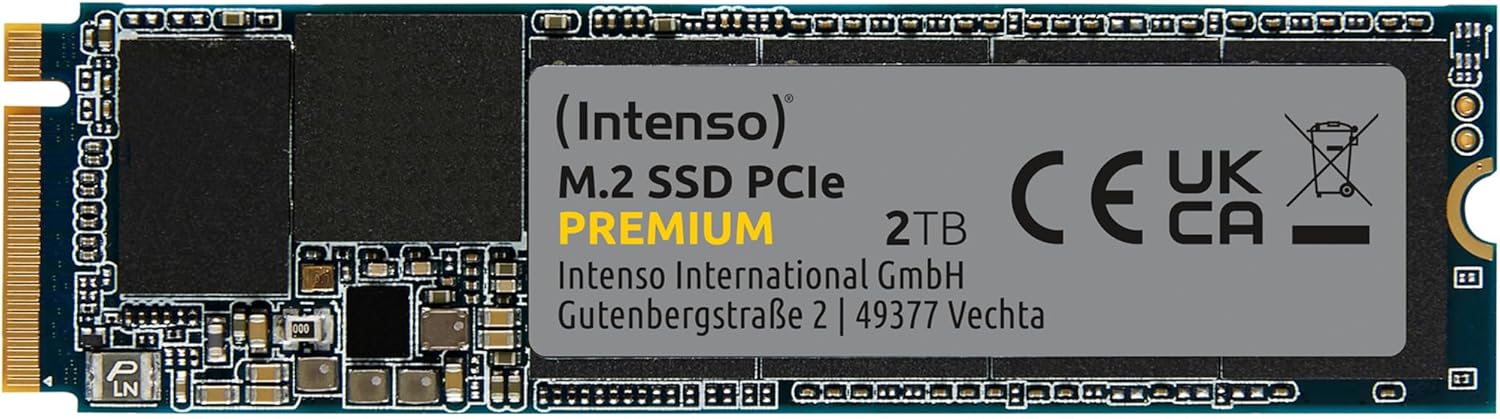
Mufananidzo 3: Yakadzama view of the Intenso 2TB M.2 SSD PCIe Premium, highlighting its internal components and labeling.
4. Kuchengeta
To ensure the longevity and optimal performance of your Intenso M.2 SSD, consider the following maintenance practices:
- Murairo weTRIM: Ensure your operating system has TRIM enabled. TRIM helps the SSD manage data blocks more efficiently, preventing performance degradation over time. Modern operating systems typically enable TRIM by default.
- Dzivisa Defragmentation: Unlike traditional hard disk drives (HDDs), SSDs do not benefit from defragmentation. Defragmenting an SSD can reduce its lifespan by causing unnecessary write cycles.
- Firmware Dzokorora: Periodically check the Intenso official website for any available firmware updates for your SSD model. Firmware updates can improve performance, stability, and compatibility.
- Monitor Drive Health: Use S.M.A.R.T. (Self-Monitoring, Analysis and Reporting Technology) tools to monitor the health status of your SSD. Many operating systems and third-party utilities offer this functionality.
- Chengetedza Nzvimbo Yemahara: Avoid filling your SSD to its maximum capacity. Keeping some free space (e.g., 10-15%) allows the SSD's wear-leveling algorithms to function effectively.
5. Kugadzirisa matambudziko
If you encounter issues with your Intenso M.2 SSD, refer to the following common troubleshooting steps:
5.1 SSD Haina Kuonekwa
- Tarisa Kubatana Kwemuviri: Ensure the SSD is correctly seated in the M.2 slot and securely fastened.
- BIOS/UEFI Settings: Enter your computer's BIOS/UEFI settings. Verify that the M.2 slot is enabled and configured correctly (e.g., NVMe mode). Some motherboards may disable certain SATA ports when an M.2 drive is in use.
- Kuiswa kwemutyairi: Ensure your operating system has the necessary NVMe drivers. Windows 10/11 typically includes native NVMe support.
- Disk Management: As described in Section 2.3, check Disk Management to see if the drive is detected but uninitialized.
5.2 Kunonoka Kuita
- M.2 Slot Speed: Confirm that your M.2 slot supports PCIe Gen.3x4 speeds. Some slots may operate at lower speeds (e.g., Gen.2 or x2 lanes).
- TRIM Status: Verify that TRIM is enabled on your operating system.
- Firmware: Check for and install any available firmware updates for the SSD.
- Kupisa zvakanyanya: Ensure adequate airflow within your computer case. Excessive heat can cause performance throttling.
- Full Drive: If the drive is nearly full, performance may decrease. Try to free up some space.
5.3 Matambudziko Ekutumirwa Kwedata
- Cable/Connection: If using an external enclosure, ensure the USB cable and enclosure connection are secure and functioning correctly.
- File Zvikanganiso zveSisitimu: Run a disk check utility (e.g.,
chkdskin Windows) to scan for and repair any file zvikanganiso zvehurongwa. - Source/Destination Drive: Ensure the source or destination drive is not experiencing issues that could bottleneck transfer speeds.
6. Zvinotsanangurwa
Key technical specifications for the Intenso 2TB M.2 SSD PCIe Premium:
| Feature | Tsanangudzo |
|---|---|
| Model Number | 3835470 |
| Capacity | 2 TB |
| Interface | PCIe Gen.3x4 NVMe 1.3 |
| Fomu Factor | M.2 2280 |
| Sequential Read Speed | Kusvikira ku2100 MB/s |
| Sequential Nyora Kumhanya | Kusvikira ku1700 MB/s |
| Dimensions (LxWxH) | 3.15 x 0.87 x 0.16 inches |
| Item Weight | 0.212 ounces |
| Hardware Platform | PC |
| Color | Nhema |
| Chii chiri muBhokisi | M.2 SSD PCIe |
7. Warranty uye Tsigiro
For detailed warranty information and technical support, please refer to the official Intenso website or contact their customer service directly. The product is typically covered by a manufacturer's warranty against defects in materials and workmanship.
- Mugadziri: Intenso
- Websaiti: Visit www.intenso.de kuti uwane ruzivo rwekutsigira, mibvunzo inowanzo bvunzwa, uye ruzivo rwekuonana.
- Uchapupu hweKutenga: Chengetedza risiti yako yekutenga sehumbowo hwekutenga kwezvichemo zvewaranti.