Nhanganyaya
Thank you for choosing the Havit Gaming Mouse MS955. This optical gaming mouse features a USB interface, adjustable DPI settings, and RGB backlighting, designed to enhance your gaming experience. This manual provides essential information for setting up, operating, and maintaining your mouse.
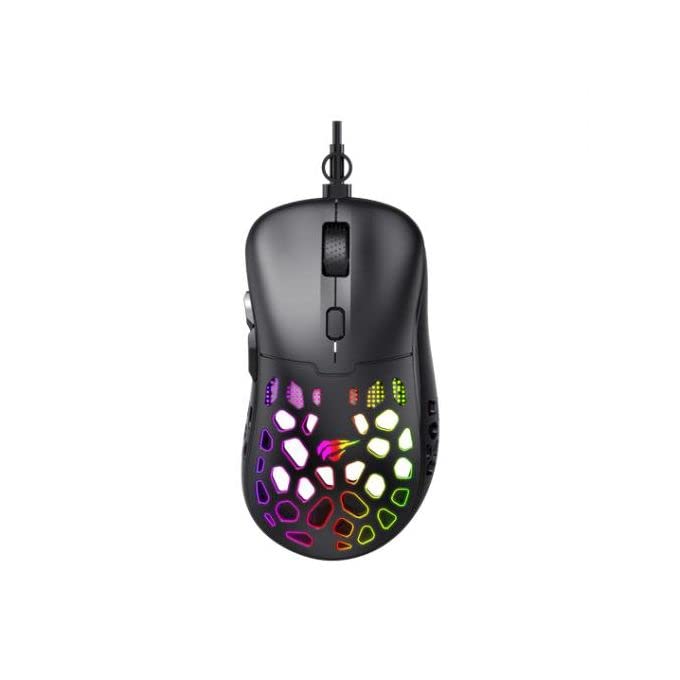
Mufananidzo: Pamusoro-pasi view of the Havit Gaming Mouse MS955, showcasing its ergonomic design and vibrant RGB lighting through the honeycomb shell.
Gadzirira
- Unpack the Mouse: Carefully remove the Havit Gaming Mouse MS955 from its packaging.
- Batanidza kuKombuta: Locate an available USB port on your computer. Insert the USB connector of the mouse into the USB port.
- Kuiswa kwemutyairi: The mouse is plug-and-play. Your operating system (Windows XP, Windows 7, Linux, etc.) will automatically detect and install the necessary drivers. No additional software installation is typically required for basic functionality.
- Test Mashandiro: Kana yangobatanidzwa, fambisa mouse wodzvanya mabhatani kuti uve nechokwadi chekuti iri kushanda nemazvo.
Operating Instruction
The Havit Gaming Mouse MS955 features 6 programmable buttons and adjustable DPI settings for precise control.

Mufananidzo: Side view of the Havit Gaming Mouse MS955, highlighting the left-side buttons and scroll wheel.
- Bhatani reKudzvanya Kuruboshwe: Primary button for selection and interaction.
- Bhatani rekudzvanya kurudyi: Secondary button for context menus and alternative actions.
- Mupumburu Wheel: Inoshandiswa pakuskorora magwaro uye web pages. It also functions as a clickable middle button.
- DPI Kugadzirisa Bhatani: Located behind the scroll wheel. Press this button to cycle through different DPI sensitivity levels (800-1200-2400-3200 DPI). Each press changes the sensitivity, allowing you to adapt to various gaming or work scenarios.
- Side Buttons: Two buttons are located on the left side of the mouse. These are typically used for 'forward' and 'backward' navigation in web browsers or can be programmed for in-game actions.
RGB Lighting
The Havit Gaming Mouse MS955 features an integrated RGB backlight system. The lighting effects are typically automatic and may change with DPI settings or cycle through various colors. There are no dedicated buttons for controlling the RGB lighting directly on the mouse.
Maintenance
- Kuchenesa: To clean the mouse, disconnect it from your computer. Use a soft, dry cloth to wipe the surface. For stubborn dirt, a slightly damp cloth can be used, ensuring no liquid enters the mouse. Do not use harsh chemicals or abrasive cleaners.
- Kuchengeta: Store the mouse in a clean, dry environment away from extreme temperatures and direct sunlight.
- Cable Care: Dzivisa kukotama kana kumonya tambo ye USB zvakanyanya kudzivirira kukuvara.
Kugadzirisa matambudziko
- Mouse Haisi Kupindura:
- Iva nechokwadi chekuti tambo yeUSB yakabatanidzwa zvakanaka muchiteshi cheUSB chiri kushanda pakombuta yako.
- Edza kubaya mbeva mune imwe USB port yakasiyana.
- Tangazve komputa yako.
- DPI Haisi Kuchinja:
- Press the DPI button firmly. Ensure you are pressing the correct button.
- The mouse cycles through fixed DPI settings; there is no visual indicator other than cursor speed change.
- RGB Mwenje Haisi Kushanda:
- Verify the mouse is properly connected to your computer.
- The RGB lighting is automatic; if the mouse is functioning otherwise, the lighting should also be active.
Zvinotsanangurwa
| Feature | Detail |
|---|---|
| Brand | Havit |
| Model | MS955 |
| Interface Type | USB |
| Dimensions | 115.2 x 63 x 37.6 mm |
| Number of Keys | 6 |
| Chipset | NST5311 |
| DPI Resolution | 800-1200-2400-3200 DPI |
| Kushanda Voltage | 5V |
| Upenyu Hwakakosha | 3,000,000 kudzvanya |
| Cable Length | 1.5 m |
| Kufambisa Kwekufamba | Optical |
| Hand Orientation | Rudyi |
| Yakakurudzirwa Kushandisa | Mutambo |
| Operating Systems | Linux, Windows 7, Windows XP |
| Color | Nhema |
Warranty uye Support
For warranty information or technical support, please refer to the documentation included with your purchase or visit the official Havit website. Chengetedza humbowo hwako hwekutenga kune warranty claim.