Nhanganyaya
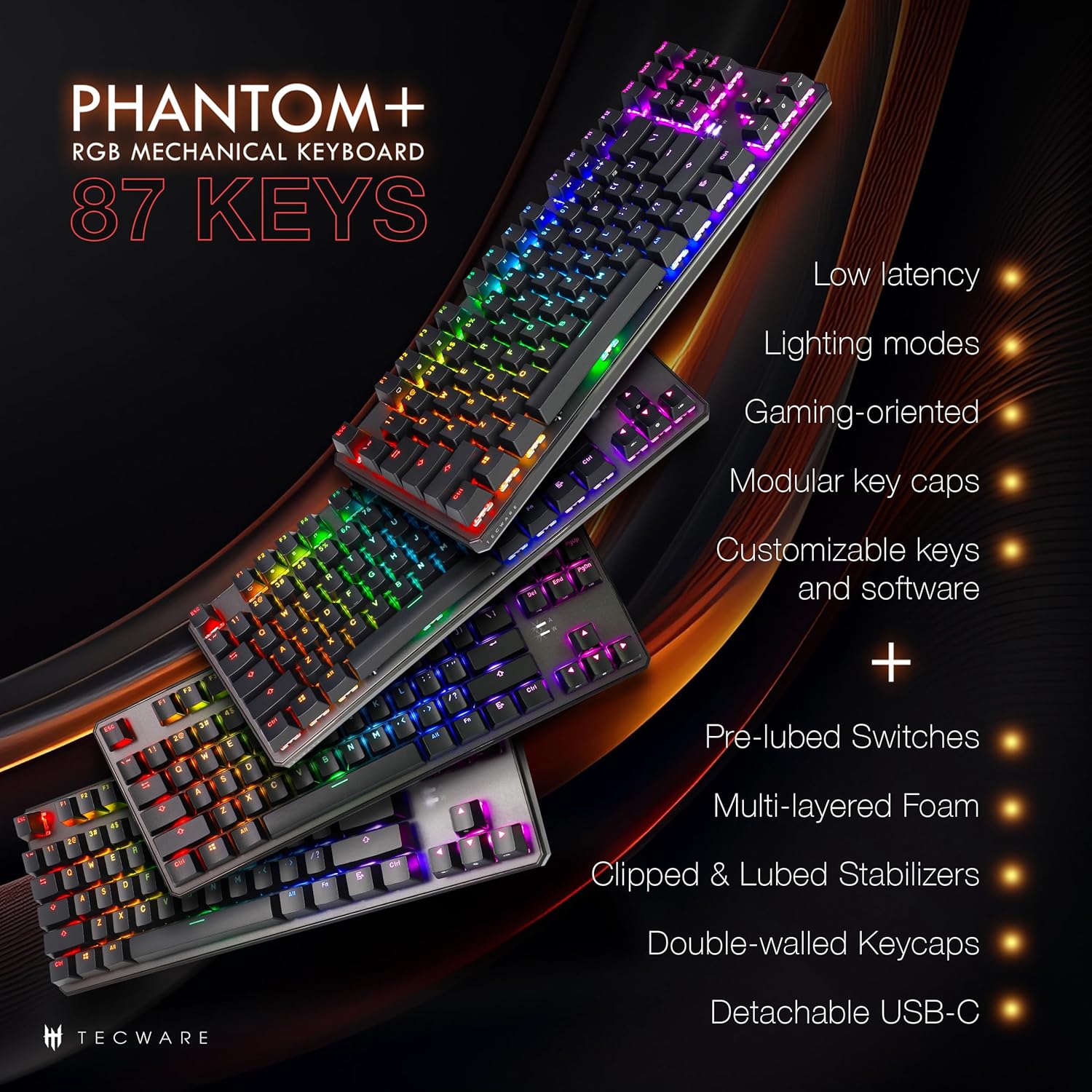
Bhuku rino rinopa mirairo yakadzama yekugadzirisa, kushandisa, kugadzirisa, uye kugadzirisa TECWARE Phantom+ 87 Key Mechanical Gaming Keyboard yako. Yakagadzirirwa ruzivo rwepamusoro rwekunyora, kiyibodi iyi ine mwenje weRGB unogadziriswa, makiyi ePBT akasimba, uye maswichi anochinjika anopisa.

Chii Inosanganisirwa
Iva nechokwadi chekuti zvinhu zvese zvinotevera zviripo mupakeji yako:
- Kiyibhodhi yeTecware Phantom+ 87 Key Mechanical Gaming
- Cable ye USB-C yakarukwa ye 1.8m inogona kubviswa
- Chinja Puller Tool
- Keycap Puller Tool
- 4 Swichi dzeZvimwe

Gadzirira
Tevedza matanho aya kuti ugadzire kiyibhodhi yako yeTECWARE Phantom+:
- Batanidza USB-C Cable: Isa mugumo we USB-C wetambo yakarukwa muchiteshi chiri kumashure kwekhibhodi.
- Batanidza kuKombuta: Batanidza iyo USB-A kupera kwetambo mune inowanikwa USB port pakombuta yako.
- Gadzirisa Makumbo eKiibhodhi: Chinja tsoka dzinogadziriswa dziri pasi pekhibhodi kuti uwane kona yekunyora yaunoda.
- Kuiswa kwemutyairi: Kiyibhodhi iyi inoshanda ne plug-and-play. Sisitimu yako yekushandisa (inokurudzirwa neWindows 10 kana gare gare) ichaona yega madhiraivha anodiwa uye ichaaisa.

Operating Instruction
Basic Operation
TECWARA Phantom+ inoshanda sekiyibhodhi ine makiyi 87 ekunyora nekutamba mitambo. Ine N-Key Rollover, ichivimbisa kuti makiyi ese akanyorwa nemazvo, kunyangwe panguva yekupinda nekukurumidza.
RGB Yemwenje Kudzora
Kiyibhodhi ine mwenje yeRGB ine mavara inosvika mamiriyoni 16.8 ine mwenje gumi nemasere (18) dzakagadzirwa kare. Midziyo iyi inogona kutenderedzwa zvakananga pakiyibhodhi uchishandisa function key combinations (tarisa magwaro akadhindwa ekiyibhodhi kuti uwane nzira pfupi). Unogona zvakare kugadzirisa kupenya nekumhanya.

Software Features
Kuti zvigadziriswe zviri nani, Phantom+ inotsigira software yakatsaurirwa. Software iyi inobvumira:
- Kurekodha Macro uye Basa
- Kusvika kune vatatu Vashandisi Vane Hunyanzvifiles
- Mwenje weRGB weKiyi Yega Yega Unogona Kugadziriswa
- Chiyero cheMushumo weUSB Chinogadziriswa (kusvika ku1000Hz)

Key Features Overview
Kiyibhodhi yePhantom+ ine magadzirirwo akasiyana-siyana uye mainjiniya ekuvandudza mashandiro uye kugara kwenguva refu:
- Kaviri-Shot PBT Keycaps: Inoramba kupfeka uye kupera, ichipa ngano dzinogara kwenguva refu.
- V3 Stabilizers: Yakachekwa uye yakazorwa mafuta kuti isimbise kugadzikana uye kudzvanya makiyi akakura zviri nyore.
- Inzwi DampTekinoroji yekugadzira: Inoderedza ruzha rwekiibhodhi kuti unyore zvinonakidza.
- Chiyero chekuvhota che1000Hz: Inovimbisa nguva yekupindura nekukurumidza pamitambo.
- Chinhu cheKiyi yeMahwindo: Inodzivirira kudzvanya kiyi yeWindows netsaona panguva yekutamba.

Maintenance
Kuchenesa
Kuti uchenese kiyibhodhi yako, ibvise pakombuta yako. Shandisa jira rakapfava, rakaoma kupukuta makiyi nechasi. Kuti uchenese zvakadzama, unogona kubvisa makiyi nokungwarira uchishandisa keycap puller yakapihwa uye kushandisa mweya wakamanikidzwa kubvisa tsvina kubva pasi.
Kutsiva Chinja (Chinochinja-Chinopisa)
TECWARA Phantom+ ine maswitch anochinjika zvinopisa, zvichikubvumidza kuti utsive maswitch ega ega pasina kusungirirwa. Izvi zvinobatsira pakugadzirisa maficha ako ekunyora kana kutsiva switch isina kunaka.
- Bvisa Keycap: Shandisa chinodhonza keycap kubvisa zvinyoro nyoro keycap kubva paswitch yaunoda kutsiva.
- Bvisa Switch: Shandisa chishandiso chekudhonza switch kuti ubate zvikamu zvepamusoro nepazasi zveswitch. Isa simba zvinyoro nyoro wodhonza switch yacho kumusoro kuti uibvise paPCB.
- Isa Chinjo Itsva: Rongedza mapini eswitch itsva nemaburi ari paPCB. Pushira switch zvinyoro nyoro pasi kusvika yadzvanya panzvimbo yayo. Iva nechokwadi chekuti mapini haana kukotama.
- Tsiva Keycap: Dzvanya keycap pa switch itsva kusvika yagara zvakanaka.

Kugadzirisa matambudziko
Kana ukasangana nematambudziko nekhibhodi yako yeTECWARE Phantom+, tarisa tafura iri pazasi kuti uwane matambudziko akajairika uye mhinduro:
| Dambudziko | Zvinogona Kukonzera | Solution |
|---|---|---|
| Kiyibhodhi haisi kudaira | Kubatana kweUSB kwakashata, waya isina kushanda zvakanaka, dambudziko remutyairi. | Iva nechokwadi chekuti tambo yeUSB yakabatana zvakanaka. Edza imwe USB port kana tambo yakasiyana. Tangazve komputa yako. |
| Mwenje weRGB haushande kana kuti hauchinji | Modhi yekuvhenekesa yakadzimwa, kusawirirana kwesoftware, dambudziko remagetsi. | Tarisa zvidzoreso zvemwenje yekhibhodi (Fn + makiyi). Iva nechokwadi chekuti software iri kushanda nemazvo. Edza kubatanidza zvakare kiyibhodhi. |
| Makiyi chaiwo haasi kushanda | Chinochinja chisina kunaka, marara ari pasi pekiyi yekiyi. | Bvisa keycap wotarisa marara. Kana zvichibvira kuchinjana nechinhu chinopisa, edza kutsiva switch nechinhu chekuwedzera. |
| Software haisi kuona kiibhodhi | Software haina kuiswa nemazvo, dambudziko rekubatanidza neUSB. | Isa zvakare software yeTECWARE. Iva nechokwadi chekuti keyboard yakabatana zvakananga neUSB port (kudzivirira mahub kana zvichibvira). Shandisa software semutongi. |
Zvinotsanangurwa
| Feature | Detail |
|---|---|
| Model | TWKB-P87PZT-WBR |
| Keys | 87-Kiyi (Tenkeyless) |
| Chinja Type | Wraith Brown (Anobata) - Anogona kuchinjwa zvakanyanya |
| Keycaps | Kaviri-pfuti PBT |
| Lighting | RGB (Mamiriyoni 16.8 emavara, 18 maModhi Akatogadziriswa) |
| Kubatana | USB-C inobviswa |
| Polling Rate | Kusvika ku1000Hz |
| N-Kiyi Rollover | Inotsigirwa |
| Stabilizers | V3 (Yakachekwa & Yakazorwa) |
| Dimensions (LxWxH) | 14.21 x 5.2 x 1.65 inches |
| Kurema | 2.71 makirogiramu |
| Inoenderana OS | Windows 10 (Kombiyuta, Laptop, Tablet) |
Magadzirirwo eWraith Switch
Kiyibhodhi yePhantom+ inouya yakaiswa kare neTECWARE Wraith switches. Magadzirirwo emhando dzakasiyana dzeWraith switch anotsanangurwa pazasi:

Warranty uye Support
Kuti uwane ruzivo rwewarandi, rutsigiro rwehunyanzvi, kana kuti uwane software yazvino nemadhiraivha ekhibhodi yako yeTECWARE Phantom+, ndapota shanyira TECWARA yepamutemo. websaiti kana kubata basa ravo revatengi.
Unogona kuwana rumwe ruzivo uye zviwanikwa zvekutsigira nekushanyira iyo Chitoro cheTECWARE chepamutemo paAmazon.


