Nhanganyaya
This manual provides essential information for the proper setup, operation, and maintenance of your Unitech TS100 2D Hands-Free Presentation Barcode Scanner. Please read this manual thoroughly before using the device to ensure optimal performance and to prevent damage.
The Unitech TS100 is an omnidirectional USB wired desktop barcode reader designed for efficient and intuitive scanning of 1D and 2D barcodes, including PDF417 and Data Matrix, in retail and other point-of-sale environments.
Safety Information
- Do not expose the scanner to extreme temperatures, humidity, or direct sunlight.
- Avoid dropping the scanner or subjecting it to strong impacts.
- Do not attempt to disassemble or modify the scanner. This will void the warranty.
- Shandisa tambo yeUSB yakapihwa chete pakubatanidza.
- Keep the scanning window clean to ensure accurate barcode reading.
Package Zviri mukati
Ndokumbira utarise zvirimo pasuru kuti uone kuti zvinhu zvese zviripo:
- Unitech TS100 2D Presentation Barcode Scanner
- USB Cable
- Quick Start Guide (kana iripo)
Product Overview
The Unitech TS100 features a compact design with a large scan window for easy barcode presentation. Its omnidirectional scanning capability allows for quick and efficient data capture.
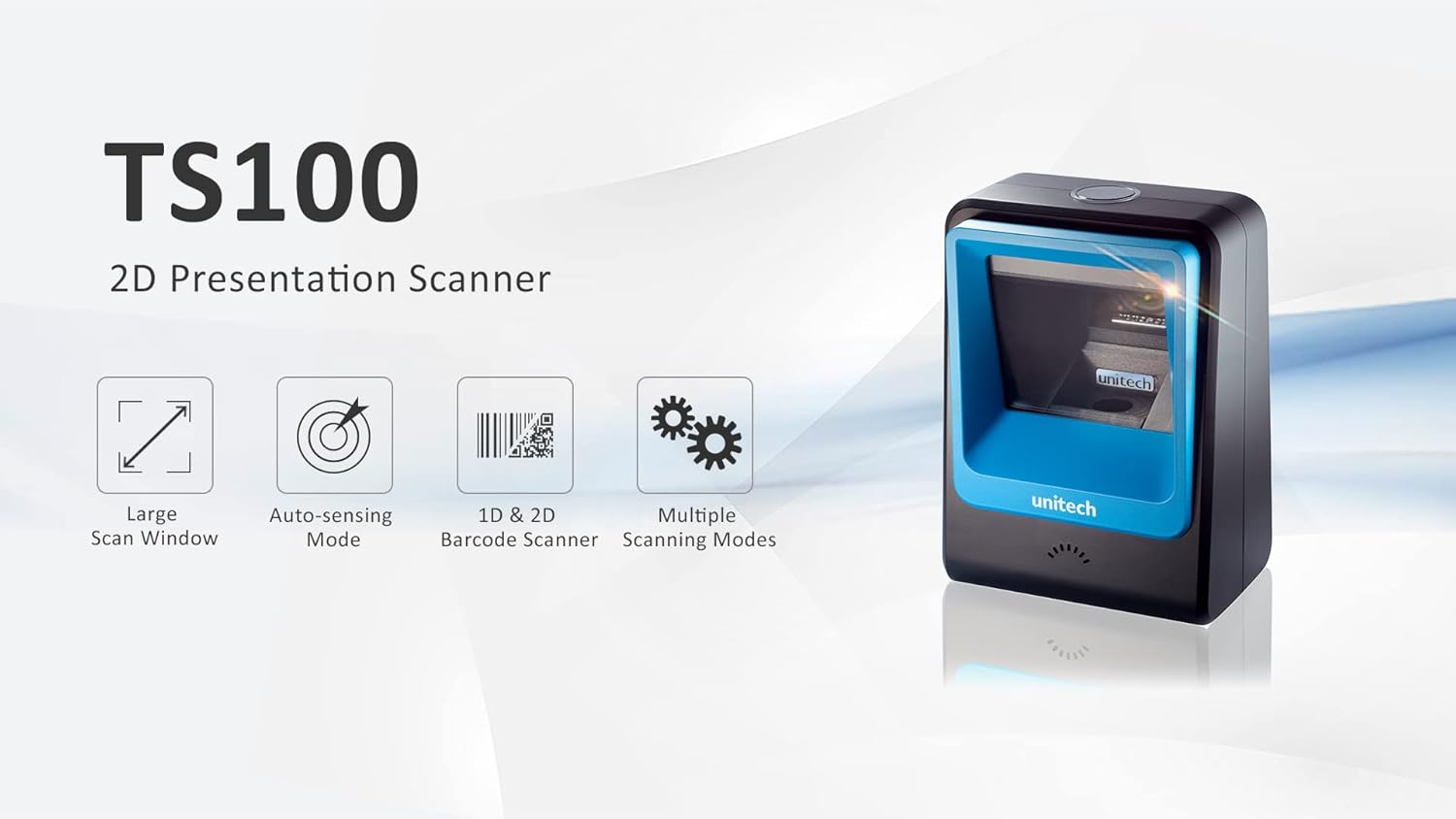
Figure 1: Unitech TS100 2D Presentation Scanner highlighting its large scan window, auto-sensing mode, 1D & 2D barcode scanning, and multiple scanning modes.

Mufananidzo 2: Mberi view of the Unitech TS100 scanner, showing the blue scanning window and the Unitech logo.

Mufananidzo 3: Kudzoka view of the Unitech TS100 scanner, displaying the product label with model number TS100-SUCB00-SG and power specifications.
Gadzirira
Follow these steps to set up your Unitech TS100 barcode scanner:
- Bvisa Scanner: Carefully remove the TS100 scanner and its accessories from the packaging.
- Batanidza USB Cable: Insert the USB cable into the port at the back of the scanner.
- Batanidza kune Host Device: Plug the other end of the USB cable into an available USB port on your computer, laptop, or POS system.
- Kuiswa kwemutyairi: Iyo scanner inowanzo plug-uye-kutamba. Yako yekushandisa system inofanirwa kuona uye kuisa madhiraivha anodiwa. Mirira kuti kuiswa kupere.
- Power On: The scanner will power on automatically once connected to a powered USB port. A beep and/or LED indicator will confirm it is ready for use.
Operating Instruction
The Unitech TS100 is designed for hands-free operation, offering multiple scanning modes for various applications.
Basic Scanning
- Place the barcode within the scanner's field of view, facing the scanning window.
- The scanner will automatically detect the barcode and emit a successful scan indication (e.g., a beep and/or green LED).
- The scanned data will be transmitted to your connected host device as keyboard input.
Scanning Modes
The TS100 supports multiple scanning modes to optimize performance for different barcode types and environments:
- Normal Mode: Standard scanning for most 1D and 2D barcodes.
- Smartphone Mode: Optimized for reading barcodes displayed on smartphone screens, which can sometimes be reflective.
- Rapid Mode: Designed for faster scanning of multiple barcodes in quick succession.
Refer to the full programming manual (available on the Unitech website) for instructions on how to switch between these modes using configuration barcodes.
Maintenance
Proper maintenance ensures the longevity and performance of your scanner:
- Kuchenesa Hwindo reKuskena: Shandisa jira rakapfava, risina jira zvinyoro dampyakavharirwa nemvura kana muchenesi wakapfava, usinga pfumbi. Usashandise makemikari ane hasha kana abrasive zvinhu.
- Kuchenesa Kunze: Wipe the exterior of the scanner with a soft, dry cloth.
- Kuchengeta: When not in use, store the scanner in a clean, dry environment away from direct sunlight and extreme temperatures.
Kugadzirisa matambudziko
If you encounter issues with your TS100 scanner, refer to the table below for common problems and solutions:
| Dambudziko | Zvinogona Kukonzera | Solution |
|---|---|---|
| Scanner haibatike. | USB cable not properly connected or host device USB port is not powered. | Iva nechokwadi chekuti tambo yeUSB yakabatana zvakachengeteka kune scanner nemudziyo wehost. Edza imwe USB port kana mudziyo wehost. |
| Scanner haiverenge mabarcode. | Barcode is damaged, poorly printed, or not supported. Scanning window is dirty. Incorrect scanning mode. | Ensure the barcode is clear and undamaged. Clean the scanning window. Verify the barcode symbology is supported. Try switching scanning modes (e.g., Smartphone Mode for screen barcodes). |
| Data yakaongororwa haina kururama kana kuti haina kukwana. | Poor barcode quality. Scanner configuration issues. | Ensure the barcode is clear. Refer to the programming manual for advanced configuration settings. |
| Scanner beeps but no data is transmitted. | Host device not recognizing the scanner as a keyboard input. | Ensure the cursor is in a text field on your host device. Reconnect the USB cable. Restart the host device. |
Zvinotsanangurwa
Detailed technical specifications for the Unitech TS100 scanner:
| Feature | Tsanangudzo |
|---|---|
| Sensor | Image Sensor with 1280x800 pixels |
| Kuvhenekera | 650nm RED LED |
| Scan Rate | 60 fps |
| Skew Angle | Horizontal Angle: 50°; Vertical Angle: 35° |
| Pinda Angle | ±65° |
| Roll Angle | 360° |
| Optical Resolution | 1D: 4 mil; 2D: 6.7 mil |
| Printing Contrast Scale | 25% |
| Host inowanikwa | USB |
| Dimensions (L x W x H) | 4.1 mukati x 5.7 mukati x 2.7 mukati (105mm x 146mm x 70mm) |
| Kurema | 12.1 oz / 345g (without cable) |
| 1D Symbologies Supported | UPC-A/E, EAN-8/13, UPC/EAN Supplementals, EAN-8 Extend, Code 128, Code 39, Code 93, Code 11, Interleaved 2 of 5, Matrix 2 of 5, Codabar, MSI Plessey, GS1 DataBar, China Postal, Korean Postal, etc. |
| 2D Symbologies Supported | PDF417, MicroPDF417, DataMatrix, DataMatrix-Inverse, Maxicode, QRcode, MicroQR, Aztec, Aztec Inverse, Han Xin, Han Xin Inverse |
| Indicator | LED, Buzzer |
| Operating Temperature | 32°F kusvika 122°F (0°C kusvika 50°C) |
| Storage Temperature | -40°F kusvika 158°F (-40°C kusvika 70°C) |
| Relative Humidity | 0% kusvika 95% isina-condensing |
Warranty uye Support
The Unitech TS100 barcode scanner main unit comes with a 1-makore waranti kubva pazuva rekutenga. Iyi waranti inovhara kukanganisa mune zvigadzirwa uye magadzirirwo pasi pekushandiswa kwakajairwa.
For technical support, warranty claims, or further assistance, please contact Unitech customer service or visit the official Unitech webWebhusaiti. Chengeta risiti yako yekutenga sehumbowo hwekutenga kwemabasa ewaranti.
Unitech America Websaiti: www.unitechamerica.com


