Nhanganyaya
This manual provides detailed instructions for setting up, operating, and maintaining your Mytrix Gold Wireless Switch Controller. Please read this manual thoroughly before use to ensure proper functionality and to maximize your gaming experience.

Mufananidzo: Mberi view of the Mytrix Gold Wireless Switch Controller, showcasing its gold glitter finish and illuminated joysticks.
Package Zviri mukati
Ita shuwa kuti zvinhu zvese zviripo usati waenderera nekuseta:
- 1 x Mytrix Gold Wireless Switch Controller
- 1 x USB C to A charging cable
- 1 x Chinyorwa cheMushandisi (gwaro iri)
Setup Guide
1. Kuchaja Controller
The controller comes with a built-in 600mAh rechargeable battery. Before first use, or when the battery is low, charge the controller using the provided USB C to A cable.
- Connect the USB-C end of the cable to the controller's charging port.
- Connect the USB-A end of the cable to a compatible USB power source (e.g., Nintendo Switch dock, PC USB port, USB wall adapter).
- The charging indicator lights on the controller will show charging progress. A full charge typically takes approximately 2 hours.

Image: Close-up of the controller's charging port and an illustration of battery charging progress.
2. Kubatanidza Controller
The Mytrix Gold Wireless Switch Controller supports both wireless (Bluetooth) and wired connections across multiple platforms.
Kubatanidza Pasina Waya (Bluetooth)
This controller is compatible with Nintendo Switch/Lite/OLED, iOS devices (iOS 13.4 and above), and Android devices (Android 10.0 and above).
- For Nintendo Switch/Lite/OLED:
- Kubva pane HOME Menyu, sarudza Controllers, zvino Shandura Grip/Order.
- While the screen is displaying "Press L + R on the controller", press and hold the Bhatani repamba on the Mytrix controller for 3-5 seconds until the indicator lights flash rapidly.
- Once connected, the player indicator light(s) on the controller will remain solid.
- For iOS/Android Devices:
- Gonesa Bluetooth pane yako iOS kana Android mudziyo.
- On the Mytrix controller, press and hold the Bhatani repamba for 3-5 seconds to enter pairing mode.
- Tsvaga "Mytrix Controller" or similar in your device's Bluetooth settings and select it to pair.

Image: The controller shown with various compatible devices including Nintendo Switch, Windows PC, Steam Deck, iOS, and Android.
Wiring Yakabatana
This controller supports wired connection for Nintendo Switch, Windows PC, Steam, and Steam Deck.
- Connect the USB-C end of the charging cable to the controller.
- Connect the USB-A end to a USB port on your Nintendo Switch dock, Windows PC, Steam, or Steam Deck.
- Mutongi anofanirwa kuzivikanwa otomatiki uye akagadzirira kushandiswa.
Operating Instruction
1. Bhatani Magadzirirwo
The Mytrix Gold Wireless Switch Controller features a standard layout with all necessary buttons for gaming. This includes two analog sticks, a D-pad, A/B/X/Y face buttons, L/R shoulder buttons, ZL/ZR triggers, Home, Capture, Plus (+), Minus (-), and programmable back buttons (MR/ML).
Mufananidzo: Mberi view of the Mytrix Gold Wireless Switch Controller, showing the arrangement of its buttons and joysticks.
2. Dynamic Joystick RGB Lighting
The controller features dynamic RGB lighting around the joysticks with 7 different colors and 4 lighting modes to enhance your gaming atmosphere.
- Lighting Modes: Mixed-Color Wave, Color Breathing Mode, Single Color Mode, OFF Mode.
- Refer to the quick start guide or the controller's specific button combinations for cycling through modes and adjusting brightness.

Image: The controller with its joysticks illuminated by dynamic RGB lighting, highlighting the 7 colors, adjustable brightness, and lighting modes.
3. Turbo Function
The Turbo function allows for rapid, automatic pressing of buttons, reducing finger fatigue during repetitive actions.
- Manhanho Anochinjika: 5, 15, or 25 shots per second.
- Compatible Buttons: A, B, X, Y, L, ZL, R, ZR.
- To activate/deactivate Turbo, press the Turbo button (often indicated by a fan icon or 'T') simultaneously with the desired action button. Repeat to cycle through speeds or turn off.

Image: A user's hands holding the controller, with an overlay demonstrating the auto-fire turbo function and its adjustable speeds (5, 15, 25 shots/s).
4. Motion Control (6-Axis Gyro)
The integrated 6-Axis Gyro motion sensors provide precise movement controls, enhancing aiming and turning performance in compatible games.
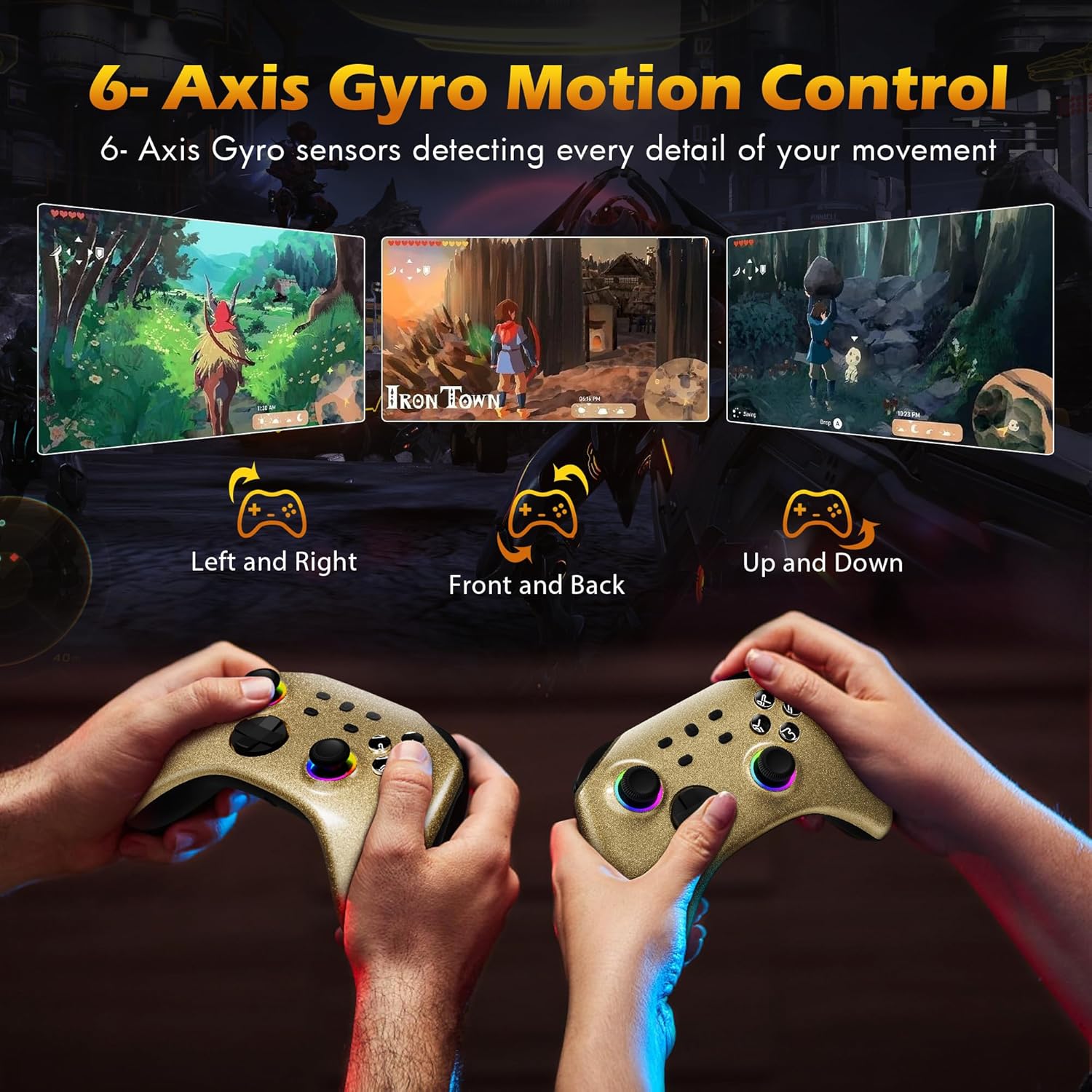
Image: Two controllers being held, illustrating how 6-Axis Gyro sensors detect left/right, front/back, and up/down movements for in-game control.
5. Adjustable Vibration
Dual motors provide immersive vibration feedback. The intensity can be adjusted to your preference.
- Vibration Levels: 4 adjustable levels.
- Consult the controller's specific button combinations for adjusting vibration intensity.

Image: The controller with visual effects indicating vibration, showing four adjustable intensity levels (0%, 30%, 70%, 100%).
6. Home Button Remote Wake-Up
When the controller is paired with your Nintendo Switch console, you can press the Home button on the controller to automatically connect and wake up the console from sleep mode.
7. Headphone Jack
A 3.5mm stereo headphone port is included, supporting wired headset audio and chat functionality when connected to the console via wired communication.

Image: Diagram showing the controller connected to a Nintendo Switch console via wired communication, with headphones plugged into the controller's 3.5mm jack for audio.
8. Official Product Video
Watch the official product video for a visual guide on the controller's features and functions.
Video: An official Mytrix video showcasing the Gold Wireless Pro Controller's features, including multi-platform compatibility, RGB lighting, Turbo function, motion sensors, vibration, battery life, and headphone jack.
Maintenance
- Kuchenesa: Shandisa jira rakapfava, rakaoma kuchenesa controller. Dzivisa kushandisa makemikari ane hasha kana abrasive zvinhu.
- Kuchengeta: Chengetedza controller munzvimbo inotonhorera, yakaoma kure nechiedza chezuva uye tembiricha yakanyanyisa.
- Battery Care: Kuti bhatiri rirambe richishanda kwenguva refu, dzivisa kuburitsa simba remutongi nguva nenguva. Richaje nguva dzose, kunyangwe risingashandiswe nguva dzose.
Kugadzirisa matambudziko
| Dambudziko | Possible Solution |
|---|---|
| Controller does not connect wirelessly. |
|
| Mabhatani kana majoystick haashande. |
|
| Vibration is too strong/weak or absent. |
|
| Headphone jack not working. |
|
Zvinotsanangurwa
- Model Number: ns-gold
- Kubatana: Waya isina waya (Bluetooth), Waya ine waya (USB-C)
- Kuenderana: Nintendo Switch/Lite/OLED, Windows PC, Steam, Steam Deck, iOS (13.4+), Android (10.0+)
- Bhatiri: 600mAh Rechargeable (15-18 hours playtime, 2 hours charging time)
- Features: 7-Color RGB Dynamic Joystick Lighting (4 modes), 3-Speed Adjustable Turbo Function, 6-Axis Gyro Motion Control, 4-Level Adjustable Vibration, Home Button Remote Wake-Up, 3.5mm Headphone Jack
- Dimensions: 6.06 x 4.37 x 2.32 inches
- Kurema 13.05 ounces
- Mugadziri: Mytrix
Warranty uye Support
Mytrix provides a 1-Yegore Warranty for this controller. If you encounter any issues or have questions regarding your product, please do not hesitate to contact Mytrix customer support.
For further assistance, please visit the official Mytrix store or contact their customer service channels. You can find more information at: Mytrix Amazon Store


