1. Nhanganyaya
This manual provides detailed instructions for the ENDORFY Thock Wireless Mechanical Keyboard, model EY5A078. It covers setup, operation, maintenance, and troubleshooting to ensure optimal performance and longevity of your device. Please read this manual thoroughly before using the keyboard.

Image 1.1: The ENDORFY Thock Wireless Mechanical Keyboard EY5A078. This image displays the full QWERTY layout with illuminated keys, showcasing the keyboard's design and RGB capabilities.
2. Package Zviri mukati
Tarisa uone kuti zvinhu zvese zviripo mupakeji:
- ENDORFY Thock Wireless Mechanical Keyboard EY5A078
- USB-C to USB-A Cable (detachable)
- 2.4 GHz USB Receiver
- Keycap Puller
- Chinja Puller
- Mushandisi Chinyorwa (gwaro iri)
3. Setup uye Connection
The ENDORFY Thock Wireless Mechanical Keyboard offers three connection modes: wired, 2.4 GHz wireless, and Bluetooth.
3.1. Wired Connection
- Locate the USB-C port on the keyboard (typically on the back or top edge).
- Connect the provided USB-C to USB-A cable to the keyboard.
- Batanidza iyo USB-A kupera kwetambo kune inowanikwa USB port pakombuta yako.
- Kiyibhodhi ichaonekwa yega uye yagadzirira kushandiswa.
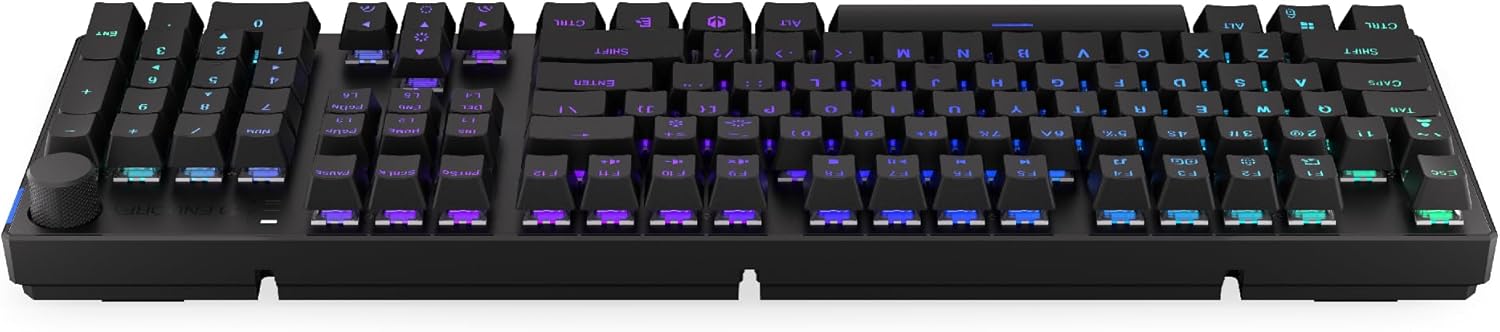
Mufananidzo 3.1: Kurutivi view of the keyboard, highlighting the USB-C port for wired connection and charging.
3.2. 2.4 GHz Wireless Connection
- Locate the 2.4 GHz USB receiver. It may be stored in a compartment on the underside of the keyboard.
- Plug the 2.4 GHz USB receiver into an available USB port on your computer.
- On the keyboard, locate the mode switch (usually on the back or side) and set it to the 2.4 GHz wireless mode (often indicated by a specific icon or "2.4G").
- The keyboard should automatically connect. An indicator light may confirm the connection.

Image 3.2: Underside of the keyboard, showing the compartment for storing the 2.4 GHz USB receiver and adjustable feet.
3.3. Kubatana kweBluetooth
- On the keyboard, set the mode switch to Bluetooth mode (often indicated by a Bluetooth icon or "BT").
- The keyboard may have multiple Bluetooth profiles (e.g., BT1, BT2, BT3). Select one by pressing Fn + 1, Fn + 2, or Fn + 3. The corresponding indicator light will flash.
- Pakombiyuta yako kana mudziyo, vhura maBluetooth settings wotsvaga zvishandiso zvitsva.
- Select "ENDORFY Thock Wireless" (or similar name) from the list of available devices.
- Tevedzera chero pa-skrini yekurudziro kuti upedze iyo pairing maitiro.
- Once paired, the indicator light on the keyboard will stop flashing and remain solid.
4. Kushanda
4.1. Key Functions and Shortcuts
The keyboard features various function key combinations (Fn + Key) for multimedia control, lighting adjustments, and other settings.
- Fn + F1-F12: Multimedia and system functions (e.g., volume control, media playback, calculator). Refer to the keycap legends for specific functions.
- Makiyi eFn + Arrow: Adjust RGB lighting effects (e.g., brightness, speed, direction).
- Fn + 1/2/3: Switch between Bluetooth profiles.
- Fn + 4: Switch to 2.4 GHz wireless mode.
- Fn + 5: Chinja kune wired mode.
4.2. RGB Lighting Control
The ENDORFY Thock keyboard features programmable RGB backlighting. Use the following combinations to customize the lighting:
- Fn + Museve Wekurudyi: Change lighting effect.
- Fn + Museve wekuruboshwe: Change lighting effect direction.
- Fn + Museve Wekumusoro: Wedzera kupenya.
- Fn + Museve Wakadzika: Deredza kupenya.
- Fn + Ins: Shandura ruvara.
- Fn + Del: Adjust effect speed.
4.3. Vhoriyamu Knob
The dedicated volume knob located on the top right of the keyboard allows for quick audio adjustments.
- Tenderedza Wachi: Wedzera inzwi.
- Tenderedza uchitevedza wachi: Deredza inzwi.
- Dzvanya Pasi: Dzima/Dzimisa ruzha.

Image 4.1: Detail of the volume knob and status indicator lights, located on the upper right side of the keyboard.
4.4. Swichi Dzinochinja-chinja Dzinopisa
The ENDORFY Thock keyboard features hot-swappable switches, allowing you to change mechanical switches without soldering. This enables customization of typing feel.
- Bvisa Keycap: Shandisa chinodhonza keycap chakapihwa kubvisa zvinyoro nyoro keycap yaunoda.
- Bvisa Switch: Use the provided switch puller to carefully grip the top and bottom clips of the switch and pull it straight up.
- Isa Chinjo Itsva: Gadzirisa mapini eswitch itsva nemaburi ari paPCB. Dzvanya switch zvakasimba kusvika yadzvanya panzvimbo yayo. Iva nechokwadi chekuti mapini haana kukotama.
- Tsiva Keycap: Dzorera keycap pa stem itsva ye switch.

Mufananidzo 4.2: A pedyo-up view of the Kailh Box Brown mechanical switches, demonstrating the hot-swappable design.
5. Kuchengeta
5.1. Kuchenesa Keyboard
Kuchenesa nguva dzose kunobatsira kuchengetedza mashandiro ekhibhodi uye chitarisiko chayo.
- Bvisa kiibhodhi kubva pakombuta yako usati wachenesa.
- Use a keycap puller to remove keycaps for thorough cleaning.
- Shandisa mweya wakamanikidzwa kubvisa huruva nemarara kubva pakati pemakiyi.
- Wipe keycaps and the keyboard surface with a soft, damp jira. Dzivisa makemikari ane hasha.
- Iva nechokwadi chekuti kiyibhodhi yakaoma zvachose usati wabatanidzazve.
5.2. Keycap uye Switch Replacement
Refer to Section 4.4 for detailed instructions on replacing keycaps and switches. Use only compatible keycaps and switches to avoid damage.
6. Kugadzirisa matambudziko
| Dambudziko | Zvinogona Kukonzera | Solution |
|---|---|---|
| Kiyibhodhi haisi kudaira (Wired) | Kubatana kwetambo kwakasununguka, USB port isina kushanda zvakanaka. | Iva nechokwadi chekuti tambo yeUSB-C yakabatana zvakanaka. Edza imwe chiteshi cheUSB kana tambo yakasiyana. |
| Kiyibhodhi haisi kudaira (Wireless) | Low battery, incorrect mode, receiver not plugged in, pairing issue. | Charge the keyboard. Ensure mode switch is set correctly (2.4G or BT). Re-pair Bluetooth or re-insert 2.4 GHz receiver. |
| RGB mwenje haisi kushanda | Lighting turned off, low battery, software issue. | Check lighting controls (Fn + Arrow keys). Charge the keyboard. Restart computer. |
| Keys double-typing or not registering | Dust/debris under switch, faulty switch. | Clean under keycaps with compressed air. If issue persists, replace the switch (refer to Section 4.4). |
7. Zvinotsanangurwa
- Muenzaniso: EY5A078
- Brand: ENDORFY
- Kubatana: Wired (USB-C), 2.4 GHz Wireless, Bluetooth
- Chinja Type: Kailh Box Brown (Hot-swappable)
- Keycaps: PBT Kaviri Shot
- Magadzirirwo: QWERTY yakazara
- Backlighting: Programmable RGB
- Operating Systems: Linux, Mac OS X 10.12 Sierra, Windows 10
- Ruvara: Nhema
- Material: Polybutylene terephthalate (PBT)
- Special Features: Detachable cable, Volume knob with mute, Hot-swappable switches
- Bhatiri: Lithium-ion (inosanganisirwa)
8. Warranty uye Tsigiro
ENDORFY products are covered by a manufacturer's warranty. For detailed warranty information, please refer to the warranty card included with your product or visit the official ENDORFY website. For technical support, product inquiries, or service requests, please contact ENDORFY customer support through their official channels.
Official Websaiti: www.endorfy.com
9. Safety Information
- Chengeta kiibhodhi kure nemvura uye hunyoro hwakawandisa.
- Dzivisa kufumura kiibhodhi kune tembiricha yakanyanyisa.
- Do not attempt to disassemble or modify the keyboard beyond hot-swapping switches and keycaps, as this may void the warranty and cause damage.
- Use only the provided or recommended charging cable.
- Dispose of the battery and electronic components responsibly according to local regulations.


