Nhanganyaya
This manual provides detailed instructions for the Angetube 4K AI Webcam (Model 913AI). It covers product features, setup, operation, maintenance, troubleshooting, and technical specifications to ensure optimal performance and user experience.
Chii chiri muBhokisi
- Webcam
- Remote Controller
- USB 3.0 yekubatanidza tambo
- USB-C kuenda ku USB-A Adapter
Product Overview uye Key Features

The Angetube 4K AI Webcam, shown with its remote control, USB 3.0 cable, and USB-C to USB-A adapter.
4K Sony CMOS Sensor
The webcam features a high-quality Sony CMOS sensor, delivering 3840x2160 UHD resolution at 30 fps or 1080p at 60fps. This sensor ensures vivid imagery with exceptional clarity, vibrant colors, and sharp details, even in low-light conditions due to its super high SNR (Signal-to-Noise Ratio) capability.
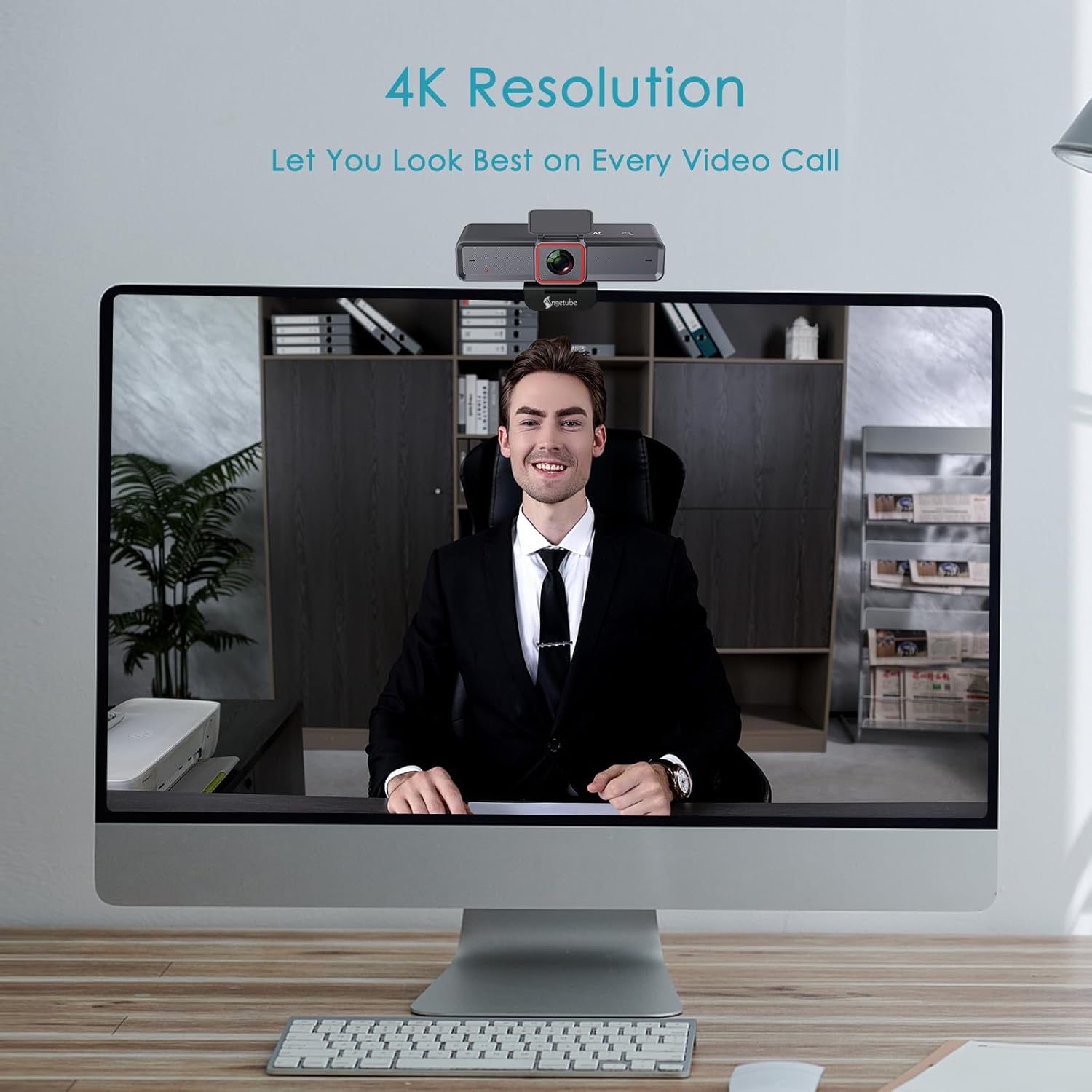
The webcam provides clear 4K resolution for video calls, ensuring high visual quality.
AI-Tracking with Auto-Framing
Advanced face detection AI automatically frames the video based on the number of participants, keeping the focus centralized. The presenter tracking feature intelligently follows the presenter as they move. AI functions can be activated via the remote control or touch switch.

The AI-tracking feature keeps the subject in frame, even when moving.
Demonstration of the 4K AI webcam's features, including 3DNR and true color reproduction, and remote control functionality.
Remote Control and 10X Digital Zoom
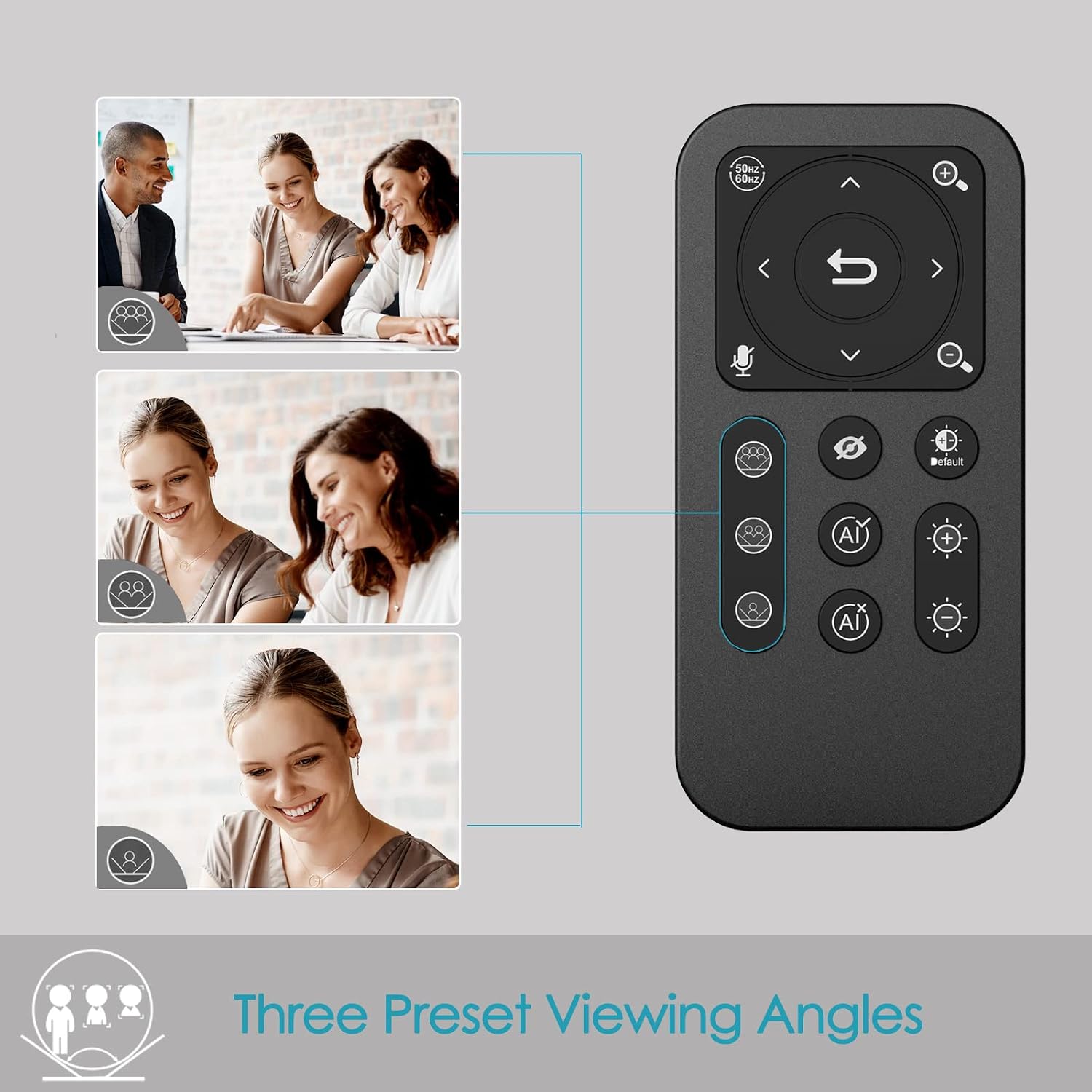
The included remote control allows for convenient operation away from the desk. Functions include activating/deactivating AI, 10X digital zoom, disabling video, muting the microphone, and flipping the image. Brightness can also be adjusted without software. Cherechedza: To manually zoom, first turn off AI.

The webcam offers up to 10X digital zoom, controllable via the remote or touch controls.

The remote control provides access to various webcam functions, including AI mode, zoom, and privacy settings.
High-Speed USB 3.0 Connectivity
The webcam connects via a lightning-fast USB 3.0 port, providing a 5Gbps camera signal for maximum video performance without compression. It features a plug-and-play USB-C connector, requiring no driver installation.

The USB 3.0 interface ensures fast data transfer for smooth, high-quality video.
Clear Voice Pickup with Dual AI Noise-Cancelling Microphones
Built-in dual AI noise-cancelling microphones remove ambient sounds, ensuring clear voice pickup up to 5m/16ft. This feature enhances audio clarity for all participants.
HDR-Enabled
Activate HDR at 30FPS to enhance your stream with a full spectrum of vibrant colors. HDR improves the video's dynamic range and corrects over and underexposed areas, providing a more balanced image.
HDR mode provides perfect lighting and color balance in various environments.
Setup Guide
1. Kubatanidza iyo Webcam
The Angetube 4K AI Webcam is designed for plug-and-play functionality. Simply connect the provided USB 3.0 cable from the webcam to an available USB 3.0 port on your computer. If your computer only has USB-C ports, use the included USB-C to USB-A adapter.
2. Kuisa Webcam
The webcam features an integrated mounting clip that can be securely placed on top of your monitor or laptop screen. Ensure the clip is stable and the webcam is level. Alternatively, the webcam is compatible with standard tripods for flexible placement.

The webcam can be mounted on a monitor or used with a tripod for versatile setup.
3. Initial Software Recognition
Upon connecting, your operating system should automatically recognize the webcam. No additional drivers are typically required. You can then select the Angetube 4K AI Webcam as your video and audio input device within your preferred video conferencing or streaming application.
Operating Instruction
Kushandisa Remote Control
The remote control provides comprehensive control over the webcam's features:
- AI Function On/Off: Toggle AI-tracking and auto-framing.
- Digital Zoom: Use the zoom buttons to magnify the image up to 10X. Remember to turn off AI before manual zooming.
- Video Disable: Turn off the video feed for privacy.
- Maikorofoni Kunyarara: Mute the built-in microphones.
- Mufananidzo Flip: Adjust image orientation.
- Kugadzirisa Kupenya: Control exposure for optimal lighting.
- Munda we View (FOV) Kugadziriswa: Use arrow buttons to pan/tilt the view.
- Reset Bhatani: Return FOV and zoom to default settings.
Touch Controls on Webcam
The webcam also features touch-sensitive controls for quick adjustments:
- AI Touch On/Off: Activate or deactivate AI features by touching the designated area on the webcam.
- Zoom Touch Adjustment: Fine-tune zoom levels directly from the webcam.
Privacy Features
For enhanced privacy, the webcam includes a physical privacy cover that can be closed over the lens when not in use. Additionally, the remote control offers a one-touch button to disable the video feed.
Enhanced Control with Angetube Webcam Software
For advanced settings and fine-tuning, Angetube provides dedicated webcam software. This software allows you to customize various parameters to ensure your webcam performs optimally for your specific needs.
Please visit the official Angetube website for software download and installation instructions. The software provides controls for brightness, contrast, saturation, white balance, and other image properties.
Kugarisana
The Angetube 4K AI Webcam is widely compatible with various operating systems and popular video conferencing platforms:
Operating Systems:
- Windows 7, 8, 10, 11
- Mac OS 10.6 kana pamusoro
- Linux
- Chrome OS
- Ubuntu
- Android V5.0 kana pamusoro
Video Calling Software:
- Zoom
- Skype
- Facetime
- Zvikwata zveMicrosoft
- YouTube
- Hangouts
- LifeSize
- OBS
- Mixer
Maintenance
To ensure the longevity and optimal performance of your Angetube 4K AI Webkamera, teverai nhungamiro idzi dzekugadzirisa:
- Kuchenesa: Shandisa jira rakapfava, rakaoma kuchenesa webcam lens and body. Avoid abrasive cleaners or solvents that could damage the surfaces.
- Kuchengeta: Kana isiri kushandiswa, chengeta iyo webcam munzvimbo inotonhorera, yakaoma, kure nezuva rakananga uye tembiricha yakanyanya.
- Cable Care: Handle the USB cable carefully. Avoid sharp bends or excessive pulling that could damage the cable or connectors.
- Firmware Dzokorora: Periodically check the Angetube official webwebhusaiti yechero zvigadziriso zvefirmware zviripo. Kuchengetedza firmware ichivandudzwa kunogona kuvandudza mashandiro uye kuwedzera maficha matsva.
Kugadzirisa matambudziko
If you encounter issues with your Angetube 4K AI Webcam, refer to the following common troubleshooting steps:
- Hapana Mufananidzo/Vhidhiyo:
Ita shuwa kuti USB tambo yakabatana zvakachengeteka kune ese ari maviri webcam and your computer. Try a different USB port or a different computer to rule out port or system issues.
Iva nechokwadi chokuti webcam is selected as the primary video device in your application's settings (e.g., Zoom, Teams).
Check if the physical privacy cover is open.
- Hapana Audio / Yakashata Hunhu Hwekunzwika:
Simbisa kuti webcam's microphone is selected as the audio input device in your application's settings.
Ensure the microphone is not muted via the remote control or software.
Check your computer's sound settings to ensure the microphone input level is adequate.
- AI-Tracking Not Working:
Ensure the AI function is enabled via the remote control or the touch switch on the webcam.
Make sure there is sufficient lighting and clear visibility of the subject for the AI to function correctly.
- Image Quality Issues (Blurry, Grainy, Incorrect Colors):
Check lighting conditions. Ensure adequate and balanced lighting in your environment.
Adjust brightness and HDR settings using the remote control or Angetube software.
Clean the weblenzi yekamera ine jira rakapfava, rakaoma.
Ensure you are using a USB 3.0 port for optimal performance.
- Remote Control Haisi Kupindura:
Check the battery in the remote control and replace if necessary (CR2 battery).
Ita shuwa kuti hapana zvipinganidzo pakati peremote neiyo webcam.
- Kupisa zvakanyanya:
While some warmth is normal during operation, excessive heat could indicate an issue. Ensure the webcam has adequate ventilation and is not covered.
Kana kupisa kwakanyanya kukaramba kuripo, rega kushandisa uye bata rutsigiro rwevatengi.
If these steps do not resolve your issue, please refer to the "Warranty and Support" section for further assistance.
Zvinotsanangurwa
| Feature | Detail |
|---|---|
| Brand | Angetube |
| Model Number | 913AI |
| Max Screen Resolution | 4K UHD (3840x2160) at 30fps, 1080p at 60fps |
| Mufananidzo Sensor Technology | Sony CMOS |
| Kubatana Technology | USB 3.0 (USB-C plug) |
| Maikorofoni | Dual AI Noise-Cancelling Microphones (up to 5m/16ft pickup) |
| Dhijitari Zoom | 10X |
| AI Zvimiro | AI-Tracking, Auto-Framing, Presenter Tracking |
| HDR Tsigiro | Ehe |
| Operating System Kuenderana | Windows 7/8/10/11, Mac OS X, Linux, Chrome OS, Ubuntu |
| Item Weight | 13.2 ounces |
| Zviyero zveChigadzirwa (LxWxH) | 5.14 x 1.93 x 2.74 inches |
| Mabhatiri (Kure) | 1 CR2 bhatiri (inosanganisirwa) |
Warranty uye Support
Angetube offers comprehensive customer support for its products. For warranty information, technical assistance, or further inquiries, please visit the official Angetube websaiti kana kubata timu yavo yebasa revatengi.
Quick response within 24 hours.
Return within 30 days for an exchange or refund.
Lifetime technical customer support.
Iwe unogona kuwana rumwe ruzivo uye ruzivo rwekufonera pane iyo Angetube Store on Amazon.


