1. Nhanganyaya uye Pamusoroview
The IOGIANT AC1200Mbps Universal WiFi to Ethernet Adapter is a versatile networking device designed to provide wireless connectivity to wired-only devices or extend your existing Wi-Fi network. This 3-in-1 device functions as a WiFi to Ethernet adapter (wireless bridge), a wireless access point, and a WiFi range extender. It eliminates the need for complex driver installations, offering a plug-and-play solution for various devices.
With dual-band support (867Mbps on 5GHz and 300Mbps on 2.4GHz), it ensures fast and reliable data transfer for activities such as streaming, VoIP calls, and file downloads. Its external, 180-degree adjustable antennas enhance signal strength and flexibility in device placement.
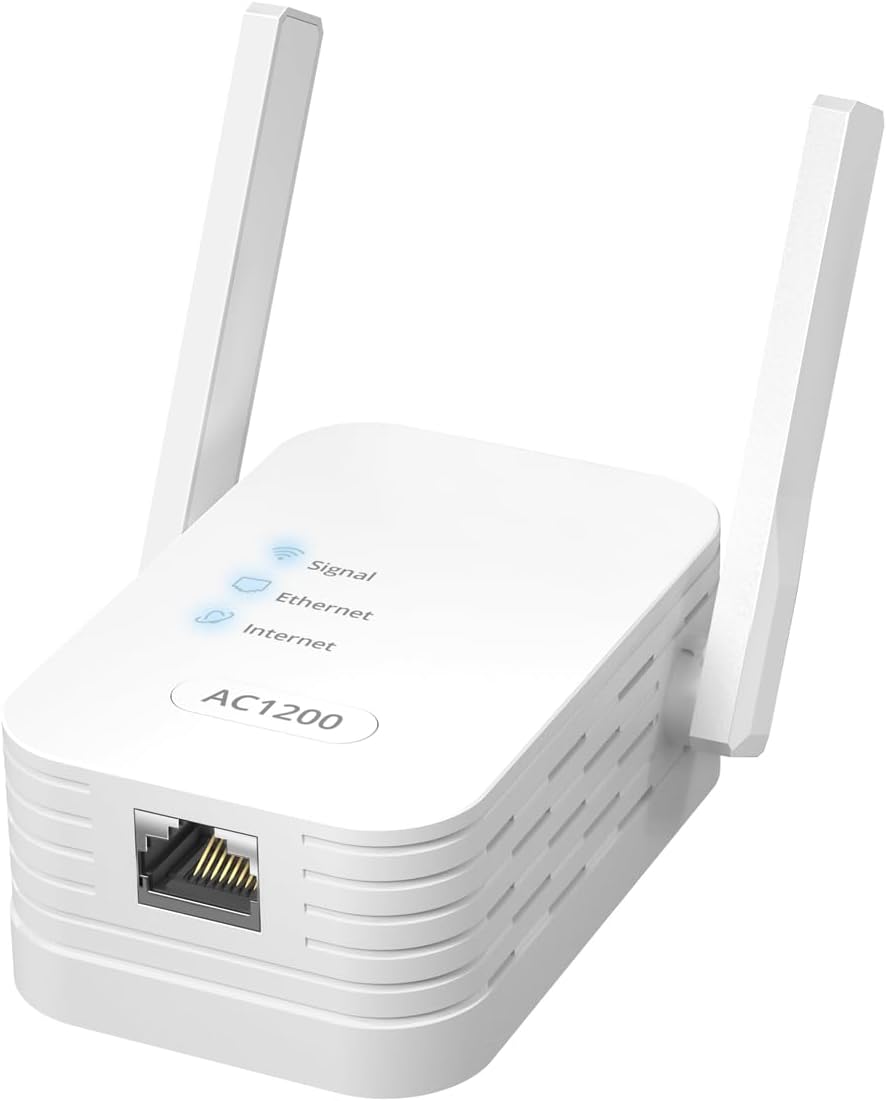
Image: The IOGIANT AC1200Mbps Universal WiFi to Ethernet Adapter, a white rectangular device with two adjustable antennas and an Ethernet port.
2. Package Zviri mukati
Ndokumbira utarise kuti zvinhu zvese zvirimo mupasuru yako:
- 1 x WiFi to Ethernet Adapter
- 1 x RJ45 Ethernet Cable (5 Feet)
- 1 x Kukurumidza Kuisa Gwaro
3. Zvigadzirwa zveChigadzirwa
- 3-in-1 Mashandiro: Operates as a WiFi to Ethernet Adapter (Wireless Bridge), Wireless Access Point (AP Mode), and WiFi Range Extender.
- Driver-Free Installation: No software drivers are required for setup, ensuring a simple plug-and-play experience.
- Broad Compatibility: Connects a wide range of wired devices to Wi-Fi, including printers, smart TVs, Blu-ray players, game consoles (PlayStation, Xbox), DVRs, computers, and VoIP phones.
- High-Speed Dual-Band Wi-Fi: Inotsigira 867Mbps pabhendi re5GHz uye 300Mbps pabhendi re2.4GHz kuti ikwanise kubatanidza nekukurumidza uye kwakasimba.
- Reliable Connectivity: Provides a stable wired connection for various online activities without interruptions.
- MaAntena Anogadziriswa: Features external, 180-degree adjustable antennas for optimizing signal reception and transmission.
4. Setup
The IOGIANT AC1200Mbps adapter offers multiple setup methods for convenience.
4.1. Wireless Bridge Mode (WiFi to Ethernet Adapter)
This mode allows wired devices to connect to your wireless network.
- Plug the adapter into a power outlet near your wired device.
- Connect the adapter's Ethernet port to your wired device (e.g., printer, TV) using the provided RJ45 Ethernet cable.
- Kugadzika kweWPS (Kunokurudzirwa kuti ugadzirise nekukurumidza):
- Dzvanya bhatani reWPS paWi-Fi router yako huru.
- Within two minutes, press the WPS button on the IOGIANT adapter. The Signal LED on the adapter will blink and then turn solid when connected.
- Web Browser Setup (For manual configuration or if WPS fails):
- Connect a computer to the adapter's Ethernet port or wirelessly to its default Wi-Fi network (SSID and password usually found on the device label or quick guide).
- Vhura a web browser and enter the default IP address or domain name (e.g., setupwifi.net) provided in the Quick Installation Guide.
- Follow the on-screen instructions to select your Wi-Fi network and enter the password.
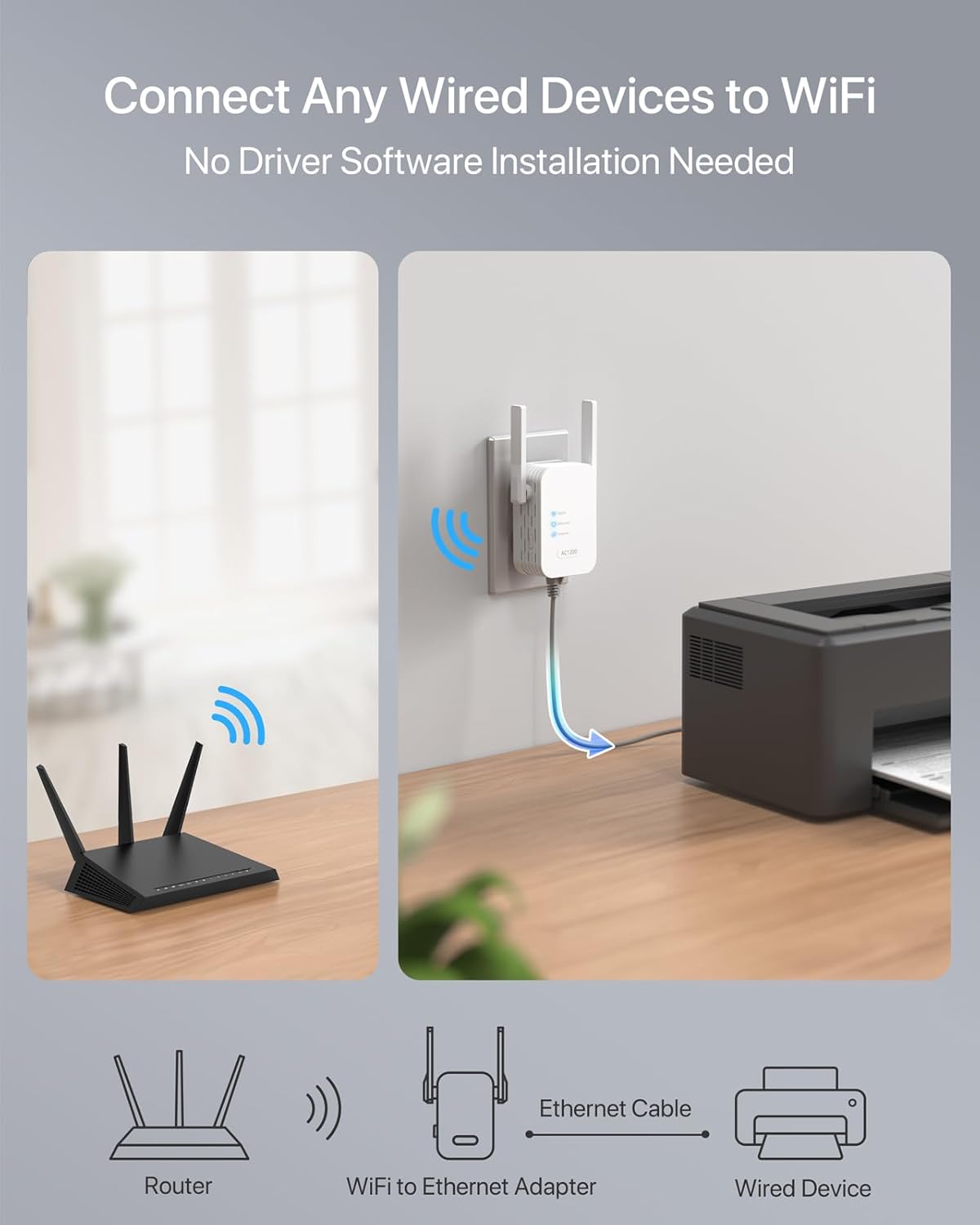
Image: A visual representation of the adapter connecting a router wirelessly to a wired device like a printer via an Ethernet cable.
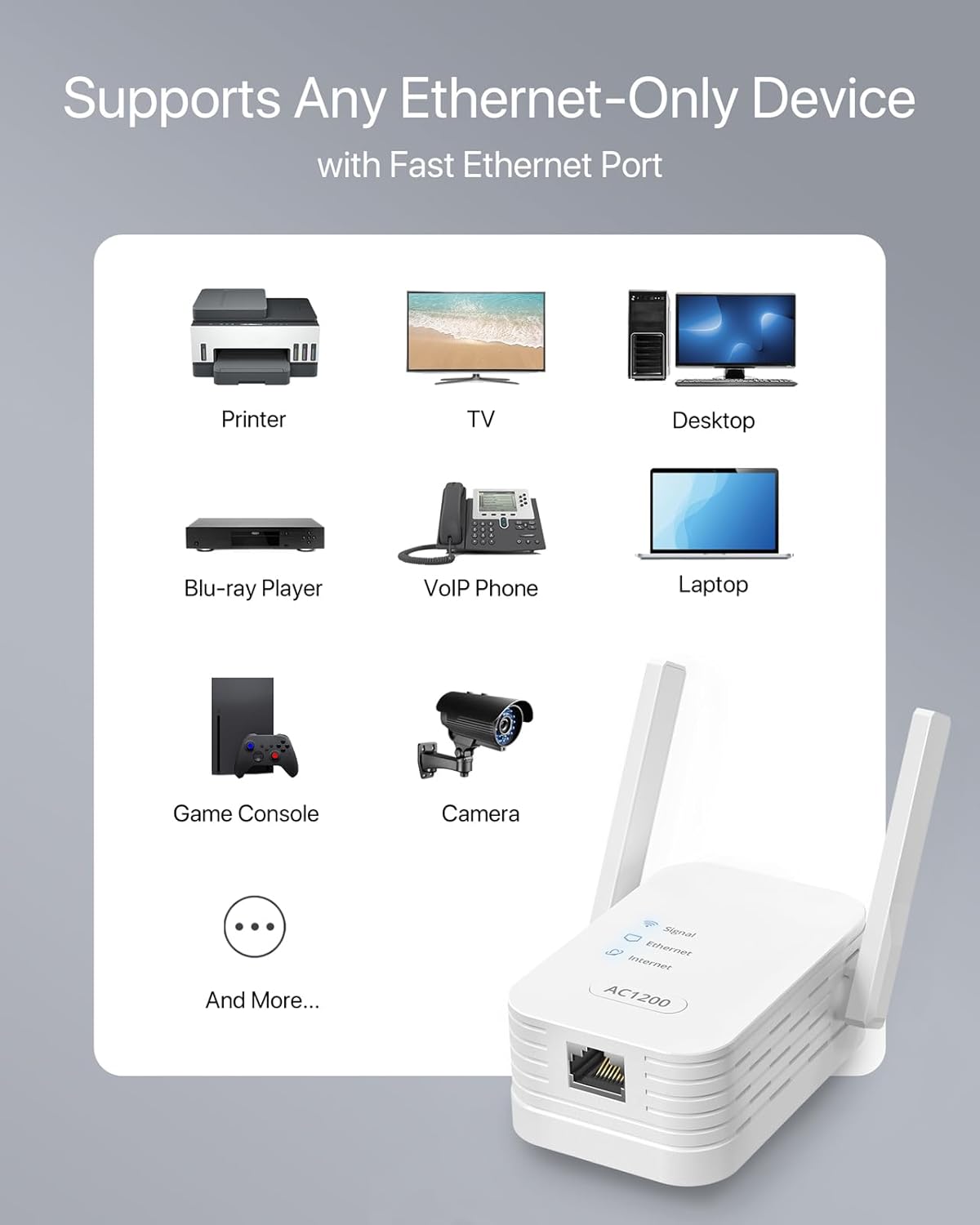
Mufananidzo: Mufananidzo showcasing the adapter's compatibility with devices such as printers, TVs, desktops, Blu-ray players, VoIP phones, laptops, game consoles, and cameras.
4.2. Wireless Access Point (AP) Mode
In AP mode, the adapter connects to a wired internet source and broadcasts a new Wi-Fi network.
- Batanidza adapta mudura remagetsi.
- Connect the adapter's Ethernet port to your modem or router's LAN port using an Ethernet cable.
- Access the adapter's web interface (as described in 4.1 Web Browser Setup).
- Select "Wireless Access Point Mode" and follow the prompts to configure your new Wi-Fi network's SSID and password.
4.3. WiFi Range Extender Mode
This mode extends the coverage of your existing Wi-Fi network.
- Plug the adapter into a power outlet in an area with good signal from your main router, but also where you need extended coverage.
- Use either WPS setup or web browser setup (as described in 4.1) to connect the adapter to your existing Wi-Fi network.
- Once connected, the adapter will broadcast an extended Wi-Fi network.

Mufananidzo: Yakadzama view of the adapter's external, 180-degree adjustable antennas, highlighting their role in signal optimization.
5. Kushanda
Once configured, the IOGIANT AC1200Mbps adapter operates automatically based on the selected mode. The LED indicators on the device provide status information:
- Chiratidzo che LED: Indicates the strength of the Wi-Fi signal. A solid light typically means a good connection.
- Ethernet LED: Lights up when a device is connected via the Ethernet port.
- Internet LED: Zvinoratidza kubatana kweinternet kuri kubudirira.
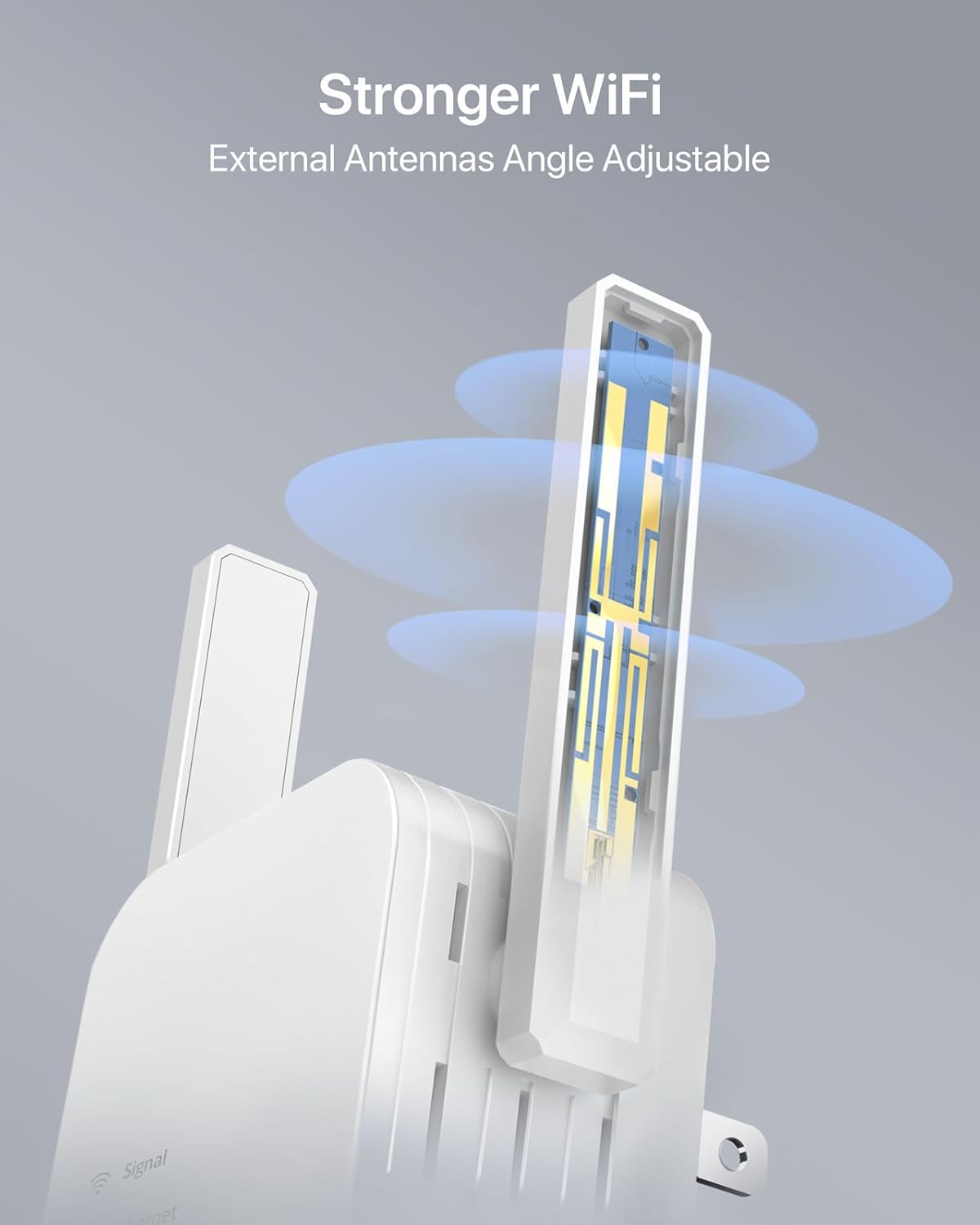
Image: Two individuals comfortably watching television, symbolizing the reliable and uninterrupted connection provided by the adapter for streaming and downloading.

Image: A graphic illustrating the speed advantage of AC1200 (867Mbps on 5GHz) over AC750 (433Mbps on 5GHz), emphasizing faster Wi-Fi performance.
6. Kuchengeta
To ensure the longevity and optimal performance of your IOGIANT adapter, consider the following maintenance tips:
- Chengetedza mudziyo uri munzvimbo inofefetera zvakanaka kudzivirira kupisa.
- Dzivisa kuisa mudziyo kune tembiricha yakanyanyisa kana mwando.
- Geza kunze nemucheka wakapfava, wakaoma. Usashandise mvura yekuchenesa.
- If the device becomes unresponsive, try unplugging it from the power outlet for 10 seconds and then plugging it back in.
7. Kugadzirisa matambudziko
If you encounter issues with your IOGIANT AC1200Mbps adapter, refer to the following common troubleshooting steps:
| Dambudziko | Zvinogona Kukonzera | Solution |
|---|---|---|
| Hapana Indaneti | Incorrect setup, weak signal, router issue. | Verify all cable connections. Ensure the adapter is within range of your main router. Try restarting both the adapter and your router. Re-run the setup process. |
| Slow Connection Speed | Interference, distance from router, network congestion. | Relocate the adapter closer to your main router or the wired device. Ensure antennas are optimally positioned. Reduce interference from other electronic devices. |
| WPS Setup Fails | Router WPS issue, timing issue. | Ensure your router supports WPS and it's enabled. Try pressing the WPS buttons simultaneously or within the specified timeframe. Use the web browser setup method as an alternative. |
| Device Abruptly Stops Working | Temporary glitch, power issue. | Unplug the device from the power outlet for 30 seconds, then plug it back in. If the issue persists, perform a factory reset (refer to the Quick Installation Guide for reset instructions). |
For more detailed troubleshooting or advanced configurations, please consult the official User Guide (PDF) available for download from the manufacturer's website or the product page where you purchased the device.
8. Zvinotsanangurwa
| Feature | Detail |
|---|---|
| Product Dimensions | 2.99 x 1.97 x 3.39 inches (7.59cm L x 5.00cm W x 8.61cm H) |
| Item Weight | 3.53 ounces (100 gramu) |
| Model Number | 1200Mbps WiFi to Ethernet Adapter |
| Brand | IOGIANT |
| Hardware inowanikwa | Ethernet |
| Color | Chena |
| Inowirirana Devices | Printers, Cameras, TV, TV Boxes, Blu-ray Players, Streaming Players, Computers, Desktops, Laptops, VoIP Phones, Game Consoles, PlayStations, Xbox, and more. |
| Data Link Protocol | Fast Ethernet, IEEE 802.11 ac/b/g/n |
| Data Transfer Rate | 1200 Megabits paSekondi (Mbps) |
| Mugadziri | ioGiant Technology LLC |
9. Warranty uye Tsigiro
The IOGIANT AC1200Mbps Universal WiFi to Ethernet Adapter typically comes with a 2-year warranty, as indicated on the product packaging. For specific warranty terms and conditions, please refer to the documentation included with your product or contact IOGIANT customer support.
For further assistance, technical support, or to download the full User Guide (PDF), please visit the official IOGIANT webtsvaga webhusaiti kana kuti tarisa ruzivo rwekuonana rwuri muBhuku Renyu Rekupinza Nekukurumidza.
User Guide (PDF) Link: Dhaunirodha User Guide