Nhanganyaya
This manual provides essential information for setting up, operating, and maintaining your Microsoft Surface Studio 2+ All-In-One Desktop Computer. The Surface Studio 2+ is designed for productivity and creativity, featuring a versatile 28-inch PixelSense™ touchscreen display.
Ndokumbira uverenge bhuku rino zvakakwana kuti uve nechokwadi chekushandisa kwakakodzera uye nekuwedzera hupenyu hwechishandiso chako.
Chii chiri muBhokisi
Iva nechokwadi chekuti zvinhu zvese zviripo mupakeji:
- Surface Studio 2+ All-in-One Computer
- Surface Pen
- pamusoro-keyboard
- Mouse
- Power Cord with Grip-Release Cable
- Quick Start Guide
- Chengetedzo uye Warranty Guide
Gadzirira
- Kuburitsa: Carefully remove the Surface Studio 2+ and its accessories from the packaging. Place the computer on a stable, flat surface.

Image: The Microsoft Surface Studio 2+ All-in-One computer displaying the Windows 11 desktop interface.
- Power Connection: Connect the power cord to the power port on the back of the Surface Studio 2+ base, then plug the other end into a wall outlet.

Mufananidzo: Rear view of the Surface Studio 2+ base, highlighting the various ports including the power input.
- Batanidza Peripherals: Connect the Surface Keyboard and Mouse. These devices typically connect wirelessly via Bluetooth. Follow the on-screen instructions during initial setup for pairing.
- Bhutsu yekutanga: Press the power button, usually located on the back or side of the display. The computer will guide you through the Windows 11 Pro setup process, including language selection, network connection, and user account creation.
Operating Instruction
Kugadzirisa Chiratidziro
The Surface Studio 2+ features a unique Zero Gravity Hinge, allowing the display to be adjusted from an upright desktop mode to a flat studio mode for drawing and writing.

Image: A sequence showing the Surface Studio 2+ display being adjusted from an upright position to a nearly flat angle.
- Desktop Modhi: Gently push the top of the screen backward to tilt it into an upright position for traditional desktop use.
- Studio Modhi: Gently pull the top of the screen forward and down towards the base to transition it into a low-angle, flat position ideal for creative tasks with the Surface Pen.
Using the Surface Pen and Touchscreen
The 28-inch PixelSense™ touchscreen supports multi-touch gestures and is optimized for use with the included Surface Pen.
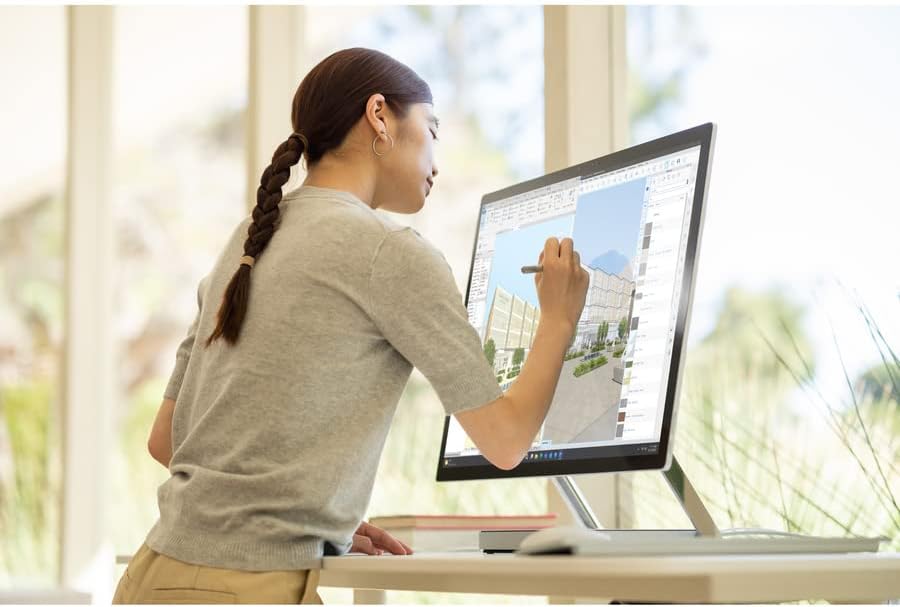
Image: A person using the Surface Pen to interact with the touchscreen of the Microsoft Surface Studio 2+ in studio mode.
- Bata Gestures: Utilize standard Windows touch gestures for navigation, zooming, and scrolling.
- Peni Yepamusoro: The Surface Pen allows for precise drawing, writing, and annotation directly on the screen. It can be magnetically attached to the side of the display for storage.
Windows 11 Pro
Your Surface Studio 2+ comes pre-installed with Windows 11 Pro. Familiarize yourself with the operating system's interface and features for optimal productivity.
- Start Menu: Access applications, settings, and power options from the Start Menu.
- Taskbar: Pinza maapplication anoshandiswa kakawanda kubhara rebasa kuti uwane mukana wekukasika.
- Settings: Customize your device, manage accounts, and configure privacy settings through the Settings app.
Features
The Microsoft Surface Studio 2+ is equipped with advanced components for high performance:
- processor: Intel Core i7 3 GHz processor for demanding tasks.
- Memory: 32 GB DDR4 RAM for smooth multitasking.
- Kuchengeta: 1 TB Solid State Drive (SSD) for fast boot times and application loading.
- Mifananidzo: NVIDIA GeForce RTX 3060 with 6GB dedicated memory for graphics-intensive applications and gaming.
- Ratidza: 28-inch PixelSense™ touchscreen with 4500 x 3000 resolution.
- Operating System: Windows 11 Pro.
- Kubatana: Integrated 802.11ax Wi-Fi and Bluetooth for wireless connections.
Maintenance
Kuchenesa Chishandiso
- Sikirini Shandisa jira rakapfava, risina lint zvishoma dampyakanamirwa nemvura kana chidzitiro chekuchenesa chakanyatsogadzirirwa zvemagetsi. Dzivisa makemikari ane hasha.
- Muviri: Pukuta kunze kwekunze nemucheka wakapfava, wakaoma.
- Kufefetedza Ensure the ventilation openings on the base are clear of dust and obstructions to prevent overheating.
Software Updates
Regularly check for and install Windows updates to ensure your system has the latest security patches and performance improvements.
- Enda ku Settings > Windows Update.
- Dzvanya Tarisa kune zvakagadziridzwa uye isa chero zvigadziriso zviripo.
Kugadzirisa matambudziko
| Nyaya | Possible Solution |
|---|---|
| Komputa haibatike. | Ensure the power cord is securely connected to both the computer and a working electrical outlet. Try a different outlet. |
| Ratidza harina chinhu. | Check power connection. Ensure the computer is powered on. If connected to an external display, verify display input settings. |
| Surface Pen or Mouse not responding. | Check battery levels. Re-pair the devices via Bluetooth settings in Windows. |
| Kunonoka kuita. | Close unnecessary applications. Check for and install Windows updates. Run a disk cleanup. |
| Wi-Fi yekubatanidza nyaya. | Restart your router and the Surface Studio 2+. Check Wi-Fi settings in Windows to ensure it's enabled and connected to the correct network. |
Zvinotsanangurwa
| Feature | Detail |
|---|---|
| Model Number | SBG-00001 |
| Kukura Kwekuratidza | 28 inches |
| Screen Resolution | 4500 x 3000 |
| processor | Intel Core i7 (3 GHz) |
| RAM | 32 GB DDR4 |
| Hard Drive | 1TB SSD |
| Graphics Coprocessor | NVIDIA GeForce RTX 3060 |
| Graphics Kadhi RAM Saizi | 6 GB |
| Operating System | Windows 11 Pro |
| Wireless Type | 802.11ax, Bluetooth |
| Item Weight | 21.1 makirogiramu |
| Zviyero zveChigadzirwa (LxWxH) | 25.1 x 0.5 x 17.3 inches |
| Color | Sirivha |
Warranty uye Support
Your Microsoft Surface Studio 2+ is covered by a manufacturer's warranty. Please refer to the included "Safety and Warranty Guide" for detailed information regarding warranty terms, conditions, and registration.
For technical support, driver downloads, or further assistance, please visit the official Microsoft Support websaiti kana kubata Microsoft customer service.
Rutsigiro rwepamhepo: support.microsoft.com/surface


