Nhanganyaya
This manual provides essential instructions for setting up, operating, maintaining, and troubleshooting your new Tesla 65-inch 4K UHD Smart TV (Model 65E635SUS). Please read this manual thoroughly before using the television to ensure proper operation and to maximize your viewing experience. Chengeta bhuku rino kuti ugozorishandisa mune ramangwana.
Ruzivo Rwakakosha Chekuchengetedza: Gara uchitevera matanho ekutanga ekuchengetedza paunenge uchishandisa chigadzirwa ichi kuderedza njodzi yemoto, kuvhunduka kwemagetsi, uye kukuvara. Usaedze kugadzirisa chigadzirwa ichi wega. Tumira vese vanogadzirisa kune vashandi vane hunyanzvi.
1. Setup
1.1 Unpacking and Contents Check
Nyatsobvisa TV kubva pakurongedzerwa kwayo. Iva nechokwadi chekuti zvikamu zvese zviripo:
- Tesla 65-inch 4K UHD Smart TV
- Remote Control
- AAA Mabhatiri eKure Kudzora
- TV Stand (2 zvidimbu)
- Zvikuruu zveChigadziko cheTV
- Power Cord
- Mushandisi Chinyorwa (gwaro iri)

Mufananidzo 1.1: Mberi view of the Tesla 65-inch Smart TV with its stand.
1.2 Kubatanidza iyo TV Stand
- Isa TV yakatarisa pasi panzvimbo yakapfava, yakati sandara kudzivirira kukuvara kwescreen.
- Gadzirisa chidimbu chimwe nechimwe chechigadziko nemiganhu inoenderana nacho pasi peTV.
- Secure each stand piece with the provided screws. Ensure they are tightened firmly.

Mufananidzo 1.2: Kumashure view of the TV, illustrating the stand attachment points.
Cherechedza: If you plan to wall-mount the TV, refer to the wall-mount kit instructions (sold separately) and skip this step. Ensure proper ventilation when wall-mounting.
1.3 Kubatanidza Simba
Batanidza tambo yemagetsi kumagetsi ekupinda muTV wobva wabatanidza kumadziro. Iyo TV ichapinda mumodhi yekumira.
1.4 Kutanga Setup
Pamusoro pekutanga simba-pa, iyo TV ichakutungamira iwe kuburikidza nekutanga kuseta maitiro:
- Sarudzo yeMutauro: Sarudza mutauro waunofarira.
- Network Connection: Batanidza kunetiweki yako yeWi-Fi kana shandisa tambo yeEthernet yekubatanidza newaya.
- Saina muakaundi yeGoogle: Sign in with your Google account to access Google Play Store, Google Assistant, and other Android TV features.
- Channel Scan: Scan for available TV channels if you are using an antenna or cable connection.
- Zvakavanzika Settings: Review uye gadzirisa marongero ekuchengetedza zvakavanzika sezvaunoda.
2. Operating Instructions
2.1 Remote Kudzora Pamusoroview
The provided remote control allows you to navigate the TV's features. Insert the AAA batteries into the remote control before use.

Image 2.1: Bluetooth remote control for the Tesla Smart TV.
- Bhatani reSimba: Inobatidza kana kudzima TV (standby mode).
- Navigation Pad (Kumusoro/Kudzika/Kuruboshwe/Kurudyi/Zvakanaka): Inotarisa menyu uye inosarudza zvinhu.
- Back Button: Inodzokera kune yakapfuura skrini.
- Bhatani Repamba: Inopinda iyo Android TV skrini yekumba.
- Vhoriyamu kumusoro/Kudzika: Inogadzirisa chiyero chevhoriyamu.
- Mute Bhatani: Inonyarara kana kudzima inzwi.
- Bhatani reMubatsiri weGoogle: Inoita kuti kudzora inzwi kushande.
- App Shortcut Mabhatani: Direct access to popular streaming services (e.g., Netflix, YouTube).
2.2 Android TV 11 Interface Navigation
The Android TV 11 interface provides access to apps, settings, and content. Use the navigation pad on your remote to move through the home screen.
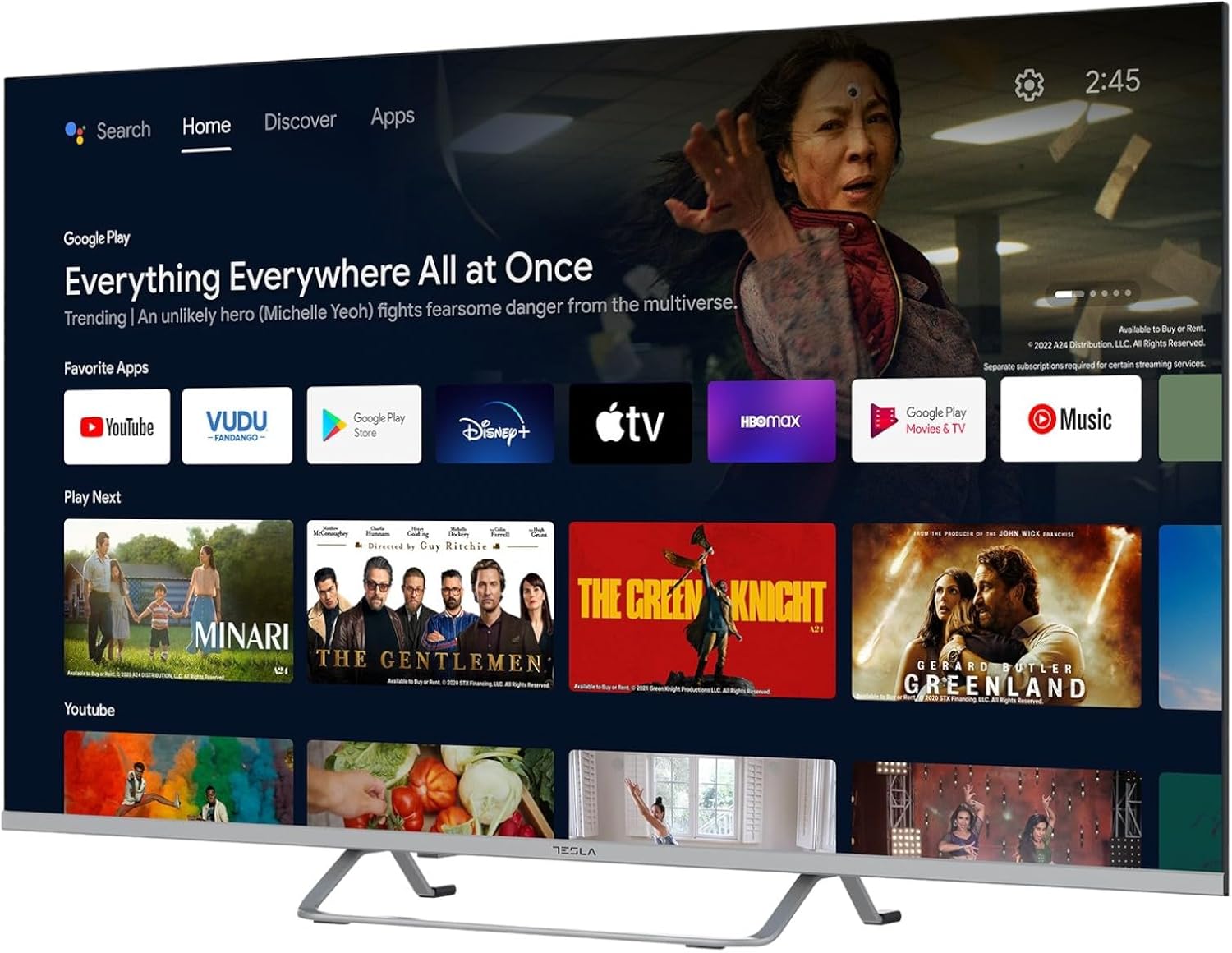
Image 2.2: The Android TV 11 home screen, displaying various applications and content suggestions.
- Sikirini Yemba: Displays recommended content, installed apps, and input sources.
- Apps Section: Vhura mapurogiramu ese akaiswa.
- Settings: Configure TV settings, network, accounts, and device preferences.
2.3 Kushandisa Google Mubatsiri
Press the Google Assistant button on your remote and speak into the microphone to control your TV, search for content, get information, and more.
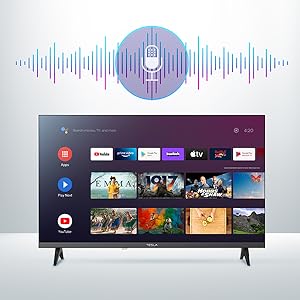
Image 2.3: Visual representation of Google Assistant activation on the TV screen.
Exampmishoma yemirairo:
- "Vhura Netflix"
- "Tsvaga action movies"
- "Kwakamira sei?"
- "Turn up the volume"
2.4 Chromecast Yakavakwa-mukati
Use Chromecast built-in to cast content from your compatible smartphone, tablet, or computer directly to your TV. Ensure your device is connected to the same Wi-Fi network as the TV.

Image 2.4: A smartphone casting content to the TV via Chromecast.
2.5 Kubatanidza Zvishandiso Zvekunze
Your TV offers multiple connectivity options:
- HDMI Ports (x4): Batanidza Blu-ray vatambi, mutambo consoles, set-yepamusoro mabhokisi, nezvimwe.
- Zviteshi zve USB (x2): Connect USB drives for media playback or external keyboards/mice.
- Ethernet (LAN): Kuti uve newaya yeinternet.
- Wi-Fi: For wireless internet connection.
- Bluetooth: Connect wireless headphones, speakers, or other Bluetooth devices.

Mufananidzo 2.5: Side profile of the TV, highlighting accessible ports.
2.6 Mufananidzo uye Inzwi Zvirongwa
Access the TV's settings menu to customize picture and sound options.
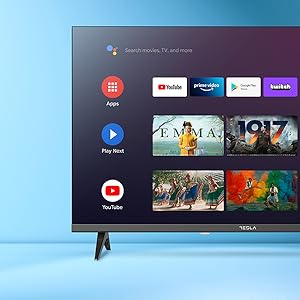
Mufananidzo 2.6: Eksample of the TV's settings menu for customization.
- Mifananidzo Modes: Select from Standard, Vivid, Sport, Movie, Game, or User (custom) modes. Adjust brightness, contrast, color, and sharpness.
- HDR10: The TV supports HDR10 for enhanced contrast and color with compatible content.
- Manzwi modes: Choose from Standard, Music, Movie, Sport, or User (custom) modes. Use the equalizer to fine-tune audio frequencies.
- Vatauri: The TV features 2 x 12W speakers.
3. Kuchengeta
3.1 Kuchenesa TV
- Sikirini pukuta skrini zvinyoro nyoro nemucheka wakapfava, usina lint. Pazvibodzwa zvakasindimara, zvishoma dampIsa jira nemvura kana muchina wekuchenesa sikirini wakasarudzika. Usambofa wapfapfaidza muchina wekuchenesa sikirini zvakananga pa sikirini.
- Muviri: Pukuta muviri weTV nejira rakapfava, rakaoma. Dzivisa kushandisa zvinochenesa zvinogumbura kana zvinonyungudutsa.
- Gara uchisunungura TV kubva pamagetsi usati wachenesa.
3.2 Zvigadziriso zveSoftware
Your Tesla Smart TV may receive software updates to improve performance and add new features. Ensure your TV is connected to the internet to receive these updates automatically or check for them manually in the settings menu.
4. Kugadzirisa matambudziko
Usati wabata rutsigiro, edza mhinduro dzinotevera dzematambudziko akajairika:
| Dambudziko | Possible Solution |
|---|---|
| Hapana simba | Check if the power cord is securely connected to the TV and the wall outlet. Ensure the outlet is working. |
| Hapana mufananidzo, asi inzwi riripo | Ensure the correct input source is selected. Check cable connections to external devices. Try restarting the TV. |
| Hapana ruzha, asi mufananidzo uripo | Check the volume level and ensure the TV is not muted. Verify audio settings and external speaker connections if applicable. |
| Remote control haisi kushanda | Replace the batteries. Ensure there are no obstructions between the remote and the TV. Re-pair the Bluetooth remote if necessary (refer to TV settings). |
| Network nyaya dzekubatanidza | Restart your router and modem. Check Wi-Fi password. Try a wired Ethernet connection if possible. |
| Zvishandiso zvinononoka kana kuparara | Close unused apps. Clear app cache (Settings > Apps > [App Name] > Clear cache). Restart the TV. |
5. Zvinotsanangurwa
| Feature | Detail |
|---|---|
| Brand | TESLA |
| Model Number | 65E635SUS |
| Screen Size | 65 inches (165 cm) |
| Display Technology | LED |
| Resolution | 4K (3840 x 2160) |
| Refresh Rate | 60 Hz |
| Operating System | Android TV 11 |
| Special Features | High Dynamic Range (HDR10), Google Play, Chromecast Built-in, Google Assistant, Personalized Surround Sound |
| Kubatana | Wi-Fi, Bluetooth, Ethernet (LAN) |
| HDMI Ports | 4 |
| USB Ports | 2 |
| Audio Output | 2 x 12W Vatauri |
| Zviyero zvechigadzirwa (ne stand) | 25D x 25W x 144.5H cm (approximate) |
6. Warranty uye Tsigiro
For warranty information, please refer to the warranty card included with your product or visit the official Tesla website. Chengetedza humbowo hwako hwekutenga kune warranty claim.
For technical support or service inquiries, please contact Tesla customer service through their official channels. Contact details can typically be found on the manufacturer's websaiti kana mune chigadzirwa kurongedza.


